Everyone is discussing what the MAX messenger is and why it ended up on every new smartphone. However, the national messenger is just one of nearly two dozen apps that Russian legislation requires to be pre-installed on smartphones. Most buyers don’t know about this and are genuinely surprised to find a whole folder of unfamiliar icons on their new device. Let me break down what these mandatory apps are, why they’re there, and what to do with them.

There are already about two dozen mandatory apps
The Law on Mandatory Installation of Russian Apps
Since April 1, 2021, Russia has had a law on mandatory pre-installation of Russian software on devices with internet access. The law applies to smartphones, tablets, laptops, Smart TVs, and even smart speakers.
The mandatory pre-installation law has been in effect since 2021.
Manufacturers that want to officially sell their devices in Russia are required to comply with this requirement. Xiaomi, HONOR, HUAWEI, realme, and all other brands — no exceptions. Refusing pre-installation is not an option: violations are punishable by fines and a ban on selling devices in the country.
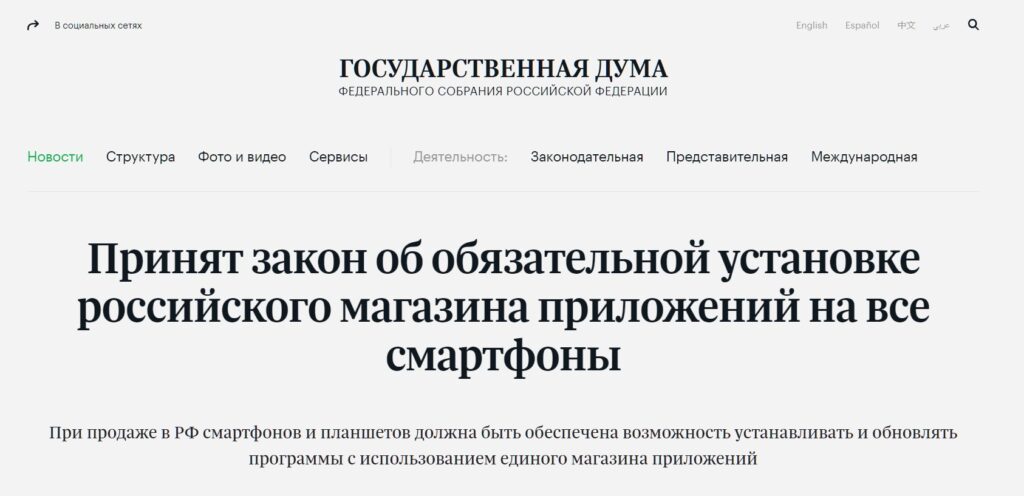
This law has been in effect in Russia for several years now
In addition to mandatory apps in Russia, new smartphones also come with other pre-installed programs: partner apps, carrier apps, and apps from the manufacturer itself.
Which Apps Are Mandatory in Russia
Here is the full list of mandatory apps in Russia for 2026. These are the Russian apps on Android that must be pre-installed on every smartphone officially sold in the country:
- MAX — government messenger by VK;
- Yandex Browser — browser with neural network-based phishing protection;
- Yandex with Alice — voice assistant and Yandex ecosystem;
- Yandex Maps — navigation and maps;
- 2GIS — maps and business directory;
- Yandex Disk — cloud storage;
- Mail.ru Mail — email client;
- Marusya — voice assistant by VK;
- Dzen — content reading platform;
- RUTUBE — Russian video hosting service;
- VK — VKontakte social network;
- Odnoklassniki — social network;
- Mir Pay — payment app for Mir cards;
- Gosuslugi — access to government services;
- MyOffice Documents — Russian office suite;
- Kaspersky Free — antivirus;
- RuStore — Russian app store;
- LitRes — e-book service;
- Honest Sign — app for verifying product labeling.
This is the list of mandatory apps current as of 2026. The list is periodically updated: apps may change by government decision.
Can You Delete a Mandatory App on Android
Yes, and nobody prohibits it. The law requires manufacturers to pre-install mandatory apps, but there are no restrictions on users deleting them. Want to remove MAX, RUTUBE, or Marusya — go ahead.
Most mandatory apps are just shortcuts, not actually installed programs.
An important nuance: most of these apps are not actually installed on the smartphone in the traditional sense. A special folder named “Mandatory,” “Russia,” or something similar appears on the home screen of a new device. Inside are shortcut icons for quickly downloading these apps. The app itself will only download if you tap the icon. If you haven’t tapped it — it’s simply not installed.
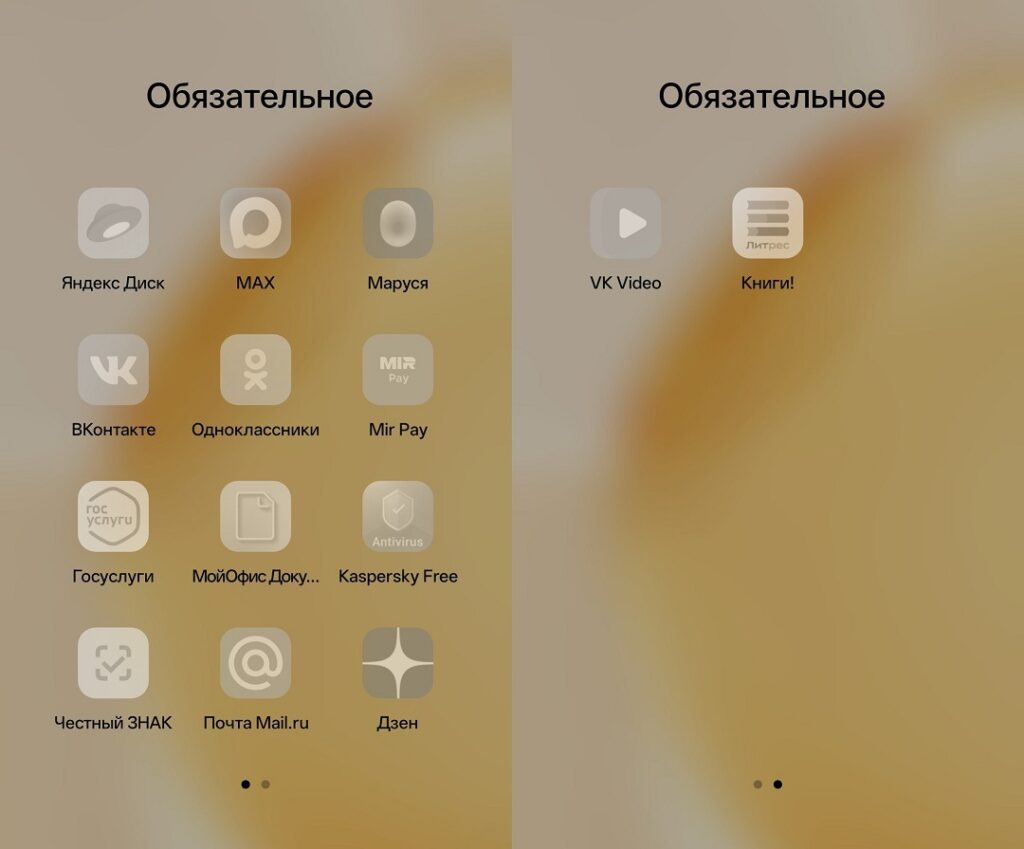
These are not installed apps, just their shortcuts
How to Delete a Pre-installed App on Your Phone
Depending on what form the Russian app is in, the removal method will differ.
Nobody prohibits deleting mandatory apps.
Method 1: Removing shortcuts from the “Mandatory” folder. If the apps haven’t been downloaded yet and exist as shortcuts in a special folder — removing them is easy:
- Open the “Mandatory” or “Russia” folder on your home screen.
- Press and hold the icon of the app you want to remove.
- Drag the icon to the trash at the top of the screen or select “Delete” from the pop-up menu.
- Repeat for each shortcut in the folder.
- When the folder is empty, it will disappear from the home screen automatically.
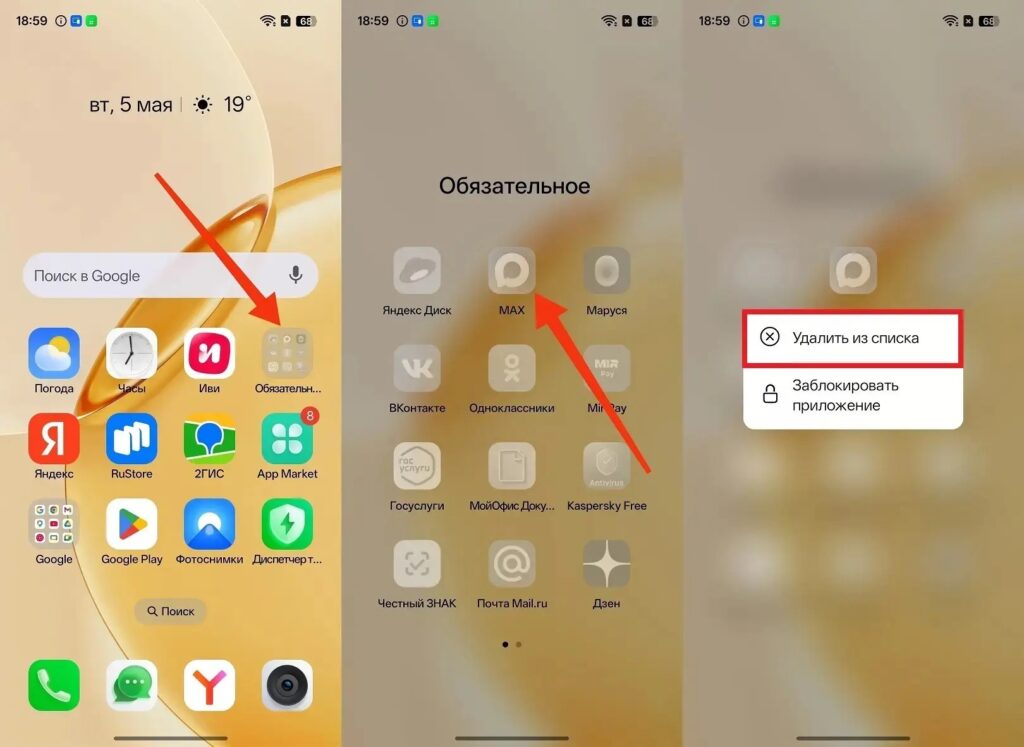
Each mandatory app shortcut simply needs to be deleted from the list
This is a safe action: you’re only deleting a shortcut, not a system component. The app can be installed at any time through RuStore or Google Play.
Method 2: Deleting an installed app through settings. If the app is already fully installed — delete it through settings:
- Open “Settings” on your smartphone.
- Go to the “Apps” or “App management” section.
- Find the app you need in the list and tap on it.
- Tap the “Uninstall” button.
- Confirm the deletion.
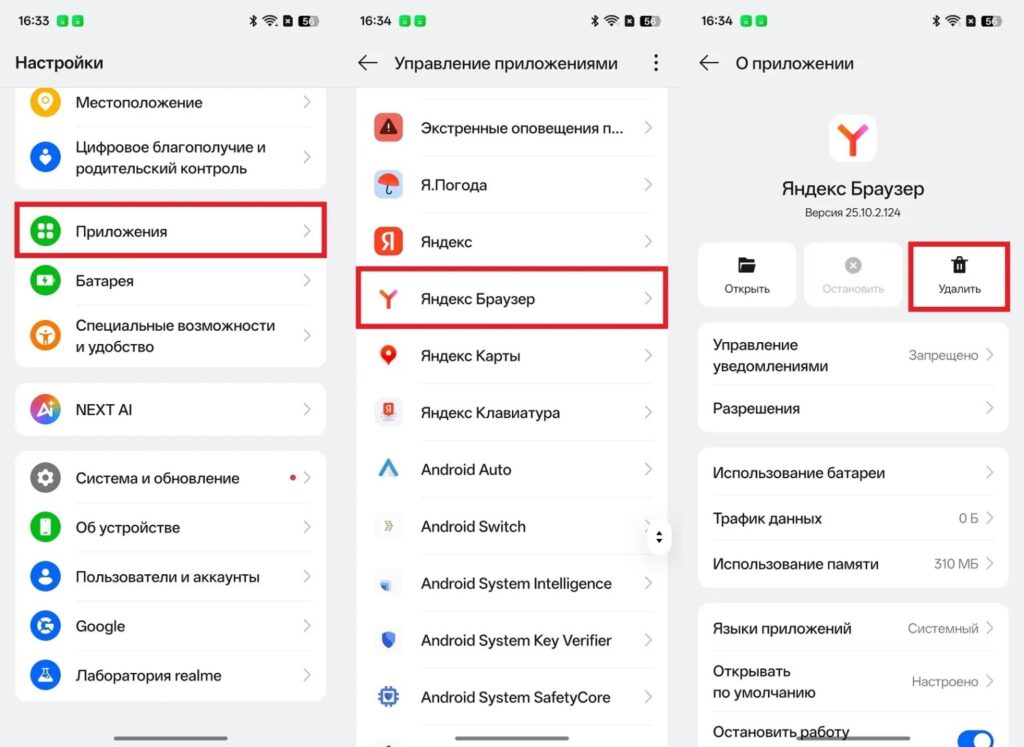
If the app is actually installed, it can be deleted through settings
If the “Uninstall” button is unavailable and only “Disable” is shown — the app is a system app and is protected from deletion. In this case, tap “Disable”: the app will stop working and disappear from the menu, although it will technically remain on the device.


