I know my Windows laptop inside and out, but I overlooked one problem for a full six years. It was constantly noisy and hot, as if it were handling a heavy task, even though I wasn’t running anything serious — just a couple of tabs and a text editor. I blamed the age, the dust, anything but the real culprit — my favorite browser. And yet software can silently devour resources. I’ll tell you how I tracked down my problem and how it can be fixed in literally a minute. If your laptop is noisy and overheating for no apparent reason, the cause might be the same.

How a browser was killing my laptop and I didn’t even know
Laptop Is Noisy and Overheating for No Apparent Reason
I’ll admit right away: I’ve been using Firefox for over ten years, both on my computer and phone, and it’s genuinely convenient. But here’s the problem that cropped up. The situation was absurd: I had Claude, ChatGPT, and a text editor open, plus I’d visited my VKontakte page out of habit — nothing else.

I usually keep no more than 10 tabs open
No heavy programs running, no updates downloading — especially since my Windows 10 no longer officially receives them. And yet my laptop was noisy and severely overheating as if it were rendering video: fans howling, chassis hot. So much so that I actually had to hold the laptop up to the air conditioner. I was already blaming my D14 for getting old and had been eyeing a replacement. But everything turned out to be much simpler.
I opened Windows Task Manager and expanded the background processes. Surprise: Firefox had more than twenty processes hiding there, even though I didn’t have a single extra tab open on screen. The browser simply wasn’t fully closing and kept running the entire old session.
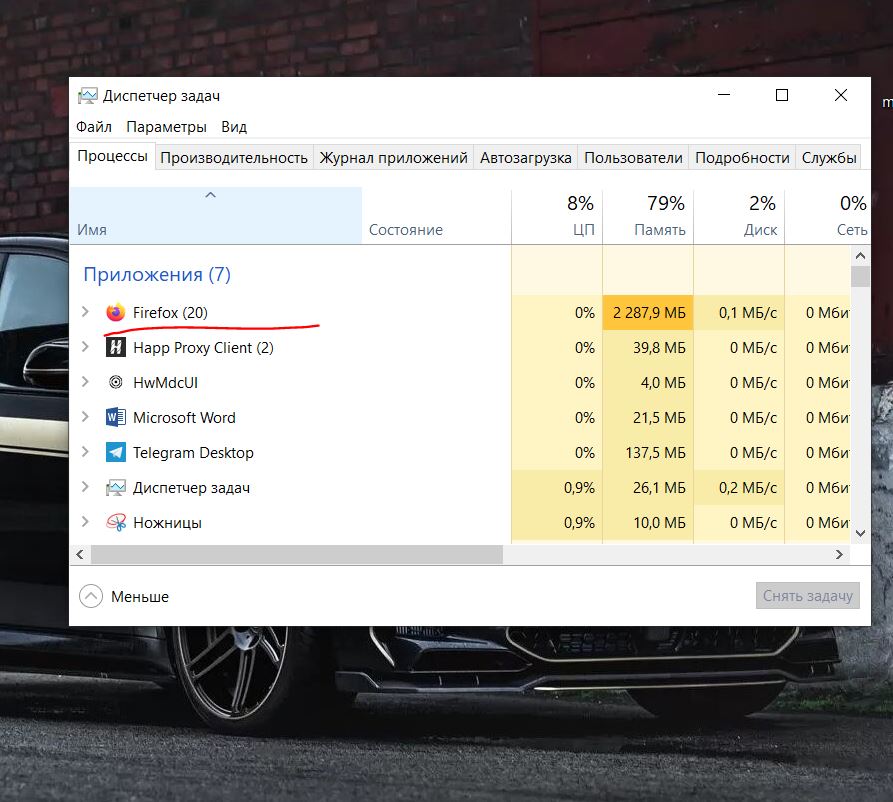
Task Manager revealed the problem: Firefox was running 19 tabs and consuming 2 GB of RAM
Firefox is multi-process: each group of tabs lives as a separate process, and as long as they’re open, Firefox loads the CPU and consumes memory, even when you’re not looking at them. By the way, Chrome behaves the same way.
Why a Browser and Hibernation Slow Down Your Laptop
Now the main point — why the browser was slowing down my laptop and not something else. It’s all about my habit of not shutting down the laptop but sending it into hibernation. It’s convenient: close the lid, open it, everything’s right where you left it. But hibernation saves the memory state to disk and restores it upon waking up.
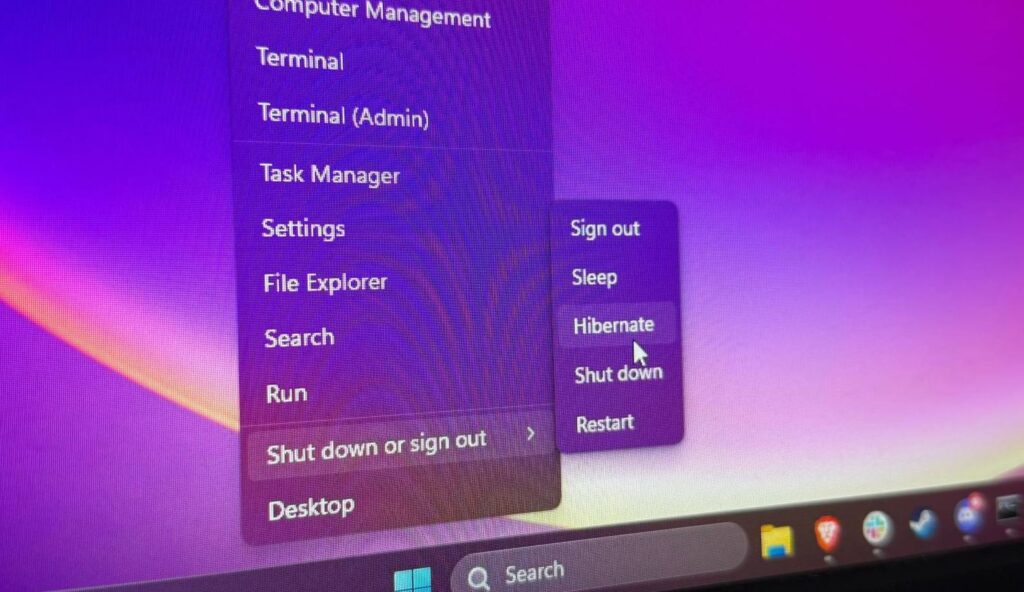
Hibernation is convenient but dangerous
This means the bloated browser session, accumulated memory leaks, and dozens of processes carry over from one day to the next. Without a full shutdown, the system goes weeks without a clean start, junk piles up, and the CPU deals with all of it in the background.
The fix is laughably simple. I completely close the browser — I don’t minimize the window and I don’t close tabs one by one; I exit Firefox entirely. Then I restart the laptop so the RAM is fully cleared. Turn it back on, and the machine is like new: no fan howling, no heat, no lag. Without this one-minute procedure, you can suffer for months, blaming everything on your laptop’s age.
What I Do When My Windows Laptop Slows Down
Make sure your browser isn’t living a life of its own
The takeaway is simple: hibernation is convenient, but you need to do a full shutdown more often too. Additionally, you should close the browser completely — not just individual tabs — and restart your laptop regularly. Once a week, fully exiting heavy programs and restarting the system works wonders. It also doesn’t hurt to periodically clean your laptop of junk with a utility like Glary Utilities: temporary files and cache also slow down the system. I’ve been following this routine for years, and my Huawei MateBook D14 from 2020 is still going strong.
Overall, aside from this issue, I’m not even considering switching laptops. Have you noticed your laptop overheating for no apparent reason? Share how you take care of your laptop to keep it running longer.


