An iPhone screen that looks dim even with the brightness slider at maximum is not necessarily faulty. Several common causes have little to do with the slider: a privacy screen protector, a non-genuine replacement display, the Reduce White Point accessibility setting, Auto-Brightness, heat-related brightness limits, app or HDR brightness behavior, and the True Tone and Night Shift color settings. Most of these can be checked in a few minutes before you replace the phone or take it in for repair.
What you need to know
- Privacy screen protectors restrict side viewing and can make the image darker. No iOS setting compensates for light lost in the protector.
- Apple warns that a non-genuine replacement display may have lower maximum brightness, uneven illumination and ambient light sensor problems.
- Reduce White Point lowers the intensity of bright colors and works separately from the brightness slider.
- A hot iPhone may limit screen brightness to cool down, sometimes before any full-screen temperature warning appears.
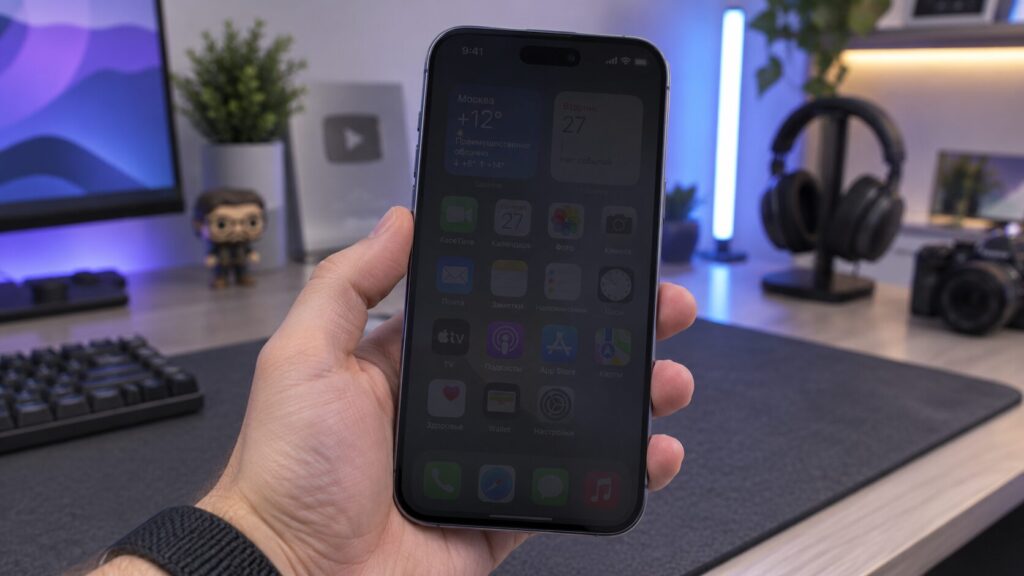
A dim iPhone screen on which the icons are hard to make out
Start with the screen protector
The first thing to check is the protective glass, especially if the screen became dimmer right after it was applied. Privacy (anti-spy) glass narrows the viewing angle so that people beside you cannot read your screen. The trade-off is that the filter can make the image darker.
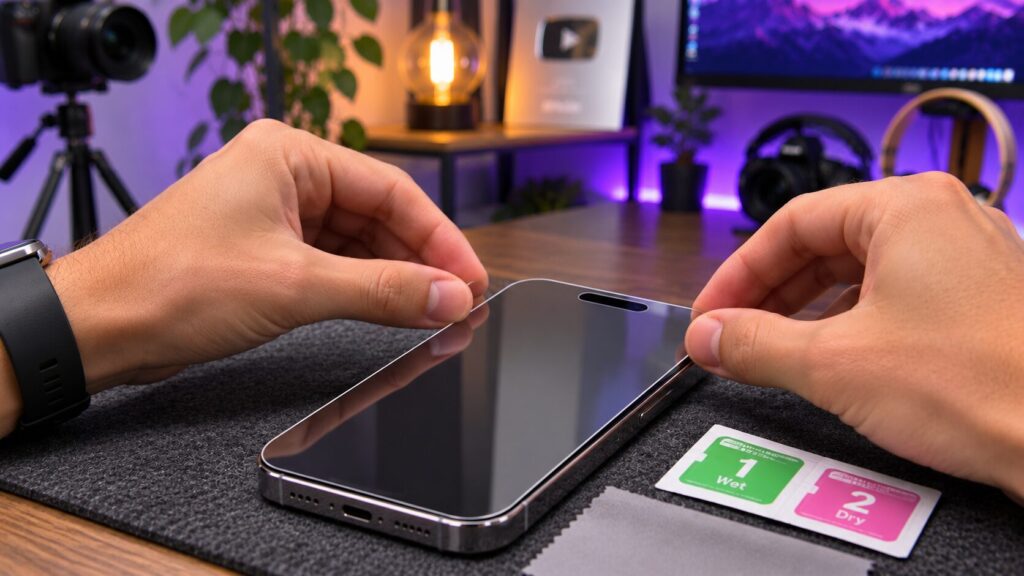
Applying protective glass to an iPhone screen
Such accessories serve a clear purpose, so they are not useless. But if you do not need side-view privacy, there is no reason to put up with the dimming. You can test the suspicion without touching any settings:
- Wipe the surface of the glass with a soft cloth to remove greasy marks.
- Open a light page with text and look at the screen straight on, then slightly from the side.
- Check the packaging or product description: words such as “Privacy” or “anti-spy” indicate a privacy filter.
- If the dimming bothers you and you are prepared to replace the protector, compare the image without it in the same room and at the same brightness level.
Light lost in the glass cannot be fixed with an iOS toggle. The effect depends on the specific accessory, so the difference will not be the same for every protector. If a standard clear protector suits you better, that is the one to use.
If the screen became dim after a repair
A different situation arises when dimness appears after a repair. Apple warns about the consequences of display replacement: a non-genuine screen may have lower maximum brightness, uneven illumination and problems with the ambient light sensor. On supported models, replacement information can be checked as follows:
- Open Settings and go to General.
- Select About.
- Find the Parts and Service History section, if it is shown, and look at the information about the display.
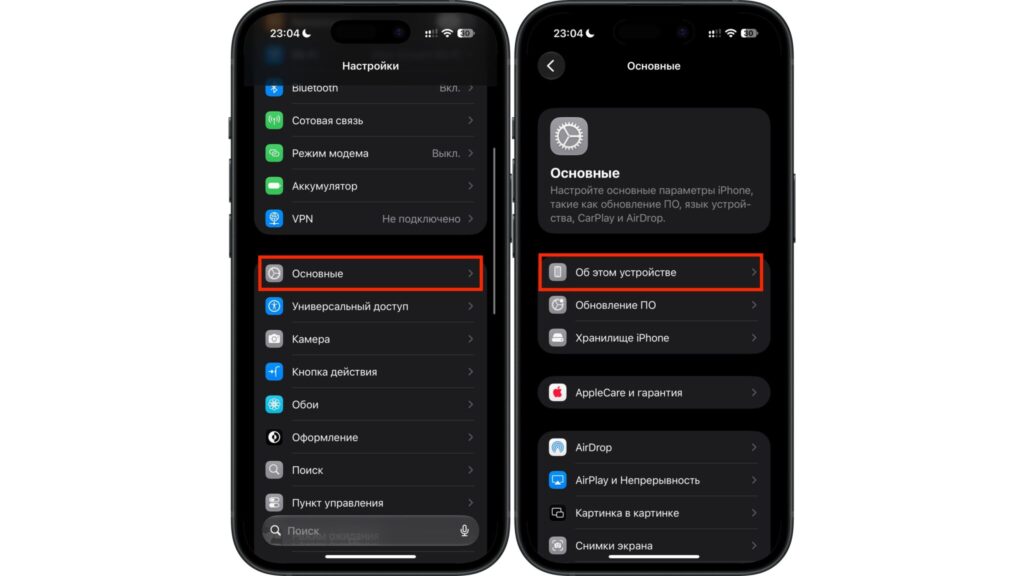
Look for repair information in the About section
A message about an unknown part does not by itself prove that a counterfeit was installed: there can be other reasons, including an incomplete part verification. But dimness that appears after a repair is reason enough to go back to the repair shop. The slider cannot give an installed panel capabilities it does not have.
Reduce White Point works independently of the slider
The next suspect is hidden in Accessibility. The Reduce White Point feature reduces the intensity of bright colors on the screen. It is helpful in the evening, when even low brightness feels harsh. During the day, however, the effect is easy to mistake for a fault: the slider is at maximum, yet light areas look muted.
The key point is that a maximum slider position does not mean every dimming feature is off. To check, temporarily turn off the extra setting:
- Open Settings.
- Go to Accessibility and select Display & Text Size.
- Find Reduce White Point and turn the switch off.
- Return to the page that looked dim and compare it with the brightness slider in the same position.
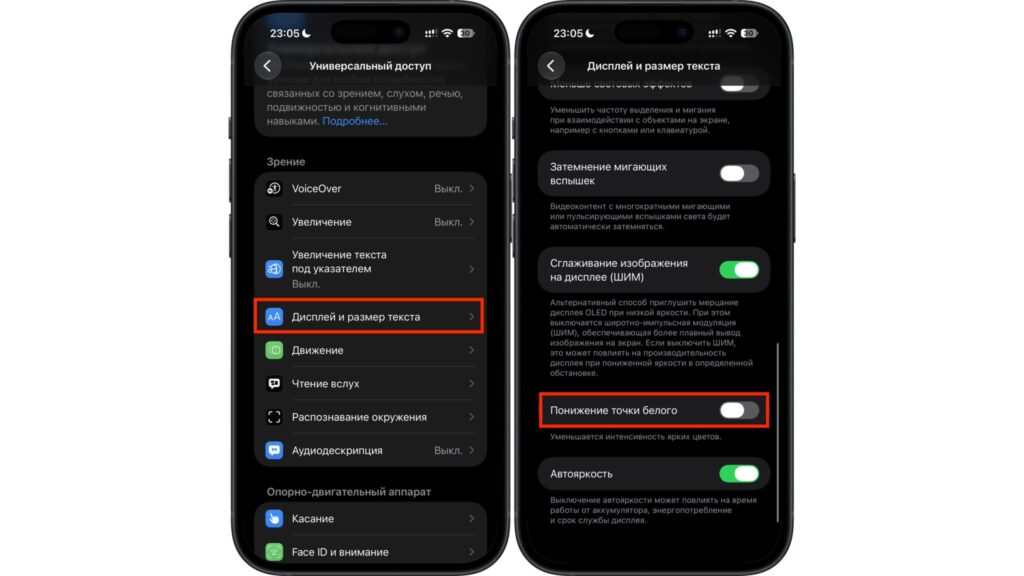
This is where Reduce White Point is turned off on iPhone
If the image looks normal again, you have found the cause. You do not have to disable the feature permanently: you can use it before bed and turn it off during the day. Just remember it exists before you crank up the brightness again. Avoid changing several settings at once, or you will not know which one made the difference.
Give Auto-Brightness a chance before turning it off
If the screen changes when you move from a room to the outdoors, check Auto-Brightness. The iPhone uses its ambient light sensor to match the brightness level to its surroundings, so a drop in brightness in a dark room is normal in itself.
There is no need to disable it just because the phone sometimes moves the slider for you. Apple recommends using Auto-Brightness, and turning it off can increase battery use. First check whether the screen responds to changes in lighting:
- Open Settings and go to Accessibility.
- Select Display & Text Size and find Auto-Brightness at the bottom.
- Turn it on if it was off.
- Look at the screen indoors and in a brighter place, without covering the top of the phone with your hand.
- If the automatic adjustment gets in the way, temporarily turn it off and set a comfortable level manually for comparison.
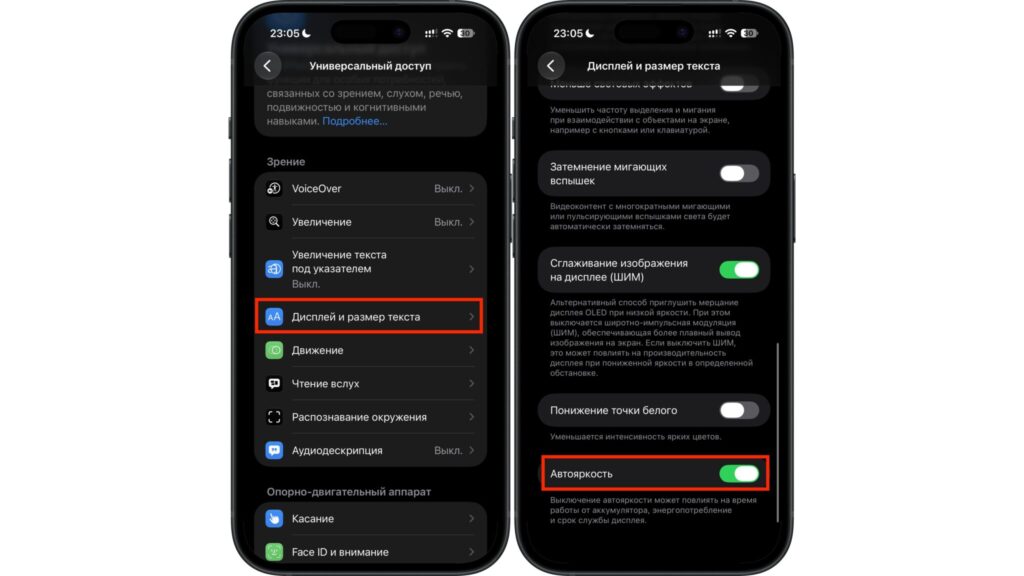
Auto-Brightness is at the bottom of the Display & Text Size section
Manual mode as a test helps you see whether the changes are linked to lighting. It does not remove temperature limits or the dimming caused by protective glass. When you finish comparing, keep whichever mode is more comfortable for reading, not the one where the slider position looks more reassuring.
The brightness slider will not help a hot iPhone
Did the screen darken during gaming, navigation or shooting in the sun? When it heats up, an iPhone may limit brightness to bring its temperature down. Apple describes display dimming during overheating in its support documentation. A full-screen warning is not required for this to happen: limits can kick in earlier.
In this case, let the phone cool down. Repeatedly moving the slider will not bring back the original picture. Follow these steps:
- Stop gaming or shooting if the dimming started under load.
- Move the iPhone out of direct sunlight to a cooler place.
- If a temperature warning appears, turn the device off and let it cool down, as Apple recommends.
- Once it has cooled, open a familiar page again and check the brightness.
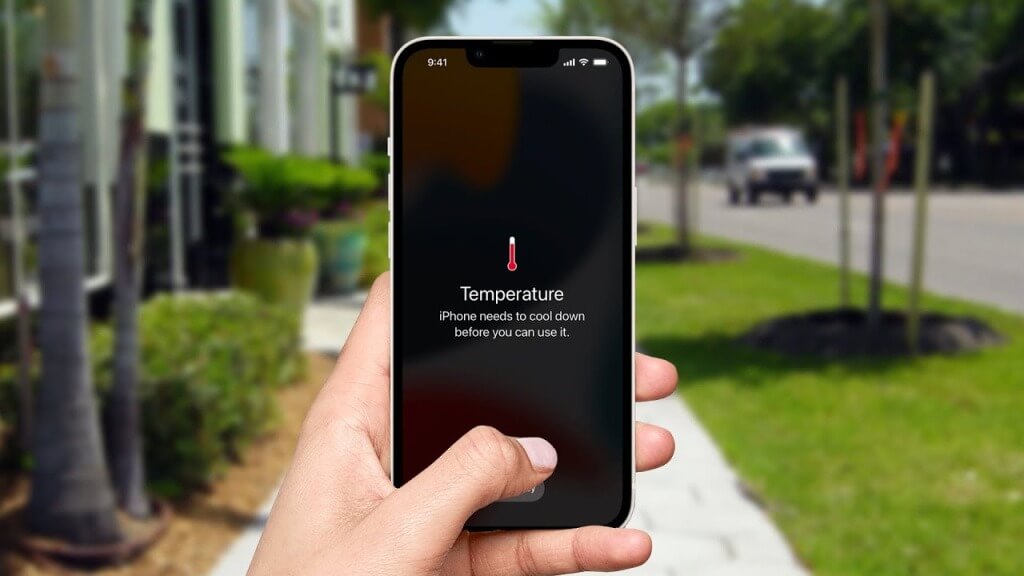
The iPhone asks to be allowed to cool down before further use
Do not expect brightness to return after exactly a minute: the time depends on the conditions and how hot the phone got. If everything is back to normal after cooling, there is no need to replace the display because of that episode. Regular dimming during ordinary use in a cool room, however, is worth discussing with a repair service.
When only certain videos or apps look different
There is another scenario: brightness changes only when you watch a particular video or open a specific app. HDR video uses an extended brightness range, and apps can set screen brightness themselves, for example to display a code. An app may keep the brightness it selected even after you leave it, up until the device is locked. Check it this way:
- Exit the video or app to the Home Screen.
- Lock the iPhone, then unlock it to clear any brightness change made by the app.
- Open an ordinary page with text.
- Compare the image and check the position of the brightness slider.
If the difference only appears with specific content, it is premature to suspect a fault in the whole panel. It is better to check the app’s own settings. For this kind of comparison, the same text is more useful than two random videos processed differently.
A yellowish screen is not always a dimmer one
That leaves True Tone and Night Shift. They change how the picture is perceived, so the screen can seem dim when the real issue is the tint of white. According to Apple’s description of display settings, True Tone adapts colors to ambient lighting, while Night Shift shifts the image toward warmer tones and can turn on according to a schedule. As a result, a white page looks different in the evening than during the day.
Work out what actually bothers you: is the text hard to read, or has the white background simply turned more yellow? To compare, temporarily turn off both features:
- Open Settings and select Display & Brightness.
- Turn off True Tone, if the switch is available on your iPhone.
- Open Night Shift and turn off “Manually Enable Until Tomorrow” if it is active.
- For the duration of the test, turn off the Night Shift schedule so the effect does not return in the evening.
- Compare the same page under the same lighting.
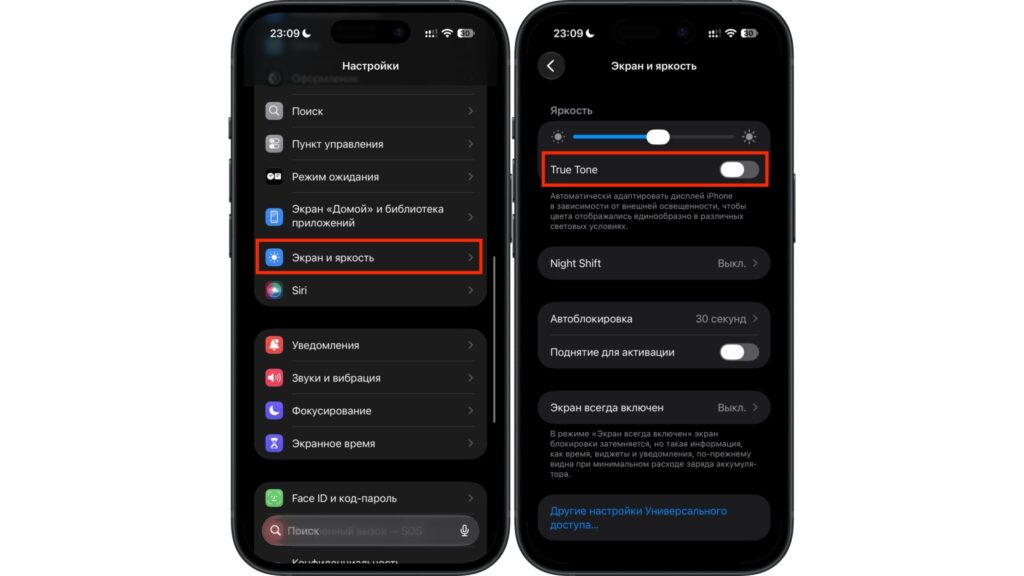
The True Tone switch is located below the brightness slider
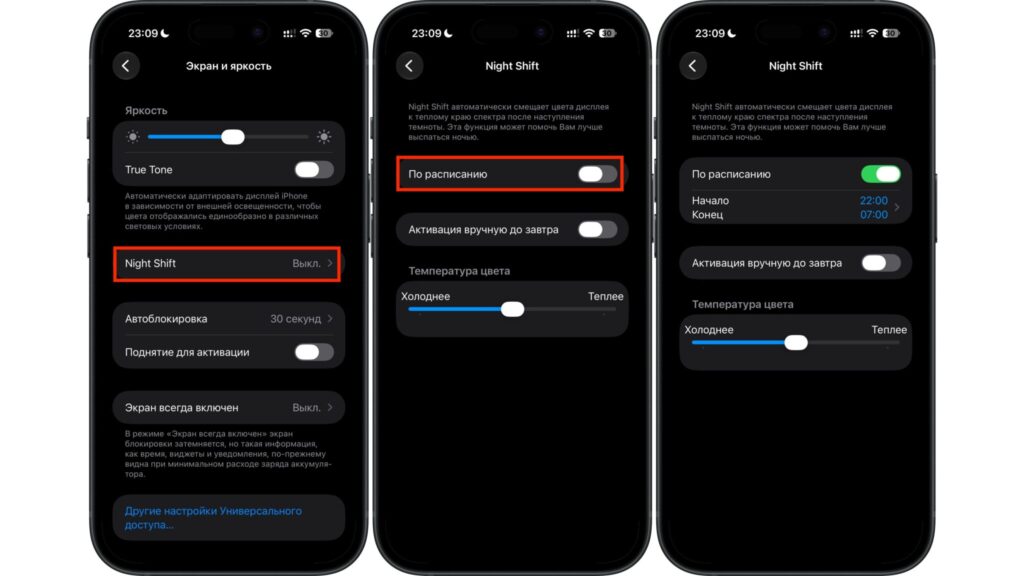
In Night Shift, you can turn off manual activation and the schedule
If white looks normal again, the cause was a color setting. You do not need to keep these features off permanently: some people find a warmer screen more pleasant in the evening. When judging the colors of a photo, though, it is easier to remove these adjustments first so that room lighting and schedules do not interfere with the comparison.
If none of the checks helped
If no check solved the problem, note down the conditions: your iPhone model, iOS version, whether the display has been replaced, and whether the dimness occurs in all apps. These details make it easier to contact a repair service. It is especially useful to record what happened just before the problem appeared, such as a repair, a new screen protector or the phone overheating.