Some of the most useful Apple Watch tools have nothing to do with notifications or step counting. In a hands-on piece, the author of the original article lists five features they say they use almost daily: the Calculator’s tip and bill-splitting tool, pinch gestures for browsing widgets, Camera Remote for iPhone photos, Compass route recording, and a silent vibrating alarm. Each saves a trip to the phone, and each has limits worth knowing first. Below is what each feature does, how to use it, and where it falls short, based on the source.
What you need to know
- The Calculator can split a bill evenly and add a tip, but the source notes that Apple says the Tips feature is not available in all countries and regions.
- Single and double pinch gestures for the Smart Stack work on Apple Watch Series 9 and later, Ultra 2 and later, and SE 3. The single pinch requires watchOS 27.
- Camera Remote works over Bluetooth, and the source cites Apple’s guideline of roughly 10 metres as the working range.
- Compass route recording shows the path you walked. It does not account for elevation changes or obstacles.
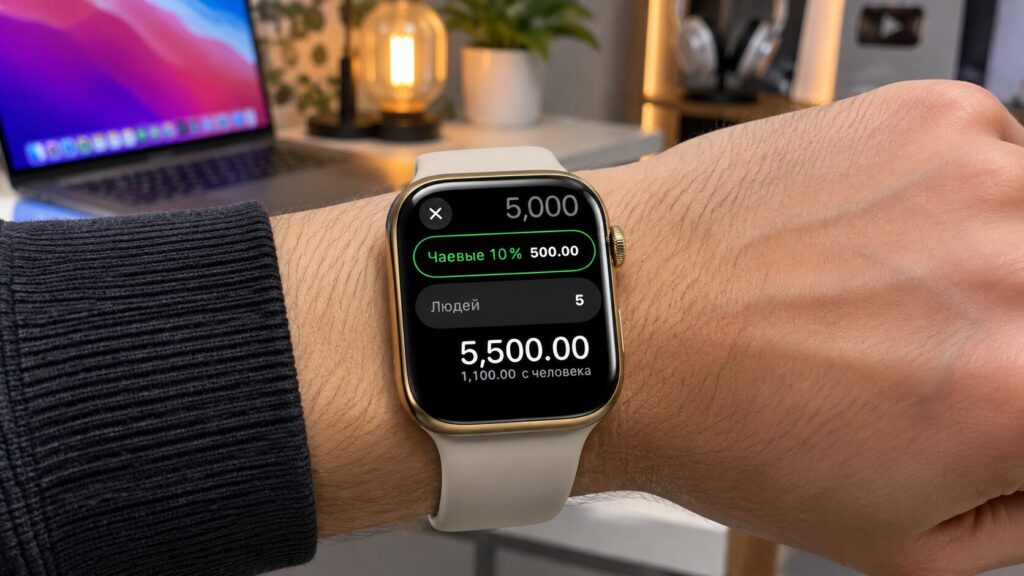
Apple Watch calculating a tip and splitting a bill five ways
The Calculator can split a bill and add a tip
A calculator on a small screen is easy to dismiss, since the iPhone seems better suited to arithmetic. The source author argues that the watch is quicker for small jobs such as working out a tip or dividing a total equally, because it has a dedicated button for this.
The built-in tool shows the amount per person with your chosen tip percentage included. You can change both the percentage and the number of people with the Digital Crown. If another person joins the bill, there is no need to clear the calculation and start over. To use it:
- Open Calculator on Apple Watch.
- Enter the bill amount and tap the “$%” button.
- Turn the Digital Crown to set the tip percentage.
- Tap the People option and use the Digital Crown to choose the number of people.
- Check the total and each person’s share.
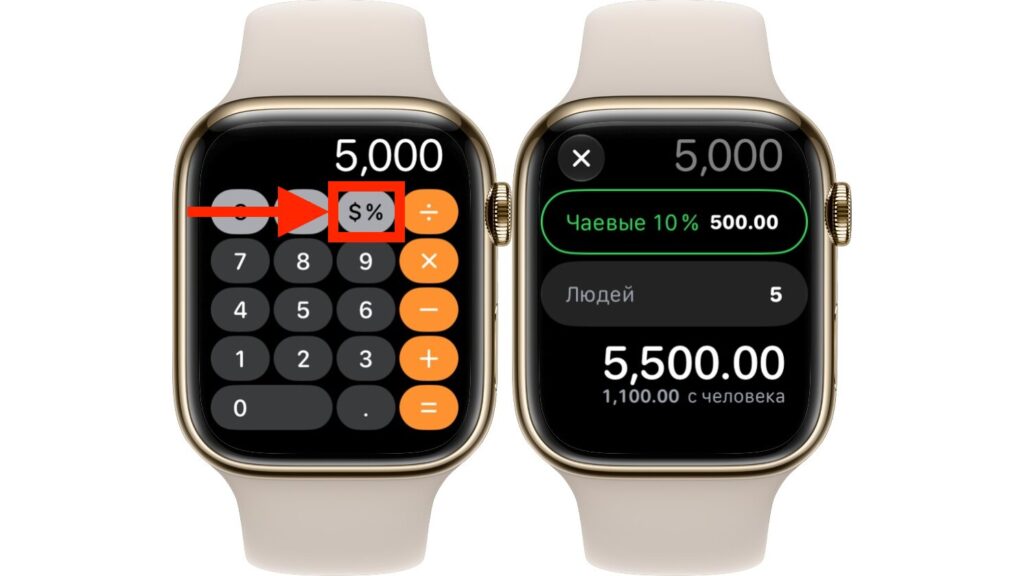
The tip button sits directly in the Calculator
Limitations
According to the source, Apple warns that the Tips feature is not available in all countries and regions. If the button is missing, these steps will not work, although ordinary division in the Calculator remains available. The watch also splits the bill only in equal shares. If one person ordered a coffee and another a full dinner, you will need to work out the individual amounts yourself.
Open widgets without touching the screen
The source author finds gestures most useful for small actions, such as checking a widget when the other hand is busy. According to the source, watchOS 27 adds a single pinch alongside the existing double pinch. A double pinch opens the Smart Stack and scrolls through widgets, and a single pinch selects the widget currently shown.
The gesture uses the thumb and index finger of the hand wearing the watch, so your other hand is not needed. The source says these gestures work on Apple Watch Series 9 and later, Ultra 2 and later, and SE 3, and that the single pinch requires watchOS 27. Installing the update on an older model does not by itself add gesture support.
- On Apple Watch, open Settings and go to Gestures.
- Make sure the finger-pinch gestures are turned on.
- Return to the watch face and raise your wrist to wake the screen.
- Pinch your thumb and index finger together twice to open the Smart Stack.
- Repeat the double pinch to scroll, then pinch once to select a widget.
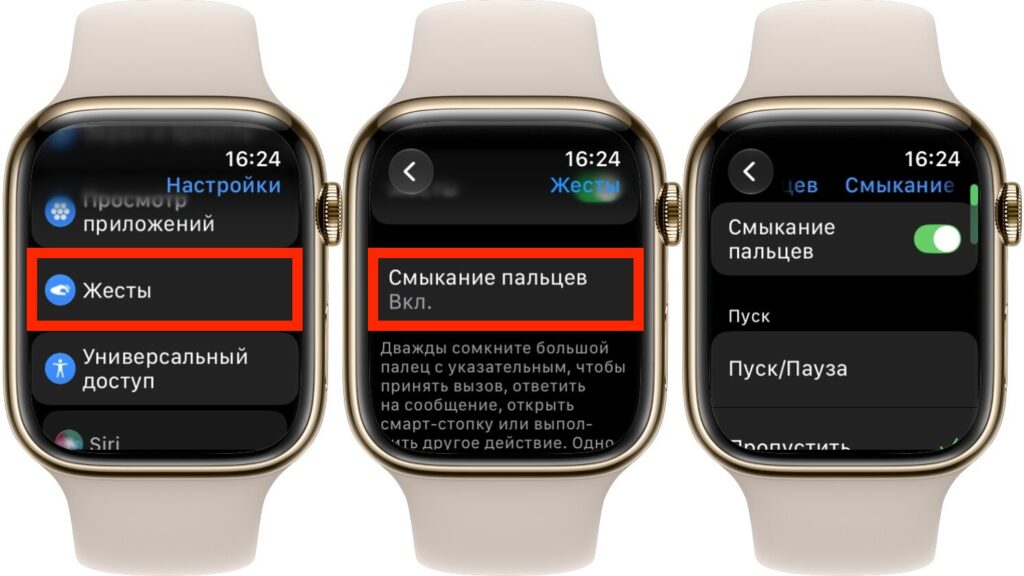
Finger pinch is turned on in the gesture settings
If the gestures don’t respond
If the watch does not respond, the source suggests first checking how the band fits and whether the watch is locked. Low Power Mode and the Sleep Focus also stop the gestures from working. The author recommends practising while standing still, so you learn which movement the watch recognises before relying on it while walking.
Take family photos on iPhone using the watch
The source author names remote control of the iPhone camera as one of the watch’s most useful features, especially for family photos. You can set the phone up at a distance, stand with everyone else, and trigger the shot from your wrist. Nobody has to stay behind the camera, and you don’t have to walk back to the phone for each shot.
The watch displays a live view from the iPhone camera, so you can check that everyone is in the frame instead of shooting blind. For group photos, the author recommends the three-second timer, which gives you time to lower your arm and look at the lens.
- Place the iPhone on a stable surface or mount it on a tripod, with the camera pointed at the spot where you’ll be photographed.
- Join the group and open the Camera Remote app on Apple Watch.
- Check the framing on the watch screen. Use the Digital Crown to zoom if needed.
- Tap the three-dot button to choose the front or rear camera and to check that the three-second timer is set.
- Press the shutter button, lower your arm and look at the camera.
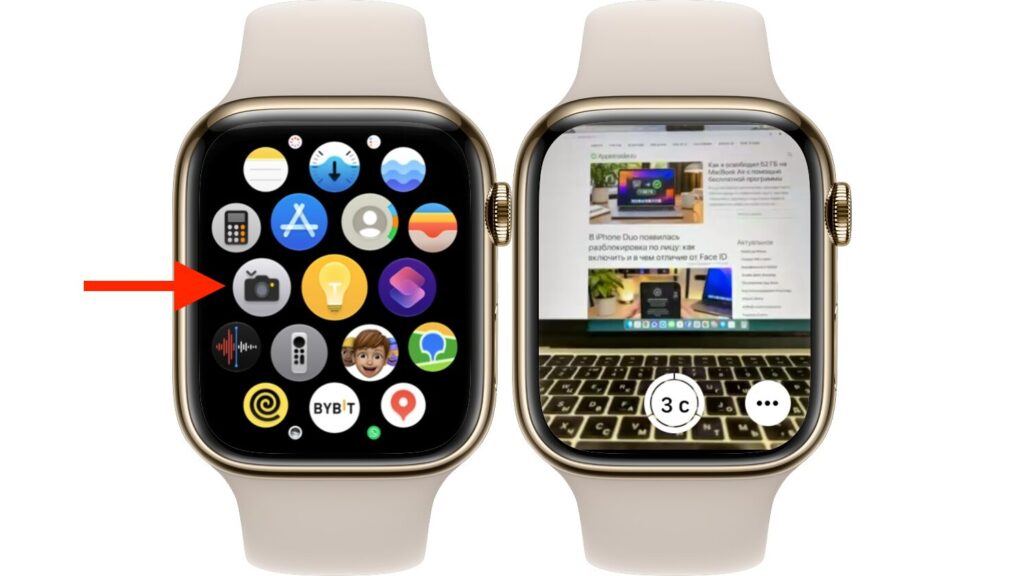
Camera Remote shows the iPhone’s view and a shutter button
Range and storage
Photos are saved on the iPhone. You can also review them on the watch by tapping the thumbnail in the bottom-left corner. The working distance is limited by Bluetooth, and the source cites Apple’s guideline of about 10 metres. That is enough for a family photo, but not for walking to the other side of a park. The author also suggests a small tripod with a phone holder, so the iPhone doesn’t have to be propped on whatever happens to be nearby.
Compass can record your way back
The Compass app includes a Backtrack feature. The watch records the path you walk and then displays it so you can return to your starting point. On an unfamiliar trail, the source argues, this record is more useful than trying to remember where you turned.
The author values the ability to retrace your own steps, but stresses that it should not be confused with a regular navigation app. The watch shows the path you recorded. It does not promise a safe route around every obstacle. Start recording at the beginning of a walk, while you still know clearly where you set out from.
- Open Compass on Apple Watch.
- Tap the Backtrack button with the footprints icon and choose to record your route.
- When you want to head back, tap the route-recording button and choose the option to retrace your route.
- Follow the displayed path to your starting point, which is marked with a white dot.
- When your walk is over, open the Backtrack controls and delete the route.
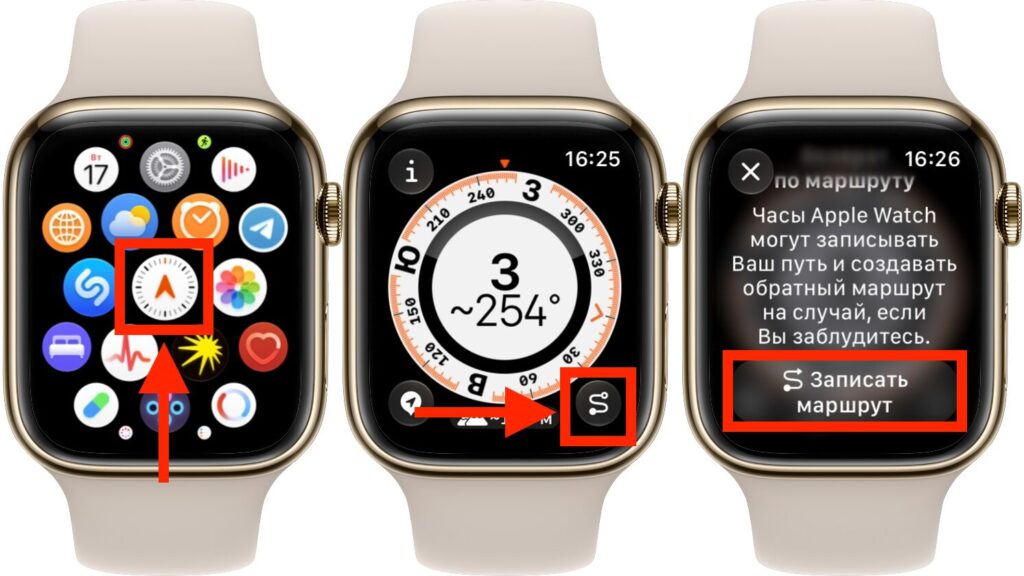
Route recording for the return trip starts in the Compass app
What Backtrack is and isn’t for
According to the source, Apple designed this feature mainly for unfamiliar areas away from densely populated places, where there is no Wi-Fi. The author suggests using it in those settings and sticking with regular maps for city walks. Backtrack does not account for changes in elevation or for obstacles. If the recorded line crosses a stream, that does not mean the stream can be crossed at any point.
A silent alarm that taps your wrist
The fifth feature is a silent alarm. The watch can wake you with vibration instead of a sound that disturbs everyone else in the room.
The source advises setting the alarm on the watch itself, so it is clear which device is meant to wake you. Silent Mode on Apple Watch does not silence a separate audible alarm set on the iPhone, so check the phone too.
- On the watch, open the Alarms app and tap the add button.
- Set the time with the Digital Crown and confirm with the checkmark.
- Open the new alarm and choose repeat days if needed.
- In watchOS 27, make sure the setting that lets the alarm bypass Silent Mode is turned off. Otherwise the alarm will sound even while you are wearing the watch.
- Press the side button to open Control Center and turn on Silent Mode with the bell button.
- Wear the watch overnight, after checking that it has enough charge.
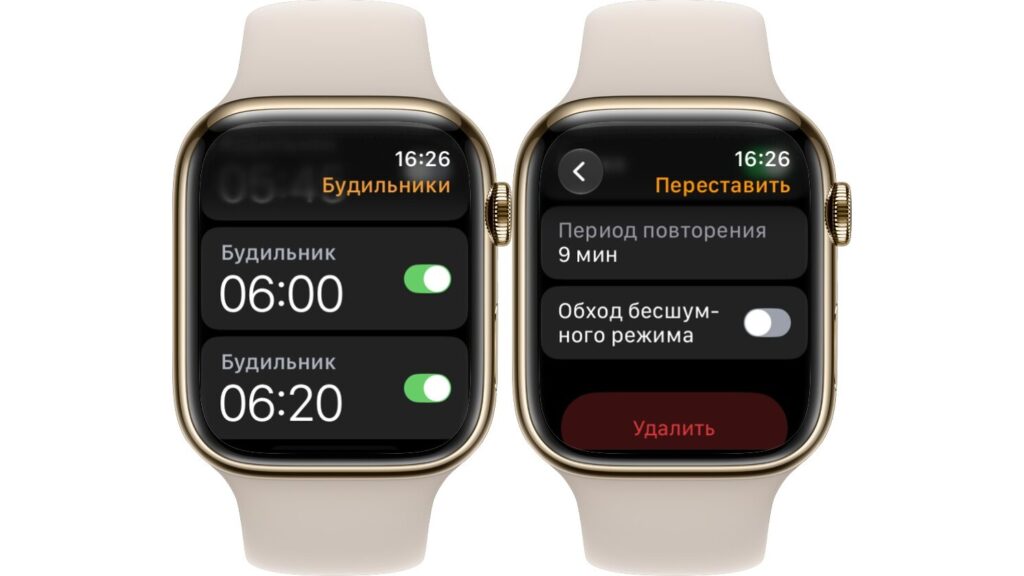
For a silent alarm, turn off the Silent Mode bypass
Test it before you rely on it
The source recommends setting a test alarm a couple of minutes ahead. This shows whether you can feel the taps and whether sound is still turned on. Note that the watch cannot tap your wrist while it is on its charger, and in nightstand mode it uses an audible alarm. The author also advises trying the setup during the day before relying on it for the first time. A workday morning is a poor time to find out it doesn’t work.