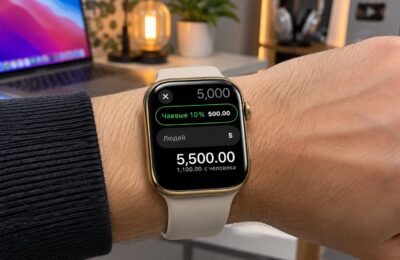
Some Apple Watch owners running watchOS 27 have reported that the dimmed Always On display kept showing the old time after the clock change. Raising the wrist brought the correct time back. Apple suggests three fixes: switch to another watch face and back, restart the watch, or wait until midnight, when the glitch should clear by itself. If the time is still wrong on the fully lit screen, the paired iPhone’s date and time settings are the more likely cause.
What you need to know
- Reports began after the clocks changed on October 25. Some watches on watchOS 27 kept showing the old time, but only on the dimmed Always On screen.
- The MacRumors forum thread cited by the source contains five reports, and one more case was reported separately.
- Apple’s suggested fixes are to change the watch face and switch back, restart the watch, or wait until midnight.
- In the same thread, three users said a restart fixed the problem and one said changing the watch face was enough.
Apple Watch on a passenger’s wrist by an airplane window, with an airport at sunset outside
The watch is wrong only when you are not looking at it
The problem surfaced in late October. The first complaints came from Apple Watch owners in the UK and Central Europe. After the clocks changed on October 25, some watches running watchOS 27 kept showing the old time. This happened only in Always On mode, meaning on the dimmed screen while the wrist was lowered. As soon as the wearer raised their wrist, the watch face showed the correct time.
The source counts five such cases on the MacRumors forum and one more reported separately. That is a small number of reports, but each one describes the same symptom.
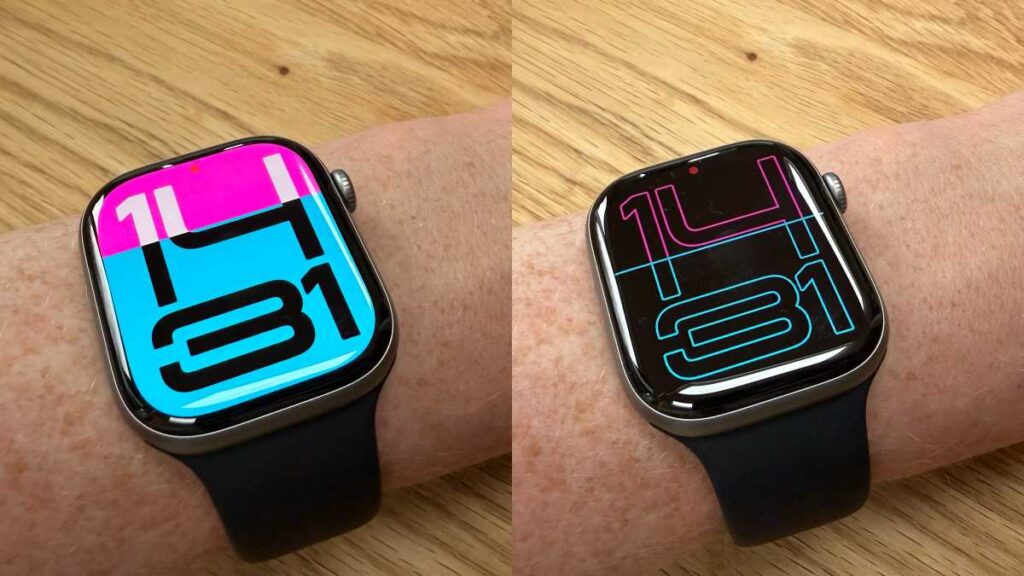
The same Apple Watch with large numerals on the face: active screen on the left, dimmed Always On mode on the right
What might be causing it
9to5Mac looked at the issue in more detail. In its coverage, one Reddit user joked that the watches simply “forgot to check” for the time change.
The source author suggests a possible explanation: the system may update the main screen while the image used for the dimmed standby display stays stale. The author presents this as a personal guess. Apple has not stated a cause.
The source also notes that similar problems have happened before. In 2018, the Apple Watch Series 4 had a comparable time-related glitch, and in 2021 iPhones in Canada showed the wrong time. According to the source, the hardware was not to blame in either case. The problem was how the software handled a sudden jump in the clock.
Could travel trigger the same glitch?
The reports linked the glitch to the seasonal clock change. The source author argues that crossing time zones produces a similar jump. After landing, the iPhone connects to a network, detects the new region and shifts the time forward or back, sometimes by several hours. The watch then takes the new time from the iPhone.
The European reports do not mention time-zone changes during travel. The author reasons only that the mechanism looks the same, so similar behavior on trips would not be surprising. Treat this as an unconfirmed expectation rather than a documented pattern.
The author’s main concern is trust in the watch. The Always On display exists so you can check the time without raising your wrist. The author notes that not every Apple Watch model has this feature. If the dimmed screen is off by a few hours, the author warns, it is easier to miss a connecting flight than to spot the error.
Apple’s three fixes, from quickest to most reliable
According to the source, Apple recommends trying the steps in order, starting with the simplest. The first two take less than a minute. The third requires only patience. If you need the correct time right away, for example at an airport, start by changing the watch face.
- Change the watch face, then switch back. Touch and hold the watch face until the Edit button appears below it. Swipe left or right to a neighboring face, such as Infograph or Modular Compact, and tap it. Then return to your original face the same way.
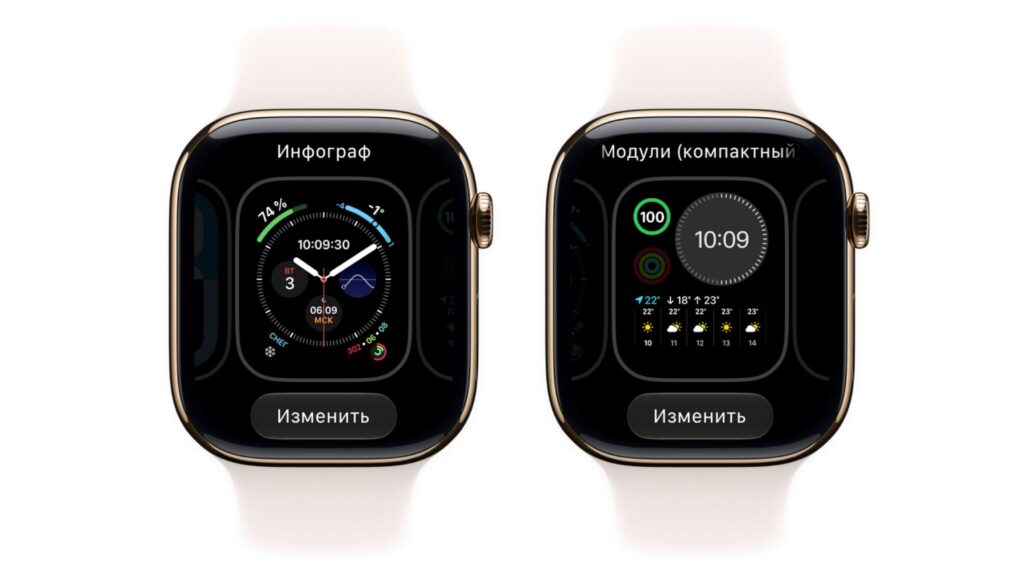
Choosing a watch face on Apple Watch: Infograph and Modular Compact with the Edit button
- Restart the Apple Watch. On the watch, open Settings > General, scroll to the bottom and tap Shut Down. Drag the Power Off slider to the right. When the screen goes dark, press and hold the side button until the Apple logo appears.
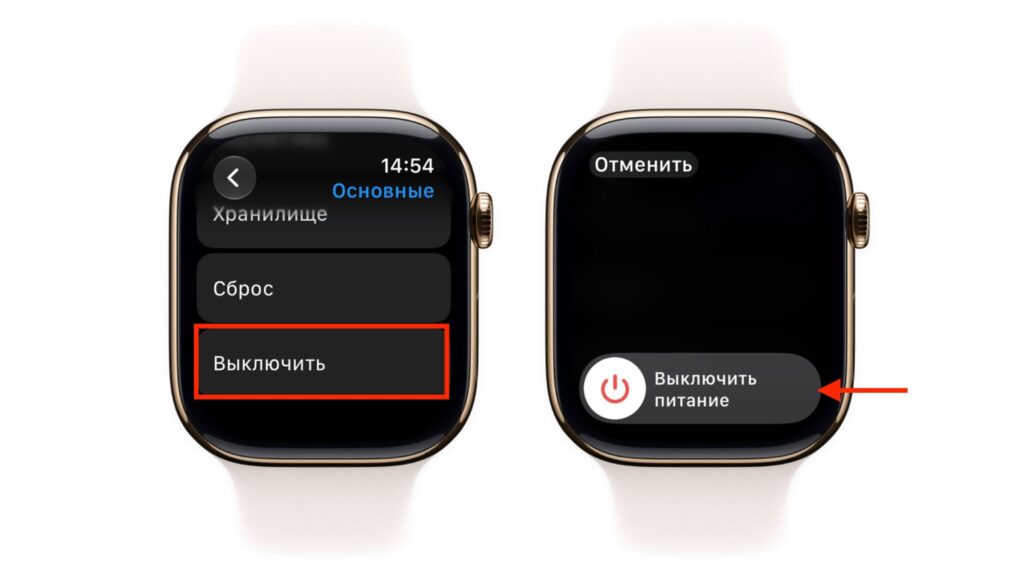
The Shut Down option in Apple Watch General settings and the Power Off slider
- Wait until midnight. According to Apple, the glitch should clear by itself when the new day begins.
Users in the same MacRumors thread report that a restart fixed the problem for three of them, and one said changing the watch face was enough. Based on these few reports, the source author calls a restart the most reliable option and a face change the fastest. The author also calls waiting until midnight an odd suggestion after an overnight flight, since you may check the wrong time many times before then.
If restarting does not help, check the iPhone
Sometimes the time is still wrong after changing the watch face and restarting, and now it is wrong on the bright screen too. In that case, the source says, Always On is not the cause. Apple Watch has no time-zone setting of its own. It takes the time from the paired iPhone, so the problem is likely on the phone. The source says the most common cause is that automatic time was turned off on the iPhone at some point and then forgotten.
Check these settings on the iPhone:
- Open Settings > General > Date & Time.
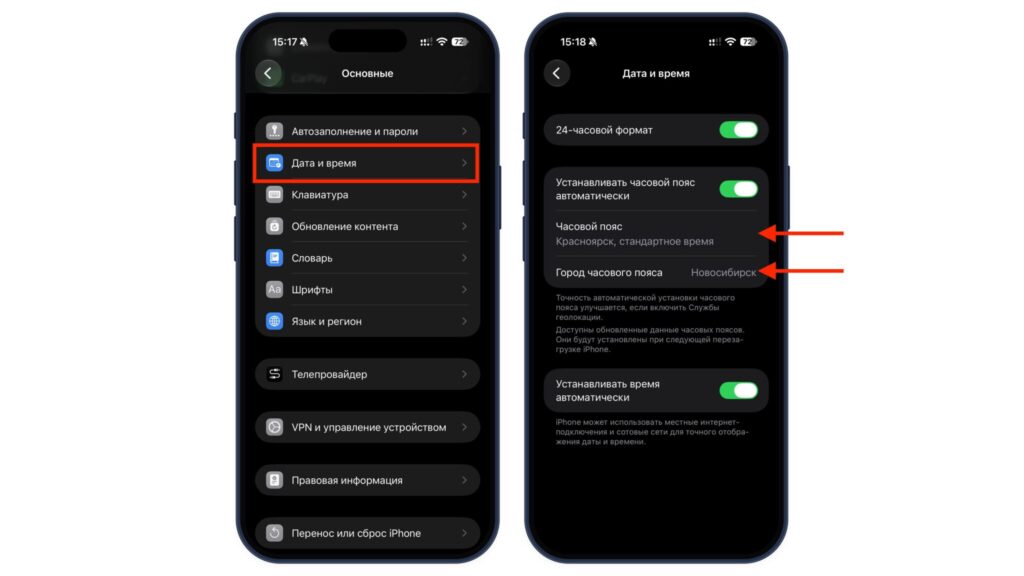
The Date and Time section in iPhone settings with automatic time zone and time options
- Turn on the switches for setting the time zone automatically and setting the time automatically.
- Check the Time Zone and time-zone city fields. They should show the city where you are now, or a nearby city in the same time zone.
According to the source, the watch should pick up the correct time within a couple of minutes. The source also recommends turning on Location Services, noting that the iPhone indicates in this same section that the time zone is detected more accurately with them enabled.
An iPhone that has not yet connected to a network after landing will not change time zones. Give it time to find a carrier, or connect to the airport Wi-Fi.
Check whether the watch face is set ahead
The source points to another possible cause on the watch itself. watchOS has a setting that moves the time shown on the watch face a few minutes ahead. It is in Settings > Clock, in the line marked “+0 min.” Some people set a buffer there to avoid being late and then forget about it. If your watch is exactly 5 or 10 minutes fast, the source says this setting is the likely culprit, not the time zone.
A stopgap: turn off Always On
If the dimmed-screen glitch keeps coming back, the source suggests a more drastic option: temporarily turn off the Always On display. On the watch, open Settings > Display & Brightness and switch off Always On.
The screen will then go completely dark when your wrist is down. In exchange, the time you see after raising your wrist will always be current. The source adds that the watch will also last a little longer between charges.
Keep watchOS updated
The source indicates that a fix for watchOS 27 was still expected at the time of writing. To get it when it arrives, keep watchOS up to date. Updates are installed through the Watch app on the iPhone, under General > Software Update.
Until then, the source offers a simple routine for travel. After landing, compare the watch with the iPhone. If the time on the dimmed screen does not match, restart the watch rather than waiting until midnight.