GTA VI is days away from launching on consoles, and plenty of online advice claims to make the game look and feel better. After reviewing the most popular tips, the original author concludes that three steps matter most before the November 19 launch: free up roughly 250 GB of internal storage, switch your TV to its game picture mode, and calibrate HDR while the TV is in that mode. It is also worth confirming that the PS5’s resolution is set to Automatic. Turning on VRR and 120Hz output, however, will not make GTA VI smoother, because the game is reported to run at 30 frames per second on consoles.
What you need to know
- The source reports that GTA VI will run at 30fps on every console version, including PS5 Pro. No 60fps mode has been confirmed.
- Rockstar lists the game at up to 212 GB, but the source suggests freeing about 250 GB to cover unpacking and a day-one patch.
- The game cannot run from an external USB drive, so it needs internal console storage.
- HDR calibration on PS5 only makes sense once the TV is already in its game HDR mode, ideally with HGiG on and dynamic tone mapping off.
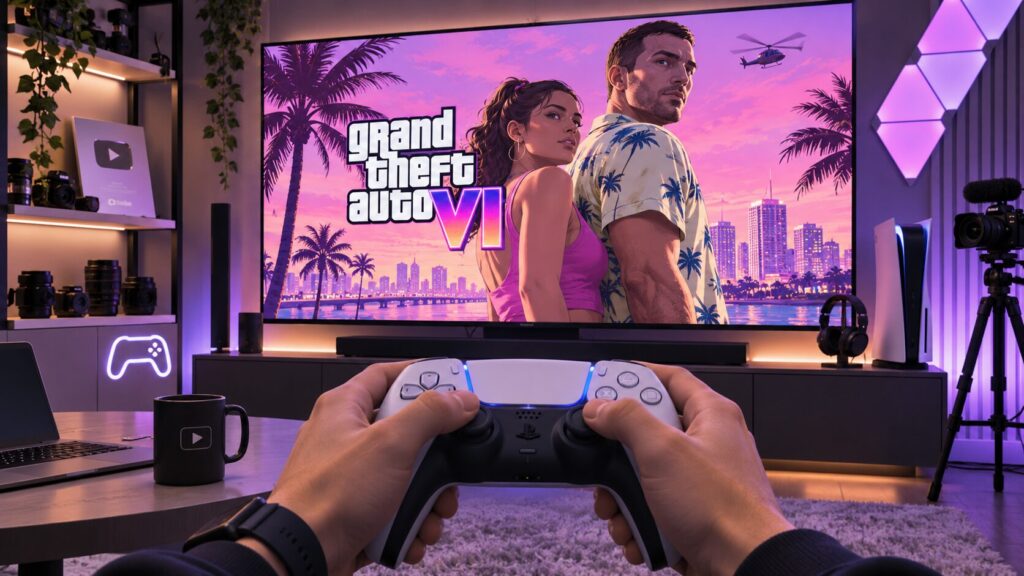
Check your settings before launching GTA VI for the first time
Check that resolution is set to Automatic
A common tip is to go to Settings > Screen and Video > Video Output and set the resolution to Automatic. The source calls this sound advice, with one caveat. Automatic is already the console’s default behavior, and it selects the highest resolution your TV supports. If you have never changed the setting, nothing needs to be done.
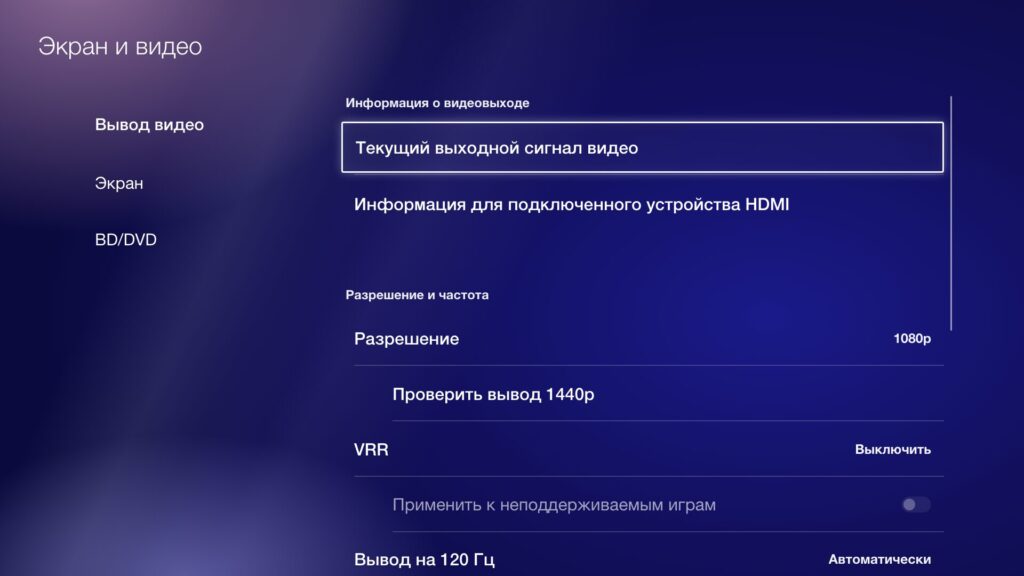
Manually selecting 1080p on a 4K TV makes the image noticeably softer
The situation is different if you once connected the PS5 to an older TV or monitor and manually set it to 1080p (Full HD). On a 4K panel, the picture will then be noticeably softer than it could be. Checking takes about half a minute:
- Open Settings > Screen and Video.
- Select Video Output.
- Look at the Resolution line. It should read Automatic.
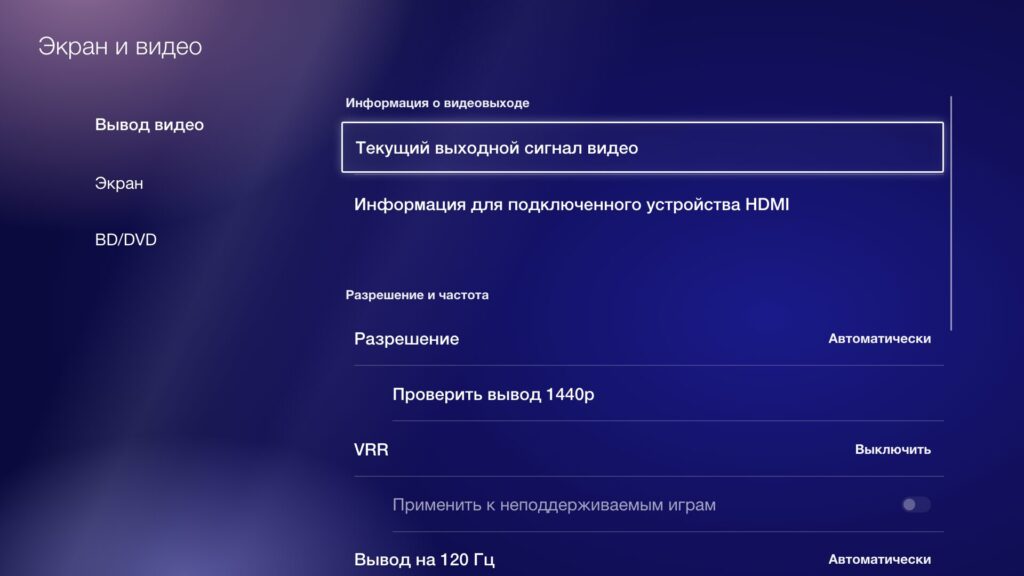
In Automatic mode, the console picks the maximum resolution the TV supports
The 1440p output test is only worth running on a monitor. Most TVs lack that mode, and the console will report as much.
Why VRR and 120Hz won’t help GTA VI
Two more tips usually come as a pair: enable VRR and 120Hz output.
- VRR (variable refresh rate) lets the TV match its refresh rate to the frame rate the game produces, which prevents screen tearing.
- 120Hz means the screen can refresh up to 120 times per second.
Both settings are about smoothness. According to the source, though, GTA VI will run at 30 frames per second on consoles. That applies to every version, including PS5 Pro, where the game gains improved upscaling and ray-traced shadows, but not a higher frame rate. A 60fps mode has not been confirmed, and the PC version is not expected until 2027.
In practice, this has three consequences:
- 120Hz output does not turn 30 frames into 120. The TV simply shows the same frame several times.
- On most TVs, VRR kicks in at roughly 40–48fps, so 30fps falls below that threshold.
- VRR also requires a TV with HDMI 2.1, the newer connector version that carries 120Hz and variable refresh rate. Few budget TVs have it.
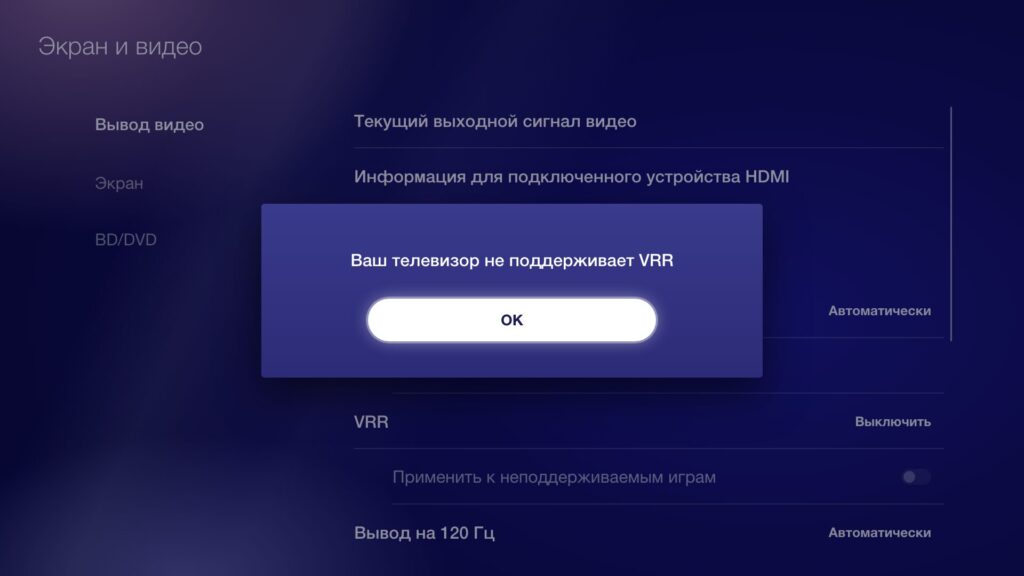
The message PS5 shows when the TV does not support VRR
If you try to enable VRR on a TV without HDMI 2.1, the PS5 immediately displays a message saying your TV does not support VRR. Turning on VRR and 120Hz does no harm, and both can help in other games that offer a performance mode. Just don’t expect them to make GTA VI smoother.
HDR: turn it on, but calibrate it properly
HDR (high dynamic range) lets highlights appear brighter and shadows deeper without losing detail. The source agrees that it is worth enabling. Go to Settings > Screen and Video > Video Output > HDR and choose “On When Supported.” In this mode, HDR games are output in HDR, and everything else stays in standard dynamic range. The console will then offer a three-step HDR adjustment, and the source says you should not skip it.
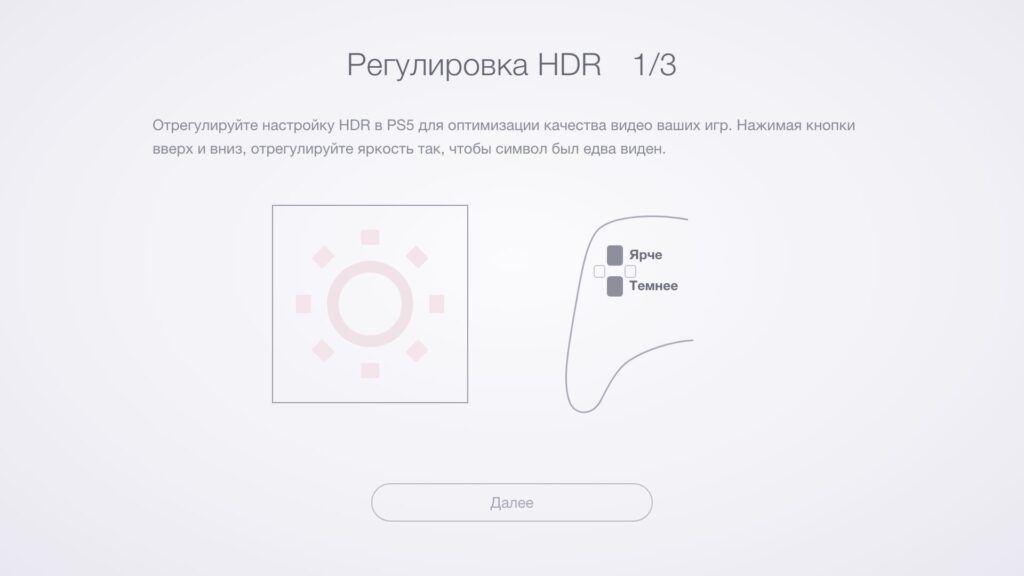
At each step, the symbol should remain barely visible
Many guides leave out one point: PS5 calibration only makes sense if the TV is already in its game HDR mode. Otherwise you tune brightness for one kind of picture processing and then play with another. The result is washed-out bright scenes and dark scenes that sink into black. The source recommends this order:
- Switch the TV to its game picture mode.
- In the TV’s HDR settings, turn on HGiG if the option exists. In this mode, the TV does not apply its own brightness adjustments and shows exactly what the console sets.
- In the same menu, turn off dynamic tone mapping, which automatically adjusts brightness scene by scene.
- Return to the PS5 and complete all three HDR adjustment steps.
- At each step, adjust until the symbol is barely visible, as the console instructs.
There are no ready-made “GTA VI” values, however many are published online. Every TV has different brightness, so copying someone else’s slider positions is pointless.
Storage: plan for about 250 GB of internal space
Freeing up space is the most obvious tip, and the source says it fully holds up. Pre-loading opened on November 10, so if you have already bought the game, you can download it now.
The size figures vary:
- Rockstar states “up to 212 GB.”
- The download shows as about 210 GB on the PS5 itself.
- The box lists 230 GB.
The source therefore recommends freeing about 250 GB, since some space will go to unpacking and the day-one patch. To check how much space you have:
- Open Settings > Storage.
- Select Console Storage.
- Look at the free space figure below the bar.
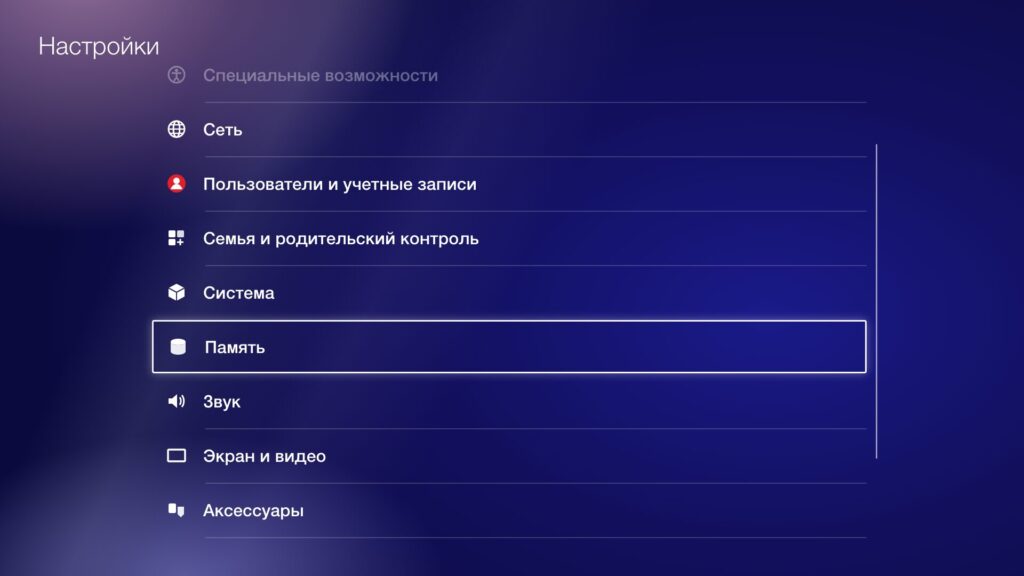
Free space on PS5 is shown in the Storage section
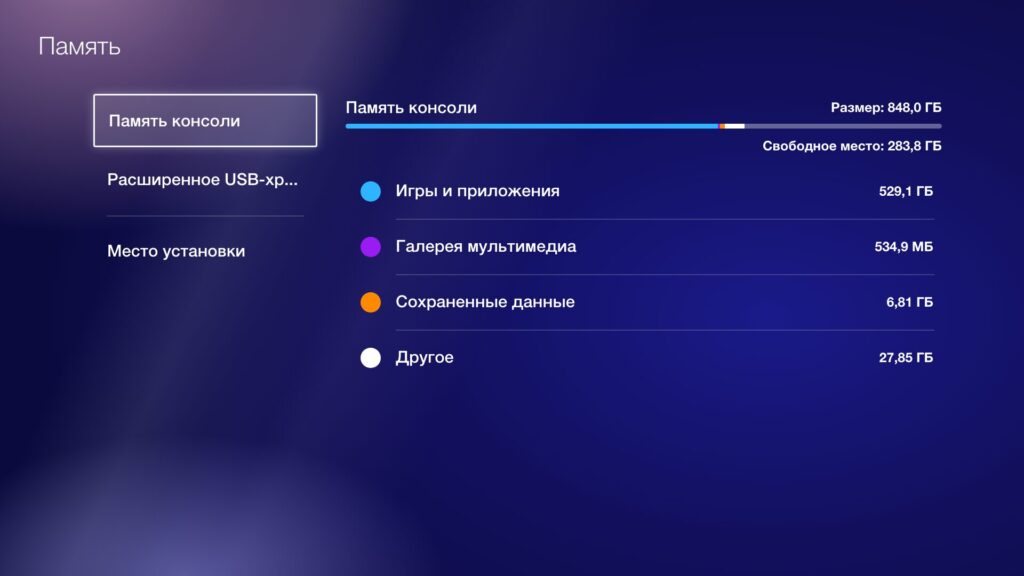
The line below the bar shows whether there is enough room for the game
GTA VI cannot be launched from an external USB drive and requires internal storage. You can, however, temporarily move older PS5 games to a USB drive and move them back after release.
Don’t leave the download until the last minute. The source estimates it will take about 19 hours on a 25 Mbps connection. The game unlocks at midnight on November 19, local time.
The most important setting is in the TV menu
The tip to switch the TV to Game mode usually comes last and sounds the most modest. The source argues it matters more than all the others combined. In standard picture modes, the TV runs every frame through noise reduction, sharpening and motion smoothing. That processing looks good for films, but it adds noticeable delay between pressing a button and seeing the action on screen. At 30fps, the source says, every extra millisecond is felt twice as much.
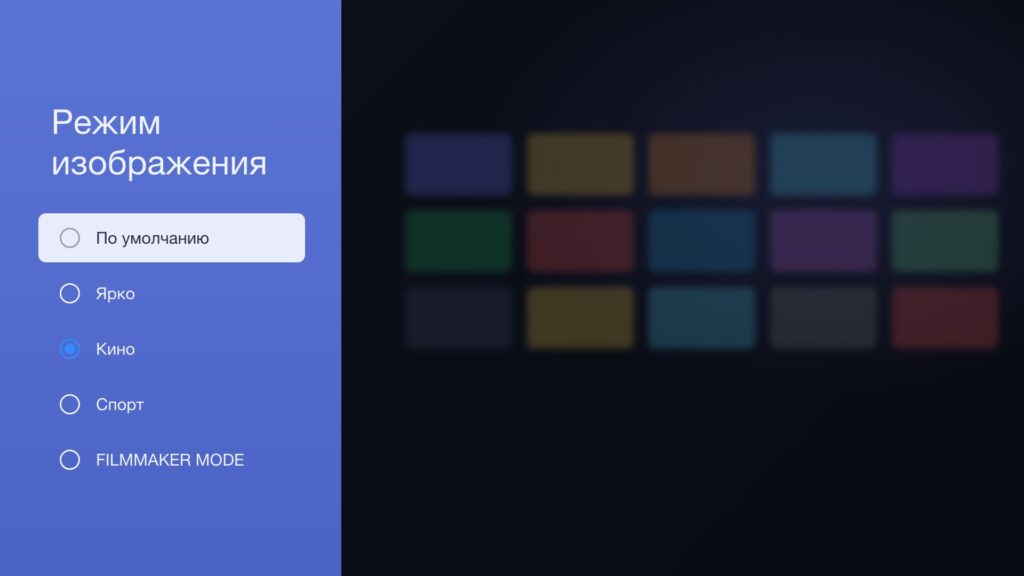
If there is no game mode in the list, choose the option with the least processing
TVs with ALLM
TVs that support ALLM (Auto Low Latency Mode) make this easiest. If you enable ALLM in the PS5’s video output settings, the TV switches to game mode automatically whenever a game starts. Check this setting, because it may well be off. In that case the TV will keep showing the game in a film-oriented mode.
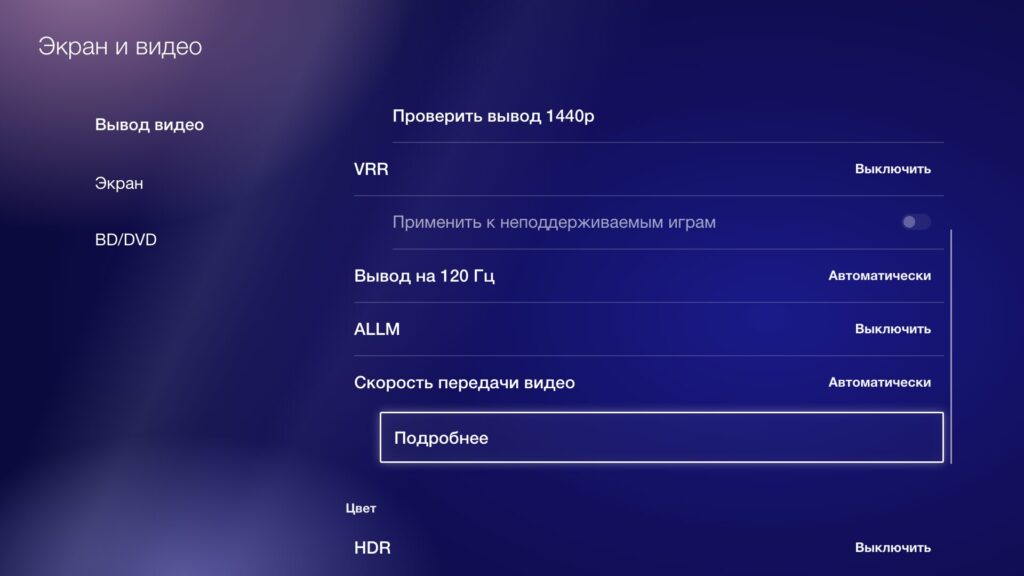
ALLM and HDR are in the same video output menu
TVs without a game mode
It is harder when the menu has no game mode. For example, some inexpensive Android TV models list only Default, Vivid, Cinema, Sport and FILMMAKER MODE. FILMMAKER MODE is designed to show films the way the director intended.
The usual advice is to stay on Default, but the source author suggests going a step further. Choose the mode with the least processing, then manually turn off motion smoothing and noise reduction in the advanced settings. According to the source, this reduces input lag even without a dedicated game mode.
What about VRR and 120Hz later?
Checking the resolution remains a sensible precaution before launch. The source suggests leaving VRR and 120Hz aside for GTA VI until Rockstar adds a performance mode, if it ever does.