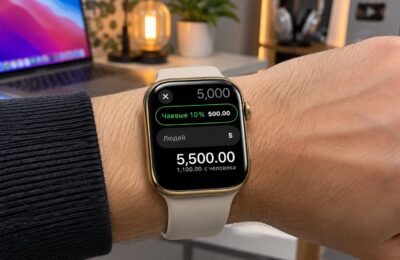
Most Apple Watch owners don’t need to close apps. Apple’s user guide for watchOS 27 says there is usually no need to close an app, and that doing so does not, for example, save battery. Apps in the recent-apps carousel are mostly suspended and do almost nothing. Force-closing them can add work, because the watch has to launch them again from scratch. The one clear reason to close an app is when it freezes. Even then, the method depends on your watchOS version.
What you need to know
- Apple’s watchOS 27 guide says closing apps usually isn’t necessary and, for example, doesn’t save battery.
- Background work is mainly limited to workouts, audio playback and location-based apps such as Maps navigation. Apps with watch-face complications get about four refreshes per hour.
- The recent-apps carousel was missing in watchOS 27 until watchOS 27.2. It is available again in watchOS 27.2 and 27.2.1, where you open it by touching and holding the bottom of the screen.
- A frozen app can be closed on any version: hold the side button until the power sliders appear, then hold the Digital Crown until the watch face returns.
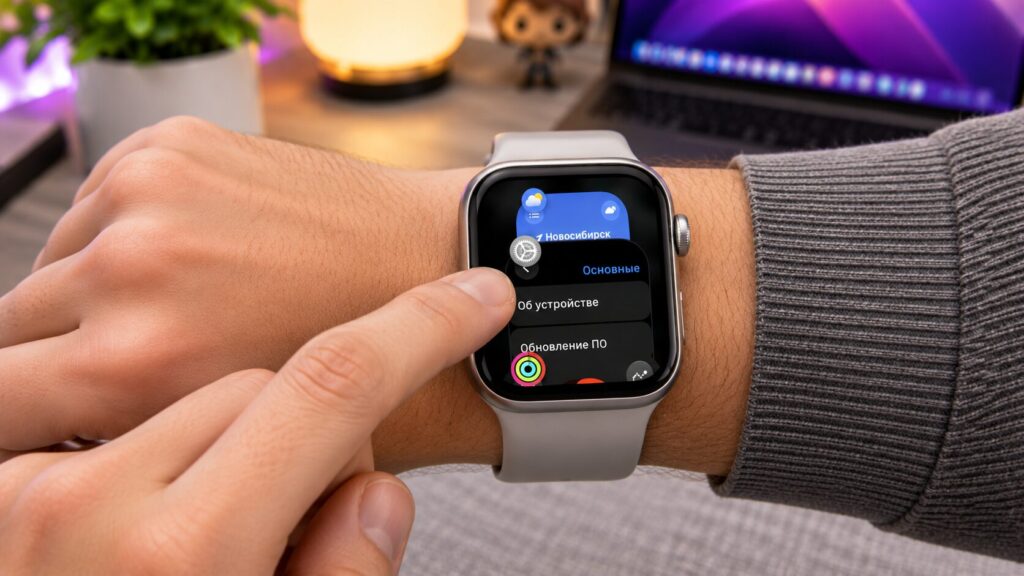
The recent apps list on Apple Watch
An app in the recent list is almost idle
Many people treat the recent-apps carousel as a list of running programs. It actually works more like a history. The watch remembers which apps you opened and keeps their last screens ready, so it can bring them back without delay.
An app moves to the background and freezes as soon as you lower your wrist. It does not load the processor, use the network or wake the screen. After two minutes, the watch returns to the watch face on its own. The frozen app simply sits in memory until its turn comes. If watchOS needs room for something new, it unloads the app without your involvement.
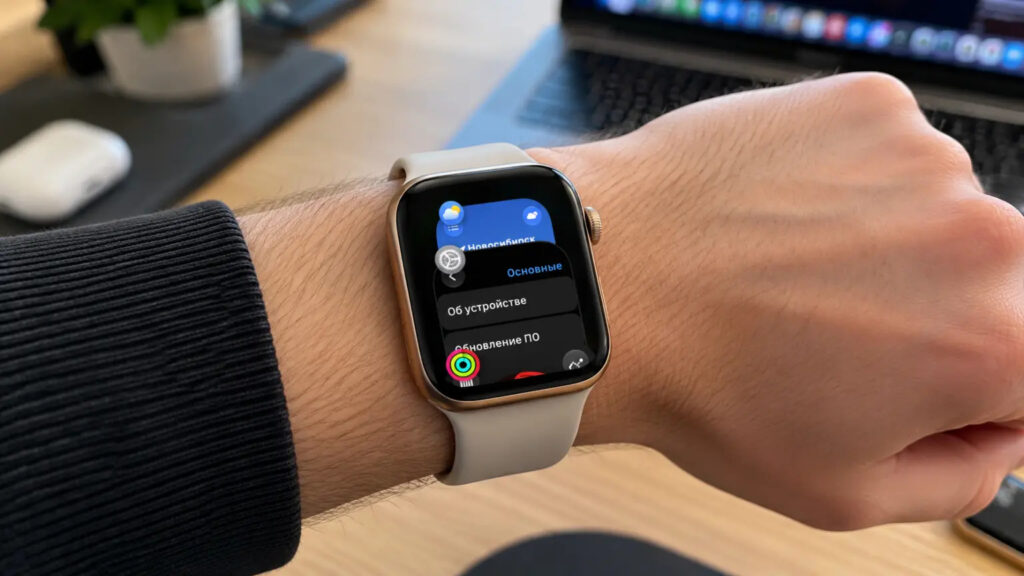
Cards for Settings and Weather in the carousel
Changing when the watch returns to the watch face
You can change this timeout under Settings > General > Return to Clock. The options are Always, After 2 minutes and After 1 hour. You can also set individual apps, such as Music, Maps and Audiobooks, to return to the app instead. That is handy if you want to see the current track during a run, and the setting has almost no effect on battery life.
A closed app starts from scratch, and the battery pays for it
The same logic applies on the iPhone, and the watch has even less headroom: a small battery, a weaker processor and much less RAM.
A frozen app returns almost instantly because its state is already in memory. A closed app has to be loaded again in full. The watch must read it from storage, rebuild the interface and fetch data again from the iPhone or the internet. Weather, mail, a sleep tracker or a banking app all do extra work on a cold start. For example, if you close Weather in the morning, open it at midday and close it again, the watch has done unnecessary work three times.
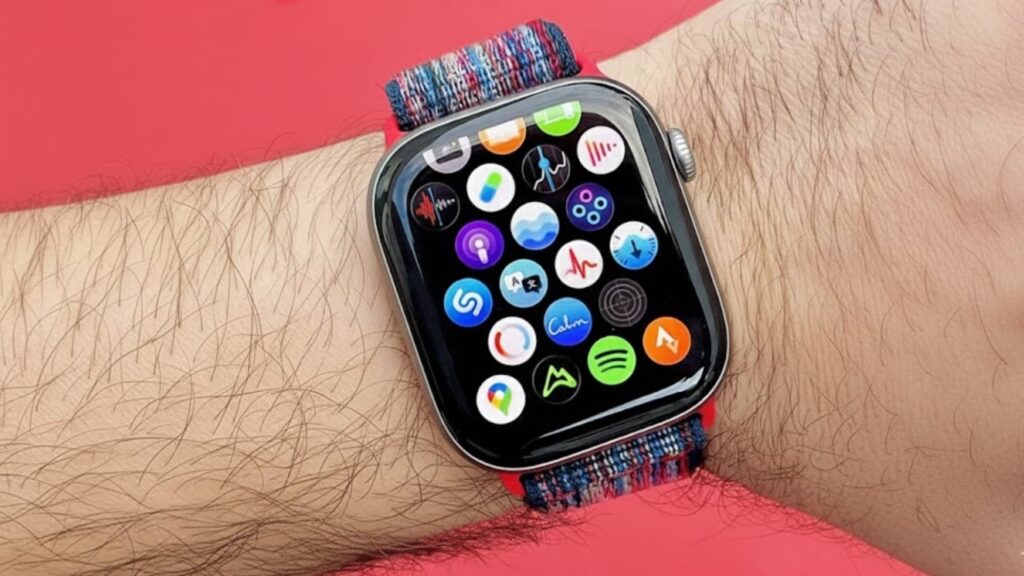
The app icon screen on Apple Watch
Apple’s watchOS 27 help documentation states this plainly: there is usually no reason to close an app, and closing one does not, for example, save battery. That means clearing the carousel every day changes nothing at best and creates extra work for the watch at worst.
Workouts and audio drain the battery, not open apps
If your battery drains quickly even though you clear the carousel often, the cause is usually elsewhere. The most common culprits are the always-on display, maximum brightness and frequent notifications.
Which apps actually run in the background
watchOS lets only a few kinds of apps keep working while you aren’t looking at the screen:
- workouts;
- audio playback;
- apps that need location, such as navigation in Maps.
These apps stay awake for as long as their session lasts, for example while you run, listen to a podcast or follow a route. Meditation apps and smart alarms have a similar mode, but the system gives them limited time and only one task. Messengers, the calculator and everything else do nothing once you lower your wrist.
A quick check: look at the top of the watch face
A simple test is to look at the top of the watch face. A running-figure icon or a play icon means a session is still active. A forgotten workout, for instance, can keep recording heart rate and GPS. That session really should be ended, but do it inside the Workout app or the media player, not by swiping it away in the carousel.
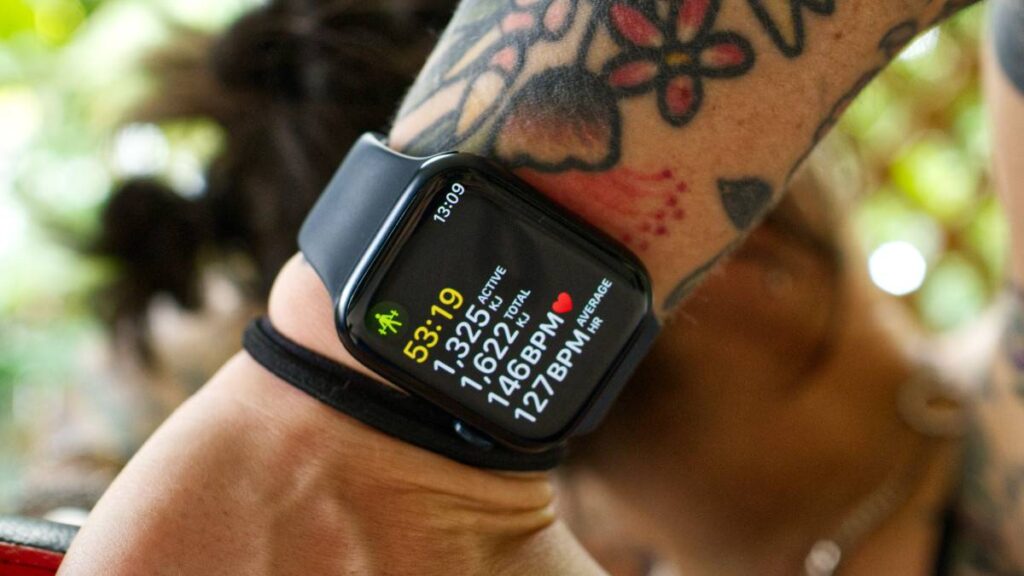
During a workout, the watch shows time, calories and heart rate
Complications are another route to the background
The system wakes apps with complications on the watch face more often than others, so it can refresh the numbers on screen. Even these apps get only about four such updates per hour. Swiping in the carousel has no effect on this. If you want an app never to wake up, remove its complication from the watch face.
Close an app only when it freezes
There is one obvious reason to close an app: it has frozen. The screen ignores taps, the map stops following you, or a workout shows the same numbers for five minutes. A restart usually helps in these cases, and Apple itself recommends it. The method depends on your watchOS version, because the recent-apps carousel has moved over the past year.
Where the carousel went
- In watchOS 26 and earlier, a double-press of the Digital Crown opened the carousel.
- In watchOS 27, that double-press was reassigned to other functions, and there was no carousel at all until watchOS 27.2 was released.
- The carousel is back, including in watchOS 27.2.1, but you open it differently.
How to close a frozen app on watchOS 27.2 and later
- Open the frozen app.
- Touch and hold the bottom part of the screen until the recent-apps carousel appears.
- Swipe the app’s card to the left and tap the red X.
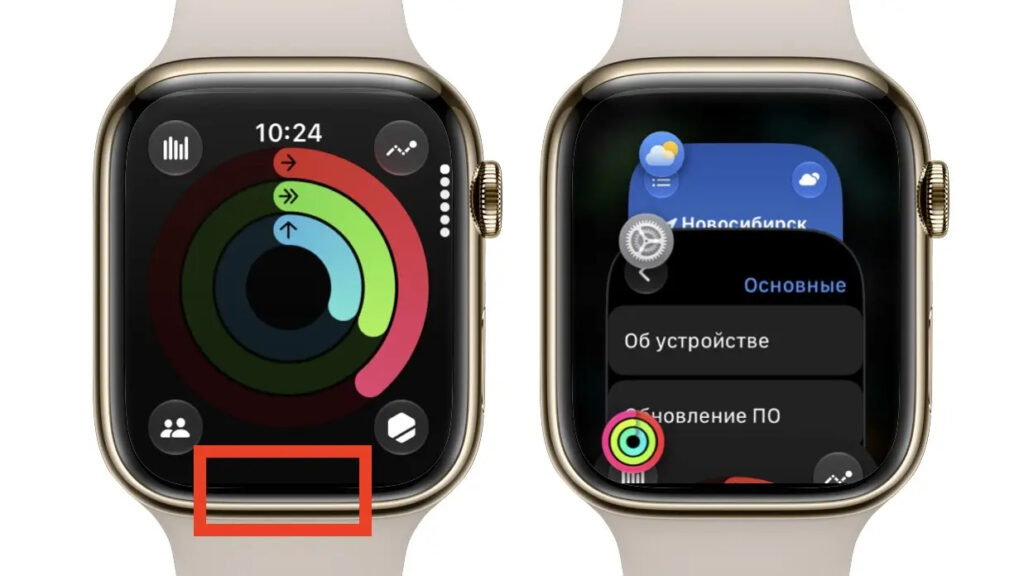
To open the carousel, touch and hold the highlighted area
On watchOS 26 and earlier
Instead of touching and holding the bottom of the screen, double-press the Digital Crown to open the carousel. Everything else is the same.
On watchOS 27 or 27.0.1, or on any version
If your watch is still on watchOS 27 or 27.0.1, the simplest fix is to install watchOS 27.2.1, which is already available. If you’d rather not update yet, a fallback method works in every version:
- While in the frozen app, press and hold the side button until the power sliders appear.
- Press and hold the Digital Crown until the watch face returns.
This does not restart the watch. It closes only the app.
If the whole watch is sluggish
If that doesn’t help and the watch itself is slow, press and hold the side button and the Digital Crown together until the Apple logo appears.
The bottom line
So what happens if you don’t close apps on your Apple Watch? Essentially nothing. The watch decides on its own what to keep in memory and what to unload, and it does so more carefully than a swiping finger. Save the carousel for frozen apps, and when tracking battery drain, look at active workouts and your watch face instead.