GTA VI has no iPhone version, but if you own a PlayStation 5 or Xbox Series X|S, you can already play it on an iPhone. The game is out on those consoles, and Rockstar has not yet announced a PC version. Both methods below stream the game from your own console: PS Remote Play on PS5, and Xbox Remote Play through Safari on Xbox. The console runs the game and sends video and sound to the phone. The phone sends your controls back.
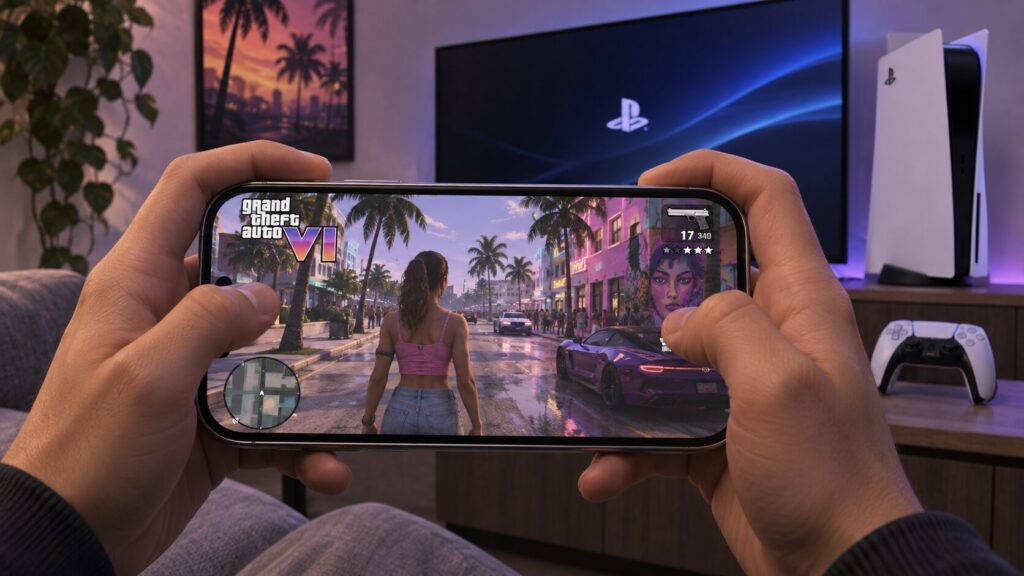
For remote play on iPhone, GTA VI runs on the console
What you need to know
- GTA VI supports remote play. PS5 owners can use the PS Remote Play app, and PS Plus is not required for the connection.
- Rockstar has confirmed Xbox Remote Play support. GTA VI is not available on Xbox Cloud Gaming at launch, so iPhone users need their own Series X or Series S.
- For PS Remote Play, Sony lists a minimum of 5 Mbps for download and upload and recommends at least 15 Mbps in both directions.
Method 1: Stream GTA VI from a PS5 with PS Remote Play
With PS Remote Play, the PS5 runs your installed copy of GTA VI, streams picture and sound to the iPhone, and receives your inputs. You use the same profile and continue from the same save as you would on the TV. A PS Plus subscription is not needed for this connection.
- If you don’t own the game yet, buy GTA VI on the PlayStation Store. Install it on the PS5 and wait for the download to finish. On the iPhone, download the PS Remote Play app from the App Store.
- On the PS5, go to Settings > System > Remote Play and enable Remote Play for your user.
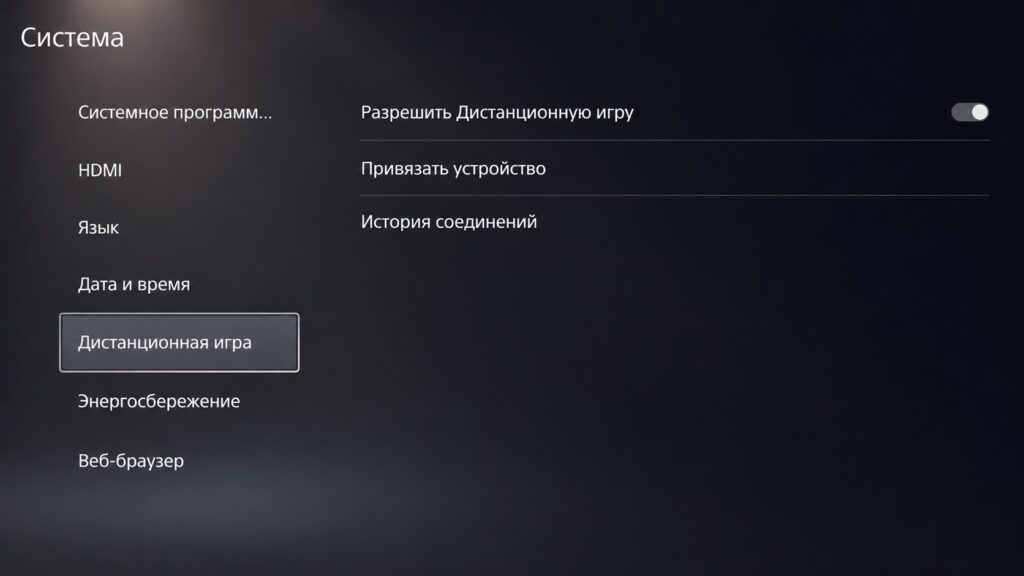
Remote Play is enabled in the System section on PS5
- To let the phone wake the console on request, go to Settings > System > Power Saving > Features Available in Rest Mode. Turn on the options to stay connected to the internet and to allow turning on the PS5 from the network.
- For the first connection, leave the PS5 switched on and connect the iPhone to the same home network. Open PS Remote Play, tap the sign-in button, and use the same PlayStation account that is on the console.
- On the system selection screen, tap PS5. If a prompt about connecting to your PS5 appears, tap OK. When the console’s home screen appears on the phone, launch GTA VI.
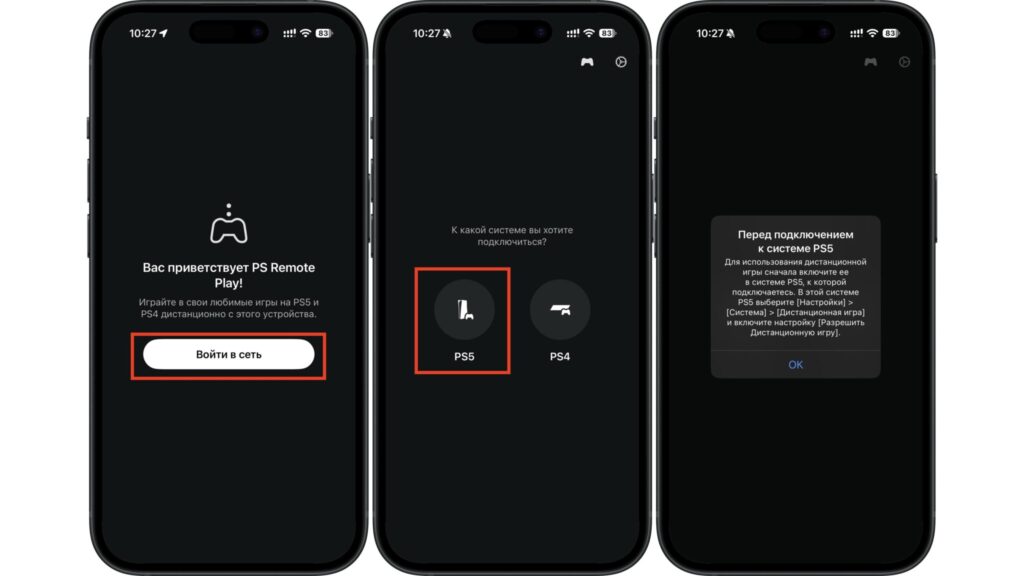
After signing in to PS Remote Play, select PS5
If the app can’t find your PS5
Automatic search sometimes misses the console even on a home network. In that case, link the devices manually:
- Make sure the iPhone and the PS5 are on the same network.
- On the PS5, go to Settings > System > Remote Play > Link Device.
- In the app, on the screen saying the PS5 cannot be found, tap the option to link manually. Enter the number shown on the console’s screen and confirm.
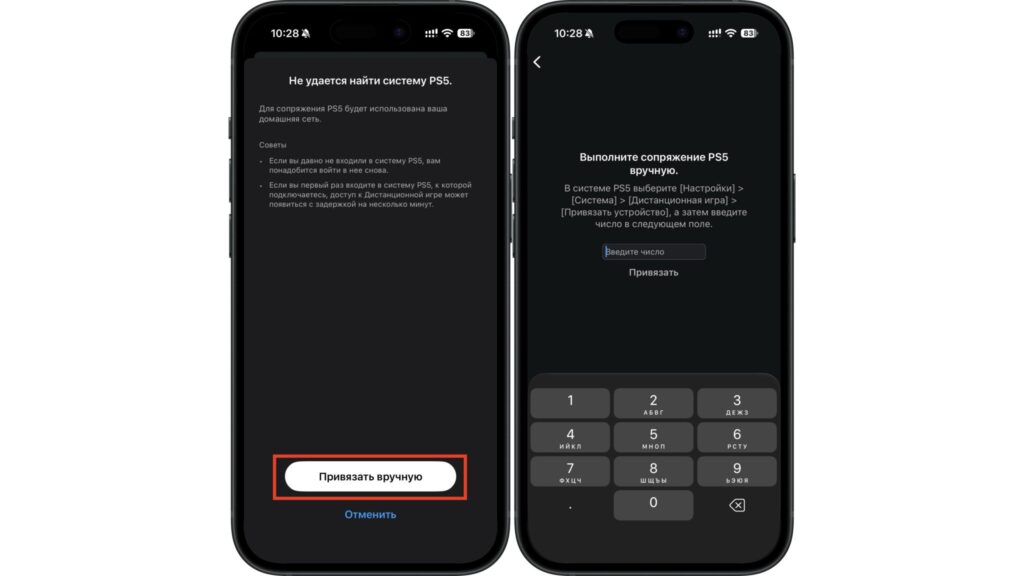
For manual linking, enter the number shown on the PS5 screen
Once the connection works, try driving a few blocks around Vice City. Input lag or audio dropouts are easier to notice while moving than in the console menus.
Method 2: Stream GTA VI from an Xbox Series X|S through Safari
Series X and Series S owners can use Xbox Remote Play, which Rockstar has confirmed the game supports. The game runs on your console and streams to the phone, so you need a copy of GTA VI installed on a Series X or Series S. GTA VI is not available on Xbox Cloud Gaming at launch, which leaves Remote Play from your own console as the only Xbox option on iPhone.
- If the game isn’t in your library yet, buy GTA VI from the Xbox store. Install it on your Xbox Series X or Series S.
- On the console, go to Settings > Devices & connections > Remote features and turn on the remote play toggle.
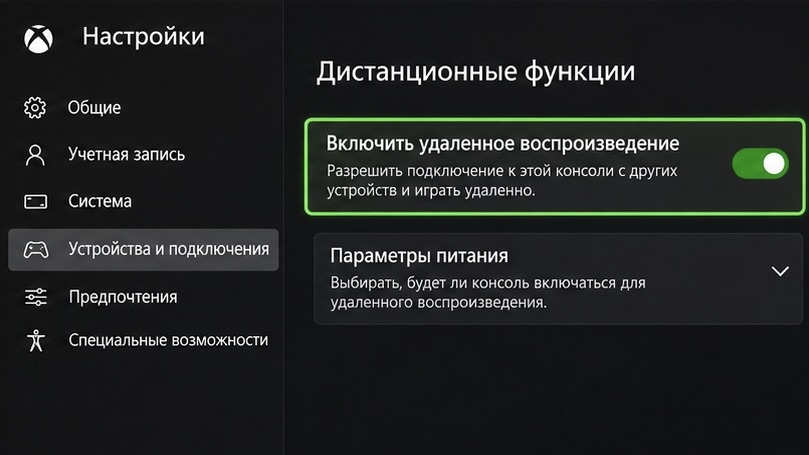
This toggle lets you connect to the Xbox from your phone
- For the first session, leave the Xbox switched on and connected to the internet. Connect a compatible controller to the iPhone.
- On the iPhone, open the Xbox Remote Play page in Safari. Tap the start button and sign in with the same Microsoft account you use on the console.
- On the console selection screen, pick your Xbox and tap Connect. Then open GTA VI from the console’s home screen.
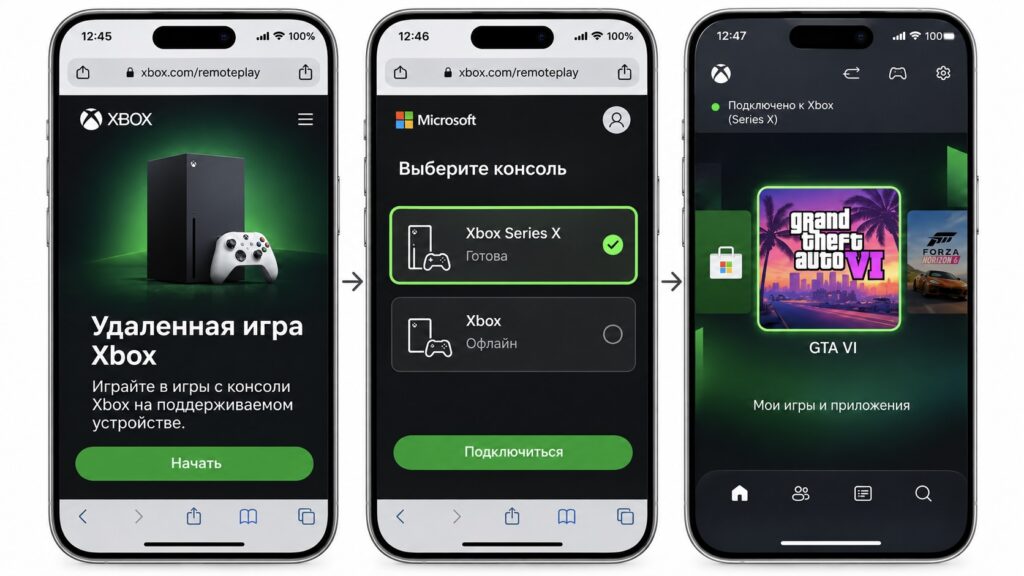
In Safari, select your console and tap Connect
If several consoles appear in the list, look for the name of your Series X or Series S and a “Ready” status.
Test the connection while the console is within reach
When the iPhone and the console are both at home, start with 5 GHz Wi-Fi. If the picture breaks into blocks even next to the router, try connecting the console to the router with an Ethernet cable. That way at least one side of the connection is wired.
Away from home, the phone receives the stream over the internet, so your home upload speed matters. Fast Wi-Fi at a friend’s place won’t help much if your home network can barely send video. For PS Remote Play, Sony lists a minimum of 5 Mbps for download and upload and recommends at least 15 Mbps in both directions.
Before you travel, check that the console can be reached from another network. For PS5, this test works:
- Put the PS5 into rest mode. Make sure the rest mode settings keep the internet connection on and allow the console to be turned on from the network.
- Connect the iPhone to a different Wi-Fi network. To test over mobile data, enable the mobile data option in the PS Remote Play settings and turn off Wi-Fi on the phone.
- Connect to the PS5 through PS Remote Play and open GTA VI. This shows right away whether the console wakes up and whether the connection is fast enough to play.
Use a controller instead of touch controls
In PS Remote Play, on-screen buttons appear when you touch the display. They are fine for menus, but while driving your thumbs cover part of the picture exactly when you need to steer and move the camera at the same time. For PS5, use the console’s DualSense controller. For Xbox, a Bluetooth-capable Xbox Wireless Controller works, such as the one bundled with the Series X or Series S. Bluetooth support on older Xbox One controllers should be checked separately.
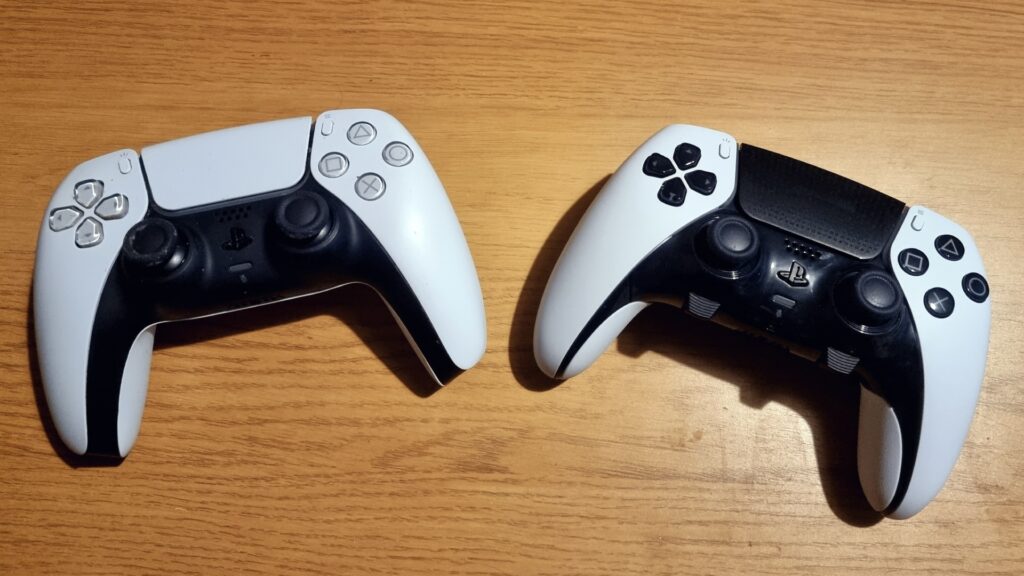
Standard DualSense on the left, DualSense Edge on the right
- Put the controller into pairing mode. On a DualSense that is switched off, hold the PS button and the Create button (left of the touchpad) together until the light bar flashes. On an Xbox controller, press the Xbox button to turn it on, then hold the pair button on the top edge until the logo flashes.
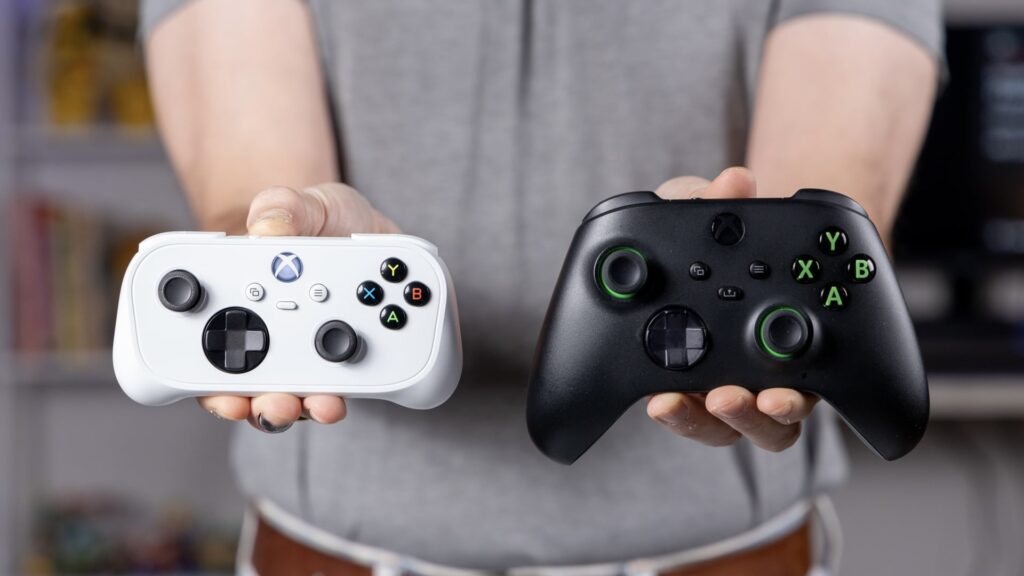
The Xbox button layout is also found on compact controllers
- On the iPhone, open Settings > Bluetooth. Under Other Devices, select DualSense Wireless Controller or Xbox Wireless Controller, depending on which one you put into pairing mode.
- Wait until the status shows Connected. Only then open PS Remote Play or the Xbox Remote Play page in Safari. Before starting the game, check in the console menu that the sticks and buttons respond.
Making the small screen more comfortable
With a controller, you can set the phone on a stand. For playing on the couch, a clip that attaches the iPhone directly to the controller is more convenient. If text is still hard to read on a small screen, GTA VI’s menus include separate settings for interface scale and readability, as well as subtitles. These are a good place to start before your first drive through Vice City on an iPhone.