From 19 November 2026, iPhone users in Russia who scan an SBP QR code at a checkout may see a browser warning about an insecure connection instead of a list of banks. According to the source, this can happen with most popular browsers on iPhone. The National Payment Card System (NSPK), the operator behind Russia’s Faster Payments System (SBP), is moving its payment services to Russian-issued certificates. If a browser such as Safari does not recognise them, it may stop before the user can choose a bank. NSPK announced the change in advance. The source outlines three responses: install the Ministry of Digital Development certificate and trust it, use a browser that already includes it, or scan the code with a bank app’s built-in scanner.
What you need to know
- NSPK is moving SBP payment tools and its universal QR code service to Russian certificates first. From 19 November 2026, these pages may show insecure-connection warnings in foreign browsers.
- On iPhone and iPad, the fix the source describes is to install the Ministry of Digital Development profile from Russia’s Gosuslugi portal and then manually enable full trust for Russian Trusted Root CA.
- On a Mac, the certificates must be installed separately through Keychain Access, even if the iPhone already has the profile.
- NSPK also recommends Yandex Browser, which already includes the ministry’s certificates. If the error appears in a checkout queue, the source says a bank app’s own QR scanner is the faster option.
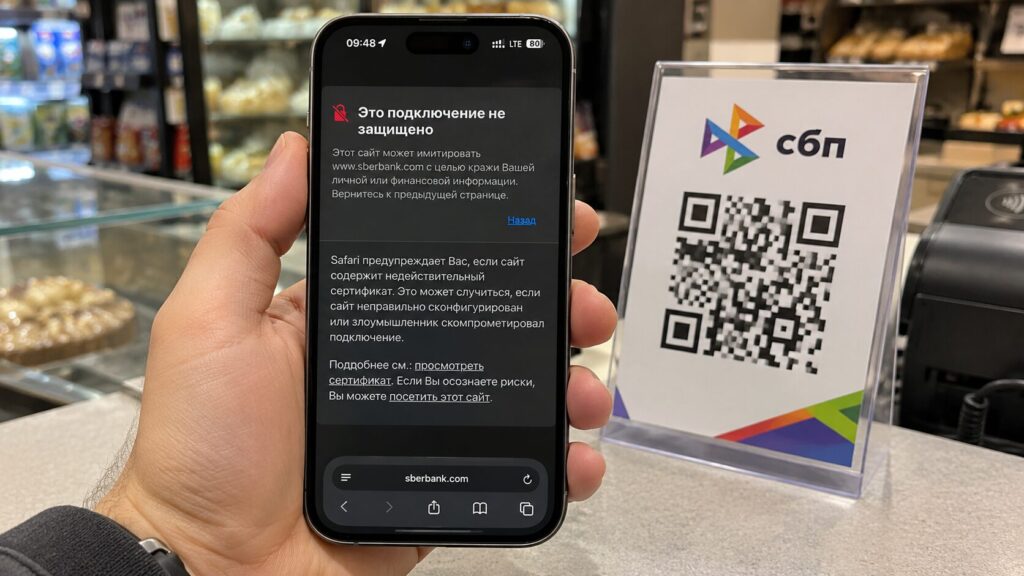
A Safari connection error at a checkout
The camera reads the QR code, but the browser shows the warning
NSPK has begun moving payment services to Russian certificates. The first services in line are payment tools for the Faster Payments System and the universal QR code service. From 19 November 2026, opening these pages in foreign browsers may produce a warning that the connection is not secure. The operator set out the timeline and scenarios in its announcement about the certificate transition.
The source gives two typical scenarios. In the first, a shopper chooses SBP in an online store and is redirected to a payment page. In the second, someone scans a universal QR code with the standard iPhone Camera app, for example when buying coffee. In both cases, the browser must verify the payment page using a certificate chain it trusts. If that chain includes a certificate from a Russian certificate authority that the device does not recognise, Safari may stop before the user can choose a bank.
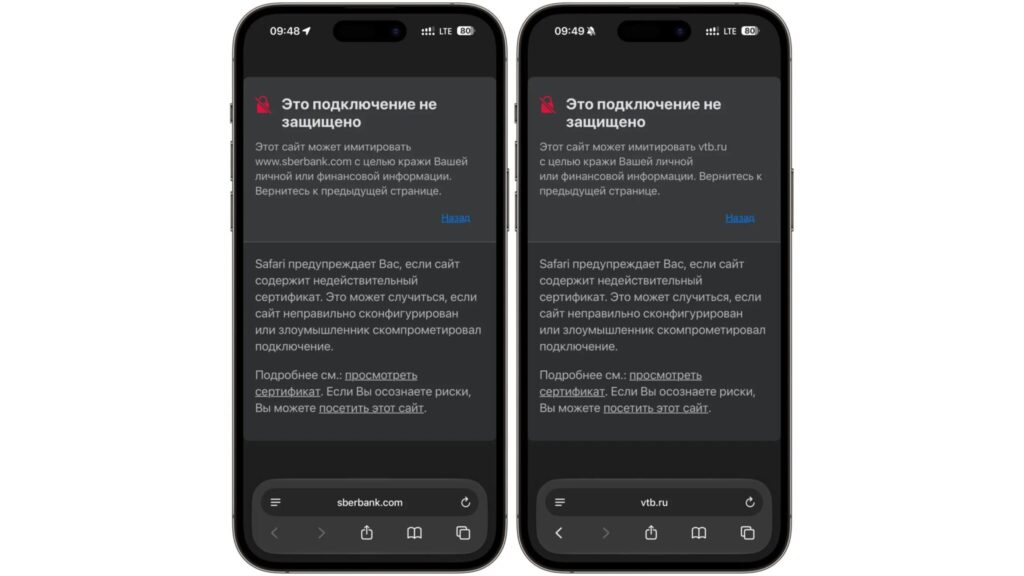
How Safari warns about a certificate problem
Mir cards and in-store alternatives
NSPK has also announced a gradual transition in November for the Mir card system. For online purchases with a Mir card, the operator recommends the same settings as for SBP pages. At a physical checkout, the source notes that people can still tap the card on the terminal or pay with a phone in the usual way, if that method works with their bank.
QR checkouts have one more option. Mobile banking apps usually include their own payment-code scanner. The source says this is useful if the iPhone Camera app has already opened a page that shows the warning.
Staying with Safari on iPhone: install the profile and enable trust
According to the source, a similar warning appeared over the summer when people tried to open Russian banks’ websites in Safari. The same fix applies to NSPK payment pages. On iPhone and iPad, users download the Ministry of Digital Development profile, install it, and then allow the system to trust its root certificate.
The source advises downloading the profile from the official Gosuslugi page. Installation requires the device passcode in Settings. The step that is easiest to miss comes last, at the very bottom of the About screen.
- In Safari, open the certificates page on Gosuslugi and download the profile for Apple iOS. When asked whether to download the profile, tap Continue.
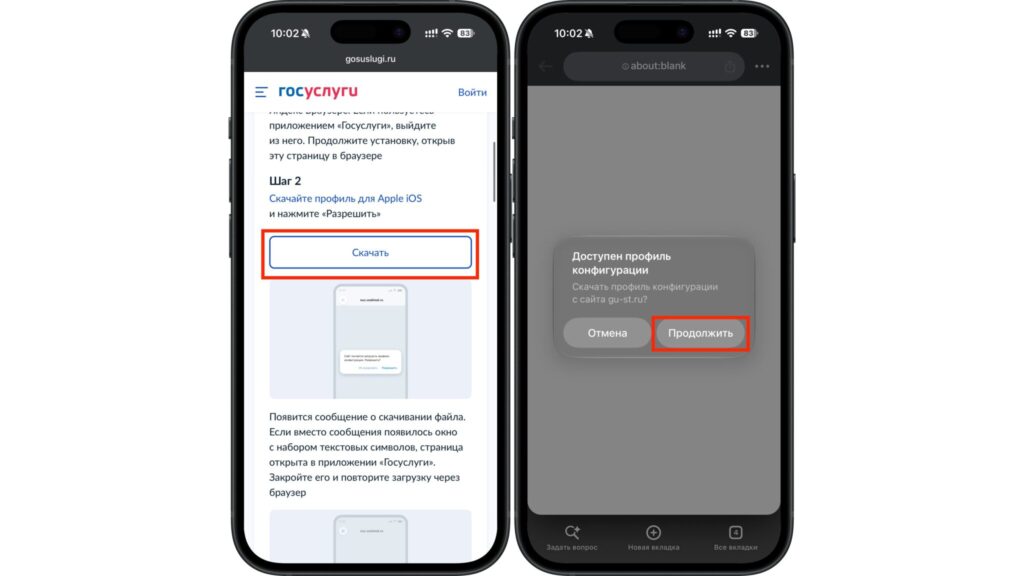
Download the iOS profile and confirm the download
- Open Settings and tap Profile Downloaded. To find the profile manually, go to General > VPN & Device Management.
- Tap Install, enter the iPhone passcode, and confirm the installation. Close the screen by tapping Done.
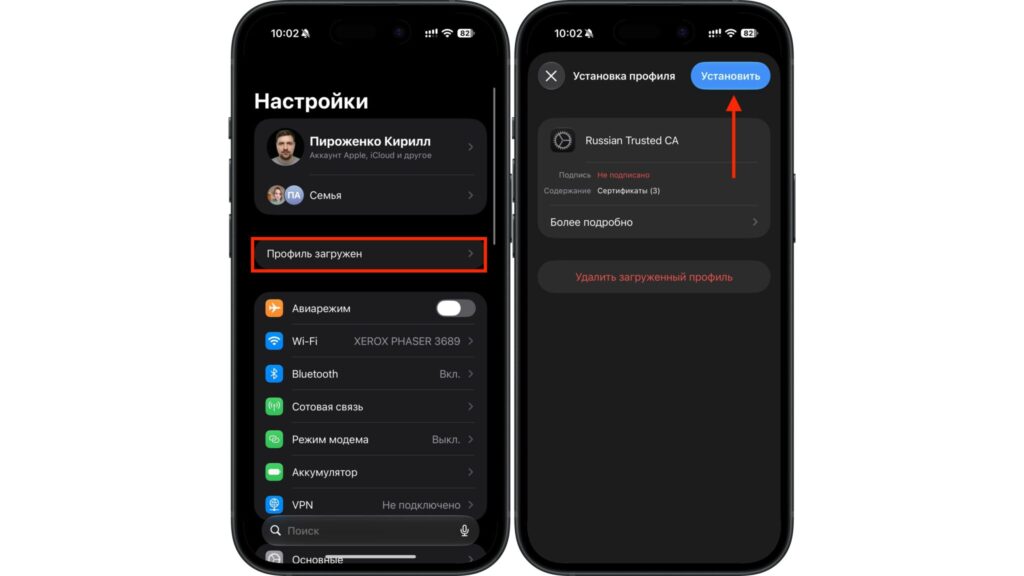
Open the downloaded profile and tap Install
- Go to Settings > General > About. At the bottom, find the certificate trust settings.
- Enable full trust for Russian Trusted Root CA and confirm your choice. Then reopen the payment page from the order link, or scan the code at the checkout again.
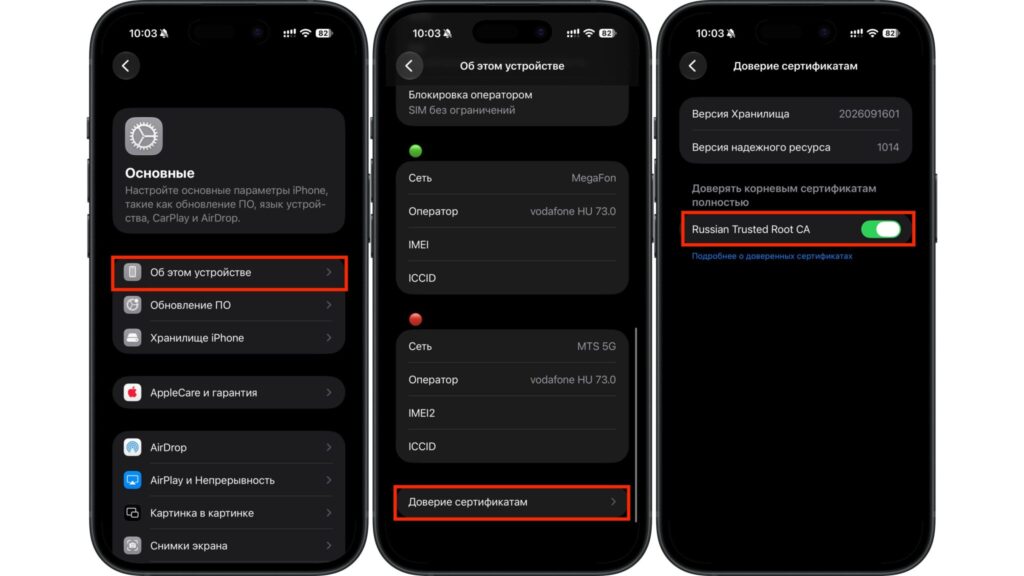
Enable trust for Russian Trusted Root CA
Common pitfalls
The two confirmation screens for a single profile are easy to mistake for one. Apple notes separately that SSL/TLS trust must be turned on manually. If you installed the profile and went straight back to Safari, check the last step. Apple’s guide to configuring certificate trust includes an image of the relevant screen.
If the Profile Downloaded entry has disappeared, the source recommends downloading the file again and opening Settings straight away. If the warning still appears, the source advises putting off payment in that browser tab.
On a Mac, certificates are managed in Keychain Access
When you order on a Mac, the payment page may open directly in the browser. For this case, Gosuslugi offers a separate certificate package for macOS. The source stresses that it must be installed on the computer itself, even if the iPhone already has the profile.
Installation uses the Keychain Access app on the Mac, which can be found through Spotlight. The root certificate is called Russian Trusted Root CA, and the issuing certificate is called Russian Trusted Sub CA. macOS uses the root certificate to verify the chain of trust that includes the issuing certificate.
- On the Mac, open the certificates page on Gosuslugi and download the macOS package. If it arrives as an archive, unpack it.
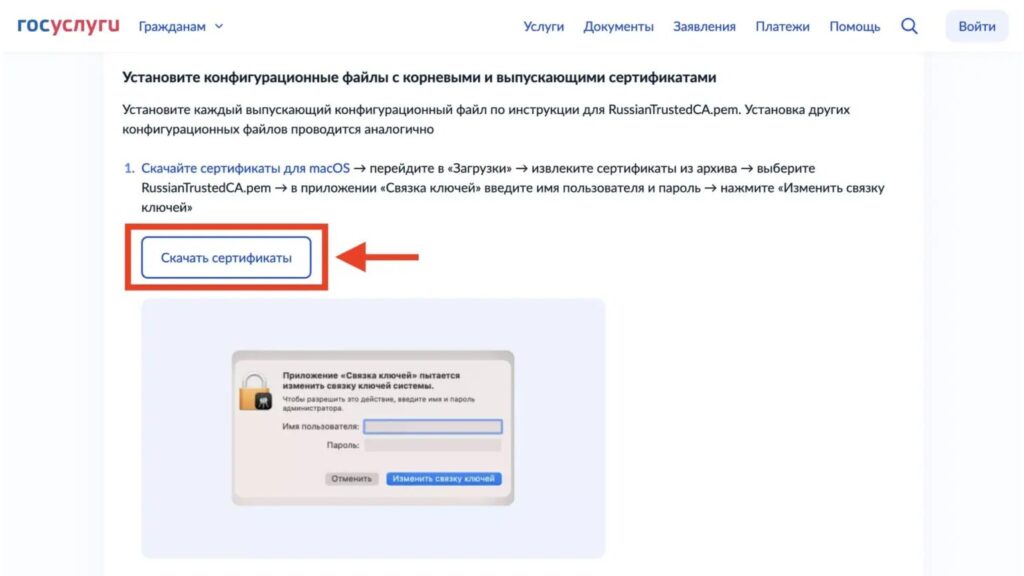
The macOS certificates are downloaded from Gosuslugi
- Open the downloaded certificate file in Keychain Access. If you import the certificates manually, add both to the login keychain. Confirm the change with your user password if macOS asks for it.
- In the certificate list, double-click Russian Trusted Root CA and expand the Trust section. Set SSL to Always Trust, close the window, and confirm the change.
- Restart the browser and reopen the payment page from the order.
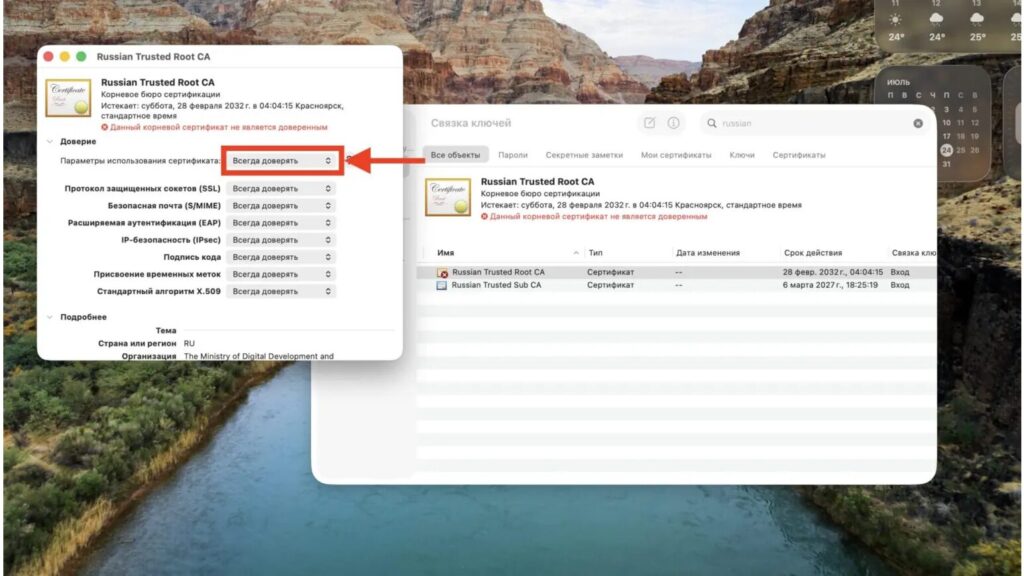
Trust settings for the root certificate in Keychain Access
The source notes that this setup also helps people who use online banking on a computer. If a store shows a QR code in the Mac browser for you to scan, however, the certificate is needed on whichever device opens the payment link. For example, if the code is on a MacBook screen and you scan it with an iPhone camera, it is the phone that may show the warning.
The alternative NSPK recommends: Yandex Browser
NSPK also recommends switching to Yandex Browser, which comes with the Ministry of Digital Development certificates built in. For SBP purchases, the source suggests making it the default browser so that links from other apps open in it directly.
On iPhone or iPad
- Install Yandex Browser from the App Store.
- Go to Settings > Apps > Default Apps.
- Under Browser, select Yandex Browser.
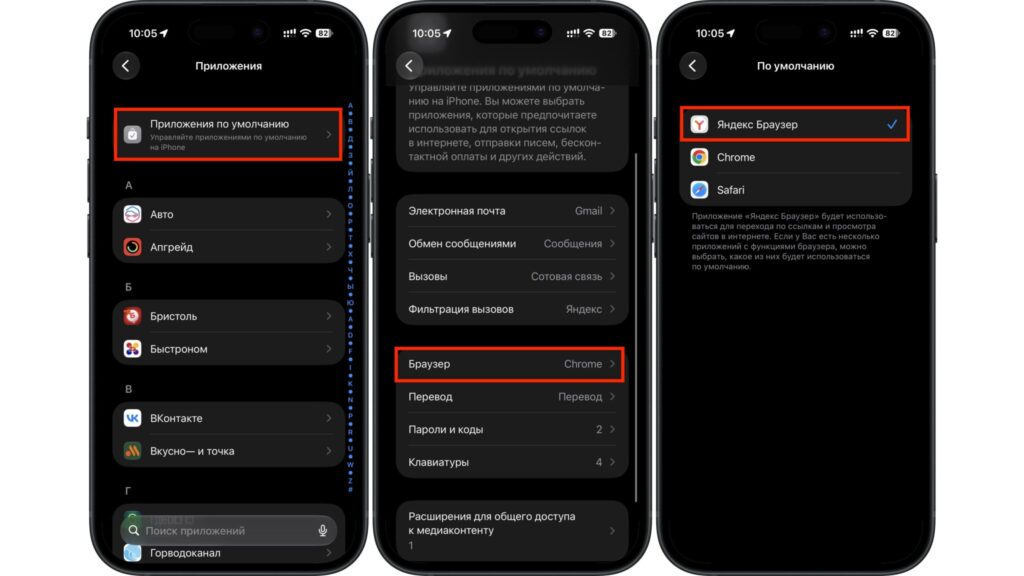
Yandex Browser is selected under Default Apps
On a Mac
The setting is in a different place on a Mac.
- Download Yandex Browser from Yandex’s official download page and install it.
- Open System Settings > Desktop & Dock.
- Find the Default web browser menu and select Yandex Browser.
The source adds two caveats. Changing the default browser will not move an order you have already started in a Safari tab, so open the store in Yandex Browser from the start next time. And when you scan a code with the iPhone camera, check which app the link actually opened in.
If the error appears at the checkout
If the warning appears while you are in a queue, the source says the faster option is to open the scanner in your banking app and scan the same code. If a payment has already been sent and you are unsure whether it went through, check the transaction history in your bank app and the order status first. You can change browsers or install certificates after the purchase.