Android’s built-in transfer during setup does not copy everything, even when it finishes without errors. Files in the Download folder, hidden folders, apps installed outside Google Play and contacts stored only on the old phone can all be left behind. Missing data can usually be recovered from the old device. The options are the phone maker’s own transfer tool, manual copying, or exporting contacts to a VCF file. The source author’s main advice is to check everything before resetting the old phone.
What you need to know
- According to the source, Google warns that its standard transfer may skip files in the Download folder, the contents of hidden folders and some other data.
- Google restores apps based on Google Play. Apps from third-party stores or sideloaded APK files may not appear on the new phone.
- Manufacturer tools such as Samsung Smart Switch, Mi Mover, Device Clone, Clone Phone and EasyShare can copy data directly. Some can also move apps from third-party sources, but their capabilities vary.
- Contacts saved only in the old phone’s memory may be missing if you just sign in to your Google account. Exporting them to a VCF file is a reliable fallback.
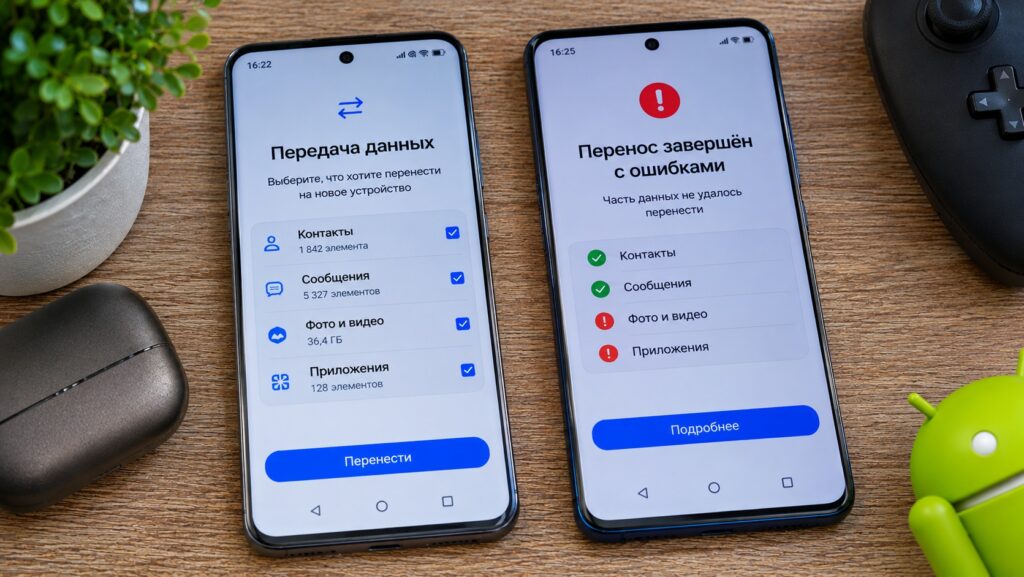
A failed data transfer from one smartphone to another
Setting up a new Android phone looks simple. You connect the old phone, wait a while, and your data comes across. During setup, Google even offers to transfer apps, photos, contacts and other files. Once you open the new phone, though, some things may be missing. These can include photos, contacts or apps that never installed. As the source notes, the transfer may still have completed without any errors.
Google’s transfer does not copy everything
When you first turn on a new Android phone, it offers to copy data from your old one. Usually you place the devices next to each other, sign in to your Google account and follow the on-screen prompts. The transfer can run over a cable or wirelessly. The source author prefers a cable, especially when the phone holds a lot of photos and videos.
The process works like this:

- Turn on the new phone and connect it to Wi-Fi.
- During setup, choose to copy apps and data.
- Connect the old phone with a cable or choose the wireless option.
- Confirm the connection on the old device.
- Select the data to copy and wait for the transfer to finish.
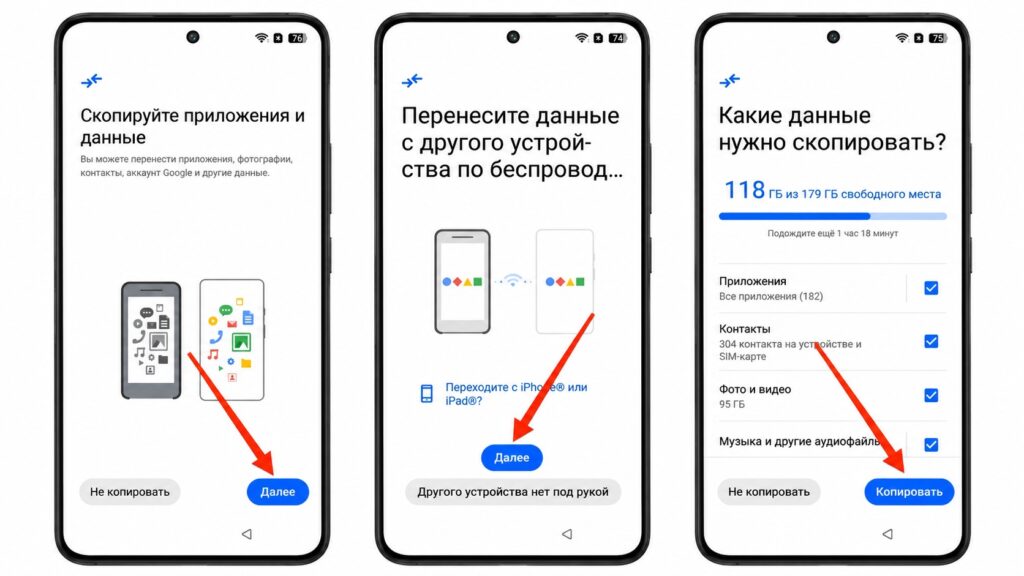
Transferring data with Google’s standard feature
What gets copied depends on the phone model and Android version. It may include photos, videos, contacts, SMS messages, call history, wallpapers, some settings and some apps. If the old phone is not available, you can restore from a Google backup made beforehand. Either way, this is not a full copy of the phone. Some files and apps have limitations that users typically notice only after setup is done.
Some photos and files stay on the old phone
A common frustration is that the Gallery looks complete, but a specific document or old video is missing. According to the source, Google warns that the standard transfer may skip files in the Download folder, the contents of hidden folders and some other data. You should not count on every folder being copied automatically.
Google Photos is a separate case. If sync was turned on on the old device, your photos may appear on the new phone after you sign in. That does not mean all the originals have been downloaded to the phone’s storage. The source author recommends checking which photos are available only online and which are actually stored on the device.
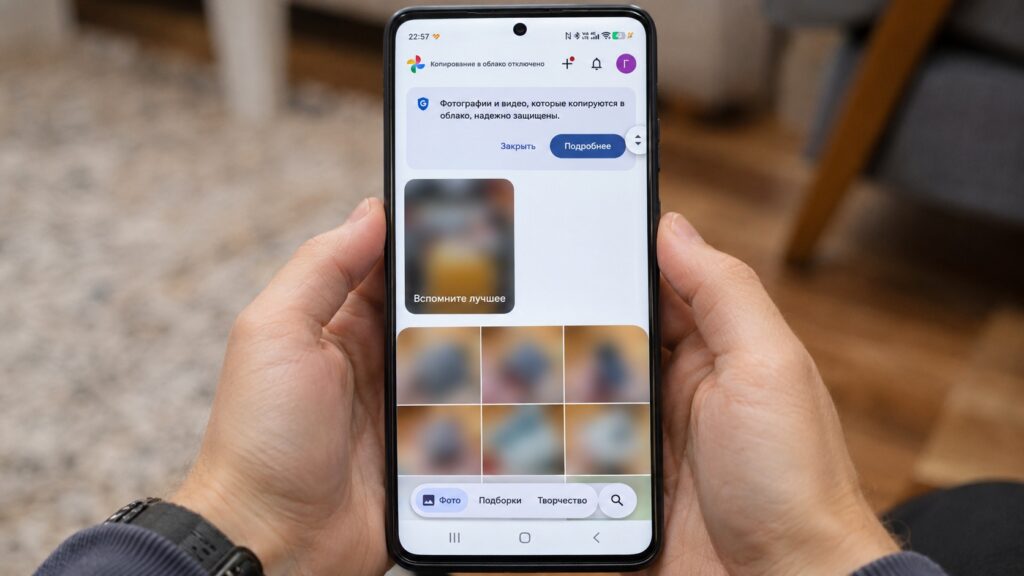
The Google Photos interface on Android

There are a few ways to move missing files:
- Connect both phones to a computer and copy the folders you need by hand.
- For individual photos, videos or documents, use Android’s Quick Share.
- When there are many files, a manufacturer’s transfer tool for the new phone is often more convenient.
Manufacturer tools can recover apps and files
The source says many people forget about this option. Google restores apps based on Google Play, so apps installed from third-party app stores or as APK files may not appear on the new phone. This is especially painful when the old phone has banking apps or other essential software that is not available on Google Play.
Phone makers offer their own utilities that can copy data directly from the old device. Some move not only photos and contacts but also installed apps, including apps from third-party sources. These tools can often be used even after initial setup is complete. The source lists the following tools for popular brands:
- Xiaomi, Redmi and POCO: Mi Mover
- Samsung: Smart Switch
- HONOR: Device Clone
- OPPO: Clone Phone
- realme: Clone Phone. This link goes to the manufacturer’s instructions. According to the source, an install link for the old phone appears during connection.
- vivo: EasyShare
Most of these tools work the same way: one phone receives data and the other sends it. On Xiaomi phones, for example, this is done with Mi Mover. The general steps are:
- On the new phone, open the manufacturer’s transfer tool. If it is not installed, install it using the link above.
- Launch the app on the old phone. Install a compatible version if needed.
- On the new device, choose “This is the new phone,” “Receiver” or a similar option.
- On the old device, choose “This is the old phone” or “Sender.”
- Connect the phones by scanning a QR code or selecting the suggested Wi-Fi network.
- On the old phone, select the data you need: apps, contacts, photos, videos and documents.
- Start the transfer and wait for it to finish. Keep the app open on both devices.
- Check which data actually arrived on the new phone.
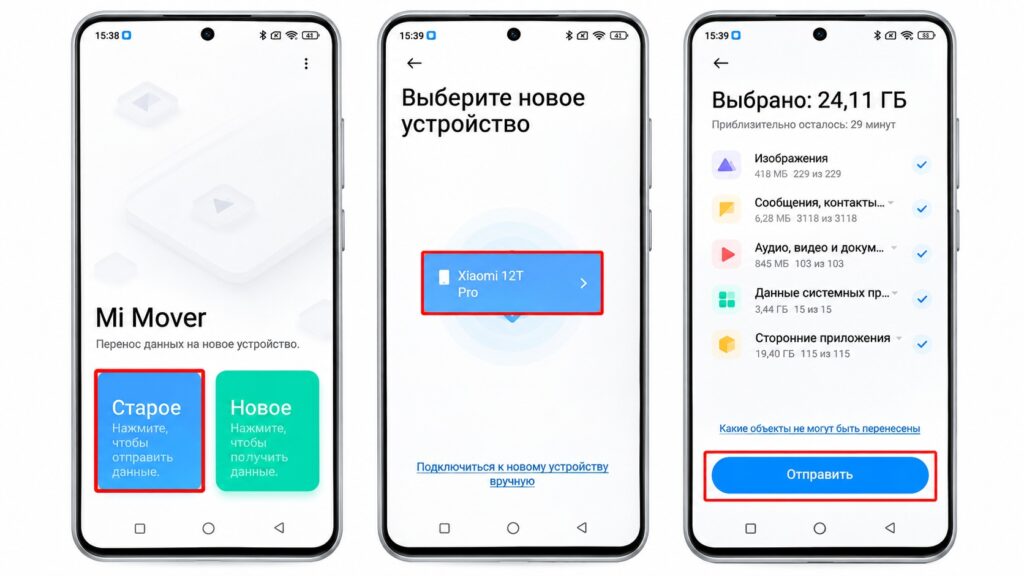
Transferring data with Mi Mover

If Google has already moved most of your data, the source author advises against selecting everything. Choose only the missing apps and files, if the tool allows it. This reduces the chance of duplicate photos and documents.
There is an important limitation: the tools’ capabilities differ. For example, not every version of Smart Switch transfers apps from third-party sources. Even when an APK is copied, its internal data, passwords and banking sessions may stay on the old device. After the transfer, open the apps you rely on and confirm that they work.
Contacts can go missing too
Another common problem: the old phone had a full address book, but only some numbers appear on the new one. According to the source, this often happens because contacts were stored in different places. Some were linked to Google, some were saved in the device’s memory, and others were on the SIM card or in the phone maker’s account.
There is a nuance here. A direct transfer from an old Android phone can copy local contacts and SIM-card numbers. If you only sign in to your Google account on the new phone, mainly the contacts synced with that account will appear. Contacts stored only in the old device’s memory may be missing.
The source author suggests first opening the Contacts app on the old phone to see which sources it uses. If the numbers are not synced, the most reliable fallback is to export them to a VCF file:

- Open the Contacts app on the old phone.
- In the settings, find “Export contacts” or “Export to file.”
- Choose the account that holds the contacts and export them to a VCF file.
- Move the file to the new phone.
- Open Contacts, choose import from file and select the saved VCF.
- During import, choose the account where you want to store the numbers.
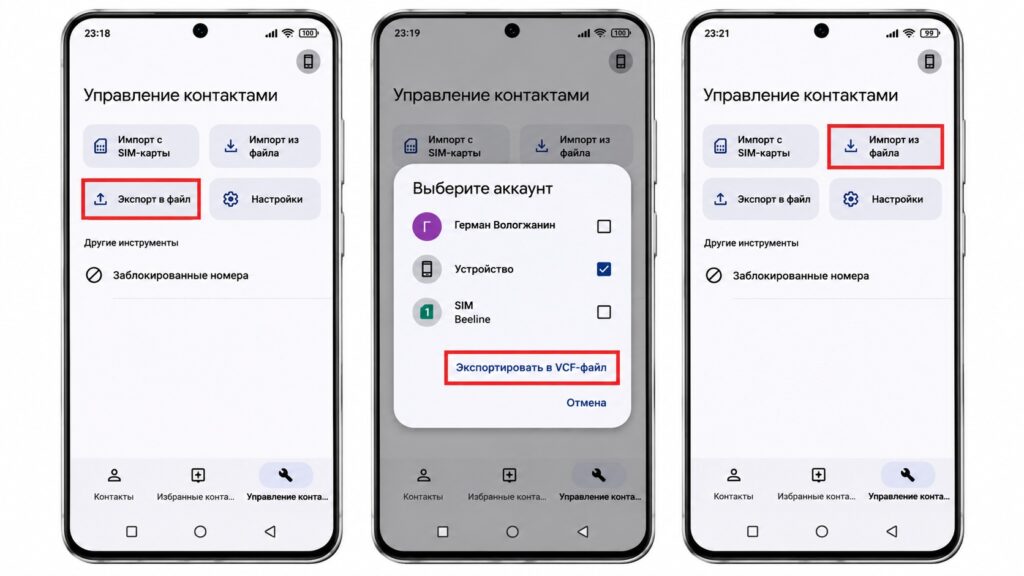
Exporting and importing contacts on Android
Menu names vary by Android skin. On some phones, export is in the contact management section. On others, it is inside the Google Contacts app. If possible, save your numbers to your Google account and turn on sync. Your address book will then be restored when you sign in on your next phone. If some numbers are stored only on the SIM card, you can import them from the SIM separately.
What to check after the transfer
Even manufacturer tools cannot make a perfect copy of every Android phone, the source notes:
- Some apps block their data from being transferred.
- Banking apps require you to sign in again.
- Messaging apps use their own methods to restore chat history.
- Games are similar: if saves are not tied to a cloud account, progress may stay on the old device.
For this reason, the source author advises against factory-resetting the old phone right away. First, make sure the new one really has everything you need:
- Compare the number of contacts and check a few important numbers.
- Open the Gallery, the Downloads folder and your document folders.
- Check apps from Google Play, third-party app stores and manually installed APKs.
- Sign in to your banking apps and confirm that access works.
- Check your chats, notes, passwords and game saves.
- If you plan to keep photos and other important files on the phone, make sure they open without an internet connection.
If anything is missing, go back to the old device and transfer it separately. App restoration from Google Play sometimes continues after initial setup has finished. Before reinstalling anything, check whether a download is still running in the background.