Samsung smartphones offer many capabilities that are often unique, but One UI can start to feel bloated over time: duplicate apps, unnecessary recommendations, background services, and gestures you never asked for. So I went through the settings and removed what was getting in the way — without a factory reset or installing a third-party launcher. Below I’ll walk through the same steps and explain who they’ll actually help.
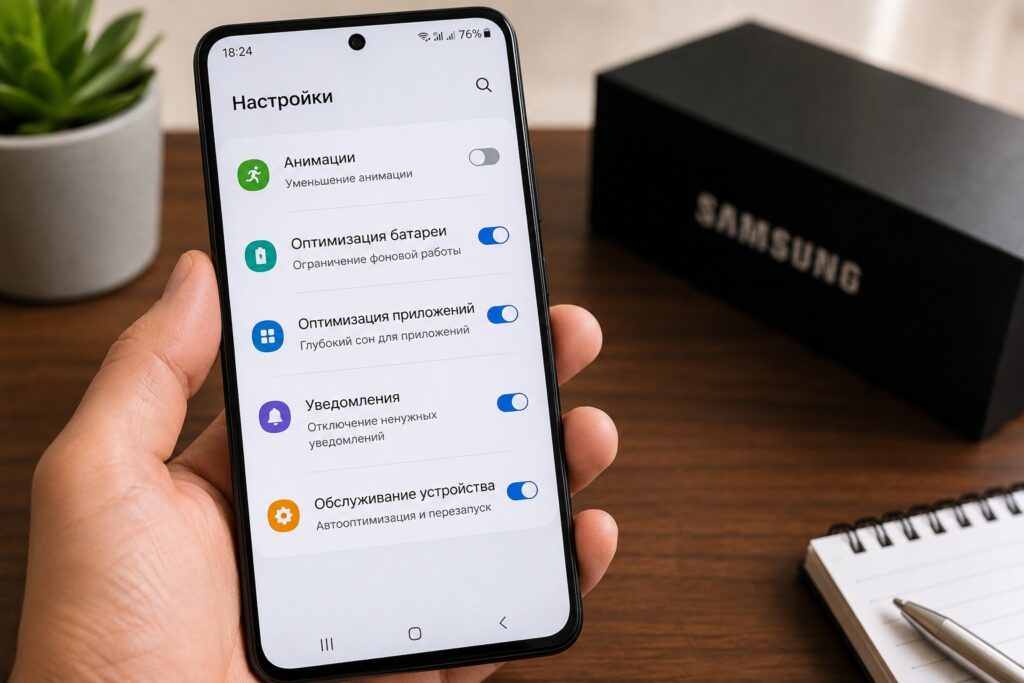
Showing the correct Samsung optimization settings
Samsung Performance Profile: Which One to Set
At one point I switched my Galaxy to the Light power-saving profile to squeeze out a bit more battery life. But later I noticed a downside: the phone stopped feeling responsive. Apps took slightly longer to open, animations weren’t as smooth, and heavy tasks lost the speed you expect from a flagship.
The solution is simple. In settings, you need to open the Device Care section, find the performance profile, and switch the value back to Standard. This is Samsung’s recommended balance between performance speed, battery life, and heat management.
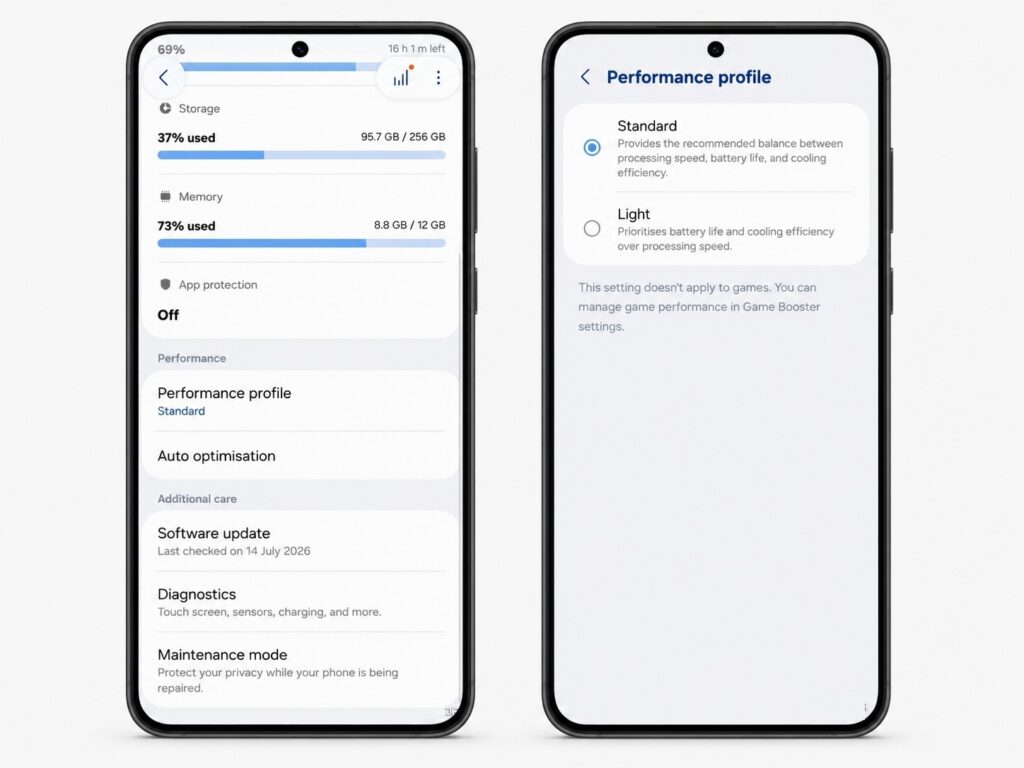
Set the Standard profile
There was no noticeable battery drain after switching profiles, but everyday navigation and multitasking became smoother. Light mode still makes sense when maximum battery life is the priority — but for everyday use, Standard is the better choice. If battery life still isn’t enough after this, I recommend lowering the screen resolution from QHD to FHD on models that support it.
Samsung Optimization in the Device Care Section
One of the quickest ways to tidy things up is the built-in Device Care tool. Simply go to the Device Care section and tap “Optimize now”. The system does everything on its own from there. It closes unnecessary background apps, checks for abnormal battery drain, clears temporary memory, looks for problematic apps, and identifies potential security threats or performance slowdowns.
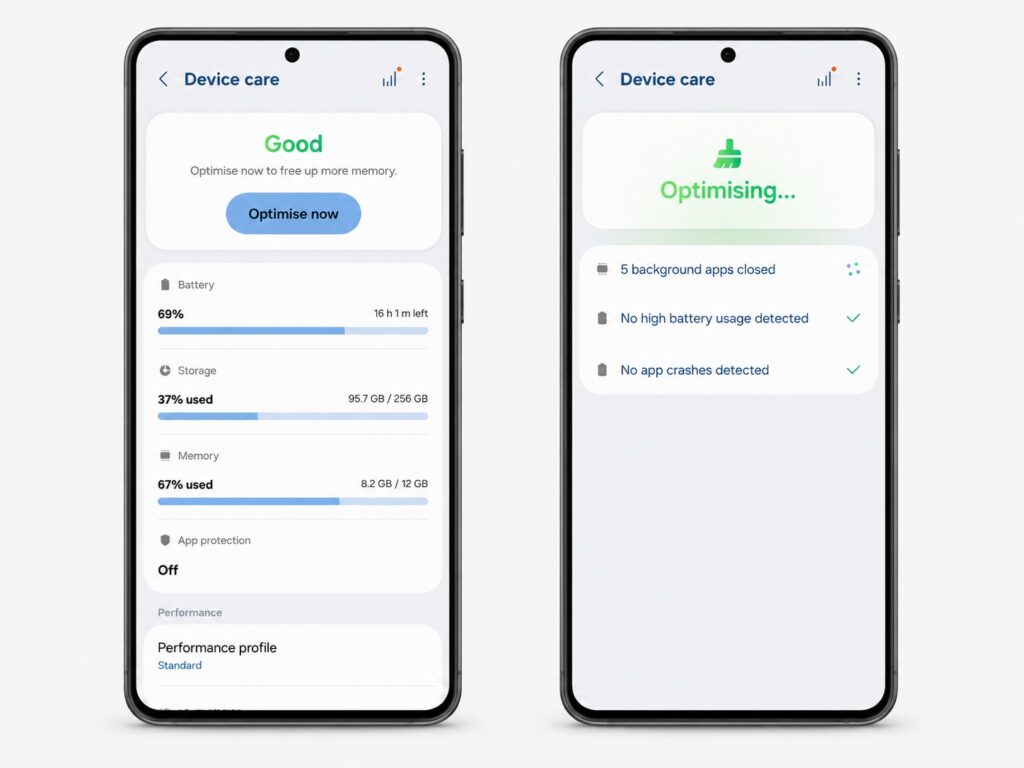
Samsung has a built-in optimization tool
The main advantage is that you don’t need a third-party “cleaner” and you don’t have to manually close dozens of apps. The process takes a few seconds but helps keep background activity under control — after running it, the phone feels more responsive.
How to Disable Samsung Gestures and the Edge Panel
This is about gestures and services that interfere more than they help. The first thing I disabled was the Edge panel: the floating drawer at the edge of the screen constantly intercepted the “back” gesture. You swipe from the edge to go back — and instead the panel opens. You can disable this in display settings under the Edge panels option, after which back navigation became much more predictable.
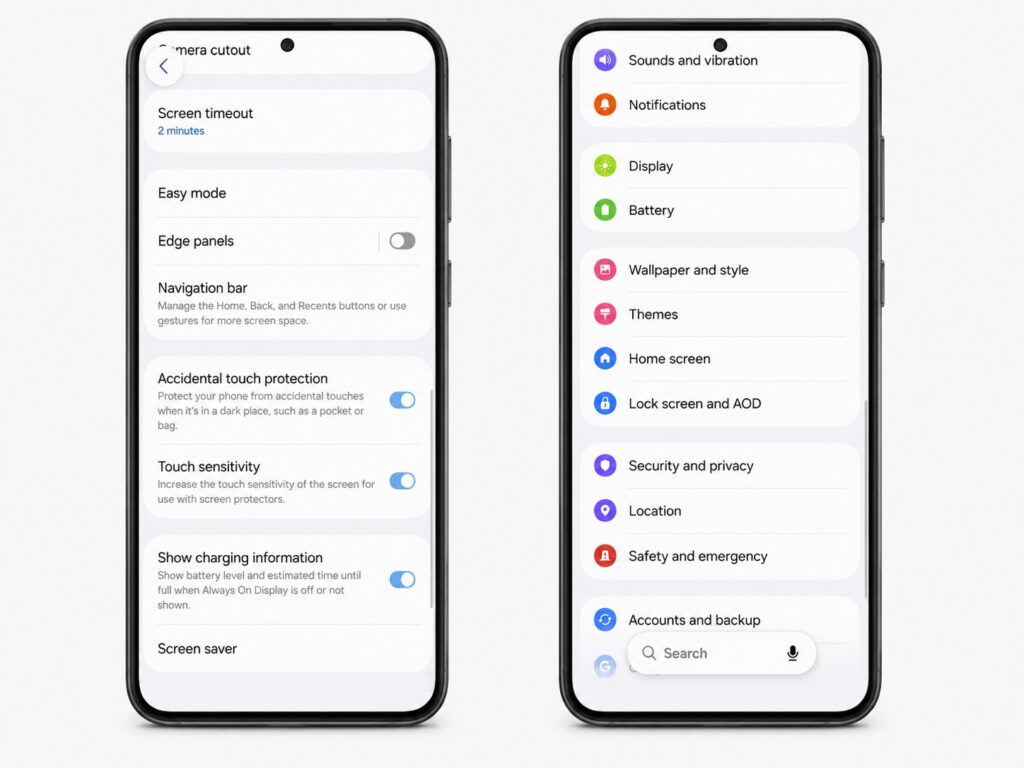
Confidently disable unnecessary gestures too
The second step is to disable the Samsung Free feed and switch back to Google Discover. You can do this by long-pressing on an empty area of the home screen, swiping to the leftmost page, and selecting Google Discover. The third step is the Samsung Wallet gesture. I kept accidentally triggering the wallet when I was simply trying to open the app drawer. In the Wallet settings, there’s a quick access option where you can disable the swipe-up gesture on both the lock screen and the home screen.
Samsung Live Wallpapers: Why You Should Disable Them
Live wallpapers look impressive during initial setup, but the novelty wears off quickly. They add constant motion to the screens, consume more resources than a regular image, and make the interface feel visually busier.
I replaced them with a static image, and the phone immediately felt cleaner and calmer. Here’s how to do it:
- Open the Gallery app and choose your favorite photo.
- Tap the three-dot menu.
- Select “Set as wallpaper.”
A static image still lets you personalize your screen, but without the unnecessary background animation that distracts the user and consumes smartphone resources.
Increased Touch Sensitivity for Screen Protectors and When to Disable It
Many people apply a screen protector right after buying an expensive smartphone — better an extra layer than scratches on the display. But after installing protection on mine, the touchscreen started responding worse: some taps required extra pressure, swipes sometimes lagged, and typing became less comfortable.
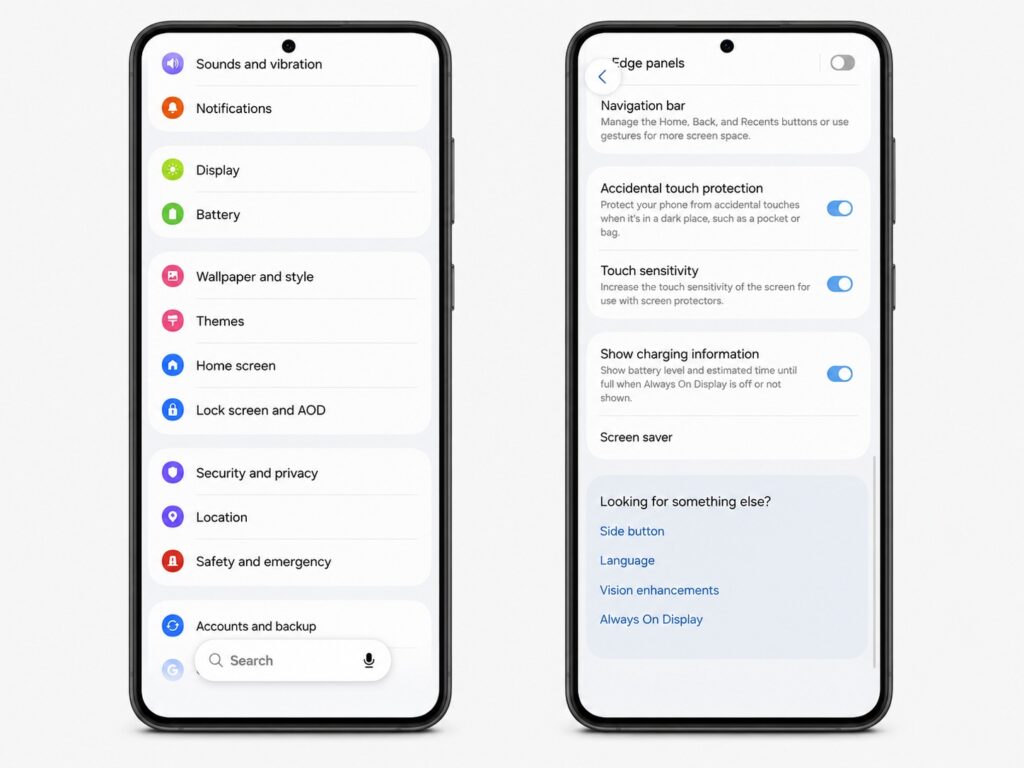
It’s also better to disable increased screen sensitivity
This is fixed with a single toggle. In the display settings, you need to enable increased touch sensitivity — this feature boosts screen responsiveness when a screen protector or film is applied. The feature is useful specifically for owners of models with screen protection; there’s no point enabling it without one.