The “Sign in with Google” button once seemed like the perfect solution: one click and you’re registered — no need to come up with a password or confirm your email. But in 2025, this habit has become one of the biggest threats to digital security. If your Google account gets blocked, hacked, or you simply lose access to it, all the services you signed into with that button will disappear along with it. Google itself, by the way, recently simplified account recovery — but that doesn’t eliminate the main problem. Here’s what to do if you’ve already registered everywhere through Google.
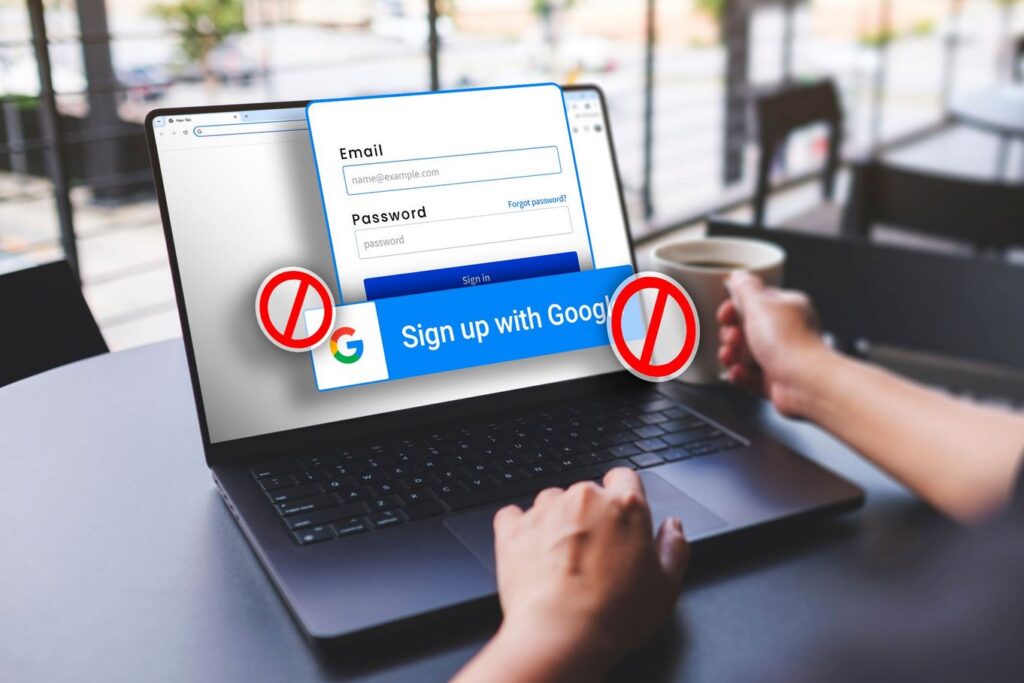
Here’s what’s wrong with the Sign in with Google feature
Why Signing In with a Google Account on Other Sites Is Dangerous
The main drawback of “Sign in with Google” is that you’re putting your entire digital life in one basket. One account becomes the key to everything: email, cloud storage, photos, and dozens of third-party services — messengers, delivery services, smart home apps, utility payments, and even medical services. Losing access to your Google account is easier than you think. Here are just a few scenarios:
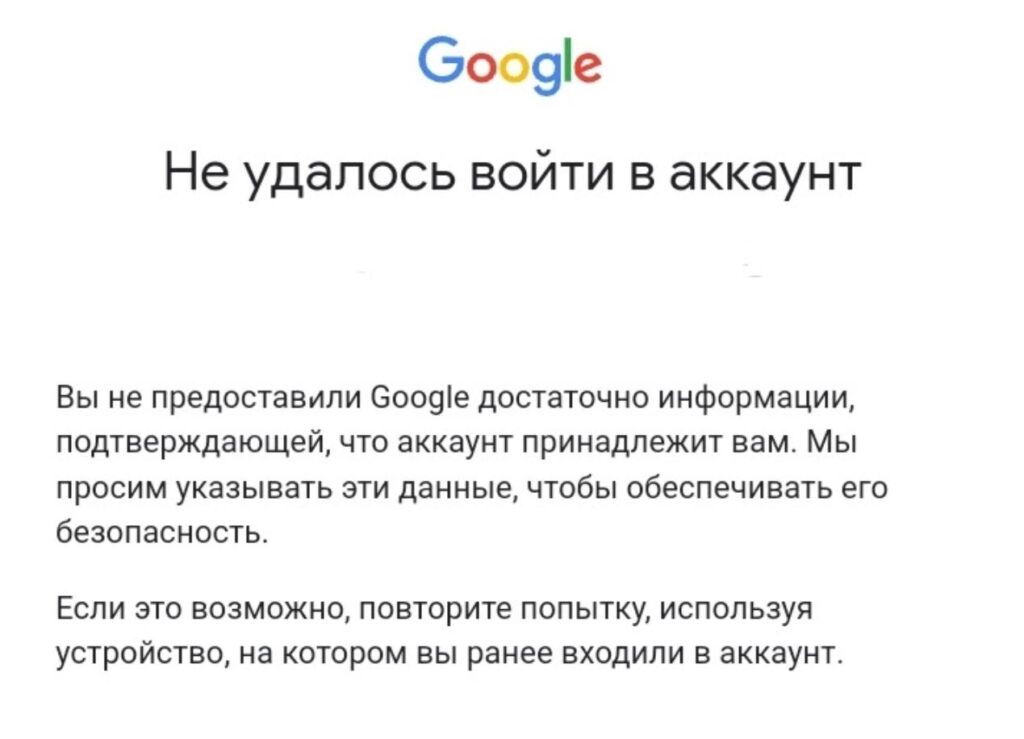
Losing access to your Google account is very easy
- Your account was blocked for violating policies (sometimes erroneously and without the ability to appeal).
- Your account was deleted after two years of inactivity (if you never logged in at all).
- Your account was hacked through phishing or a password leak.
- You forgot your password and lost access to the linked phone number.
In each of these cases, you lose not only Gmail and Google Photos but also access to all services where you signed in through Google. Stories regularly appear on Reddit from people who lost their accounts and along with them — access to dozens of important apps where they used Sign in with Google. Restoring such connections can be extremely difficult, and sometimes impossible.
How Hackers Bypass Google Account Two-Factor Authentication
Many people believe that two-factor authentication (when you need to enter an SMS code or confirm the login on another device after entering a password) protects against everything. But modern phishing attacks have learned to bypass this protection too. The method is called Adversary-in-the-Middle. Here’s how it works: a hacker creates a fake Google login page that looks exactly like the real one. But it’s not just a copy — the page transmits your data to the real Google server in real time.
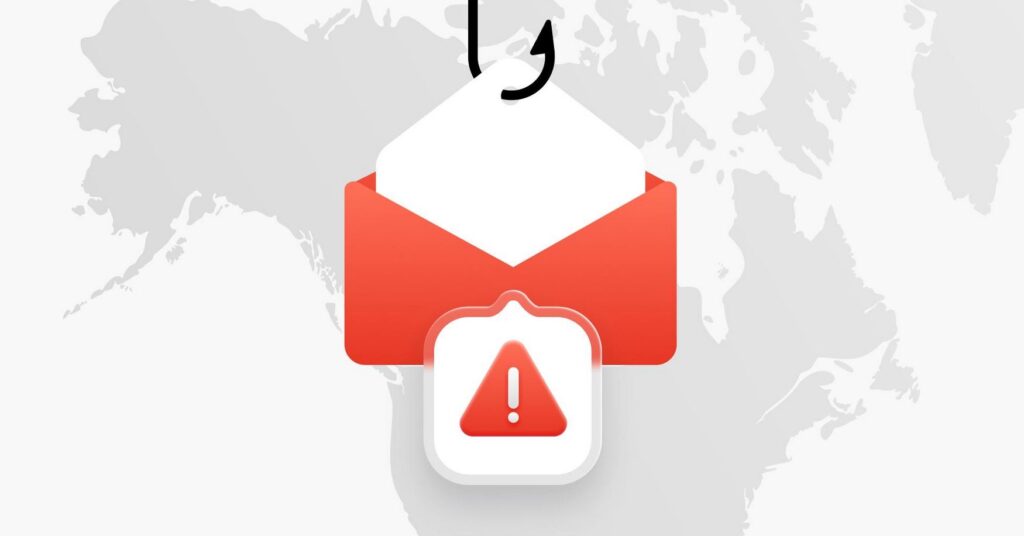
Attack diagram: a fake login page forwards data to the real Google server and intercepts the session
You enter your password, Google sends a confirmation request, you tap “Yes, it’s me” on your phone — and at that moment the hacker intercepts the session token. This is a temporary digital pass that allows you to stay logged into the account without re-entering the password. With this token, the attacker gains full access to your account — and no longer needs the password.
Google Collects More Data When You Sign In with Your Account
There’s another reason to stop using “Sign in with Google”, and it’s not related to hacking but to privacy. Every time you sign into a third-party site through your Google account, the company receives information about which services you use, how often, and from where.
In Google account settings, you can see all services you sign into through Google
This is directly described in Google’s privacy policy. The company states that it doesn’t use personal data to directly train its artificial intelligence models. However, aggregated and “anonymized” usage logs of third-party apps are considered acceptable material for analysis. In simpler terms, Google may not know exactly what you do in a meditation app, but it will know that you use it every Monday morning.
By linking more and more services to one account, you help Google build an increasingly detailed profile of your habits. If you want at least some control over what large companies know about you, it makes sense not to expand this web unnecessarily.
How to Unlink Sites and Apps from Your Google Account
If you already use “Sign in with Google” on your phone across dozens of services, switching to separate logins will take time, but there’s nothing complicated about it. Here’s a step-by-step plan:
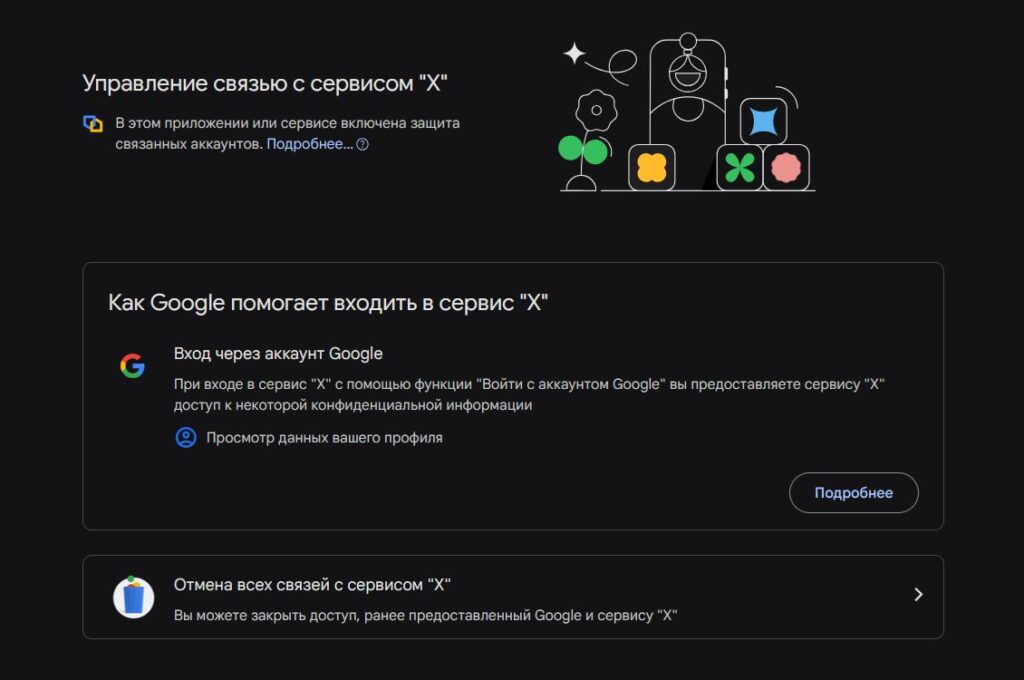
Through Google settings, you can sign out of various services
- Open myaccount.google.com, go to the “Security” section, then — “Third-party apps & services with account access.” There you’ll see the complete list of sites and apps you sign into through Google.
- Go through the list and determine which services are important to you: finance, delivery, smart home, work tools, messengers.
- On each important service, go to the account settings and create a separate login with a password. This is usually done through the “Security” or “Login settings” section within the service itself. Some services allow you to link an email and set a password without losing account data.
- After creating a separate login, return to your Google account settings and revoke access for that service.
For less important services that you rarely use, you can simply revoke access — and re-register if needed. The process isn’t quick, but it only needs to be done once. Start with the most critical services — those where losing access would create real problems.
Password Manager as an Alternative to Signing In with a Google Account
The main objection against separate logins is “I won’t remember a hundred passwords.” And you don’t have to. That’s what password managers are for — apps that store all your logins in encrypted form and auto-fill them when you sign into a site. Here are some proven options:
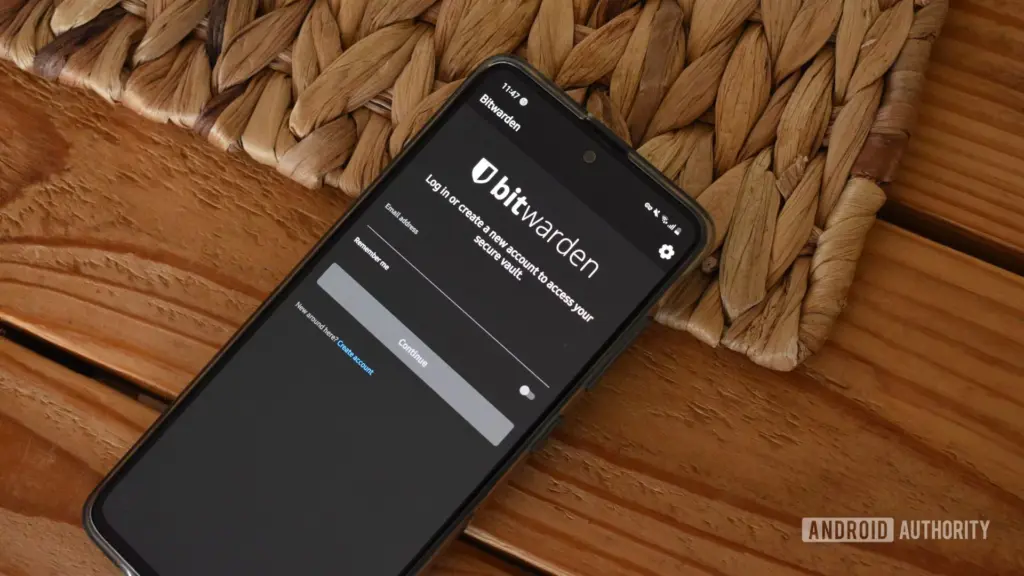
A password manager remembers logins for you and auto-fills them


