WhatsApp* is still used by more than two billion people worldwide, but in 2026 the messenger stopped working on dozens of older smartphones. Due to Meta* restrictions in Russia, installation may require additional steps. But don’t rush! Let’s first figure out how to download WhatsApp on Android and computer, what’s new in the app, and what to do if your device is no longer supported.
Learning how to properly install and set up WhatsApp
What’s New in WhatsApp in 2026
The WhatsApp app has long ceased to be just a text messenger. In addition to the usual chats and calls for up to 32 participants, over the past year the app has received notable updates powered by artificial intelligence.
Here are the main WhatsApp updates in 2026:
- Sticker reactions. You can now react to messages not only with emoji but also with animated stickers, including those created using AI.
- AI avatars. The messenger allows you to create a personal avatar, which then turns into a set of stickers for chats.
- Wallpaper generation. The built-in generator creates wallpapers based on text descriptions. They can be applied to a specific chat or to the entire app.
- Chat summaries. A neural network generates a summary of unread messages in groups and channels, so you don’t have to scroll through hundreds of messages manually.
- Reply suggestions. The Writing Help feature now analyzes the context of the conversation and offers ready-made reply options.
All AI features work with end-to-end encryption, meaning the content of conversations remains private. However, it’s worth noting that some AI capabilities may not be available in Russia, since Meta AI has not yet been adapted for the Russian market.
How to Download WhatsApp on Android via Google Play
The simplest and safest way to install WhatsApp is through the app store. On Android smartphones, there’s only one option. WhatsApp is available on Google Play, and here’s what you need to do to install it:
- Open Google Play.
- Type “WhatsApp” in the search bar or go to the app page on Google Play and tap “Install.”
- Wait for the download to finish, then launch the app from the home screen.
- Enter your phone number and confirm it with the SMS code.
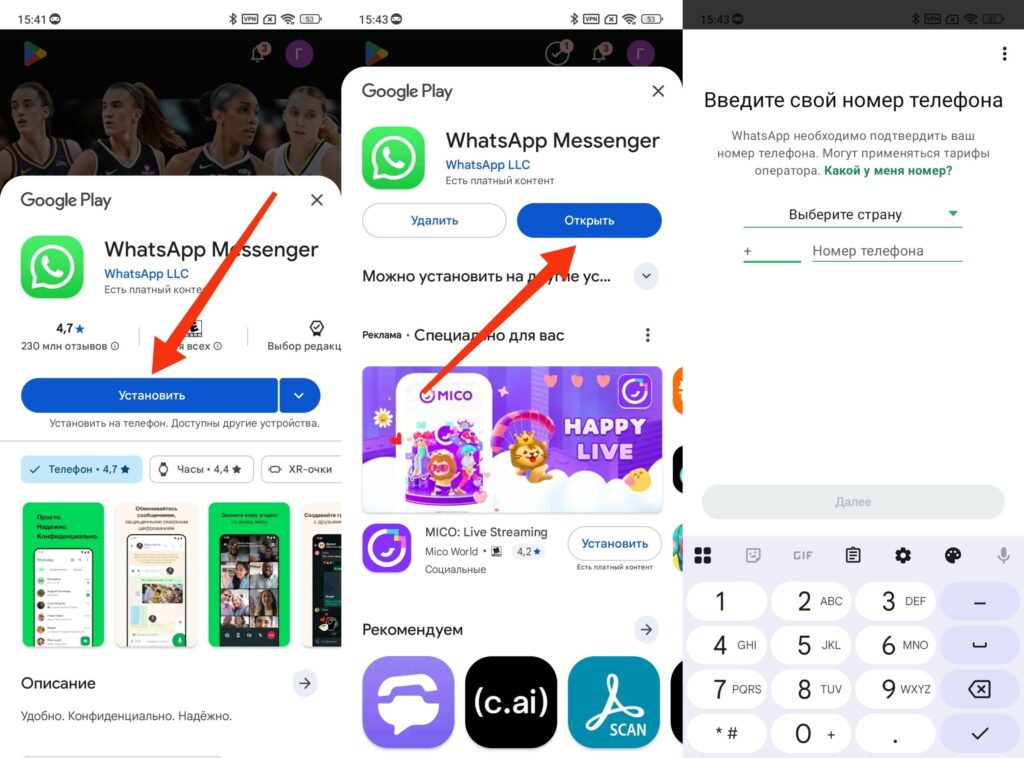
You need to log in to WhatsApp with your phone number
The store provides automatic updates, meaning you won’t have to manually check for new versions. If your smartphone doesn’t have Google Play, you can install the app without Google Play — for example, via an APK file.
Installing WhatsApp via APK from the Official Website
If the app store isn’t an option (for example, your device lacks Google services), the messenger can be installed directly via WhatsApp APK:
- Open your browser and go to whatsapp.com/download.
- Tap “Download WhatsApp directly” (the APK file download will begin).
- Open the downloaded file from notifications or the downloads folder.
- If the system asks for permission to install from unknown sources, confirm it in settings.
- After installation, launch the app and sign in with your phone number.
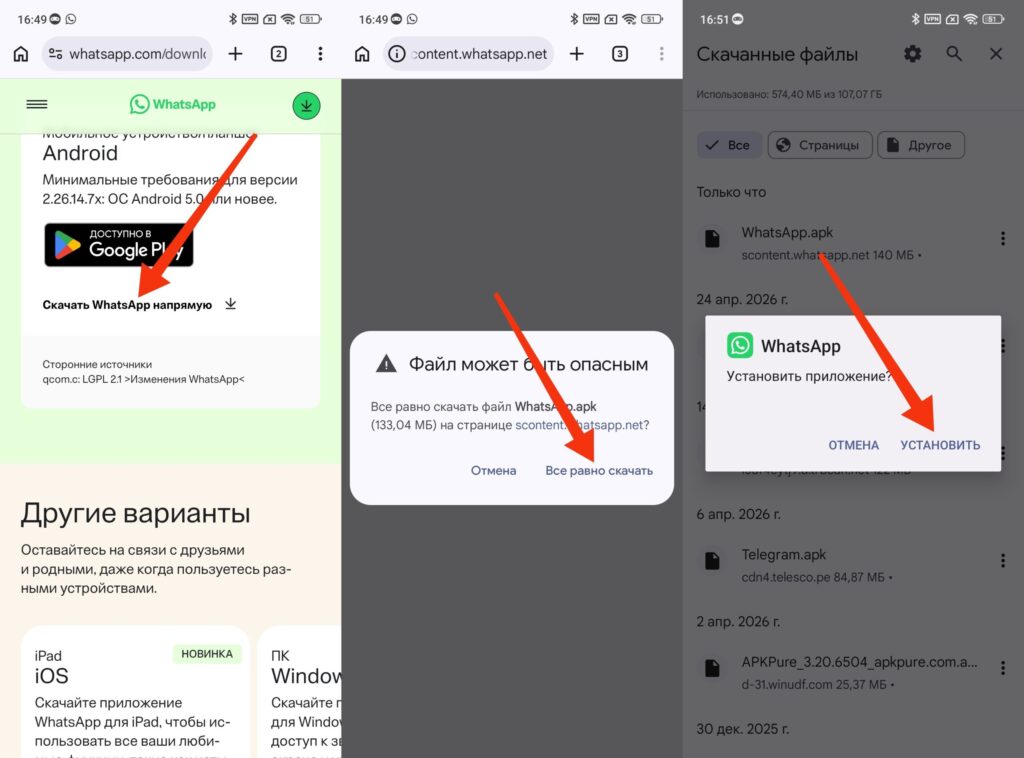
WhatsApp can also be installed via APK
This method works, but it has a downside: the APK file doesn’t update automatically. You’ll need to periodically visit the website for the latest version. Also, make sure your device is running an up-to-date version of Android — WhatsApp requires Android 5.0 or newer.
How to Install WhatsApp on a Computer
WhatsApp for PC also exists. It works both as a standalone application and as a web version through a browser.
On Windows (8 and above):
- Go to whatsapp.com and click “Download.”
- Install the app via Microsoft Store or by running the downloaded installer file.
- Open WhatsApp on your computer and scan the QR code via your smartphone: “Settings,” then “Linked Devices,” then “Link a Device.”
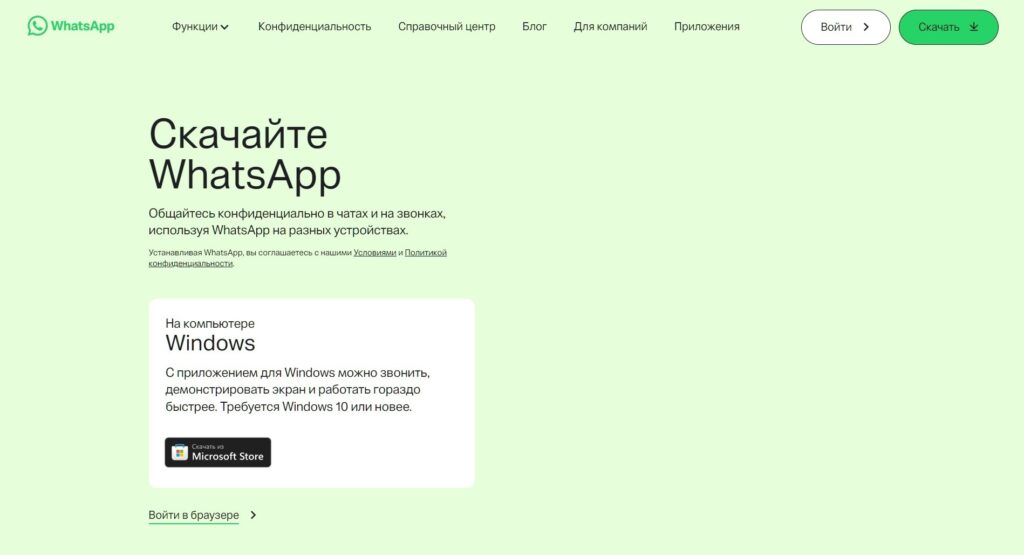
You can download a dedicated app for PC
Web version (for tablets and any computers):
- Open your browser and go to web.whatsapp.com.
- On your smartphone in WhatsApp, open “Settings,” then “Linked Devices,” then “Link a Device.”
- Scan the QR code from the tablet or computer screen.
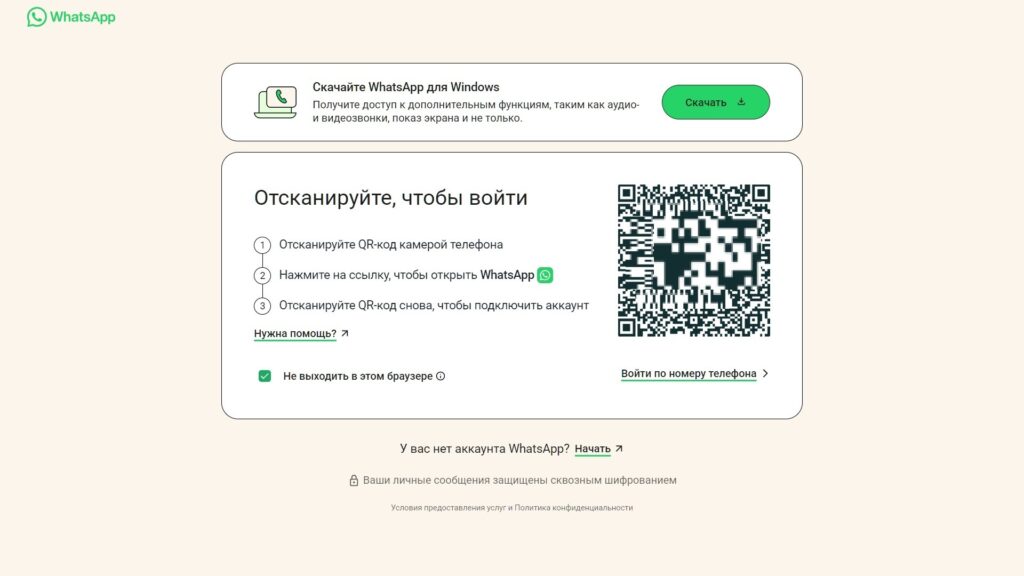
The web version on PC is also available
The WhatsApp web version is convenient because it doesn’t require installation, but it has a limitation: calls are not available here, only messaging. For Android tablets, this is the only official way to use WhatsApp, since there’s no dedicated app for them.
Which Devices No Longer Support WhatsApp
In 2026, WhatsApp stopped working on more than 45 smartphone models. The restrictions affected devices with outdated operating system versions:
- Android: smartphones running versions below 5.0 (Lollipop). These are models released before 2014–2015 from Samsung, LG, Motorola, Sony, Huawei, and HTC.
- iPhone: devices running iOS below 15.1, including iPhone 5s, iPhone 6, and iPhone 6 Plus.
In practice, it looks like this: if the phone can’t be updated to the required version, WhatsApp will eventually stop working on it. First, messages will stop coming through, and after some time the app won’t launch at all.


