Updated to iOS 27 beta 2 on your iPhone and noticed that the new AI tools for photo editing simply disappeared? Reframe, Extend, and even the familiar eraser vanished from the editor as if they were never there. The most frustrating part is that Clean Up eraser was working in Russian just yesterday without a single issue, and now it’s gone from the toolkit. You’re not alone: Apple surprised everyone by removing features that worked perfectly in the first beta. The good news: the features haven’t gone anywhere — you can bring them back in a few minutes. Here’s a step-by-step explanation of what happened and how to fix everything.
New features from the first beta were disabled in the second, but we know how to work around it
Which Photo Editing Features Don’t Work in iOS 27 Beta 2
The situation looks roughly the same for everyone. You open a photo, enter editing mode, reach for the Apple Intelligence toolbar, and it’s empty. No Reframe to rotate the frame and straighten the horizon, no Extend to fill in edges.
But the most annoying thing is the disappearance of the Clean Up eraser: this feature had long lived in Photos, was correctly translated into Russian, and removed unwanted objects without any hassle.
If you want to refresh your memory on what the new AI tools can do in the editor, we have a separate detailed breakdown. But right now, something else matters: the toolbar isn’t physically broken — it just stopped showing up. Apple clearly reshuffled the AI feature availability logic in beta 2, and those who had been using these features for months got caught in the crossfire.
Just recently we talked about the new tools and praised them
Who was affected first? Mainly iPhone owners whose interface runs in Russian with a region set outside the US. But there’s a nuance: the tools also disappeared for some users who originally had English language and American region set. So it’s not just about settings — there’s clearly something else going on.
How to Restore the AI Photo Editor on iPhone
Let’s start with the simplest method, which most often works. It’s enough to turn Siri off and back on so the system re-downloads the models and returns the toolbar to its place. There’s no separate toggle on the main page of the section, so we work through assistant activation.
- Open Settings and go to the Siri section.
- Go to the Talking option.
- Disable the activation toggles — voice activation “Siri” and side button activation.
- Confirm “Turn Off Siri” when the system asks, and wait a few seconds.
- Restart your smartphone using any convenient method.
- Turn activation back on and reconfigure the voice if needed.
- Give the device a minute to download files — it’s best to keep it on Wi-Fi and charging.
- Go back to Photos, open any photo in editing mode, and check the toolbar.
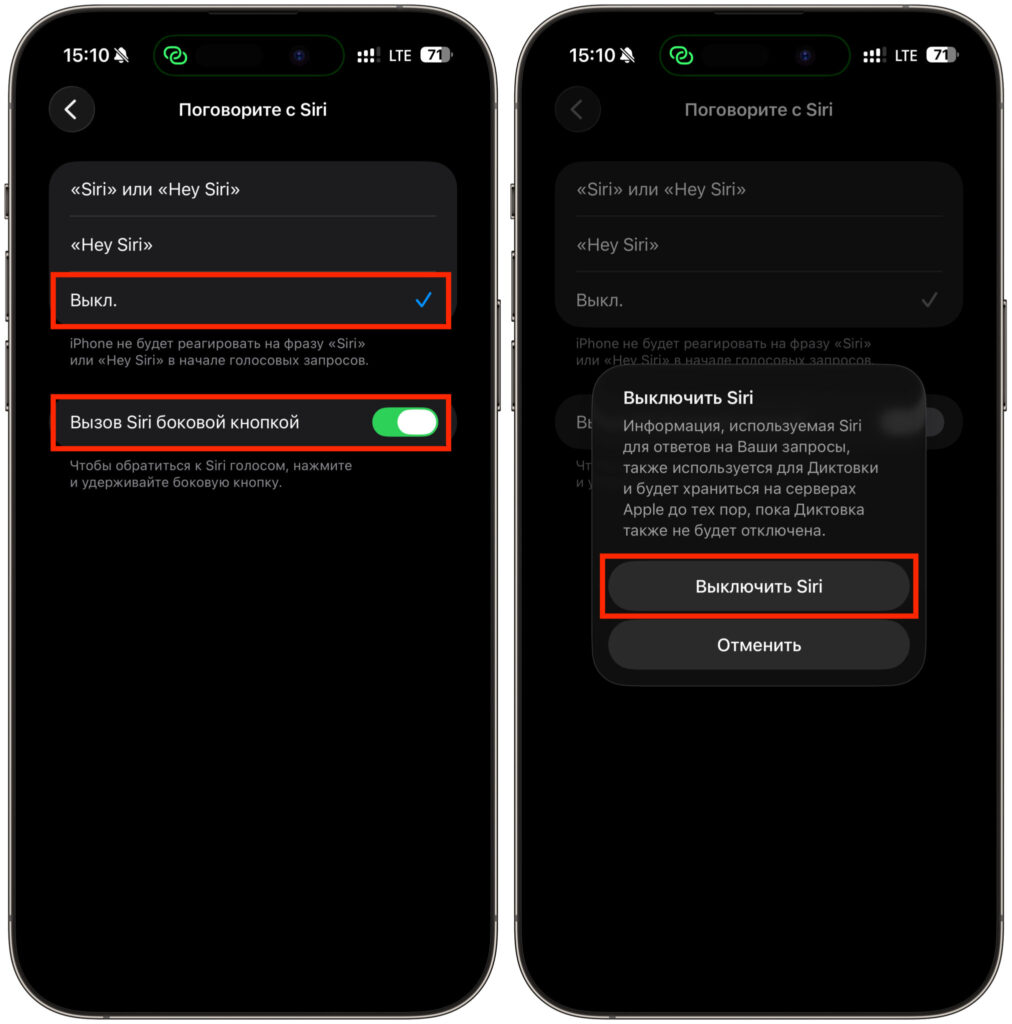
Switch to Off and disable the side button launch toggle
In most cases, this is enough. This is exactly how users fixed the problem when their language and region were originally set to American: they didn’t have to change anything — only restarting Siri helped. After turning it back on, the toolbar came alive, and Reframe, Extend, and the eraser returned to their places.
One thing to keep in mind. If you’re just switching to the updated assistant, check out how to enable the new smart Siri from scratch. The Siri AI waitlist only triggers during the very first activation. If you’ve already gone through this queue before, you won’t need to join it again — the models will load immediately after re-enabling Siri.
How to Change Region and Language for Apple AI Features
The restart didn’t help everyone. If after the first method the editor is still empty, then your case comes down to interface language and region. In beta 2, AI photo edits stopped appearing when iPhone runs in Russian with a non-American region. This is solved by switching the language to English and the region to the USA.
- Open Settings and go to the General section.
- Select Language & Region.
- Change the iPhone language to English (US) and the region to United States.
- Confirm the interface restart and wait for the settings to apply.
- Go to Settings — Siri and make sure the Siri language is also set to English (United States).
- If you had to change the Siri language, give the new language model time to download — this takes a couple of minutes.
- Open Photos, enter the editor again, and check the toolbar. The tools should be back.
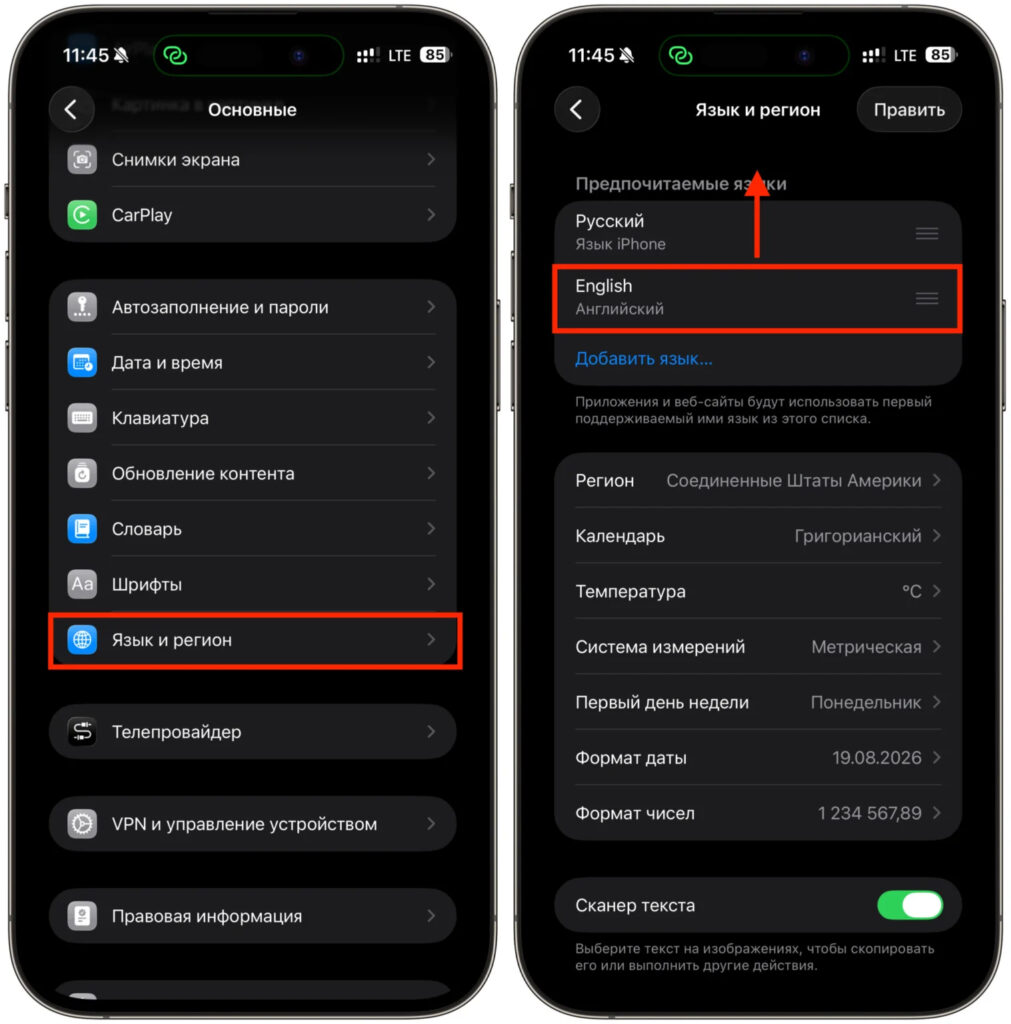
First change the language
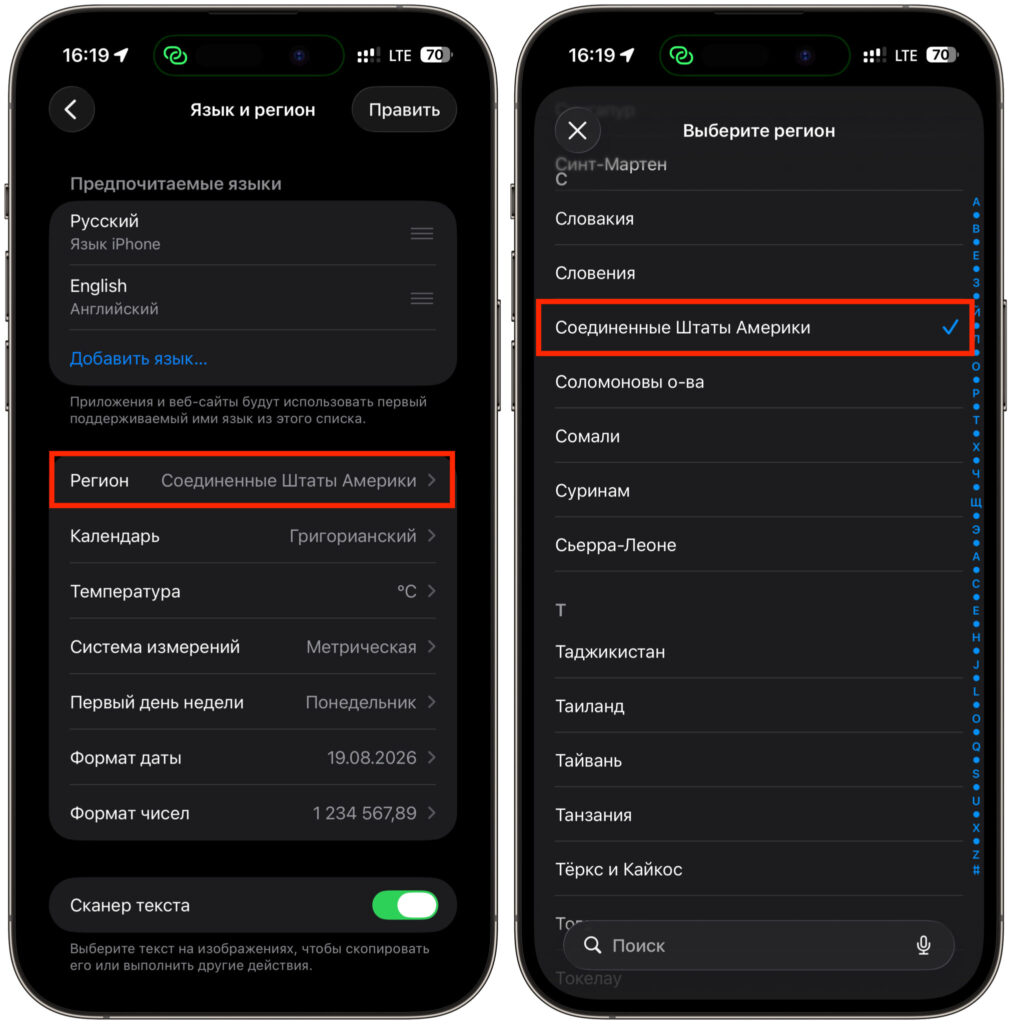
Then switch the region too
Yes, this method is a bit rough: not everyone will want to live with an English interface for three buttons in the editor. But if you need to straighten the horizon or erase a passerby right now, this is a working option. After editing, you can switch the language and region back, though the tools will likely hide again until the next Siri AI restart.
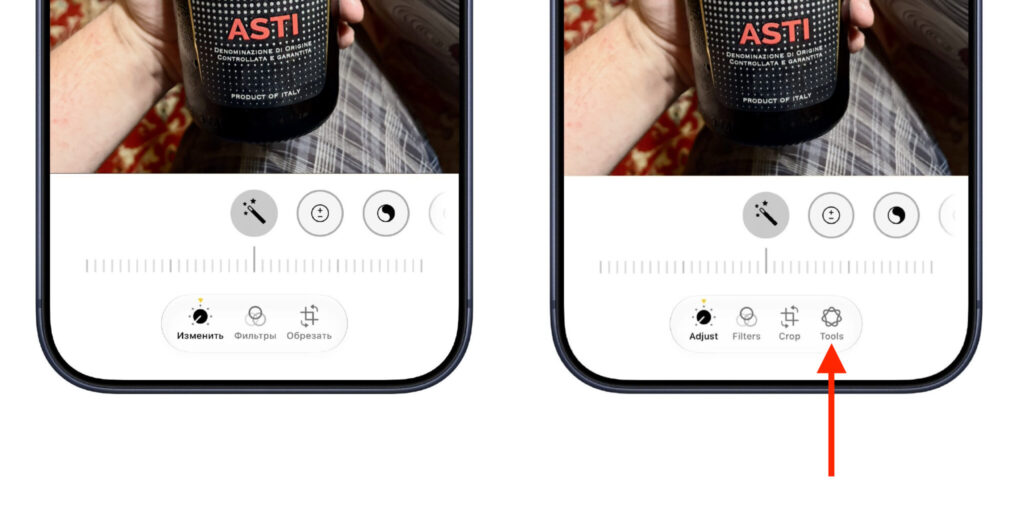
As a result, we get all the buttons back
Apple Intelligence Bug in iOS 27 Beta 2: What We Know
It appears that this is a bug rather than an intentional restriction. Two things point to this. First, the Clean Up eraser previously worked fine in Russian, and removing it makes no sense.