Recently, the Russian Ministry of Internal Affairs talked about dangerous websites on the internet and warned against visiting resources outside the .ru zone. Now telecom operators themselves have picked up the baton and decided to take user security into their own hands. Literally. T-Mobile, Rostelecom, and MTS subscribers started receiving notifications that the “Internet Protection” service had already been activated for them. They weren’t asked, weren’t warned in advance. Just connected. A user on Pikabu wrote about it briefly and to the point: “What?!” The post gathered over a thousand likes in 24 hours. What’s happening, how does it work, and what can you do about it?
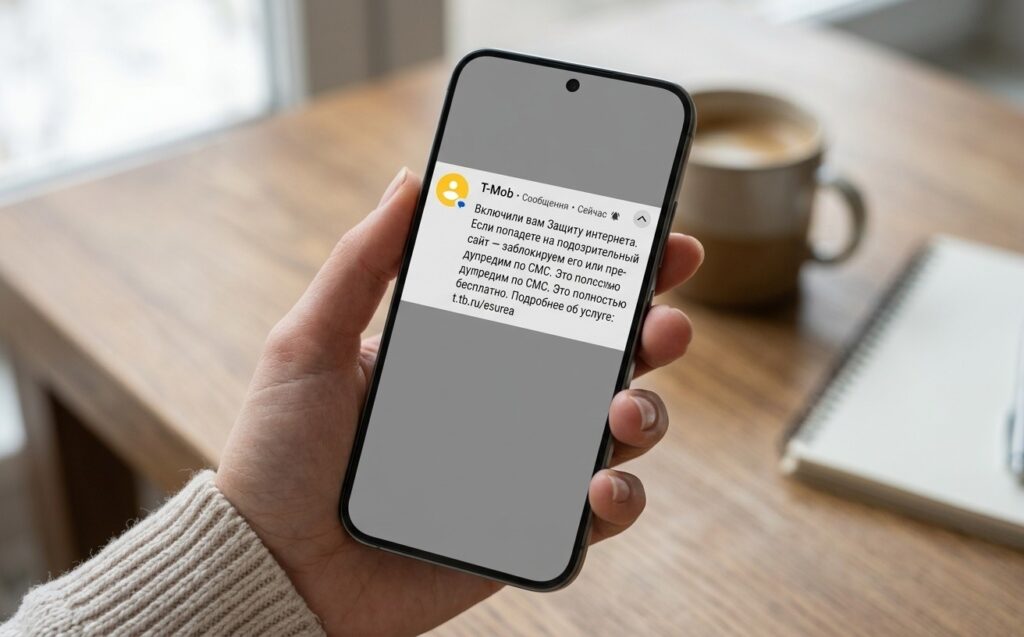
Operators are forcibly enabling “Internet Protection”
“Internet Protection” Service — What Is It
In short: the operator starts filtering your internet traffic at the network level. No app needs to be installed. Everything happens on the operator’s servers before the request even reaches your smartphone.
It works through DNS filtering. When you open a website, your phone first requests its address from the operator’s DNS server. If the site is in the database of dangerous resources, instead of it you get a stub page with a warning. Internet blocking in Russia through operators happens this way — invisibly and instantly.

Many subscribers have already received such “happy letters”
Here’s what is already working or being launched by specific operators:
- Rostelecom launched the service on December 1, 2025 (according to official data, 400,000 attempts to visit phishing resources were blocked);
- T-Bank connected “Internet Protection” in T-Mobile without subscriber consent (this is exactly what triggered the wave of outrage);
- MTS offers the “Internet Defender” service based on the Kaspersky Lab database;
- Beeline is testing a next-generation DPI system that can recognize not only dangerous sites but entire traffic categories.
Rostelecom’s dangerous site database already contains more than 50,000 entries and is updated automatically every day. Sounds useful. And partly it is. But there’s a nuance, which we’ll discuss below.
Filtering works without apps and without your knowledge.
Which Sites Does “Internet Protection” Block
The official version sounds reasonable. The database includes:
- fake pages of banks, marketplaces, and payment systems;
- sites distributing malware and viruses;
- fraudulent resources with fake giveaways and investments;
- phishing copies of government services and state platforms.
Internet protection on Android in this form is genuinely useful. Most infections happen precisely through clicking links to fraudulent sites. Automatic blocking of such resources reduces the risk.
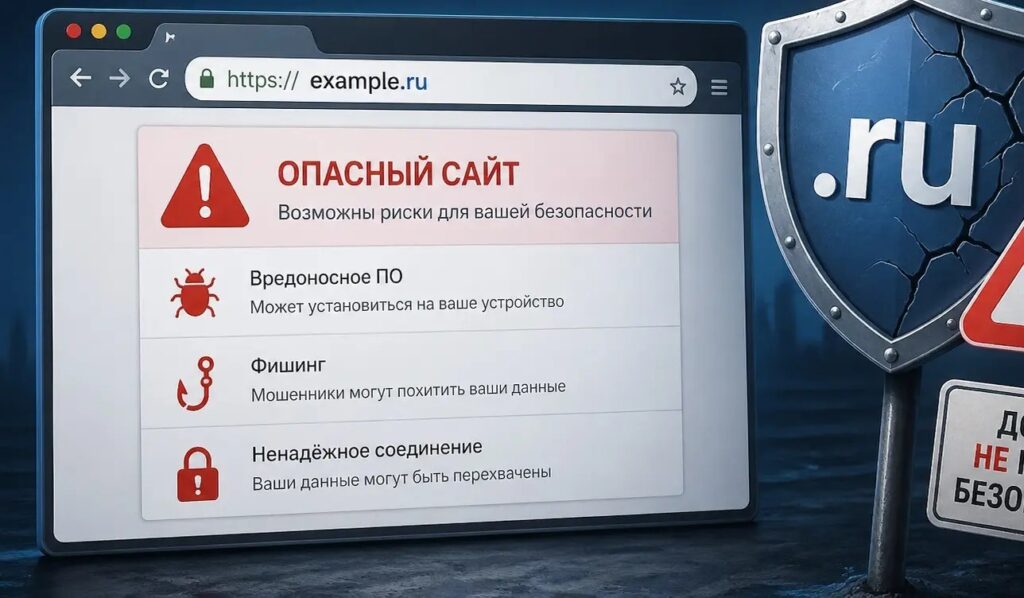
“Protection” does block genuinely dangerous sites too
But here’s the problem. DPI technology, which Beeline is testing, works fundamentally differently. It doesn’t just check a site address against a list — it analyzes encrypted traffic and can block entire categories: VPN services, messengers, online games, social networks. They enabled “Internet Protection” for you supposedly against scammers, but the tool is built with capabilities far beyond phishing prevention.
The technology being deployed "to protect against scammers" can block everything.
Another unpleasant point: websites not opening on your phone aren’t just fraudulent ones. The automatically updated database sometimes blocks legitimate resources by mistake. There’s practically no mechanism for an ordinary user to dispute a block.
How to Disable “Internet Protection” on Android
Good news: you can disable it. Methods depend on your telecom operator.
T-Mobile:
- Open the T-Mobile app or go to your personal account on the website.
- Go to the “Services” or “My Services” section.
- Find “Internet Protection” and tap “Disable.”
- Confirm the deactivation.
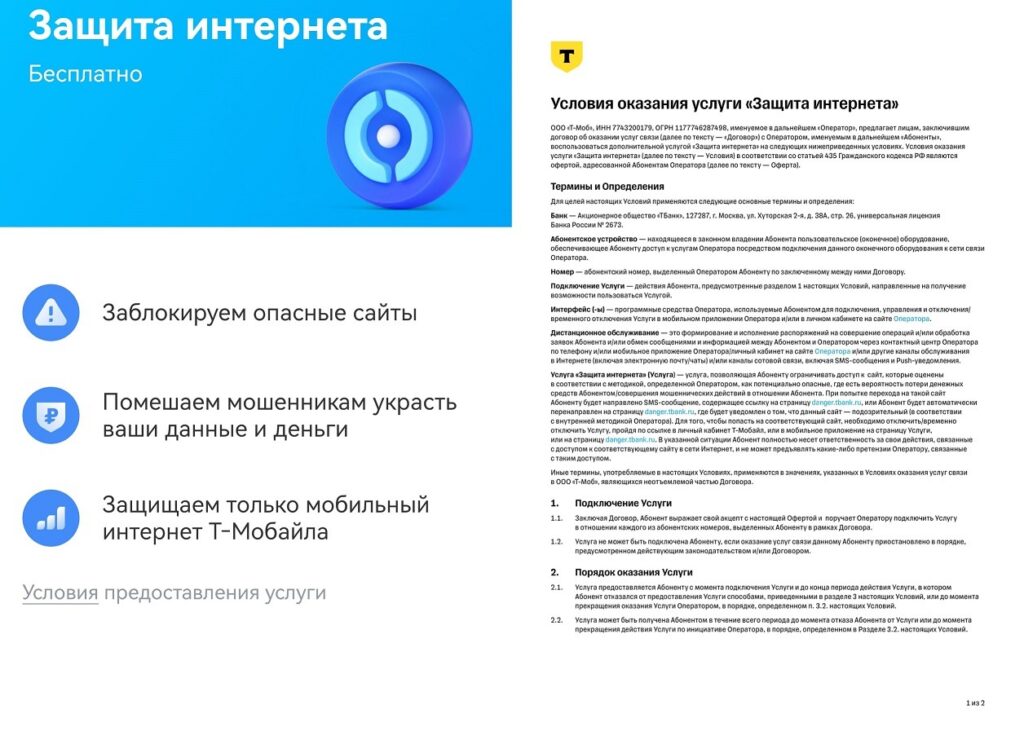
The service is free, but you need to know the nuances
Rostelecom:
- Log in to your personal account on rt.ru.
- Go to the “Service Management” section.
- Find the traffic protection service and disable it.
MTS (“Internet Defender”):
- Open the “My MTS” app.
- Go to the “Services” section.
- Find “Internet Defender” and disable it.
If you can’t find the service in your personal account, call the operator’s hotline and ask them to disable the forcibly connected traffic filtering service.
Real Ways to Protect Yourself Online
Operator filtering is not protection — it’s a safety net. It only catches what has already made it into the database. New fraudulent sites are registered faster than the lists are updated. Real internet security is built differently.
Android has real protection, not an illusory one
Here’s what actually works:
- Chrome browser with “Safe Browsing” enabled checks sites in real time through Google’s database;
- Yandex Browser with neural network-based phishing protection analyzes more than 100 factors with each navigation;
- Google Play Protect scans installed apps and warns about dangerous ones;
- checking the address bar before entering data (the padlock in the browser) doesn’t guarantee safety, but an incorrect address is immediately visible;
- different passwords for different services (a leak of one doesn’t open access to everything else);
- ignoring links from SMS and messengers (most phishing attacks start precisely with them).
Android protection through an operator service reduces one specific risk — visiting an already known fraudulent site. But it doesn’t save you from new threats, doesn’t help if a virus is already installed, and doesn’t replace basic digital hygiene.
Operator filtering only catches known threats.
Android security is about habits, not a single enabled service. The operator bears no responsibility if you click the wrong link yourself.


