RAM in a smartphone in 2026 is not a spec you can afford to ignore. Hardware has become more expensive, and artificial intelligence puts more strain on your phone than ever before, which means even powerful models sometimes can’t keep up with software. You’d think my vivo X300 with its 16 GB of RAM would be fine, but during everyday use, about 81% of the allocated memory is in use. The good news is that Android has a hidden tool that shows exactly which app is hogging your memory.
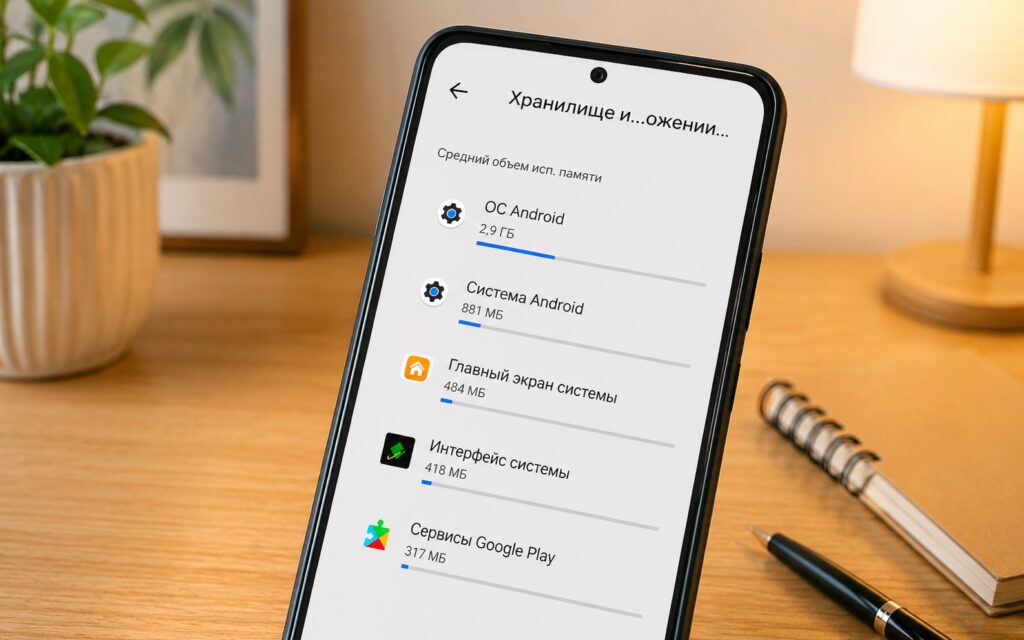
I was surprised how much RAM everyday apps consume
Why Your Smartphone Needs a Lot of RAM
Modern smartphones struggle to meet software demands, and artificial intelligence processes are to blame, including Google’s built-in Gemini assistant. They run in the background, consume memory, and create performance bottlenecks. At the same time, memory modules themselves have become more expensive, turning extra RAM from a nice bonus into a real necessity.
But it’s not a death sentence. Part of the problem can be solved for free: you can stop unnecessary background processes and free up several gigabytes of memory without sacrificing convenience. It gets harder when that’s not enough and the phone keeps lagging — then you need to find the specific culprit.
How Android Apps Use Memory
Before hunting for culprits, it’s important to understand how an app uses memory. There are three ways, and they differ significantly in importance:
- when you open an app, it loads data into memory, and the heavier the program, the higher the consumption;
- useful background activity — for example, a timer in the clock app continues sending data to the lock screen and notification shade even when the app is closed;
- cached background processes — non-essential actions that can eat up gigabytes of memory without any real benefit.
Cached background processes are what you should disable first, even before checking the statistics. Otherwise, the data will be skewed, and it will seem like an app is actively consuming more memory than it actually does.
How to Enable Hidden Memory Statistics in Android
Detailed memory usage statistics are hidden in the developer menu. To access them, you first need to activate this menu:
- Open the Settings app.
- Scroll down and tap “About phone.”
- Find “Build number” or “Software version,” as on my phone, and tap it seven times until you see a message that developer mode has been enabled.
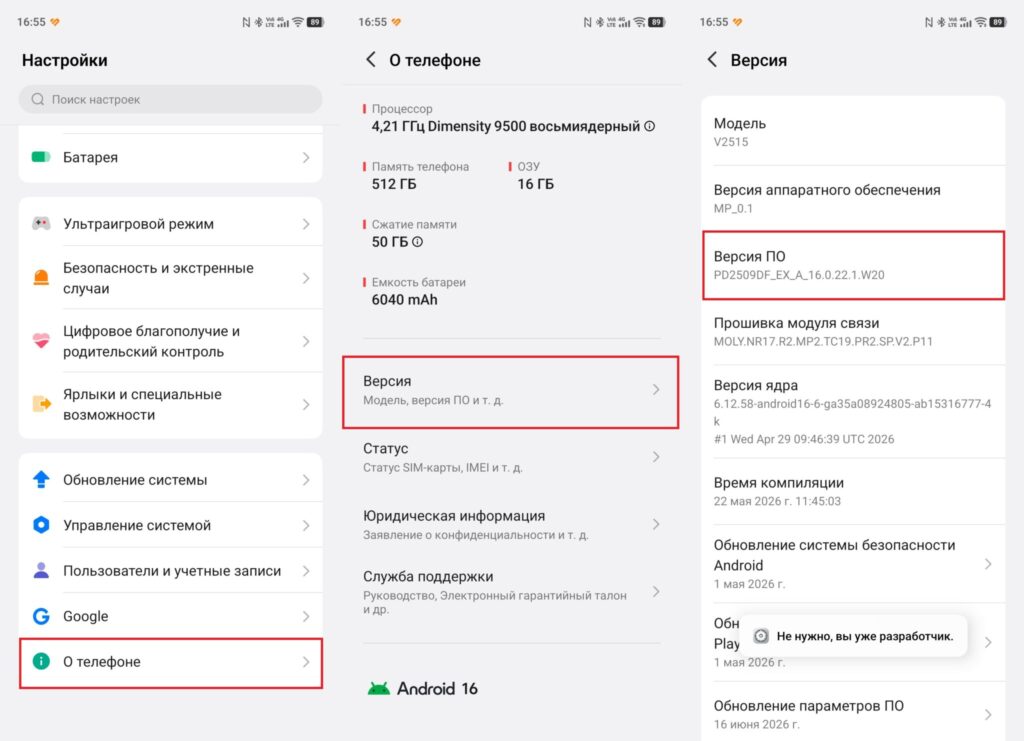
First, you need to get developer access
After that, the developer menu will appear in the “System” (“System management”) section. Inside it, scroll down and find the “Memory” option — the quickest way to get there is through the settings search. After enabling memory profiling, restart your device.
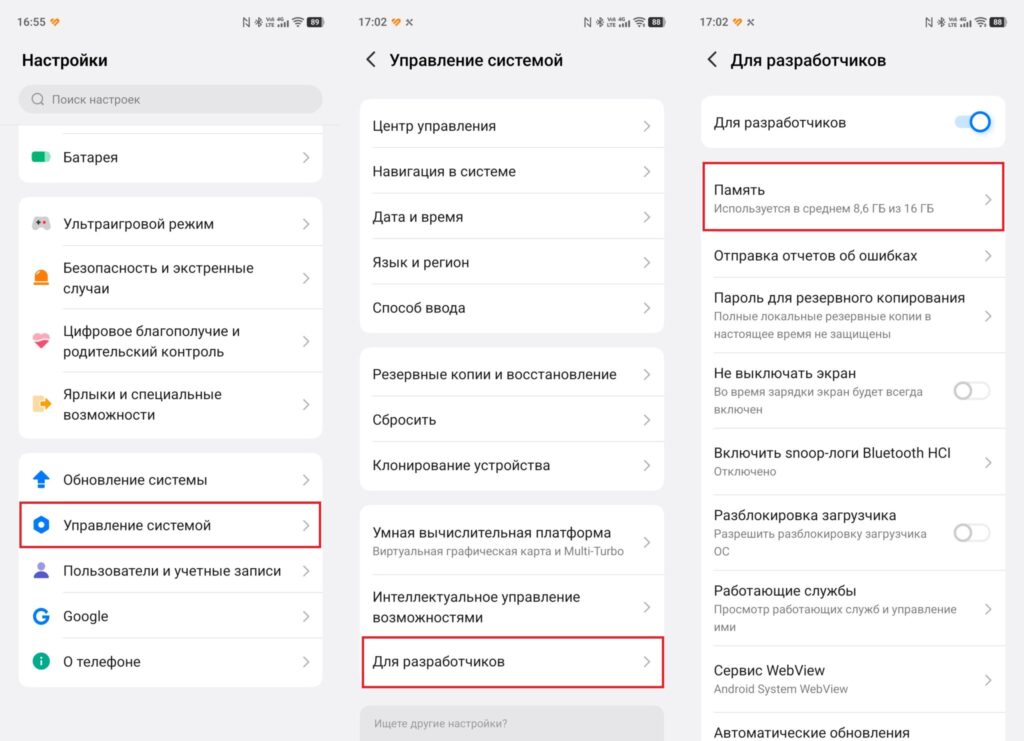
This is where the RAM usage statistics are hidden
There’s an important caveat: the feature itself also uses memory while running in the background. It shouldn’t noticeably affect speed, but it’s best to turn it off after diagnostics to avoid potential slowdowns. The tool can track up to 24 hours of activity, so leave your phone in normal mode for at least a day — this way the picture will be more accurate.
Which Apps Consume the Most Memory
To see the overall picture, select “1 day” from the dropdown menu. A pattern immediately stands out: system and service apps consume the most memory. Unsurprisingly, the Android operating system itself sits at the top of the list.
If you suspect a specific app, switch to “3 hours” mode and use it as you normally would. Keep in mind that the statistics update very slowly — after testing, you sometimes have to wait several minutes before fresh data appears.
Android App Statistics
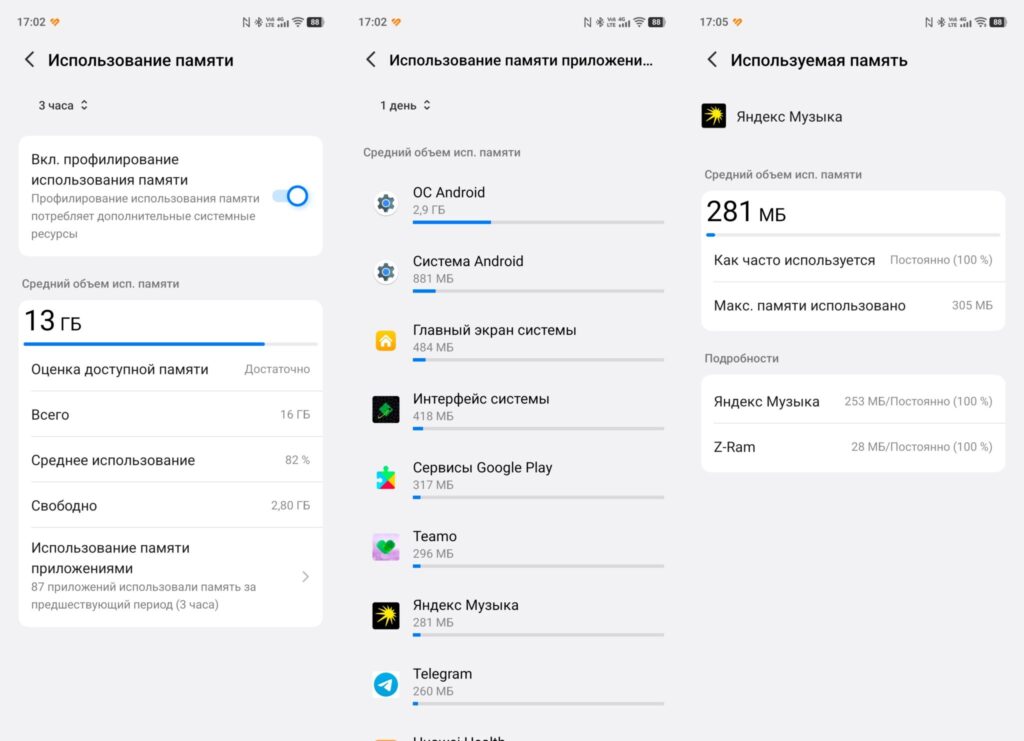
You can view detailed statistics if you want
If you tap on an app, detailed memory usage statistics will open. Two metrics are especially useful for a regular user:
- maximum usage — if you experience sudden slowdowns while using an app, the cause might be short-term spikes in memory consumption;
- average usage percentage — even if an app occasionally uses a lot of memory, but the average usage is low, there’s most likely nothing to worry about.
It’s the combination of these two numbers that helps distinguish an app that’s genuinely hurting your phone’s performance from one that only occasionally loads up memory without affecting your everyday experience.
What to Do About Apps That Hog RAM
Unfortunately, memory profiling is only diagnostics. The tool itself can’t reduce memory usage — it only shows who’s consuming how much. The best way to free up RAM is to stop cached background processes, which were mentioned earlier.
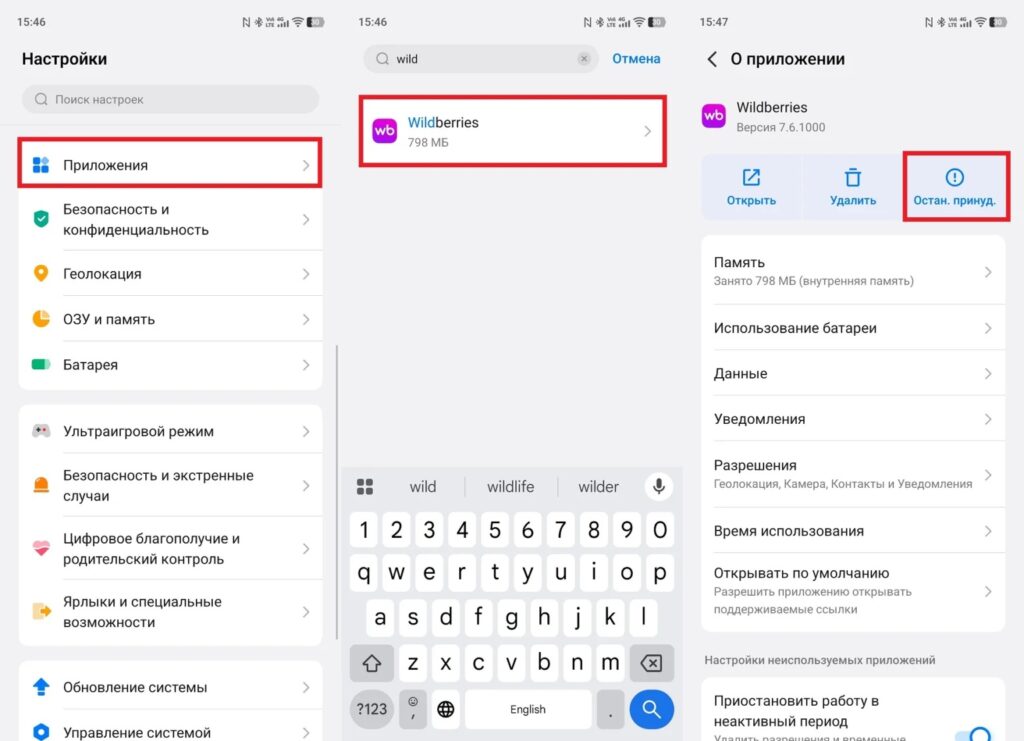
The most resource-hungry apps need to be stopped
You can’t reduce an app’s appetite beyond stopping background processes. Two sensible options remain: switch to a lighter alternative to the heavy program, or, if the phone objectively doesn’t have enough memory, consider replacing the device with one that will last for years to come.
The conclusion is simple: hidden memory statistics are a useful way to understand what’s slowing down your phone, but they don’t work miracles. First, disable unnecessary background processes, then check the statistics and decide whether to replace a problematic app with a lighter one. Upgrading the device is a last resort that’s only worth considering when everything else has already been tried.


