You get in the car, connect your iPhone to the multimedia system — and wait. CarPlay loads, the home screen appears, and you still need to find and tap the navigator icon. It seems like a small thing. But when you do it two or three times every day, it starts to get annoying. There’s a way to eliminate this ritual once and for all. Especially if you’ve already made your wired CarPlay wireless — auto-launching the navigator becomes the logical next step. Let’s figure out how to set this up and also find out which navigators actually work with CarPlay in Russia and under what conditions.
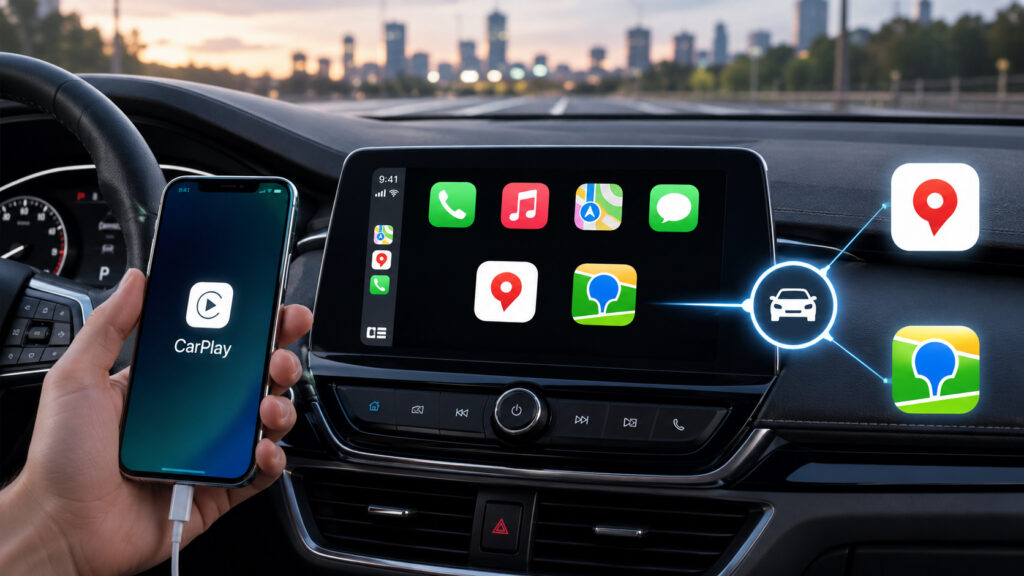
Your iPhone can launch the navigator by itself when you get in the car
Navigators That Work with CarPlay
Before setting up auto-launch, it’s important to understand that not all map applications are equally available in CarPlay. Here’s how things stand with the two main navigators in Russia.
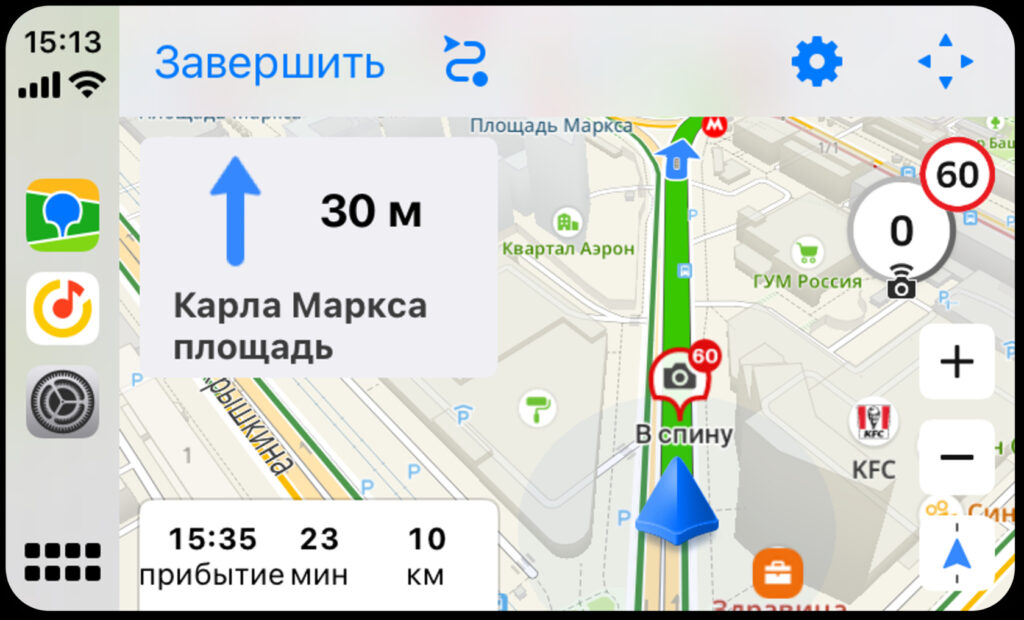
2GIS works perfectly with CarPlay. Image: 2GIS
2GIS — arguably the most hassle-free option. The app works in CarPlay completely free, without subscriptions or limitations. Just install 2GIS on your iPhone, connect to the car — and the navigator appears on screen. In late April 2026, 2GIS received a major CarPlay update: a parallel mode was added, allowing you to search for addresses on your phone while the route is immediately displayed on the car’s screen. Previously, when connected to CarPlay, the app on the smartphone was essentially locked — now the phone transforms into a full-fledged remote control for the navigator.
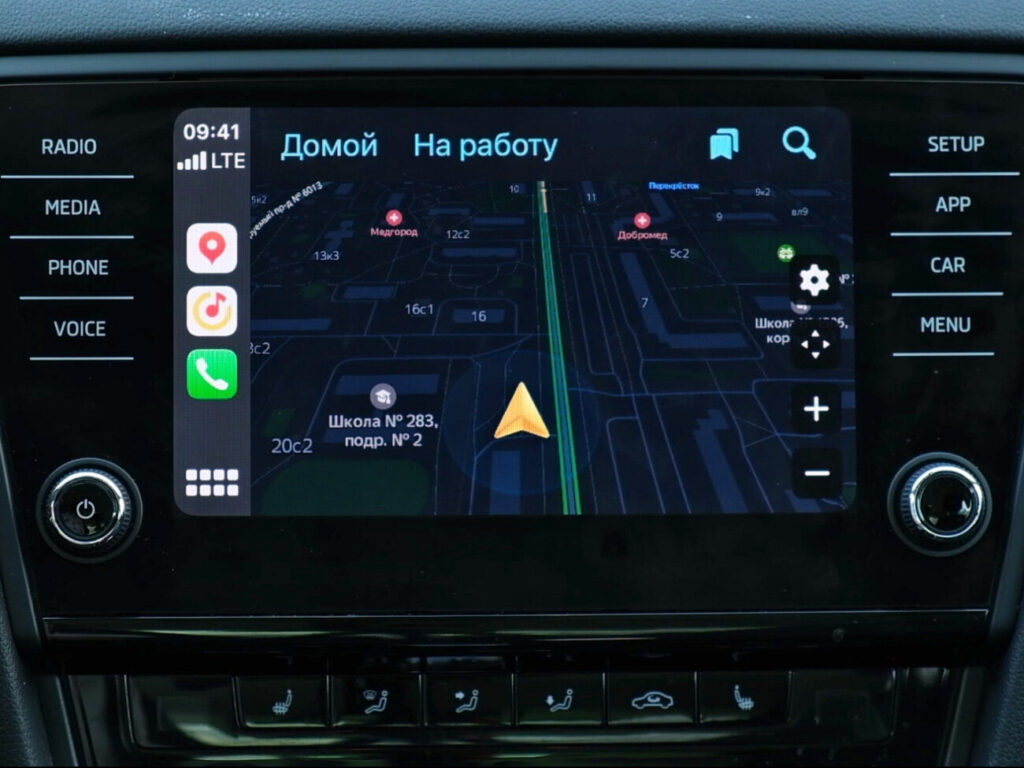
Yandex made CarPlay access paid. Image: auto.ru
Yandex Maps and Yandex Navigator — things are more complicated here. Both apps support CarPlay, but you need an active Yandex Plus subscription. Without it, tapping the Maps or Navigator icon on the car screen will prompt you to subscribe. Yandex offers a free 3-month trial period, after which you need to pay. You can subscribe in advance through the “Subscriptions” section in Yandex ID, or directly from the app on the car screen — but that’s inconvenient and distracting while driving.
If you already have Yandex Plus for Kinopoisk or Yandex Music, then the CarPlay feature comes as a bonus. But paying for a subscription just for the navigator in the car is a questionable deal, especially when 2GIS does the same thing for free.
How to Set Up Navigator Auto-Launch When Connecting iPhone to the Car
The automation works through the standard Shortcuts app, which comes pre-installed on every iPhone. No third-party utilities are needed.
- Open the Shortcuts app on iPhone and go to the “Automation” tab in the bottom menu.
- Tap “New Automation” or the “+” button in the upper right corner.
- Find the “CarPlay” option in the list of conditions and select it.
- Make sure “Connected” is checked and “Disconnected” is not. Then select “Run Immediately” — this will allow the automation to trigger without confirmation. Tap “Next.”
- In the actions list, select “Open App.”
- Tap the “App” field and select the desired navigator — Yandex Maps, 2GIS, or any other app with CarPlay support.
- Tap the checkmark in the upper right corner to save the automation.
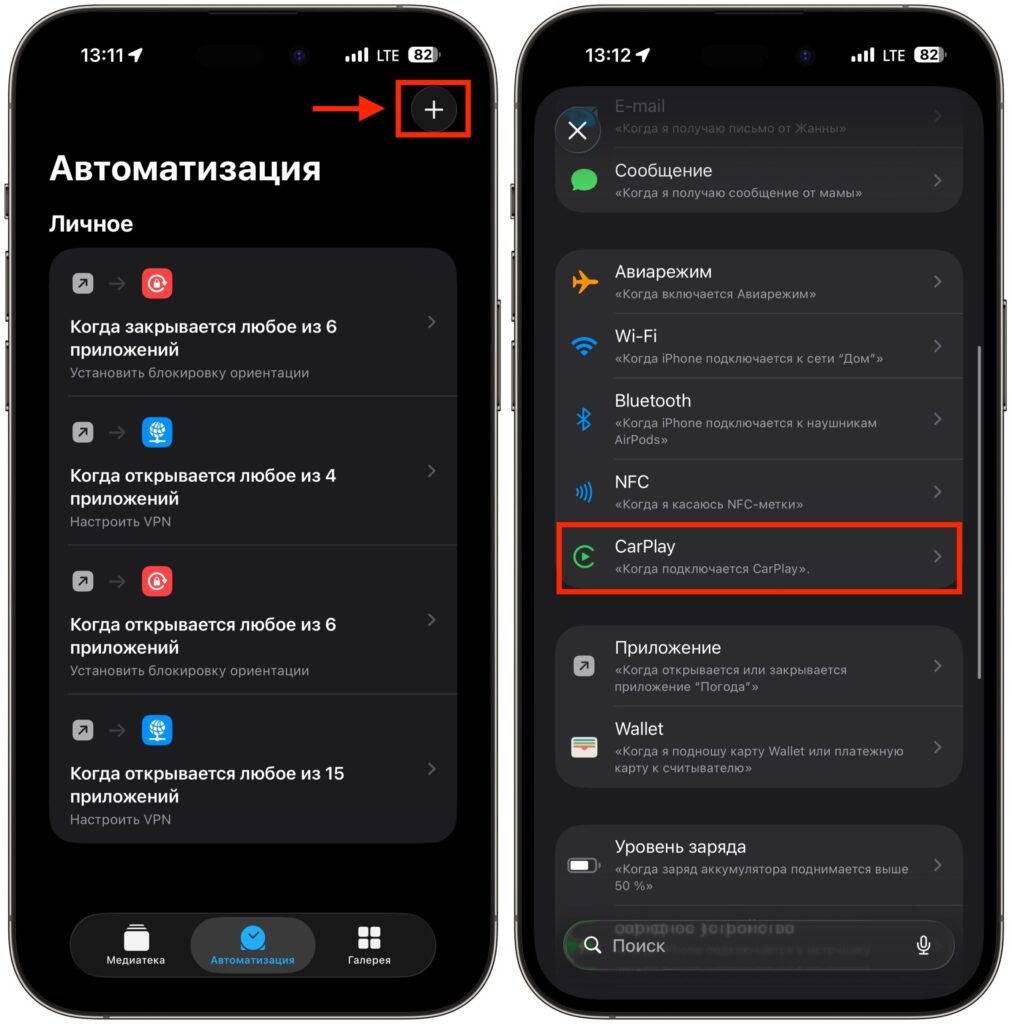
Create an automation with the CarPlay connection condition
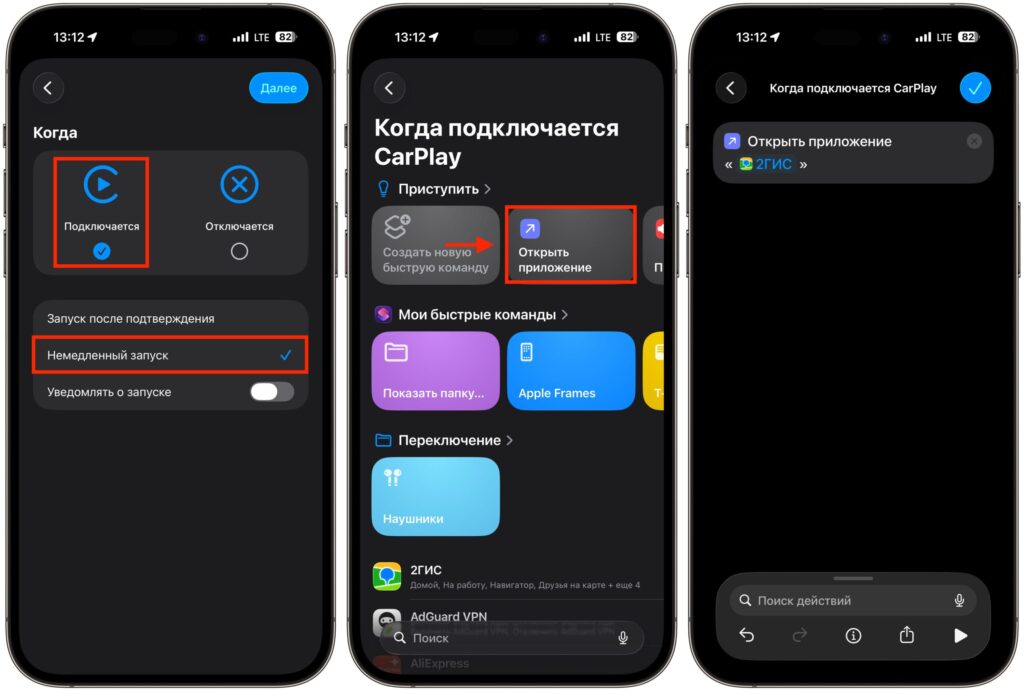
Add just one action to the automation
Done. Now every time you connect your iPhone to the car — via cable or through wireless CarPlay — the selected navigator will open automatically on the multimedia system screen. You won’t need to tap anything.
What Happens If You Create Multiple CarPlay Automations
There are a few nuances worth keeping in mind.
If you create multiple CarPlay automations (for example, one for the navigator, another for music), only the app from the first automation in the list will open. iOS cannot launch multiple apps simultaneously on the CarPlay screen — it always displays only one in full-screen mode.
The automation triggers every time you connect to CarPlay. If you connect your iPhone via cable, the navigator will appear a few seconds after the system recognizes the phone. With wireless CarPlay, there may be a slight delay, but the principle is the same.
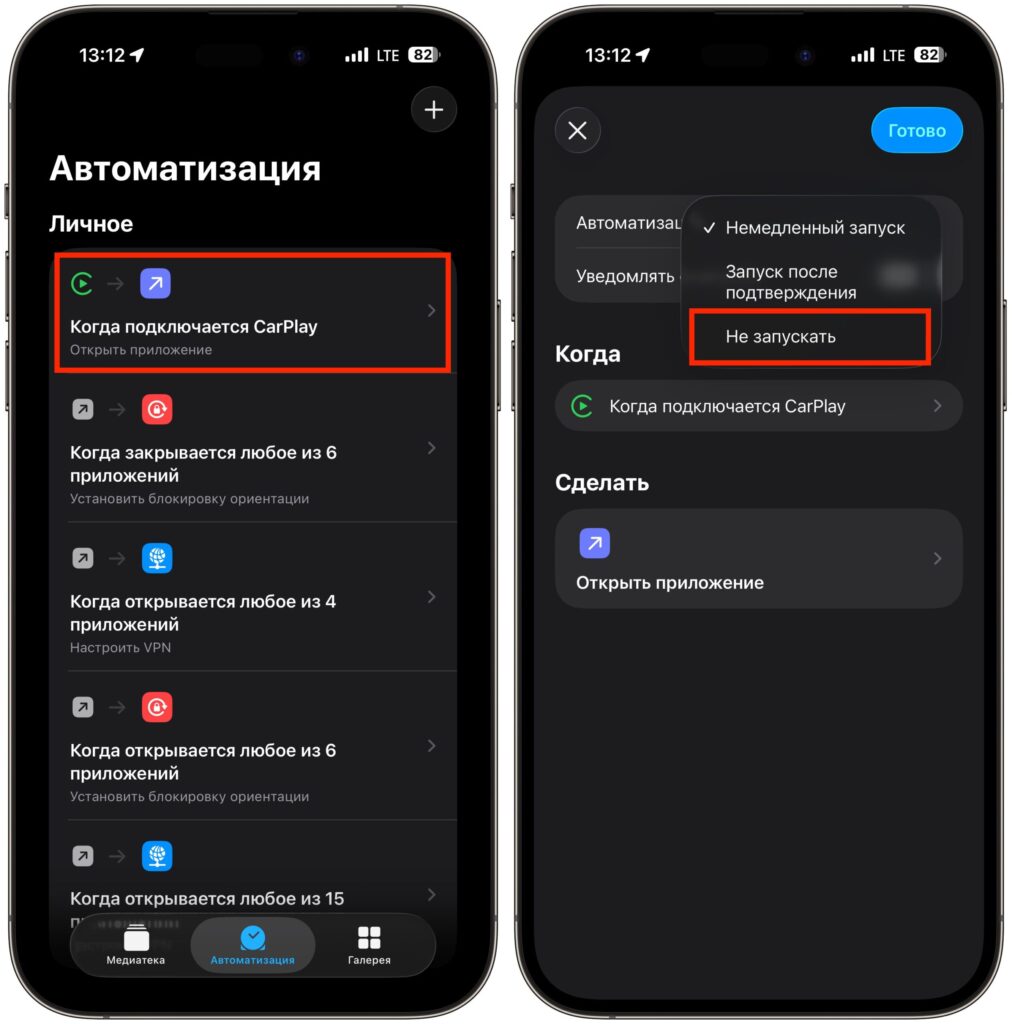
You can disable the automation at any time if needed
If at some point auto-launch is no longer needed, it’s easy to disable. Open Shortcuts — Automation, swipe the desired automation to the left and delete it. Or open it and switch “Run Immediately” to “Don’t Run.”
Navigator Auto-Launch in CarPlay: When It’s Useful
The obvious scenario is for those who drive every day and are used to keeping the navigator on screen, even if the route is known by heart. The map on the large display shows traffic, cameras, turns, and intersections — everything that helps you drive more calmly.
But there’s a less obvious use case too. This automation is very convenient for parents or elderly relatives who use CarPlay but don’t want to search for the right app on the screen every time. Set it up once — and the navigator is always at hand without any extra steps.
By the way, auto-launch works not only with navigators. Using the same principle, you can set up automatic opening of Yandex Music, podcasts, or even other apps when connecting to CarPlay.


