If your Mac has started lagging, apps are freezing, and the cursor keeps turning into the rainbow “beach ball,” it’s most likely due to a lack of RAM. To understand whether your Mac needs more RAM, you don’t need to guess or install third-party utilities — macOS has a built-in Memory Pressure indicator that will show you the real picture in just a couple of seconds. In this article, we’ll explain where to find this graph, how to read its colors, and how to use this data to choose the right amount of RAM when buying a new Mac.
Do you think your Mac has enough RAM?
Memory Pressure on Mac: What This Graph Shows
Memory Pressure is a built-in macOS indicator that reflects in real time how effectively the system is handling RAM management. Unlike the typical “used/free” indicator, it takes into account several factors at once: the amount of free memory, the degree of compression, swap file usage (when part of the data is moved from RAM to disk), and the overall system load.
That’s why Memory Pressure more accurately reflects the real state of your Mac than raw numbers of used memory. A Mac may show nearly full RAM usage and still run smoothly — macOS can aggressively compress data in memory. Conversely, there may technically be free memory available, but the system is already actively using the disk as temporary RAM, and the computer starts to slow down.
The main advantage of this indicator is that it shows not theory, but the actual memory load during your real work. This makes it the best guide for deciding whether your Mac has enough RAM.
Where to Check RAM Load on Mac
The indicator is located in the standard “Activity Monitor” utility — this is the Mac equivalent of a task manager. You can open it through Spotlight or from the “Applications” folder, “Utilities” subfolder.
To see the memory pressure graph:
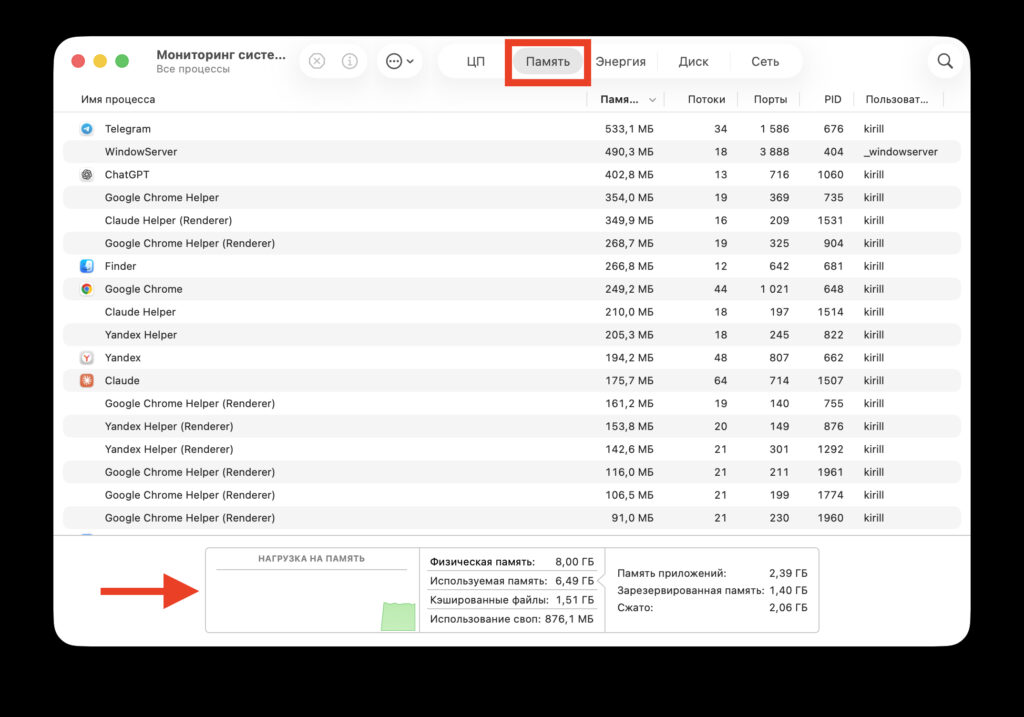
The graph starts displaying as soon as you launch the app
- Open “Activity Monitor” via Spotlight (press Command and Space, type “Activity Monitor”) or through Finder in the “Applications — Utilities” section.
- Go to the “Memory” tab at the top of the window.
- At the bottom of the window, find the graph labeled “Memory Pressure.”
The graph updates in real time and uses a simple color system. To see the data constantly, you can leave Activity Monitor running and configure the Dock icon to show the current system load — it’s a convenient mini performance indicator.
Green, Yellow, and Red Memory Graph in macOS
The Memory Pressure graph changes color depending on how well your Mac is handling the current load. This is the fastest way to understand if there’s a memory problem.
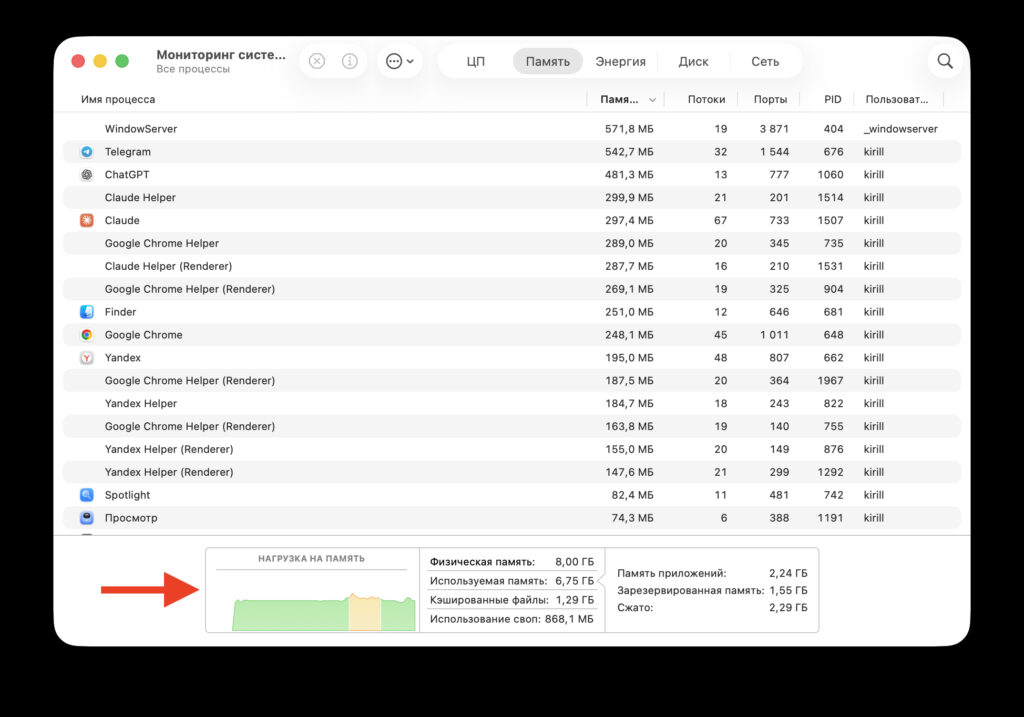
Fortunately, my MacBook Air never went into the red zone
- Green — normal operation. There’s enough memory, swap is barely used, and the Mac runs smoothly. This is the ideal state: the current amount of RAM is sufficient for your tasks.
- Yellow — memory is under load. The system starts using data compression and the swap file more actively, and there’s little free memory. You may experience slight lag, video and audio stuttering, and slowdowns when switching between apps.
- Red — high memory pressure. The Mac literally doesn’t have enough RAM, and it’s intensively using the disk as virtual memory. Performance drops significantly: you may experience delays even when typing, slow app responses, and frequent appearances of the rainbow cursor.
If the graph regularly goes into the red zone or stays in the yellow zone for extended periods — this is a clear signal that your Mac would benefit from a larger amount of RAM.
Signs of Insufficient RAM on Mac
A single screenshot of the graph doesn’t tell you much — the load could be coincidental. To get an objective picture, observe Memory Pressure over a typical work week: check the graph once or twice a day during your typical work moments.
Guidelines for self-assessment:
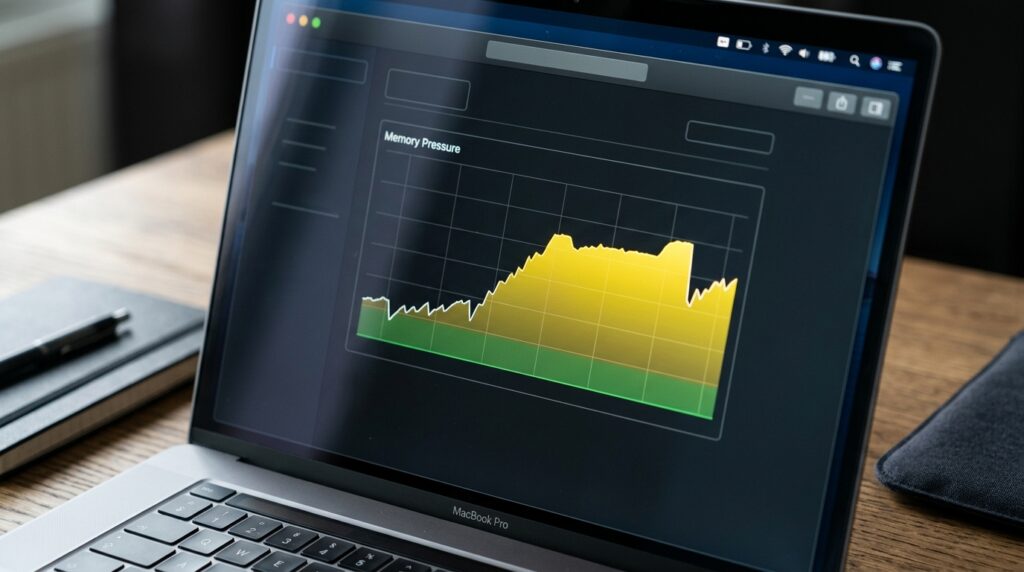
A yellow graph color means the Mac is coping, but is working at its memory limit
- If the Mac runs fast and the graph is almost always green — the current amount of RAM is sufficient, no upgrades are needed.
- If the Mac occasionally lags and the graph is often yellow — you’re at the limit of your current memory’s capabilities. In the long run, you should consider a model with more RAM.
- If the Mac regularly freezes, the “beach ball” appears, and the graph is often red — there’s clearly not enough RAM, and this is the main reason for slow performance.
In addition to the graph color, pay attention to the “Swap Used” indicator on the same tab. If it’s measured in gigabytes and keeps growing — macOS is actively compensating for the lack of RAM using the disk, which slows down the system and wears out the SSD faster.
How Much RAM Does a Mac Need in 2026
This question is especially important because RAM on Apple Silicon Macs cannot be upgraded after purchase — it’s integrated into the chip as part of the unified architecture. This means the amount chosen at the time of ordering will stay with you for the entire lifespan of the computer.
Currently, all Mac models start with 16 GB of RAM, and almost all can be configured with 24, 32, 64 GB or more — depending on the model. The general rule is simple: get as much RAM as you can afford, especially if you plan to use the Mac for several years.
Better to get more RAM — it definitely won’t go to waste
Approximate memory recommendations for different scenarios:
- 16 GB — a basic option for web browsing, office tasks, email, video calls, and watching videos. Suitable if you don’t run heavy programs and keep only a few browser tabs open.
- 24 GB — a comfortable amount for active multitasking: dozens of tabs, messengers, light photo work, music apps, editing documents with large files.
- 32 GB — for those who work with photos and videos, develop in Xcode, use virtual machines, and keep hundreds of browser tabs open simultaneously.
- 48–64 GB and more — for professional video editing in 4K and above, 3D graphics, local language models and AI agents, heavy engineering and scientific work.
An additional argument in favor of having extra memory — the future. New versions of macOS and apps


