On July 16, 2026, several Russian services disappeared from Google Play at once — including the Dzen app. It’s a content feed that became very popular after Western resources were blocked, but now downloading it has become much more difficult. If you’re looking for where to get the Dzen app now, or how to update an already installed version, here’s a comprehensive guide.
Download Dzen from the right place
Can You Download Dzen from Google Play
Dzen was removed from Google Play simultaneously with VKontakte, Odnoklassniki, MAX, and other VK services on July 16, 2026. The listings disappeared from all regional versions of the store at once.
Three days before that, on July 13, the European Union imposed sanctions against VK — the company that owns Dzen. Google did not officially comment on the removal, but the timeline speaks for itself. The removal from the store does not affect the already installed Dzen app — it continues to work on smartphones where it was installed earlier.
Where to Download Dzen on Android Now
Download Dzen on Android is now possible through two official channels. The first and main one is RuStore. The current version of the app with a full update history is published there. This is an official build from the developer, not a third-party copy.
The second option is an APK file from the official dzen.ru website. Suitable if for some reason RuStore is unavailable or doesn’t work for you. It is installed manually. Dzen on an Android phone through any of these methods works fully — feed, subscriptions, notifications, author dashboard. There is no difference from the Google Play version.
How to Install Dzen via RuStore
If RuStore is already on your smartphone, simply find Dzen in the search and install it. If not — you first need to install the store itself.
- Install RuStore and open it.
- In the search bar, type “Dzen” and select the app from the official developer.
- Tap “Download” and confirm the installation.
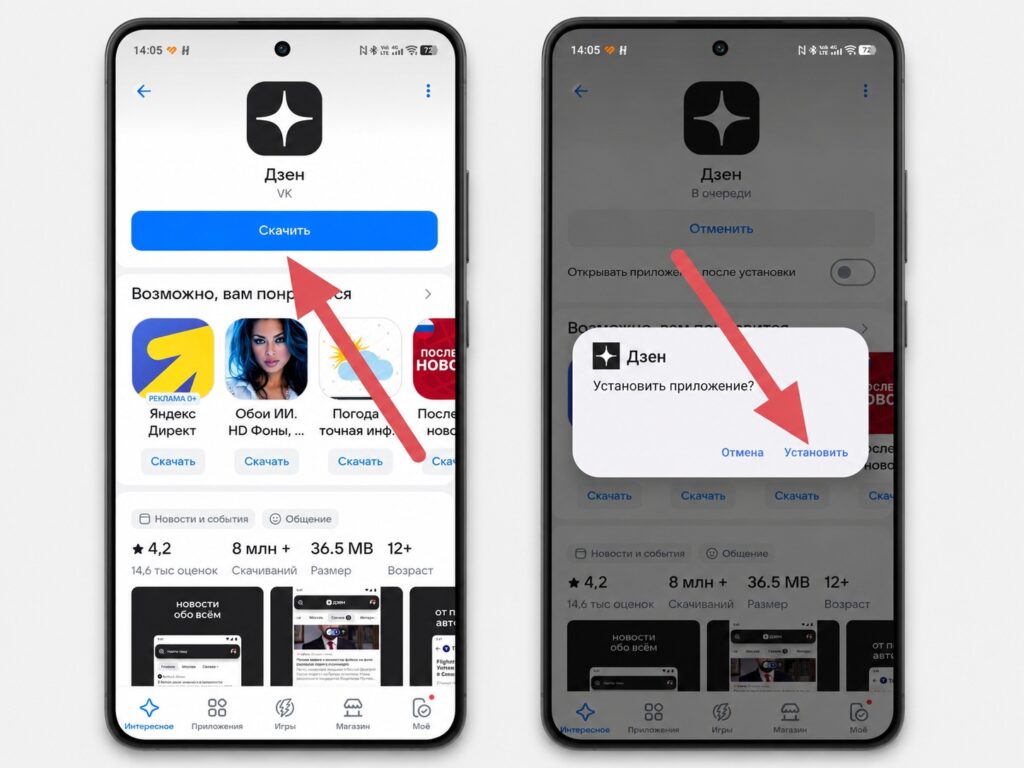
The app can be installed via RuStore
On some Android smartphones, you may be asked for additional permission to install through the system installer — this is normal, just confirm. Installing Dzen on Android via RuStore takes about two minutes.
How to Update Dzen on Android Without Google Play
If you’re installing Dzen for the first time via RuStore:
After installation, updates will come automatically through RuStore — just like they used to through Google Play. You can check the setting: “RuStore — Profile — Settings — Auto-update apps.” Turn it on if it’s off — and don’t worry about it anymore.
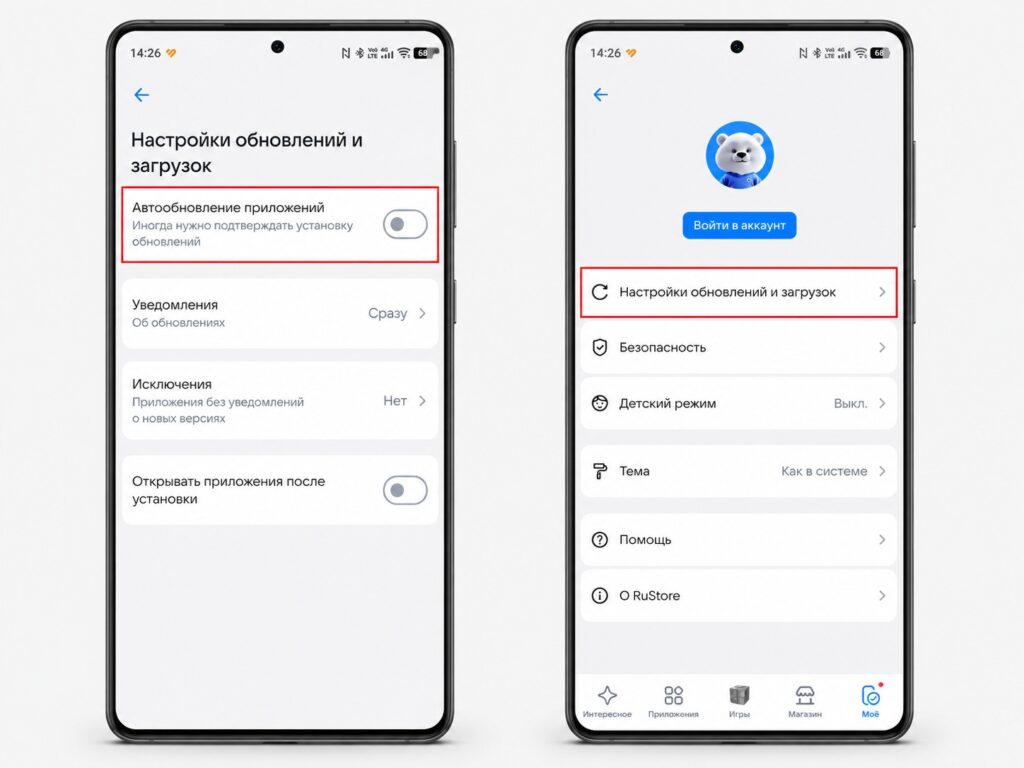
Auto-updates are available in RuStore
If Dzen was previously installed from Google Play:
Open RuStore, find the Dzen app in the search, and tap “Update” — the store will offer to install the current version without deleting your data. After that, you can update the Dzen app next time automatically through RuStore.
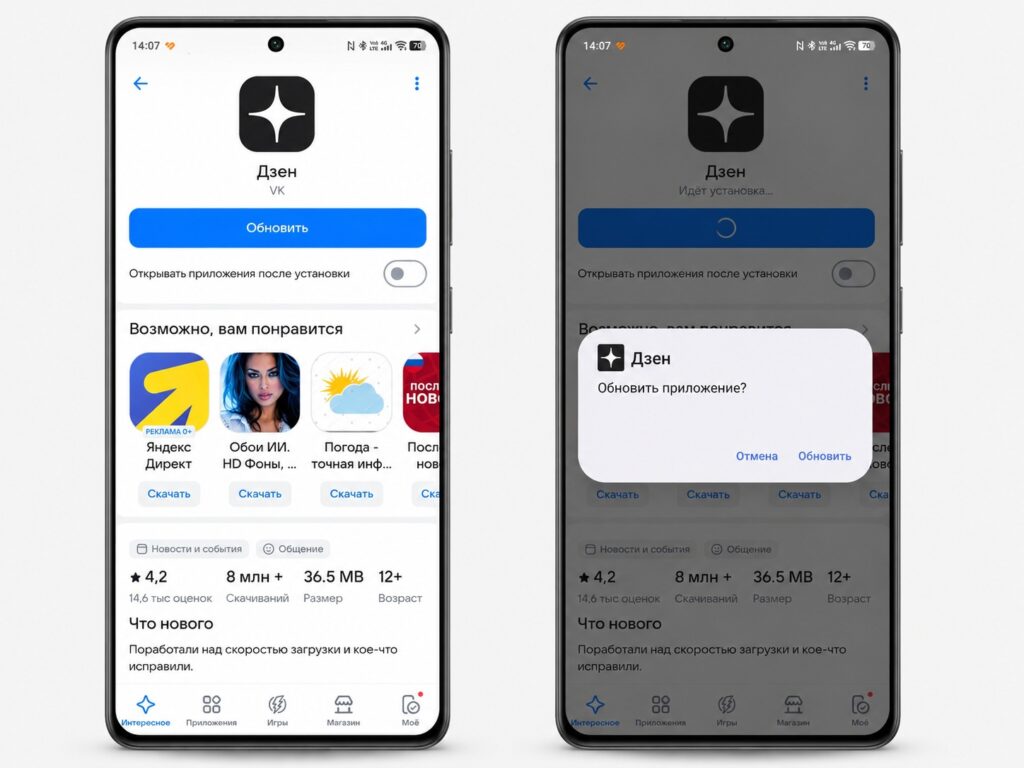
Here you need to update manually first
To check available updates manually: “RuStore — My section — Updates.” All apps from RuStore that have new versions available are displayed there. The Dzen feed on your phone after updating through RuStore works identically to the Google Play version — there are no functional differences.


