A hidden Siri AI context menu has been found in the macOS 27 beta, which Apple has kept hidden from view. By default, it’s not present in the system, but a single Terminal command brings the AI button right to your selected text. Let’s break down what the new feature can do and how to activate it yourself.
Apparently, Apple will enable this feature closer to release
Hidden Siri AI Menu in macOS 27: What the New Feature Can Do
In the latest macOS 27 beta, enthusiasts dug up a Siri AI context menu that the company is keeping disabled for now. The feature sits somewhere deep in the system and doesn’t reveal itself until you activate it manually. It appears to be part of a future AI integration that Apple is still refining and isn’t ready to show to the public.
It all works quite simply. You select text in any system application, and a Siri button pops up nearby. Through it, you can check spelling, rewrite a passage, edit it, or even have it read aloud. What’s particularly nice is that the assistant can create a summary of the selected text — convenient for long articles, emails, and work documents.
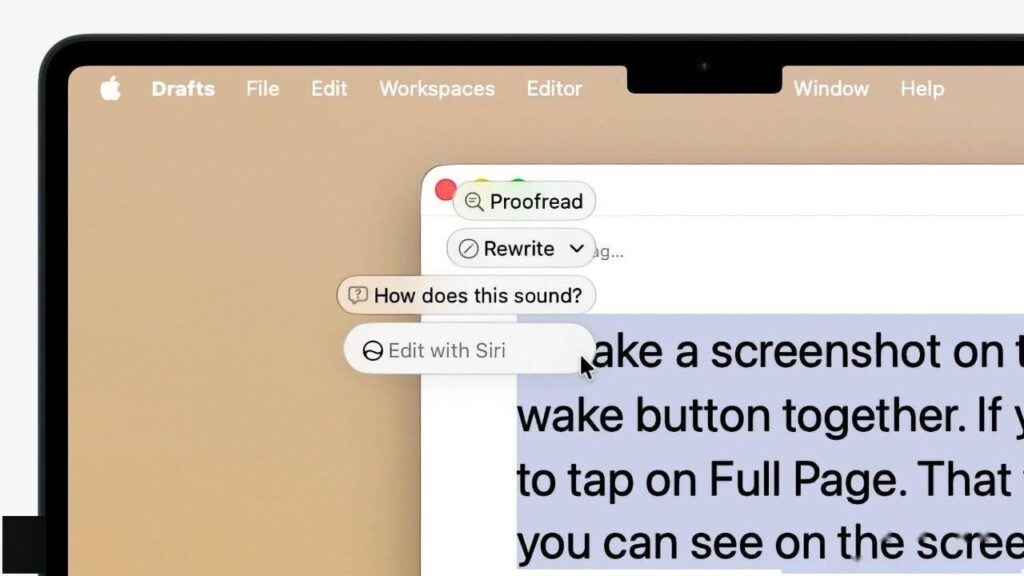
If you give commands in Russian, Siri can work with Russian text
It’s also worth mentioning the format. Apple has placed the AI in a compact pop-up window rather than a bulky sidebar like before. The menu appears right where you’re working with text and doesn’t cover half the screen. This lightweight interface is built right into the flag’s name — LightweightUI, so it’s a deliberate design choice, not an accident.
Essentially, Apple is bringing writing tools directly into the context menu so you don’t have to navigate through separate windows and panels. This is a logical evolution of Apple Intelligence, only now the AI is always right at your cursor.
How to Enable the Hidden Siri AI Menu via Terminal
The menu itself is hidden behind a feature flag, so you won’t find it in regular settings no matter how hard you look. You can activate the feature with a single Terminal command, after which you’ll need to restart the system. This line creates the necessary folder and enables the hidden flag:
sudo mkdir -p /Library/Preferences/FeatureFlags/Domain && sudo defaults write /Library/Preferences/FeatureFlags/Domain/WritingTools LightweightUI_macOS -dict Enabled -bool true
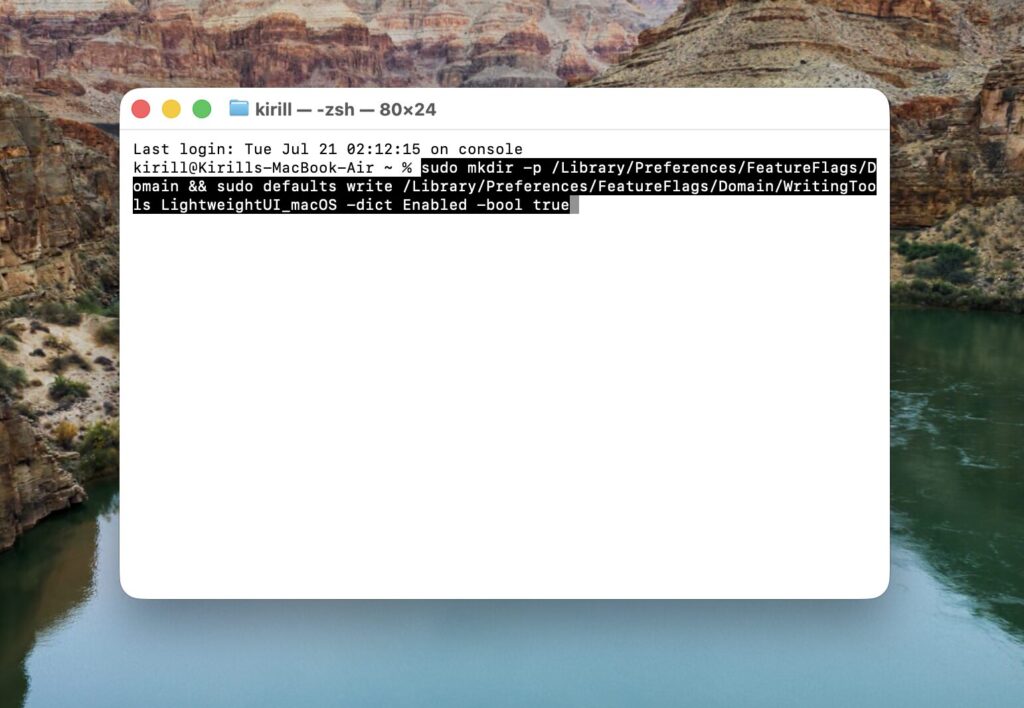
Paste the command and confirm the input
After entering the command, the system will ask for your administrator password — this is normal. Type it blindly, as characters aren’t displayed in Terminal, then press Enter. Next, restart your Mac for the changes to take effect.
Once the system boots up, everything becomes quite straightforward. Select text in a system application and hover your cursor over it — that Siri button will pop up right next to it. Hovering over it reveals a menu with actions. After selecting a command, the system thinks for a couple of seconds and displays a window for interacting with the AI.
Keep in mind that this is a raw beta feature, and Apple disabled it for a reason. It may work unstably, so you shouldn’t experiment on your primary work computer. It’s better to keep such tests on a separate machine or be prepared for possible glitches in advance.
Does the Hidden Siri AI Menu in macOS 27 Actually Work?
I enabled the hidden menu and tested it across various applications. I’ll be honest — the feature looks rough around the edges and clearly hasn’t reached its final form. Some capabilities work intermittently, while others refuse to launch at all. For example, in Safari, Siri readily answered a question about selected text and handled the context fairly well. However, the assistant flatly refused to read a passage aloud or rewrite a section in a text editor. This behavior is typical of an unfinished build where half the features are still held together with duct tape.
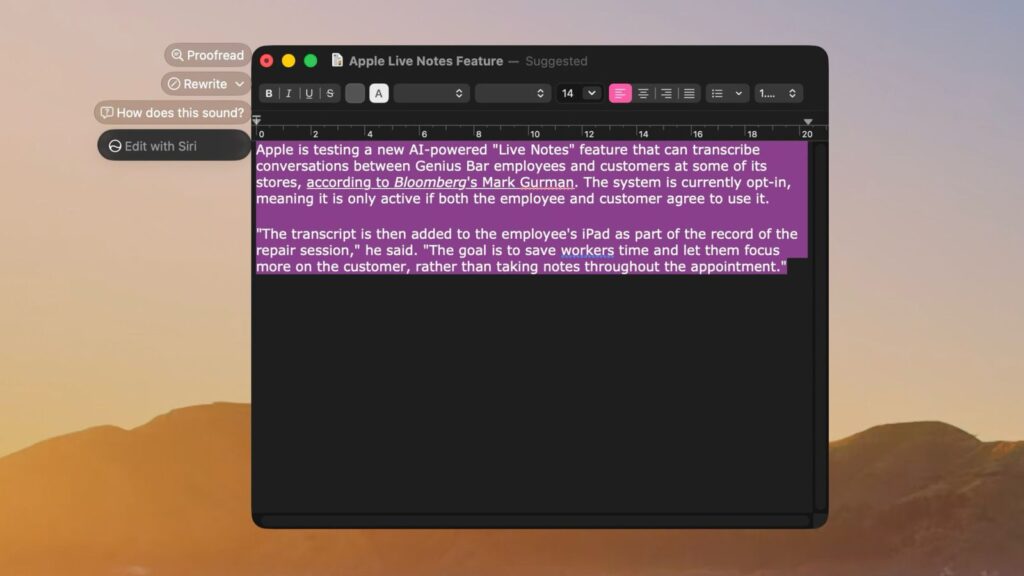
The feature is still rough
Performance speed also leaves something to be desired. There’s a noticeable pause between selecting an action and seeing the result — long enough to get bored. The final version will surely eliminate such delays, but in the current build it noticeably slows down workflow. Plus, not all applications play nicely with the new menu — in some the Siri button appears obediently, while in others you have to hunt for it.
None of this is surprising. Apple is rolling out Siri integration gradually and isn’t rushing to release it to the general public. By the final release, the feature will surely be polished, but for now it’s more of a chance to get a glimpse into the future.
How to Disable the Hidden Siri AI Menu in macOS 27
If the feature has become annoying or started getting in the way, turning it off is just as easy as turning it on. There’s a separate command for this, after which you’ll also need to restart your Mac:
sudo defaults write /Library/Preferences/FeatureFlags/Domain/WritingTools LightweightUI_macOS -dict Enabled -bool false
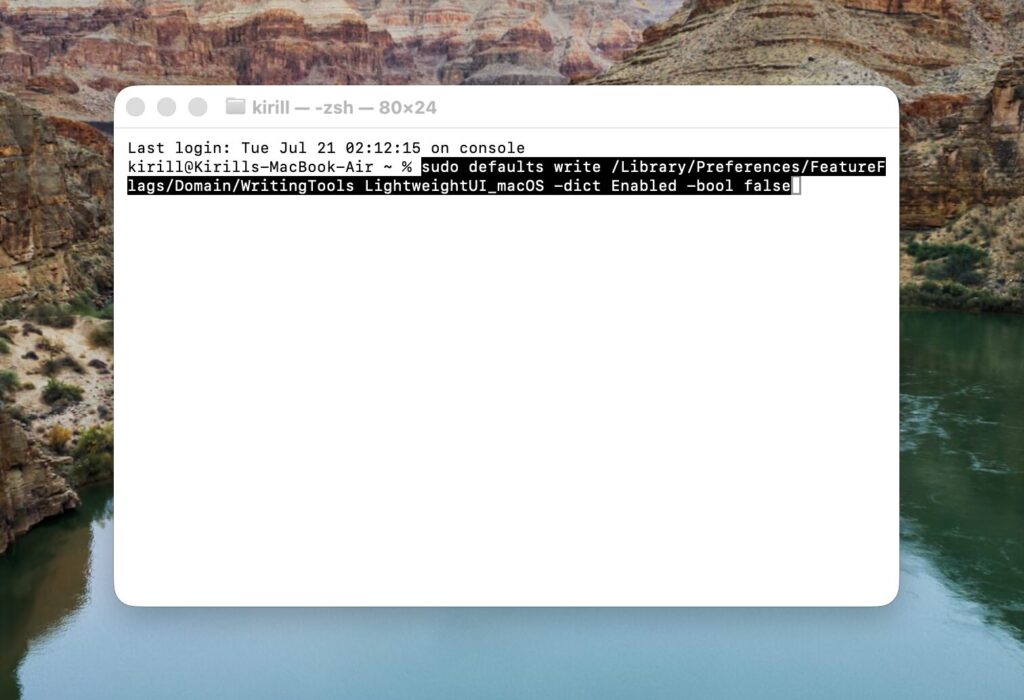
The menu can be disabled with a single command
After restarting, the Siri button will stop appearing when you select text, and the system will return to its usual appearance. No traces of the experiment remain, so there’s no need to worry about stability.


