Google recently released the fourth beta version of Android 17, and the picture of the upcoming update is already quite clear. The new version includes both long-awaited features like separate Wi-Fi and mobile data toggles, as well as fundamentally new things: floating windows for any app, limited contact access, and task handoff between devices. Here are eight Android 17 innovations that are truly worth knowing about, since you’ll be getting the update soon too.
An honest look at the new Android 17 features. Image: gizmochina.com
Built-in Android App Lock
Google is finally adding the ability to lock individual Android apps directly through the system. To restrict access to an app, simply long-press its icon on the home screen and select “App lock.” Unlocking is done via PIN, pattern, password, or biometrics (fingerprint, face recognition).
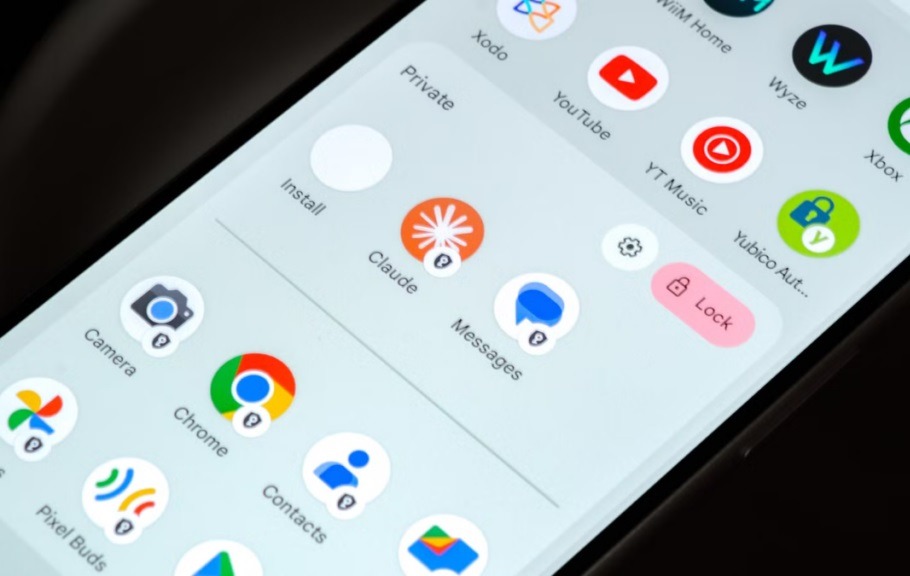
Android 17 now features app locking. Image: Android Police
An important detail: a locked app hides not only its data but also notifications, shortcuts, and widgets. However, Google warns that some AI-based features, such as screen automation through Gemini, may retain access to locked apps depending on the permissions granted. The system will notify you if other apps have access to a locked one. Samsung, OnePlus, and other custom skin users have been familiar with this feature for a long time. But for Pixel smartphone owners, this is a long-awaited addition that eliminates the need for third-party utilities.
Floating App Windows on Your Phone
Previously, “bubbles” only worked for messengers and conversations. In the Android 17 update, any app can be minimized into a floating circle overlay on the screen. A practical example: you’re watching a tutorial video on YouTube while Google Keep with your notes hovers as a bubble on the side. Tap it — and a small window opens over the video. This is more convenient than constantly switching between apps or splitting the screen in half.
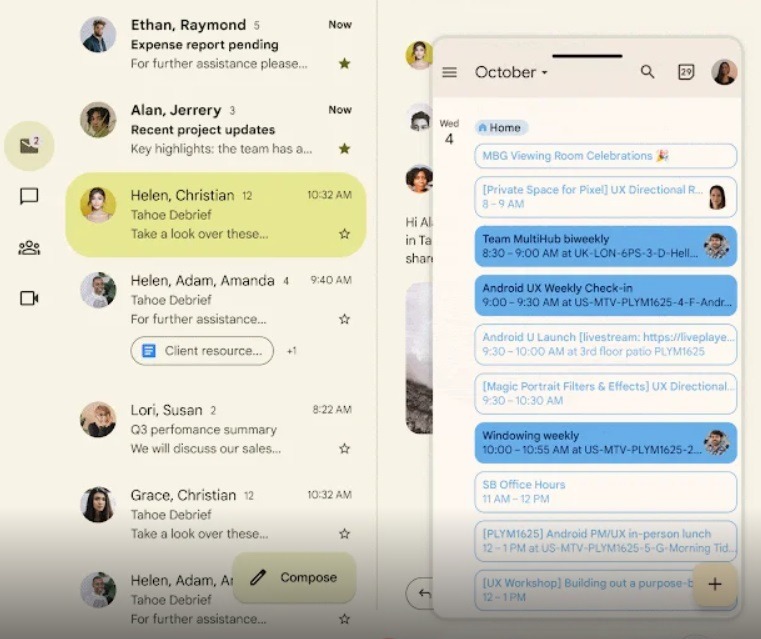
Floating windows now work in messages too
To close a bubble, simply drag it to the bottom edge of the screen. This feature will be especially useful on devices with large screens — foldable smartphones and tablets, where there’s enough room for a floating window.
Revamped Android Screen Recording
Screen recording in Android 17 gets a redesigned interface. Instead of a pop-up window when tapping the recording tile in the quick settings shade, a compact floating panel appears. From it, you can select the recording area, audio source (device speaker, microphone, or both), and whether to show screen taps.
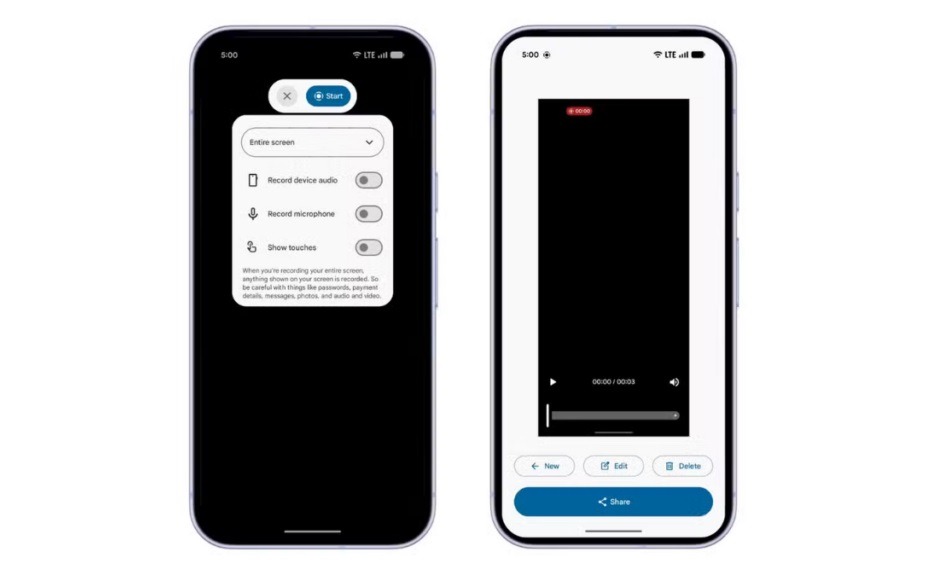
The screen recording interface now looks like this. Image:
The main improvement — after stopping the recording, a preview screen immediately appears where you can play back, edit, delete, or share the clip. No more digging through the gallery to find the video you just recorded.
Android App Adaptation for Large Screens
This Android 17 feature is important for tablet and foldable device owners. Google is tightening requirements for developers: apps will no longer be able to force portrait-only mode on devices with large screens (from 600dp — which covers tablets, foldable phones when unfolded, and similar devices).
Currently, if you open an app on a tablet that’s hard-locked to portrait mode, it displays as a narrow strip in the center of the screen with black bars on the sides. In Android 17, apps will adapt and fill the entire screen. Games are an exception: the restriction doesn’t apply to them to avoid breaking gameplay. Google started moving in this direction with Android 16, but back then developers could opt out of adaptation. In Android 17, it will become mandatory.
How to Hide App Names on Android
A small but pleasant customization: in the Android 17 Beta 3 update, the option to remove labels under app icons on the home screen appeared. This makes the home screen look visually cleaner.
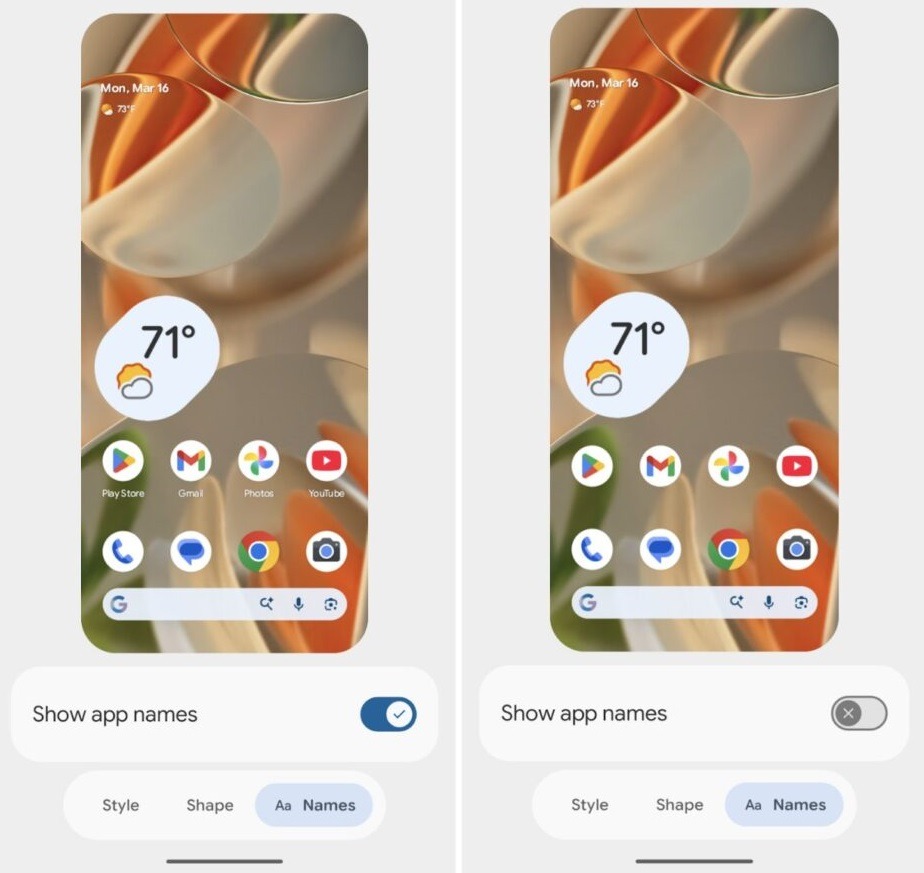
Android 17 lets you hide app names on the home screen
To hide app names on Android, go to “Wallpaper & style,” then “Home screen,” then “Icons,” open the “Names” tab, and toggle off “Show app names.” Labels will disappear only on the home screen — in the app drawer and inside folders, they will remain.
New Android 17 Control Panel
One of the most annoying aspects of Pixel smartphones is finally being fixed. Currently, to turn Wi-Fi on or off or toggle mobile data, you need to open the shade, tap the “Internet” tile, and only then switch the desired option. That’s an extra step that has been frustrating users for over four years.
In Android 17, you’ll be able to add separate Wi-Fi and mobile data toggles directly to the quick settings panel. Samsung, OnePlus, and other custom skin owners might find this strange — they’ve always had this. But for Pixel users, this is a real everyday convenience improvement.
Limited Contact Access for Phone Apps
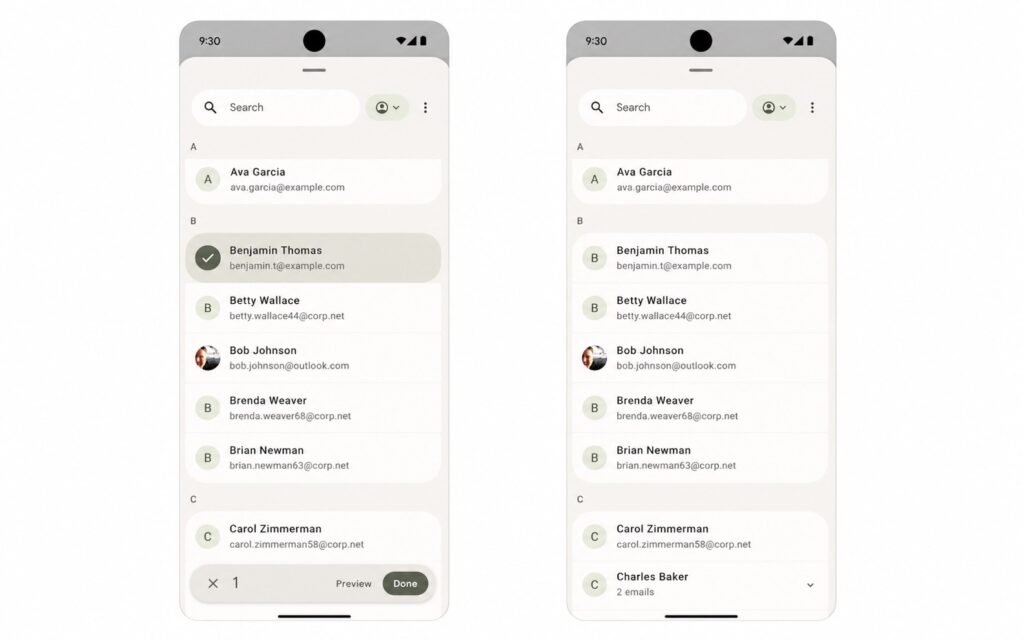
A serious improvement to Android privacy. Currently, if an app requests access to contacts and you grant it, the app gets access to all contacts on the device — no exceptions. In Android 17, a system Contact Picker interface appears, through which you can select specific contacts to share with an app. The app won’t see the rest of your data.