You come home, unlock your iPhone — and there’s no internet. Wi-Fi seems to be connected, but pages won’t load. Or the phone flat-out refuses to connect to a familiar network. Sound familiar? It happens far more often than you’d think. And in most cases, the problem can be fixed without a trip to the service center. Let’s figure out why this happens and what to do about it.
Wi-Fi on iPhone can throw you an unexpected curveball
How to Check Why Your iPhone Won’t Connect to Wi-Fi
Before diving into settings, it’s worth figuring out who’s at fault: the smartphone or the router. This will save you a lot of time. Try connecting another device to the same network — an iPad, laptop, or Android smartphone. If the internet doesn’t work on that device either, the problem is with the router or your ISP. Call your provider and ask if there’s a service outage.
If other devices work fine but your iPhone is being stubborn — the problem is on the smartphone’s side. And that’s where things get interesting.
How to Restart Your iPhone
It sounds obvious, but a restart fixes the problem in half of all cases. The thing is, the iPhone’s network module can “freeze” — especially if the phone hasn’t been turned off in a while, has overheated, or has been switching between networks for a long time.
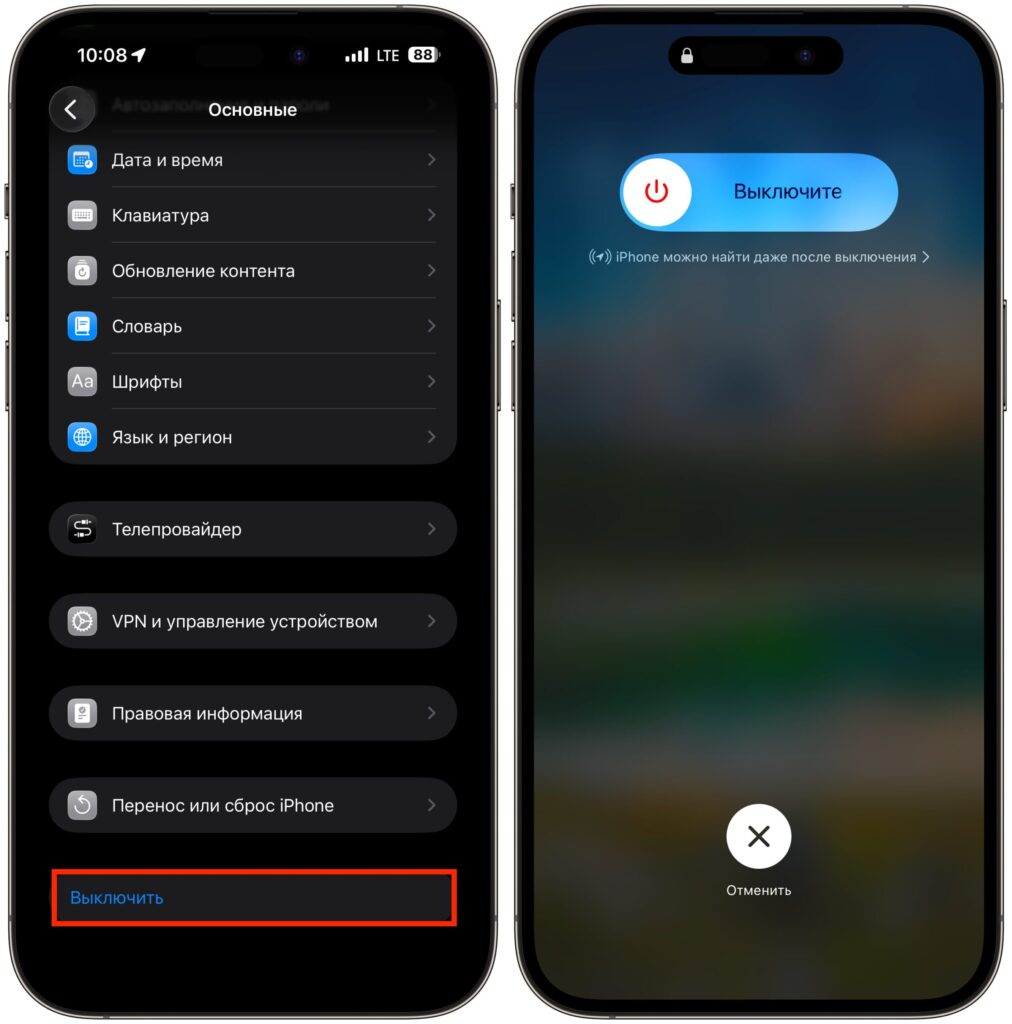
Or simply turn off the smartphone through settings, then turn it back on
To restart an iPhone with Face ID, press and hold the side button and a volume button simultaneously, then slide the “Slide to Power Off” slider. Wait 10 seconds and turn it back on.
It’s also worth restarting your router. Unplug it from the outlet, wait 15–20 seconds, and plug it back in. Wait a couple of minutes for it to fully boot up. Often this alone is enough — and Wi-Fi on your iPhone works again as if nothing happened.
Why Enable Airplane Mode If Wi-Fi on iPhone Isn’t Working
If a full restart seems too long, try a “soft” option. Open Control Center and enable Airplane Mode. Wait 10–15 seconds and turn it off. This will restart all wireless modules — Wi-Fi, Bluetooth, and cellular. Sometimes that’s enough for the iPhone to “see” the network and connect.
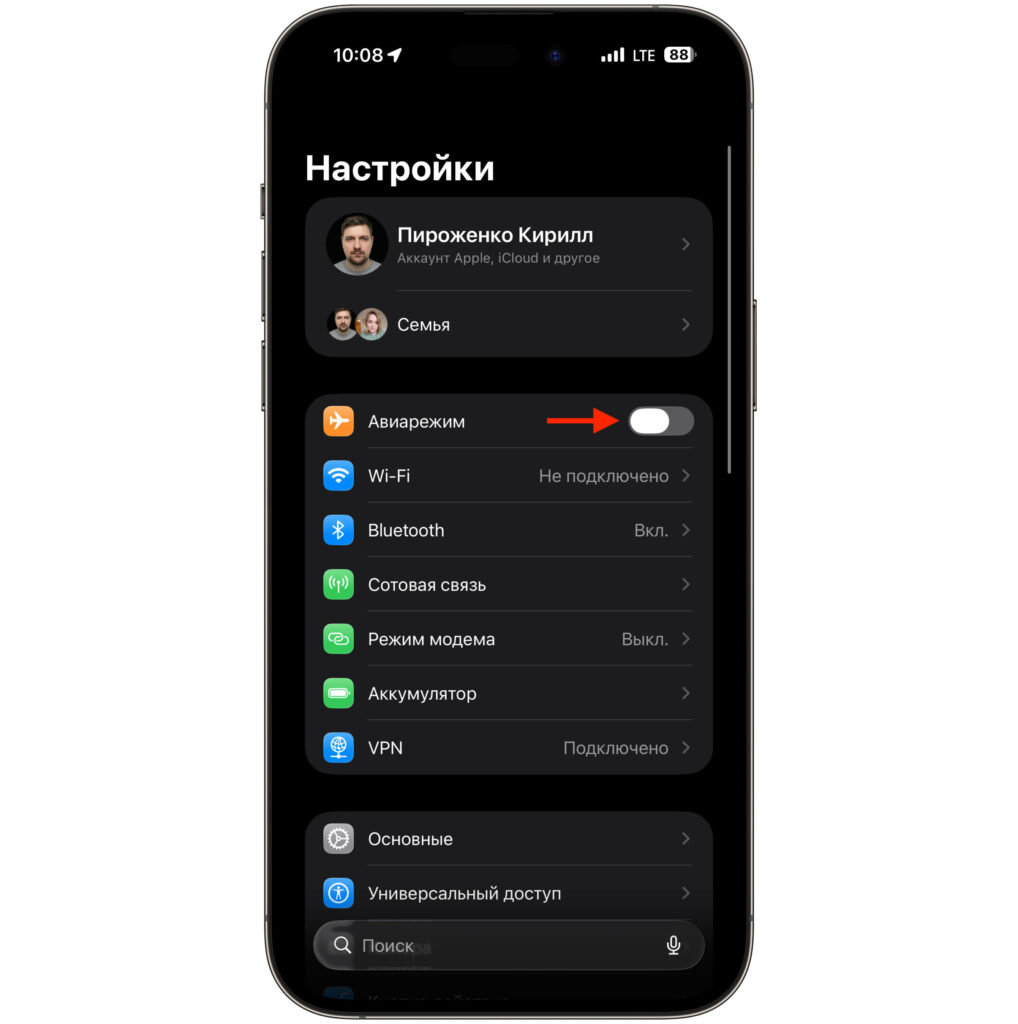
I prefer enabling Airplane Mode through settings
Another way to enable Airplane Mode is through iPhone settings. Apple placed the toggle as the very first option after your Apple ID, so you can flip it there as well. Choose whichever method is more convenient for you.
How to Forget a Wi-Fi Network on iPhone
One of the most effective methods. Especially if the iPhone connects to Wi-Fi but the internet doesn’t actually work, or you see a “No Internet Connection” message.
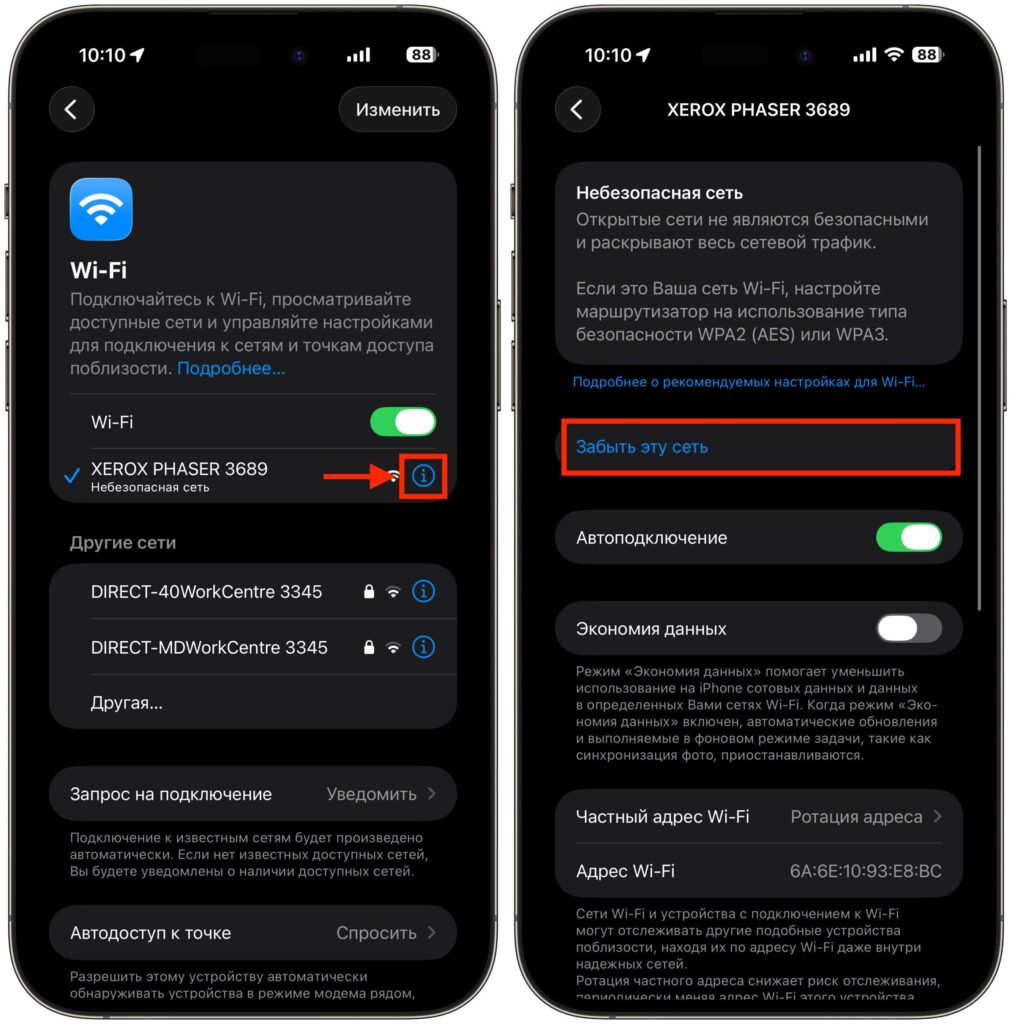
Sometimes you need to fully reconnect to a network to get everything working properly
Open “Settings” — “Wi-Fi” and tap the (i) icon next to your network name. Tap “Forget This Network” and confirm the action. After that, find the network in the list again and enter the password.
This trick works because iOS saves connection parameters — IP address, DNS, proxy settings. Over time, they can become outdated or conflict with router settings. By “forgetting” the network, you force the iPhone to obtain all parameters fresh.
Private Wi-Fi Address: Why It Interferes with Network Connection
Starting with iOS 14, Apple added the Private Wi-Fi Address feature. It substitutes a fake MAC address for your iPhone on each network to make tracking more difficult. Great idea, but in practice it often causes conflicts.
If your router has MAC address filtering or a device whitelist enabled, the iPhone with a “spoofed” address simply won’t pass the check. The result — the network is visible, the password is correct, but there’s no connection.
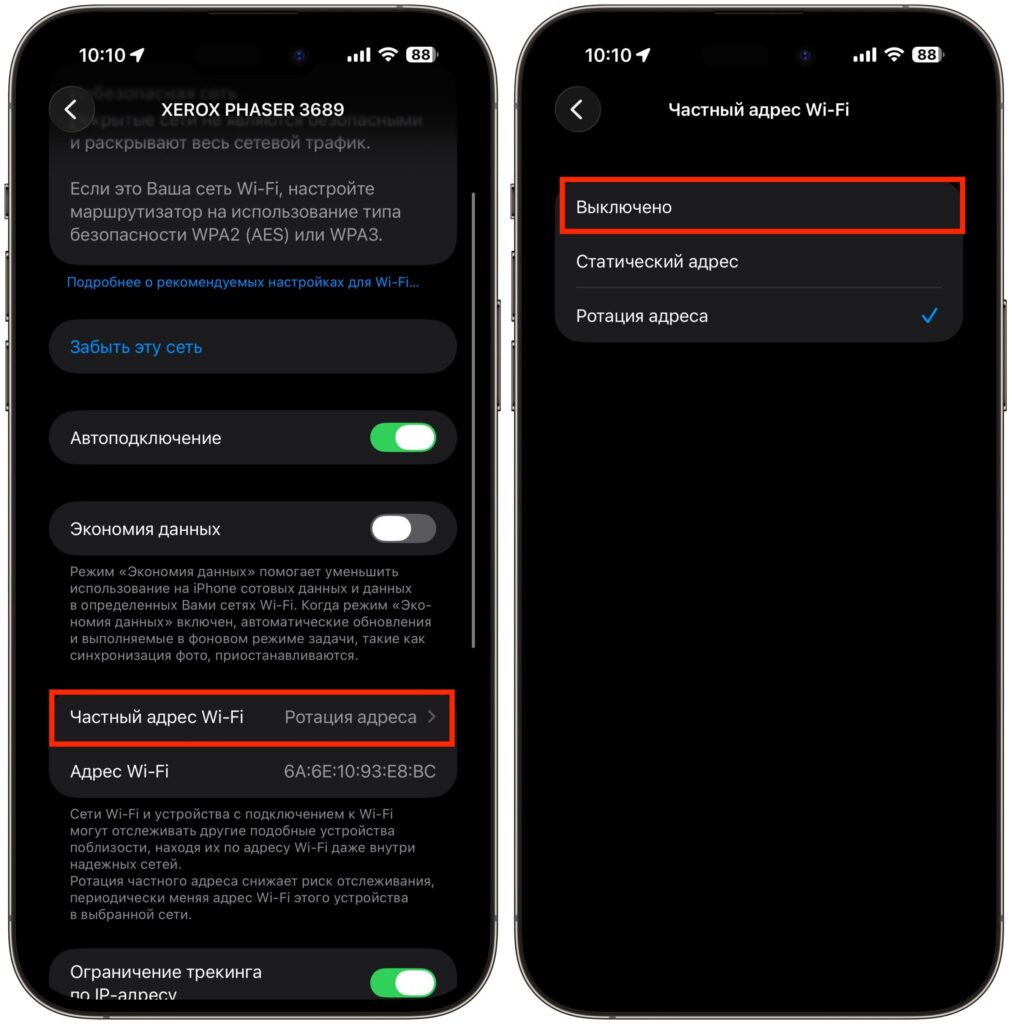
This feature sometimes causes problems. Let’s disable it
To fix this, go to “Settings” — “Wi-Fi” — tap the (i) icon next to the problematic network. Find the “Private Wi-Fi Address” toggle and turn it off. The iPhone will reconnect with its real MAC address, and the router will let it through. For a home network, this is completely safe. However, in public networks it’s better to leave this feature enabled — it genuinely protects your privacy.
Why Wi-Fi on iPhone Doesn’t Work Because of VPN
This is especially relevant for users who rely on VPN to access blocked services. But after an iOS update, a VPN profile can start conflicting with the network stack.
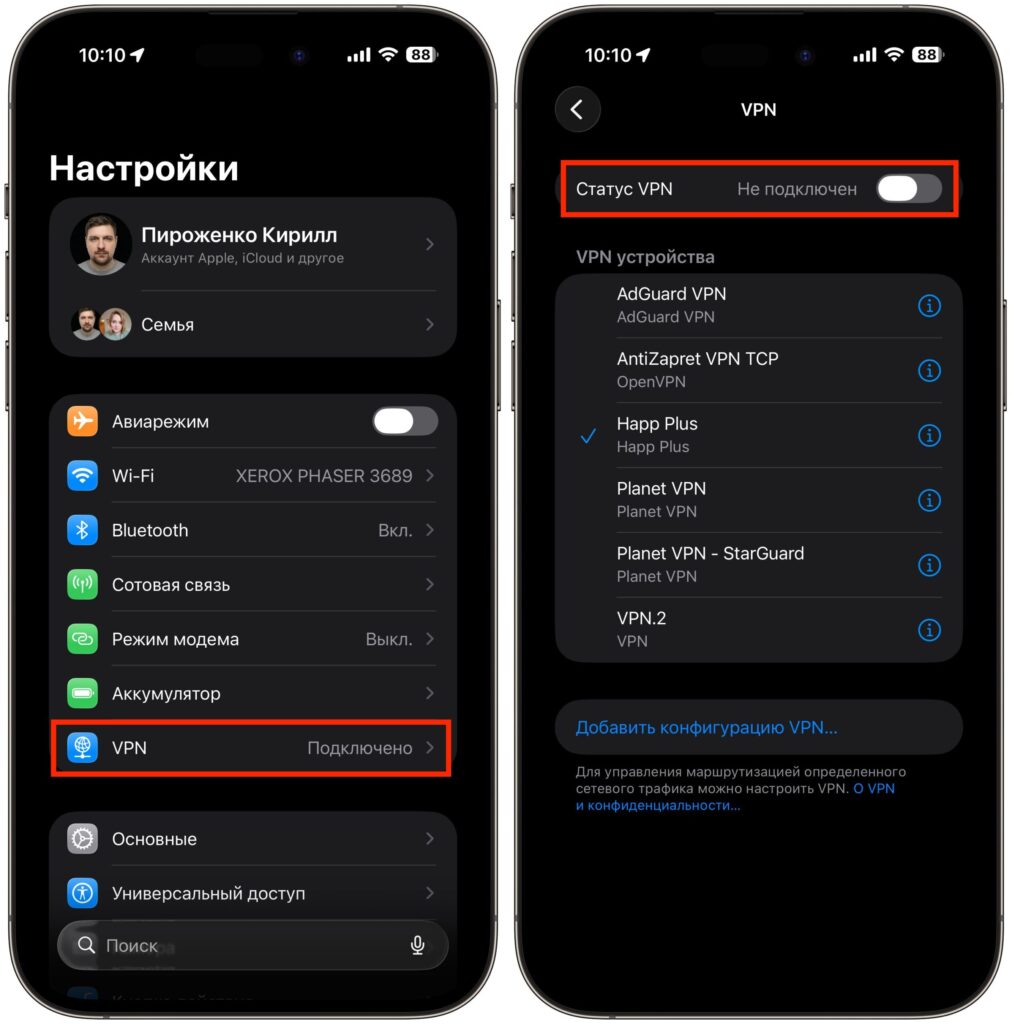
Disable VPN to check if everything is fine
The symptoms are typical: Wi-Fi is connected, but pages won’t open, apps won’t load data, and speed drops to zero. On Apple forums, there are numerous complaints that removing the VPN profile restored Wi-Fi after updating to iOS 26.
To check, go to “Settings” — “General” — “VPN & Device Management.” If you see an active VPN profile — try deleting it (not just disabling, but actually deleting it). Check whether the internet starts working. If it does — you can then reinstall the VPN app, and it will create a new profile that’s compatible with the current iOS version.
How to Reset Network Settings on iPhone
If none of the above helped, move on to a more drastic step — resetting network settings. This method deletes all saved Wi-Fi passwords, VPN settings, APN configurations, and Bluetooth pairings. But it’s guaranteed to eliminate any software conflicts in the network stack.


