Resetting an iPhone when the Apple account has been deleted is a challenge faced by owners of old devices, buyers of used smartphones, and those who hastily deleted their account without signing out of it on all gadgets. Sometimes a standard factory reset helps, but with a deleted account, things are much more complicated. In this article, we’ll explain why after deleting an account, an iPhone turns into a “brick,” what reset options exist, and how to act in each specific situation.
If you deleted your Apple account before signing out of it on your devices, there may be problems
Why iPhone Asks for Apple ID After a Reset
Activation Lock is a protective mechanism by Apple that ties an iPhone to a specific account. It is enabled automatically as soon as you activate the Find My function on the device. The purpose of the lock is to make a stolen or lost iPhone useless to outsiders.
When an iPhone is reset to factory settings or restored via recovery mode, upon reactivation the system asks for the login and password of the Apple account to which the device was linked. If you don’t have this information, you won’t be able to get past the activation screen. The phone remains locked.
The main problem with a deleted account: if the Apple account was completely deleted (not just signed out of, but actually deleted through Apple’s website), then it’s impossible to sign into it — the account ceases to exist. But the Activation Lock remains on the device because the binding is stored on Apple’s servers.
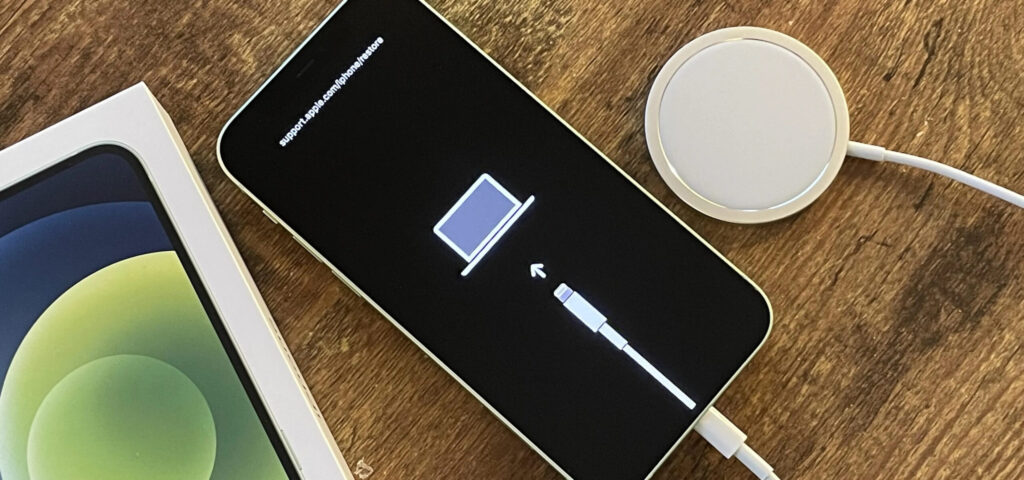
This is what iPhone recovery mode looks like
Recovery Mode and DFU (Device Firmware Update) allow you to completely erase iPhone contents and reinstall iOS. However, neither of these modes removes the Activation Lock. After restoration, the iPhone will still require you to enter the Apple account credentials that were linked to the device.
This is a fundamental point: restoring via iTunes or Finder erases data but does not unlink the device from the account. For an iPhone with Find My enabled, the result will be the same — an “iPhone is linked to owner” screen requiring an Apple ID and password.
The only exception is if the Find My function on the iPhone was turned off before the reset. In that case, Activation Lock is not triggered, and after restoring via Recovery or DFU mode, the device can be set up again without entering the old account.
How to Reset an iPhone If Find My Is Disabled
If the Find My iPhone (Locator) function was not enabled on the iPhone, Activation Lock is not active. This is the simplest scenario — the device can be reset the standard way via recovery mode.
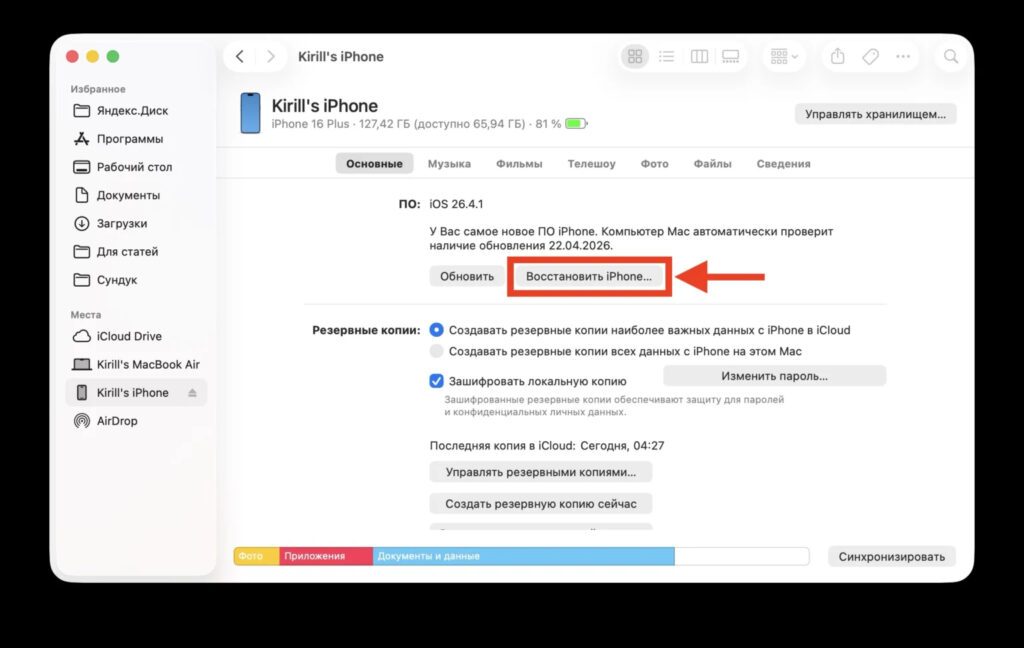
You’ll need to use a computer for the reset
- Install iTunes on your computer (for Windows) or use Finder (on Mac with macOS Catalina and later).
- Connect the iPhone to the computer with a USB cable.
- Put the iPhone into recovery mode. For iPhone 8 and later: quickly press and release the volume up button, then the volume down button, then press and hold the side button until the connect-to-computer screen appears. For iPhone 7 and 7 Plus: simultaneously press and hold the side button and the volume down button. For iPhone 6s and older: simultaneously press and hold the Home button and the top (side) button.
- iTunes or Finder will detect the device in recovery mode and offer to restore or update it. Select “Restore.”
- Wait for the process to complete. The iPhone will restart and show the initial setup screen.
After restoration, you’ll be able to set up the iPhone from scratch and link it to your Apple account. Activation Lock will not appear because Find My was disabled.
How to Remove iPhone Activation Lock Through Apple
If Find My was enabled and the account has been deleted, you won’t be able to remove the Activation Lock on your own. The only legal way is to contact Apple with a request to remove the device binding. Apple provides a special online tool for submitting a request to remove Activation Lock. It’s available at al-support.apple.com. To submit a request, you’ll need:
- The device’s serial number or IMEI (listed on the case, box, or receipt).
- A document confirming purchase: the original receipt from Apple or an authorized reseller with the device’s serial number.
- An email address for communication.
Step-by-step instructions:
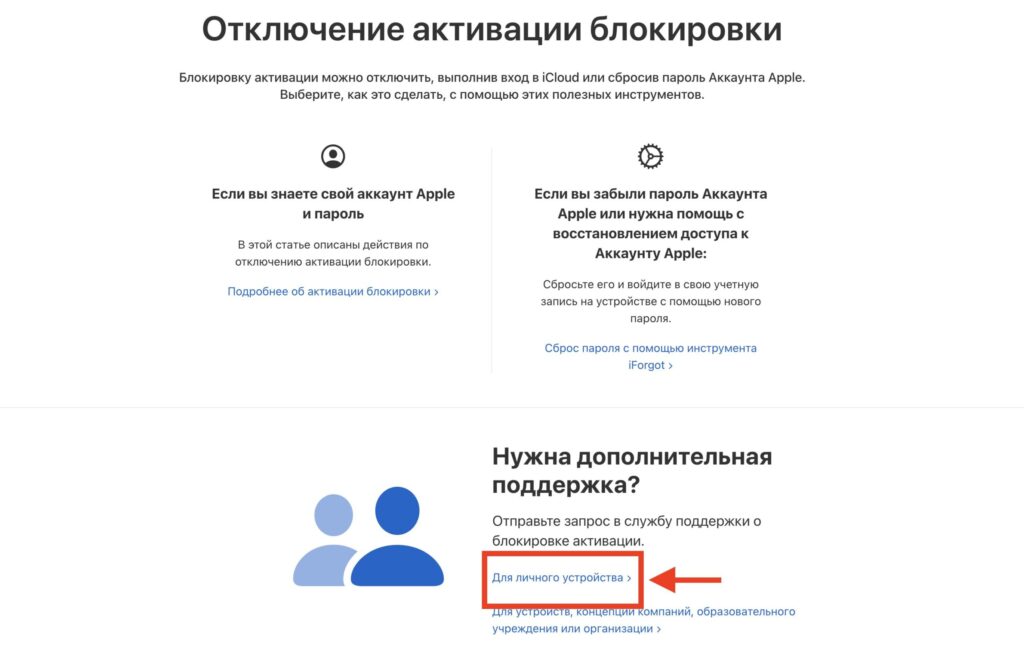
Select this option and follow the on-screen instructions
- Go to al-support.apple.com.
- Review the terms and click “Continue.”
- Enter the device’s serial number and your email address.
- Upload a scan or photo of the document confirming the purchase.
- Submit the request and wait for a response from Apple.
Processing usually takes from a few days to a couple of weeks. If Apple accepts your documents, the Activation Lock will be removed remotely. After that, you’ll be able to set up the iPhone again.
Documents You Can Use to Confirm Purchase with Apple
Apple has strict requirements for documents. Not just any receipt or screenshot will work. Here’s what the document must include:
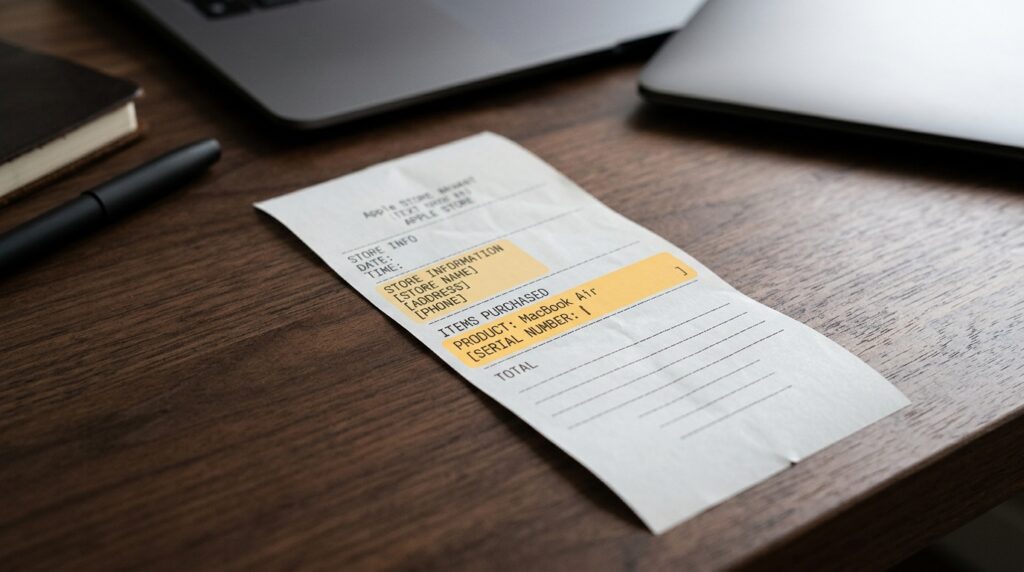
The receipt must include the device’s serial number or IMEI — without this, Apple will reject the request
- Date of purchase.
- Device serial number or IMEI.
- Name of the store or reseller and its contact information.
Apple usually accepts an original receipt from an authorized reseller. Handwritten notes, receipts from Avito, eBay, or unauthorized stores are most often rejected. If you bought the iPhone from a private individual and didn’t receive the original purchase receipt — the chances of your request being approved are slim.
In Russia, where there are no official Apple Stores, receipts from former authorized resellers — re:S


