Many Mac owners simply close the MacBook lid or leave their iMac in sleep mode — and don’t shut down their computer for weeks. Others, on the contrary, shut it down every evening, like in the good old days. Both approaches are valid, but there’s a fundamental difference between restarting, shutting down, and sleeping. Let’s figure out how each of these modes affects the performance, security, and health of your Mac — and how to properly restart an Apple computer.
Finding out what’s better for Mac: a regular restart or shutting down/turning on
Restart vs. Shutdown on Mac — What’s the Difference
When you click “Restart” in the Apple menu, macOS terminates all running processes, unloads applications from RAM, and reloads the system. However, power is not completely removed from Mac components — the logic board, some caches, and peripheral modules remain in a low-power state. That’s why a restart is noticeably faster.
Shutting down works differently. The Mac completely powers off all components — the processor, RAM, and communication modules. The next time you press the power button, the computer goes through a so-called cold boot: the firmware (Boot ROM) tests the hardware, the bootloader hands control to the macOS kernel, and only then do user processes start. It takes longer, but it resets the system state more deeply.
Here’s the key difference. A restart is a software reboot without full hardware initialization. Shutting down and turning back on is a hardware reset with a cold start that affects everything down to the last controller.
In practice, for everyday tasks there’s almost no difference — both restart and shutdown equally clear RAM and restart processes. macOS is built on Unix, and both actions reset the system at the software level. But if the problem lies deeper — in the power management controller or NVRAM settings — only a full shutdown will help.
Sleep Mode on MacBook: Why It Exists
On iPhone, there’s no concept of “sleep” in the way it exists on Mac. But for Apple computers, sleep mode is the primary everyday usage scenario. You close the MacBook lid or leave your iMac unattended for a few minutes, and it falls asleep.
Sleep mode is used by Mac owners most often
In sleep mode, the Mac consumes minimal energy but keeps the RAM contents powered. All open applications, tabs, and documents stay in place — you open the lid and resume work in a fraction of a second. Macs with Apple Silicon wake up virtually instantly, like an iPhone.
Moreover, macOS uses sleep mode for background system tasks: updating the Spotlight index, Time Machine backups, checking for system and app updates. If you shut down your Mac every evening, some of these processes simply don’t have time to complete.
Sleep doesn’t replace a restart — it doesn’t clear RAM or restart frozen processes. But for daily use between work sessions, it’s the most sensible mode.
When to Restart Your Mac and When to Shut Down Completely
When each option is more appropriate
A restart solves most common Mac problems:
- an application has frozen or is working with errors;
- after a macOS update or app updates, the system behaves strangely;
- the Mac has become noticeably slower for no apparent reason;
- Wi-Fi, Bluetooth, or an external monitor won’t connect;
- some settings don’t apply after being changed.
In such situations, a restart clears RAM, reloads system daemons, and applies pending changes. Often this is enough — especially if you haven’t shut down your Mac in more than two weeks.
A full shutdown is useful in other cases:
- the Mac regularly freezes, and restarts only help temporarily;
- the computer overheats even when idle;
- you don’t plan to use the Mac for several days or longer;
- before installing or replacing RAM and other modules — Apple explicitly recommends this;
- you need to transport a MacBook in luggage — a powered-off laptop definitely won’t wake up accidentally.
A full shutdown also resets the System Management Controller (SMC) and NVRAM — this can fix problems that a regular restart can’t solve. For example, incorrect fan behavior, keyboard backlighting, or the charging indicator.
How Often Should You Restart Your Mac for Stable Performance
Apple doesn’t publish official recommendations on this matter, but among specialists and experienced users, an unwritten standard has emerged.
Once every one to two weeks, you should perform a regular restart. This allows the system to clear temporary files, apply updates, and restart background processes that over time begin consuming extra resources. If you notice your Mac has become slower — restart more frequently.
A full shutdown makes sense once a month or as needed. For example, if the computer is behaving unstably after a macOS update or you’ve noticed issues with peripherals.
The rest of the time, feel free to use sleep mode. Modern Macs with Apple Silicon chips are designed to operate in this mode constantly — like an iPhone. Battery drain in sleep mode on a MacBook Air is only a couple of percent overnight.
All Ways to Restart a Mac
There are several options — from standard to emergency. Choose the one that fits your situation.
Through the Apple menu — the simplest way. Click the Apple icon in the upper-left corner of the screen and select “Restart…”. The system will prompt you to save documents and close applications. If you want windows to reopen in their previous positions on the next launch, leave the “Reopen windows when logging back in” checkbox checked.
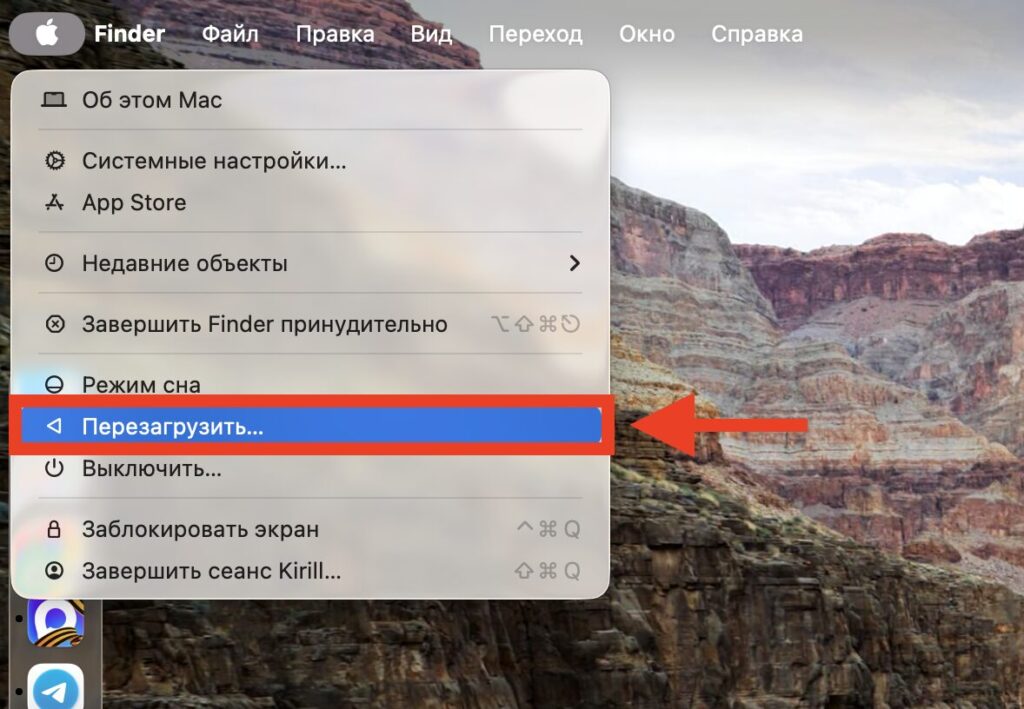
The easiest way to restart is through this menu
Keyboard shortcuts — for those who prefer the keyboard. Press Control + Command + the power button (or the disc eject key on older models). The Mac will restart without additional dialog boxes — keep in mind that unsaved data may be lost.
Through Terminal — a method for advanced users. Open Terminal and enter the command sudo shutdown -r now. You’ll need to enter the administrator password. This method is helpful when the graphical interface is hanging, but Terminal still responds.


