We’ve talked many times about interesting Android features available on every phone. But no single roundup can cover them all, because in reality there are so many that even a seasoned geek can’t master them all at once. Take the Android clipboard, for example. It’s one of those features many people don’t even know about, even though it can genuinely speed up everyday tasks. Instead of manually selecting text, copying, and pasting into the right app every time, you just need to set up the built-in clipboard once — and everything you copy will be kept at your fingertips, including screenshots.
Everything you need to know about the Android clipboard
What Is the Android Clipboard and Why Do You Need It
The phone clipboard is a history built into your keyboard of everything you copy: texts, links, and even images. The feature is available in Gboard, which is installed by default, so no additional apps are needed. But if you want, check out the best Android keyboards ranking.
The main convenience is that the system stores several recently copied items at once. You don’t need to switch between apps and copy something again — everything is accessible right from the keyboard. This is especially useful when you’re filling out forms, forwarding information to friends, or working with multiple texts simultaneously.
How to Enable the Clipboard on Your Phone
First, you should allow the keyboard to save screenshots to the clipboard. This is convenient if you frequently take screenshots and send them via messengers. When you open Gboard, the app will prompt you to grant the necessary permissions. If you accidentally skipped this step, go to the app settings and allow access to photos and videos in the permissions section. Read about how to do this in a separate guide on our site. And here’s how to enable the clipboard in Gboard:
- Open any app with a text field so the keyboard appears.
- Tap the clipboard icon in the top panel of Gboard.
- If the feature isn’t active, tap “Enable clipboard.”
- To save screenshots, open Gboard settings, go to the “Clipboard” section, and enable the option “Save recent screenshots to clipboard.”
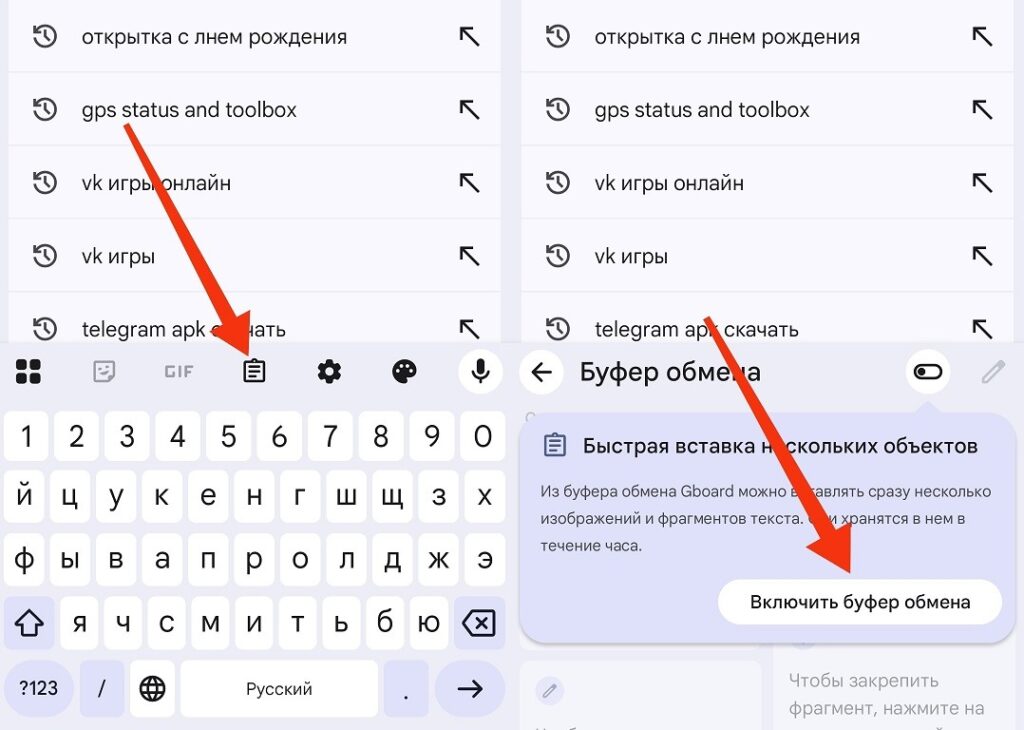
First, you need to enable the clipboard
There’s one thing worth knowing. The Gboard clipboard automatically clears after about an hour, while Samsung Keyboard clears after about two hours. If you need to save something for a long time (an email address, home address, or frequently used code), use the pinning feature.
To pin an entry, open the clipboard through the keyboard, find the item you need, tap and hold it, then select “Pin.” Pinned entries are stored indefinitely — that is, until you delete them yourself or factory reset your phone. To unpin an entry, long-press it and select “Unpin.”
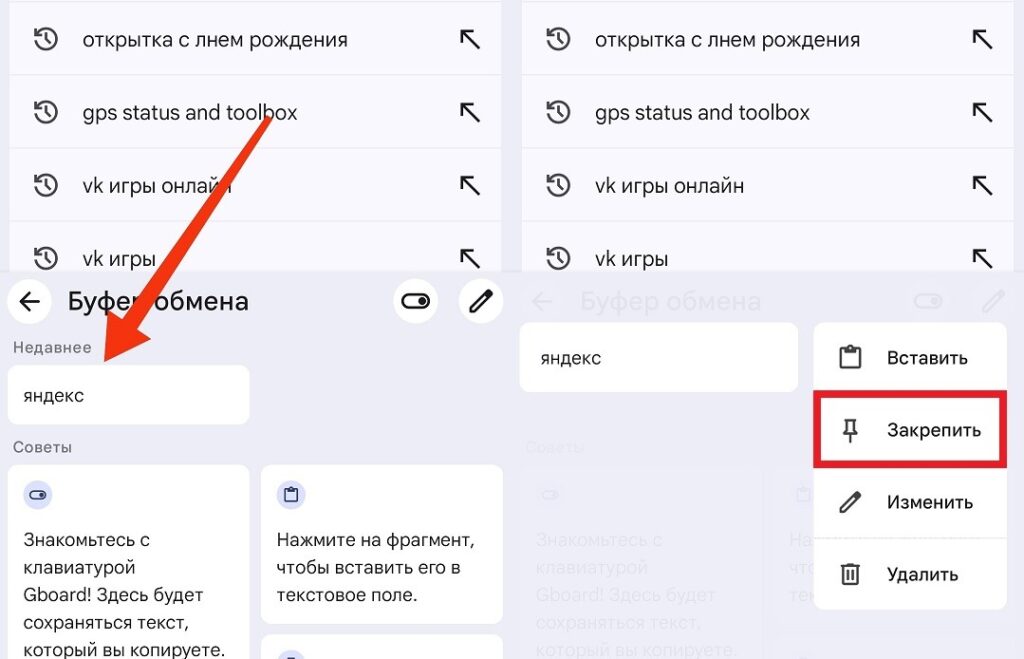
Copied text and screenshots can always be pinned
A practical tip: don’t pin more than ten entries, otherwise the clipboard turns into a messy dump where it’s hard to find anything. It’s better to periodically clean the list and keep only what you truly need.
How to View the Clipboard in Android
Starting with Android 16, when you copy text or an image, a preview popup appears at the bottom of the screen. In it, you can immediately see what exactly you copied and perform one of several actions: edit the text right before pasting, share it through any app, or instantly send it via Quick Share to a nearby device.
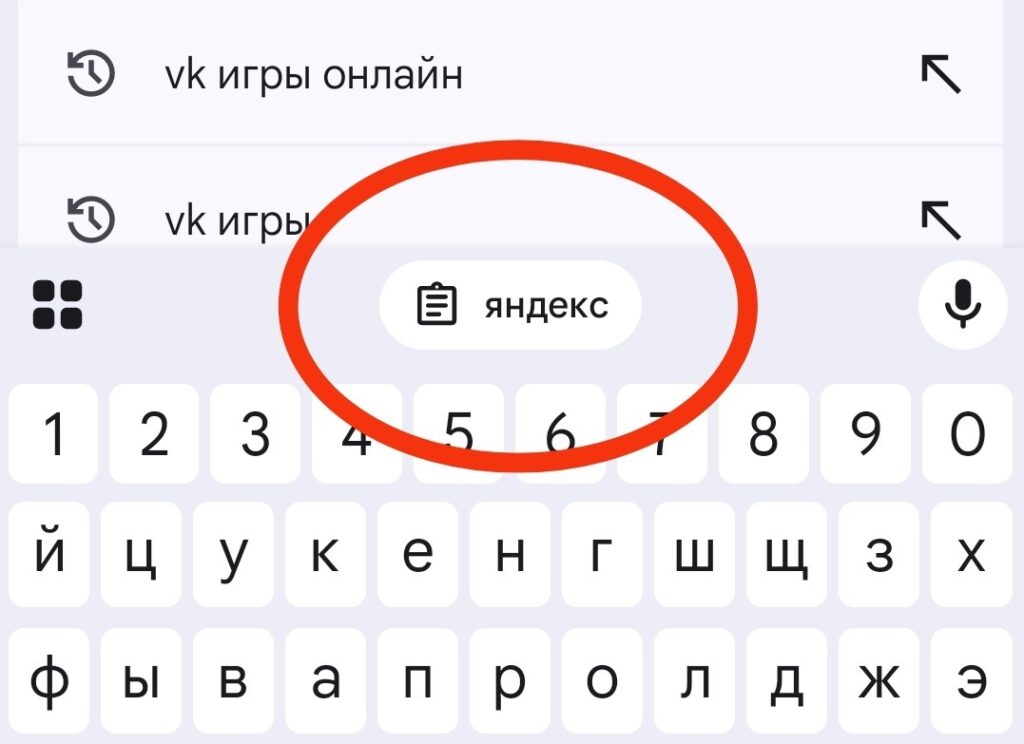
The most recently copied item is displayed at the top of the keyboard
This is especially convenient in two scenarios. First, if extra words got selected when copying text (you can remove them right from this window, without having to paste and then edit within the app). Second, if you copied an image and want to quickly send it to someone nearby, the Quick Share button in the preview eliminates extra steps. Essentially, once you get used to this preview window, you may never need to open the clipboard manager at all — copying and forwarding happen in just a couple of taps.
Where Is the Android Clipboard Stored
All clipboard entries are stored only on the specific device. If you use the same keyboard on multiple smartphones, the clipboard history does not sync between them. And if you delete the keyboard or clear its data, all pinned entries will be lost permanently.
If there’s something truly important among your pinned items (codes, addresses, message templates), it’s worth duplicating them in notes or any other app that supports backup. It’s a simple precaution that could save you a headache someday.


