If you want to install tvOS 27 on Apple TV before everyone else, you can do it through Apple’s beta program. Below, we’ll cover which models support the update, how to download it step by step, and what’s new in the system. This guide is suitable even for those who have never installed beta versions of software.
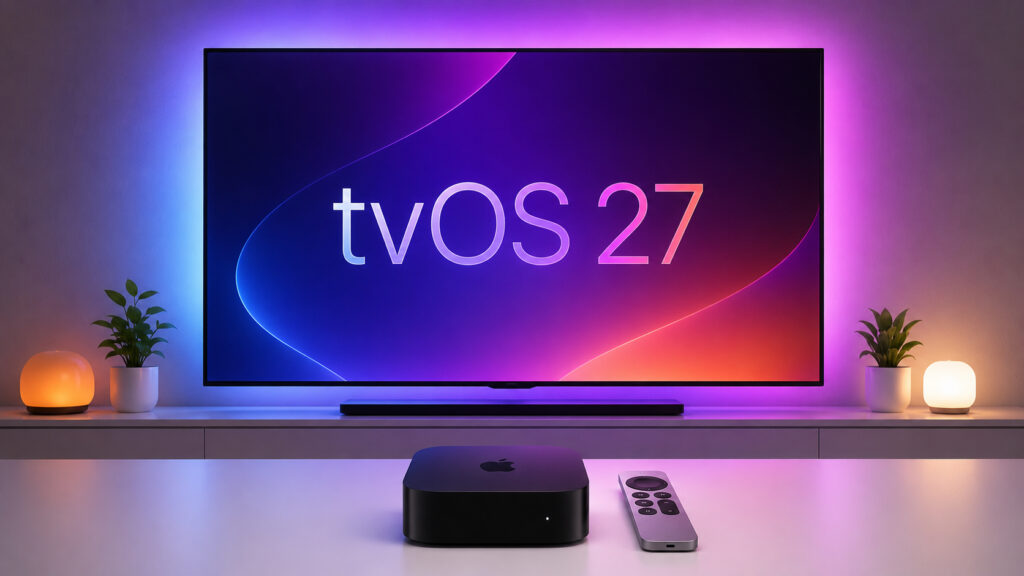
You can install beta versions on Apple TV too
Which Apple TV Models Support tvOS 27
Before installing the update, make sure your set-top box is compatible. Only two Apple TV 4K models are getting the new system: the second generation (2021) and the third generation (2022). Older devices that still supported tvOS 26 are no longer included in the new version. These are the following models:
- Apple TV HD — no longer supported;
- Apple TV 4K first generation (2017) — no longer supported.
If you have one of these set-top boxes, you won’t be able to install tvOS 27 — it will stay on the last available version.
How to Download tvOS 27 on Apple TV
The easiest way to get tvOS 27 is to install the public or developer beta directly through the set-top box settings. Apple has made access to beta updates free, so you don’t need to register a paid developer account — a regular Apple ID is enough.
If you’ve already installed beta versions on iPhone, iPad, or Mac with the same Apple ID, follow these steps:
- Open the Settings app on Apple TV and make sure the set-top box is connected to the internet via Wi-Fi or Ethernet cable.
- Scroll down and select “System.”
- Go to the “Software Updates” section.
- Wait a few seconds for the “Beta Updates” line to appear on screen and select it.
- Select “tvOS 27 Developer Beta” (or the corresponding public beta).
- In the “Apple TV Update” window that appears, tap “Download and Install.”
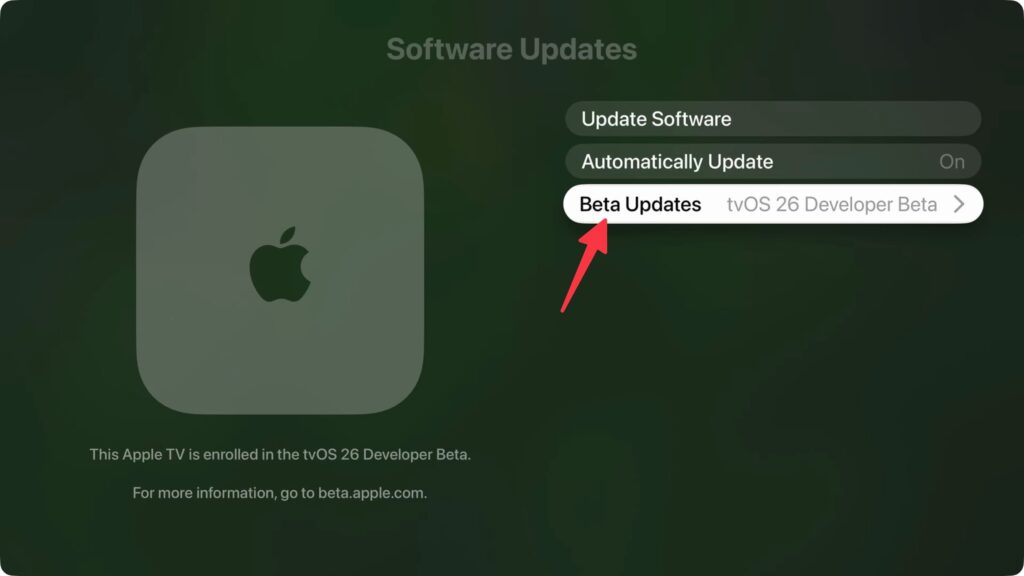
Select the “Beta Updates” section
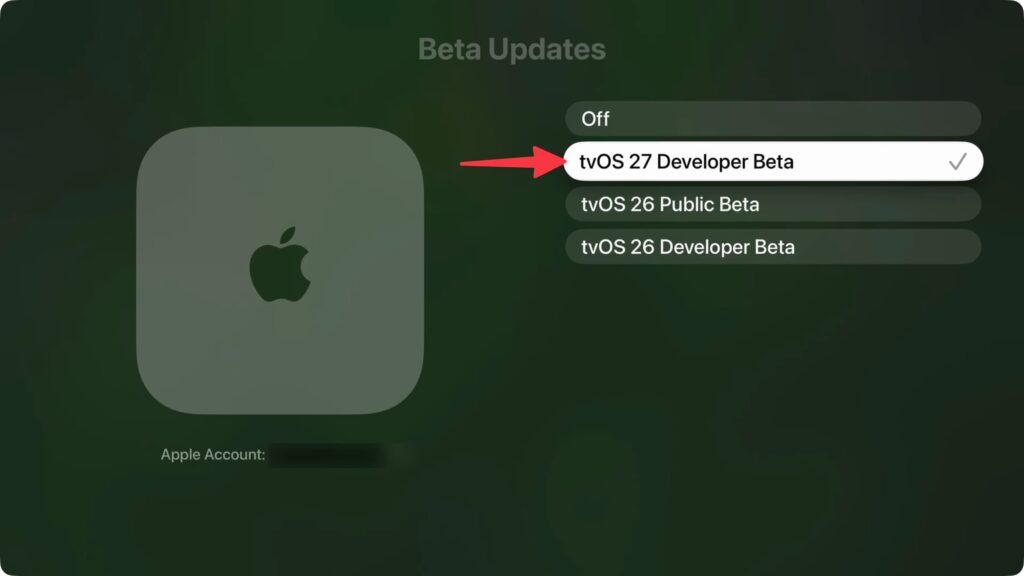
Switch to tvOS 27
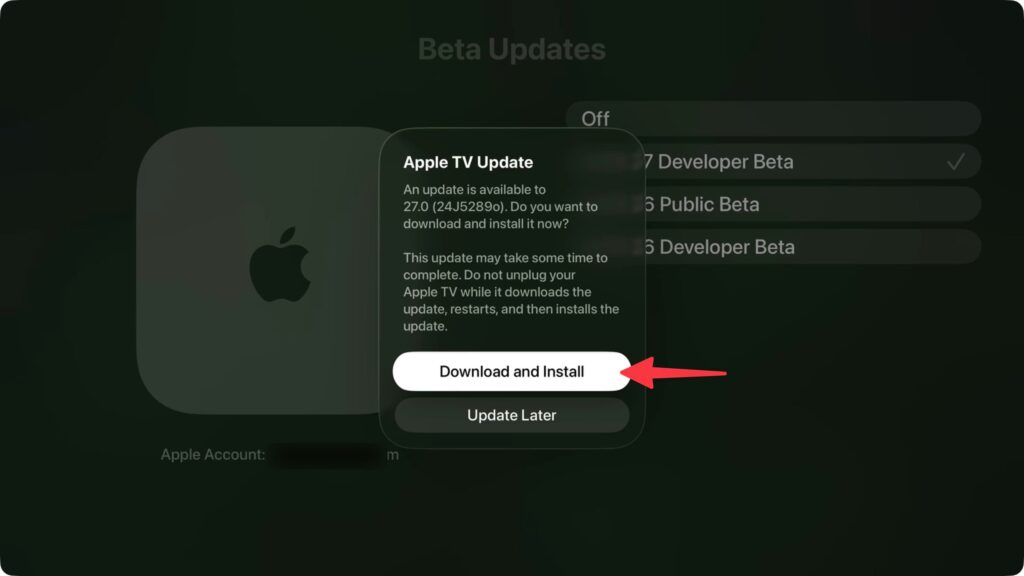
Start downloading the beta
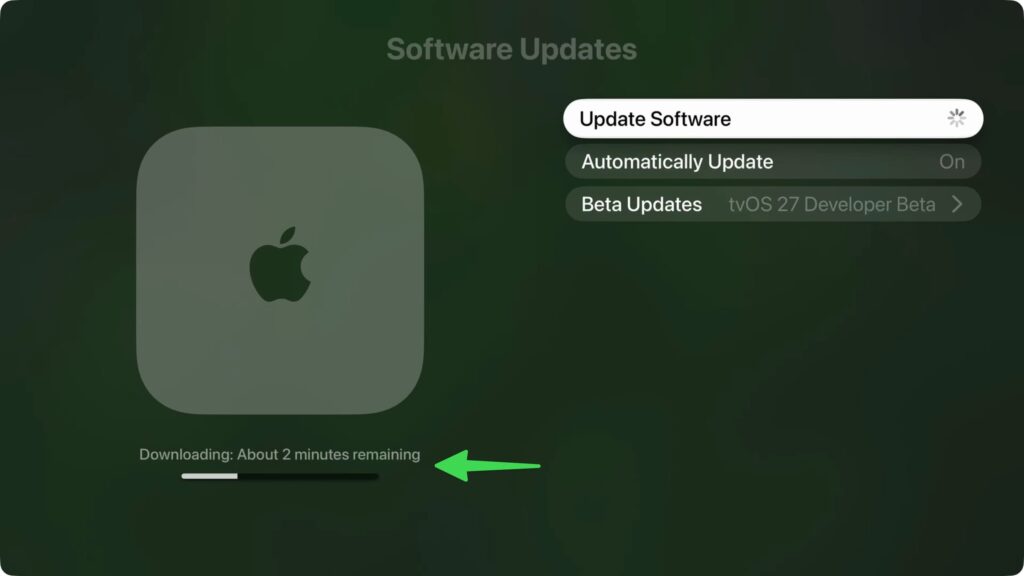
The process may not be very fast
After that, tvOS 27 will start downloading, the set-top box will prepare the update and install it automatically. During installation, Apple TV will restart — this is normal.
What to Do If the tvOS 27 Beta Update Doesn’t Appear
If you haven’t used Apple beta software before, you first need to register your account in the testing program. Without this, the “tvOS 27 Developer Beta” option simply won’t show up in settings.
To fix this, follow these steps:
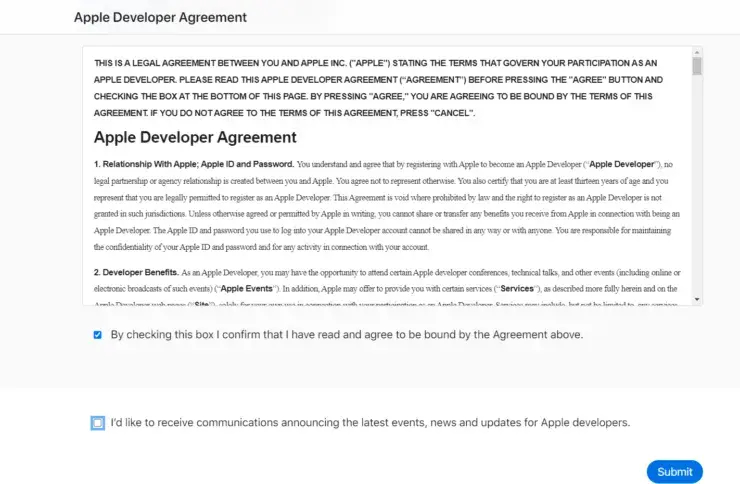
Go to the beta testing program website and accept the license agreement
- On your computer or smartphone, go to developer.apple.com/account.
- Sign in with your Apple ID — registering for the free developer program takes a couple of minutes.
- Wait a few minutes for the changes to take effect.
- Go back to the steps from the previous section and open “Beta Updates” on Apple TV again.
If the update still doesn’t appear, restart the set-top box and check the section again.
What’s New in tvOS 27
At the June 2026 presentation, Apple barely paid attention to tvOS 27 — the main focus was on the updated Siri assistant with artificial intelligence. But there are also a few pleasant changes for the set-top box that are noticeable in everyday use.
Key new features in tvOS 27:
- faster app launches and smoother interface animations;
- faster AirPlay connection with other Apple devices;
- more responsive Control Center;
- redesigned Podcasts app;
- ability to increase system text size through Settings, then Accessibility, then Display, and then Text Size;
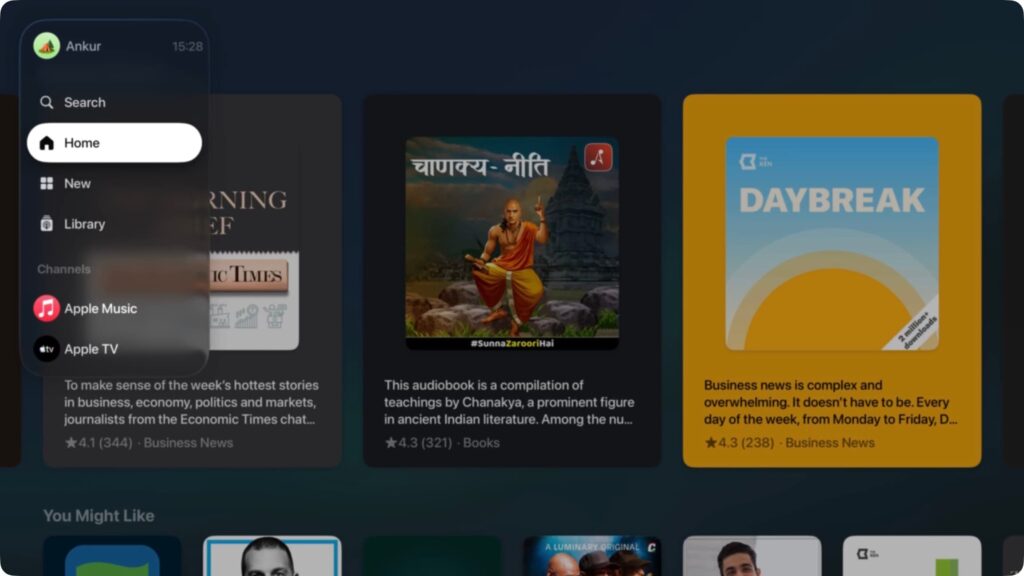
Podcasts got a new design