Like it or not, MAX is actively evolving: the messenger’s major 2026 update promises comments, stories, and streams. But some great features are already available now, and voice messages are among them. Transcription, sped-up playback, bookmarks in long voice messages — all of this already works. Let me break down how voice messages in MAX work.
Everything you need to know about voice messages in MAX
What Are Voice Messages in MAX For
Voice messages in MAX cover several scenarios that are harder to handle with text. When your hands are busy — just dictate and send. When you need to convey tone — text can’t do it, a voice message can. When the explanation is too long to type — record it once instead of typing for five minutes.
A separate scenario that came with the update: voice messages to text in MAX (i.e., transcription). If you receive a voice message at an inconvenient moment (in a meeting, in a quiet place, or you just don’t feel like listening), you can read it. No need to leave the app or copy it to third-party services. Everything is right inside.
How to Send a Voice Message in MAX
Sending a voice message in MAX takes just a few seconds. Here’s a guide to help you:
- Open the desired chat in the MAX messenger on Android.
- Find the microphone icon to the right of the text input field.
- Press and hold the microphone icon — recording will start automatically.
- Speak, and a recording timer will appear at the bottom of the screen.
- Release your finger to send the message automatically.
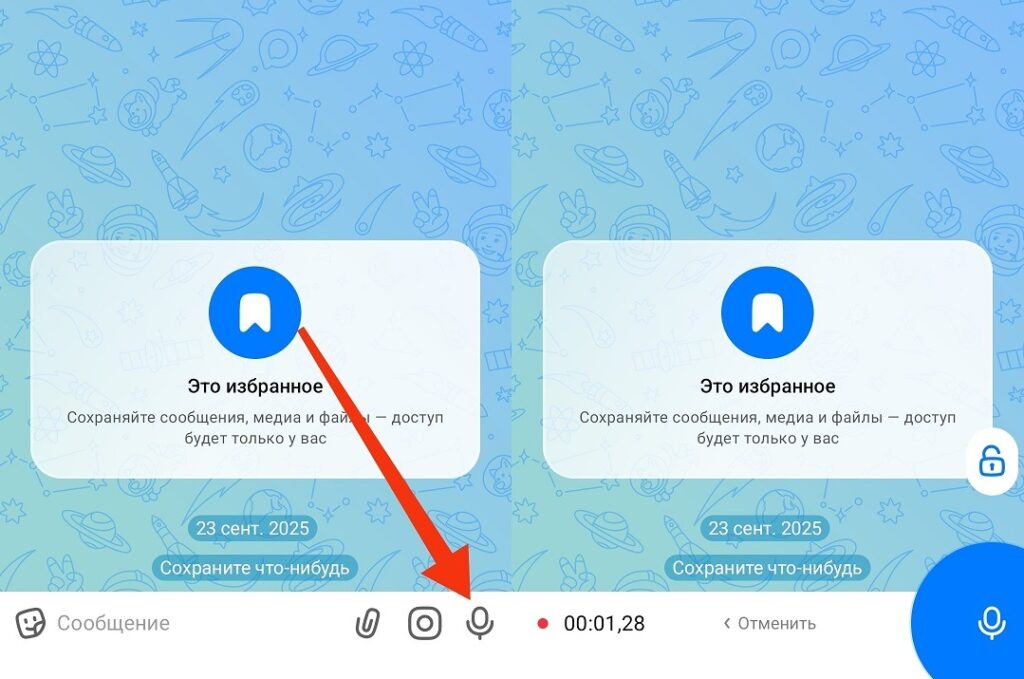
This is what the voice recording interface looks like in MAX
Additional options while recording:
- to cancel the recording — without releasing your finger, swipe left;
- to lock the recording without holding — swipe up, then record your message and tap the send button;
- to listen before sending — tap the play button in the recording field.
Recording a voice message in MAX can be of any length, as there are no time limits — and that’s one of the key advantages of this national messenger over others.
How to Listen to a Voice Message in MAX
To listen to a voice message in MAX, tap the play button next to the message. There are several useful details that make listening more convenient:
- Tap the Play button next to the voice message — playback will start through the speaker.
- To switch to the earpiece — hold the phone to your ear during playback, and MAX will automatically switch the audio.
- For sped-up playback, tap the speed icon next to the message (1.5x and 2x modes are available).
- In long voice messages, bookmarks are available (press and hold the progress bar to skip to the desired spot).
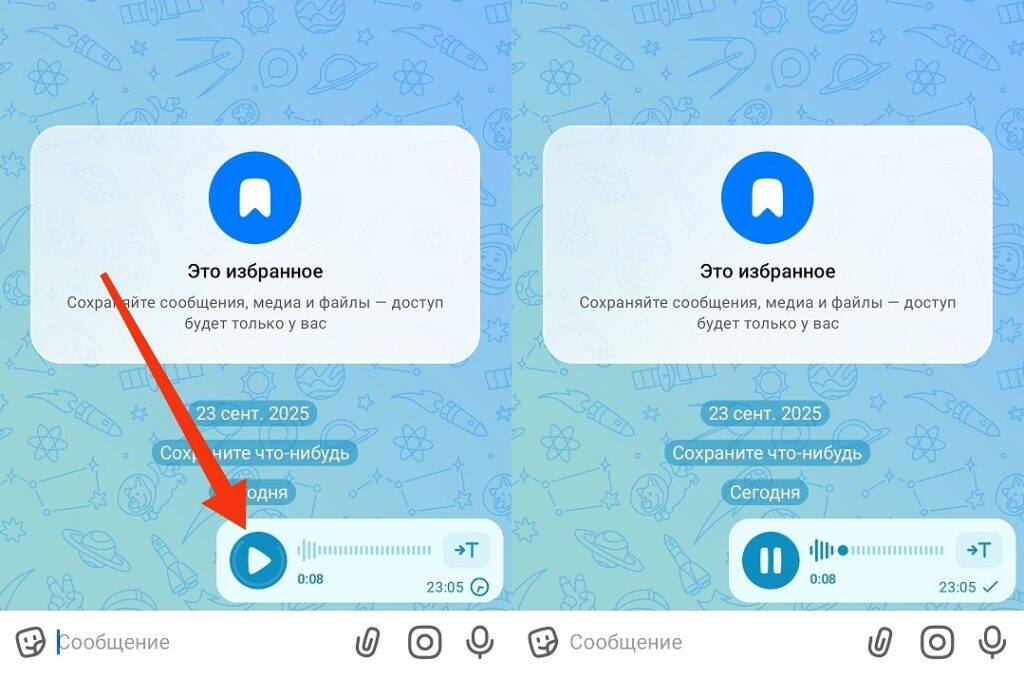
You can listen to a voice message by tapping the Play button
Sped-up playback is a non-obvious but genuinely useful feature. A long voice message at 1.5x sounds almost just as comfortable but plays twice as fast.
How to Convert a Voice Message to Text in MAX
The main highlight. Voice message transcription in MAX works without limits, and this is one of the real advantages of the messenger over competitors. In Telegram, only two free transcriptions per week are available; in MAX — as many as you want.
How to convert a voice message to text in MAX:
- Find the desired voice message in the chat.
- Tap the letter T on voice messages in MAX (it appears next to the play button).
- Wait for processing (usually takes a few seconds).
- The text transcription will appear right below the voice message.
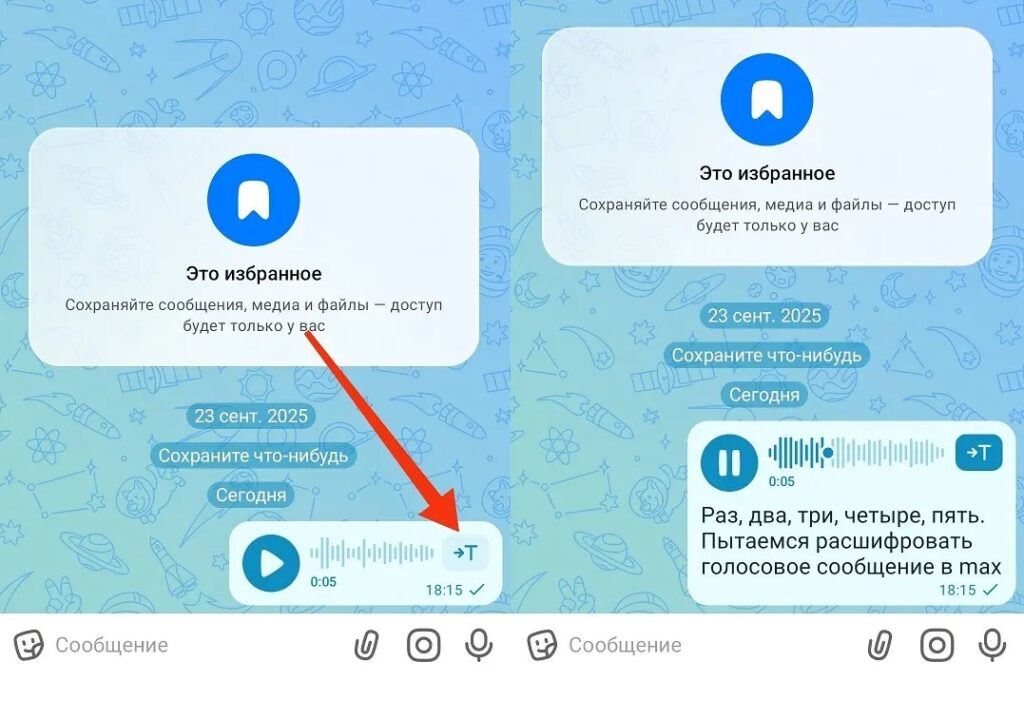
The letter T is used for voice message transcription
No additional settings or permissions are required. The transcription is saved below the message. You can re-read it at any time or copy the text.
What to Do If Voice Messages in MAX Don’t Work
Voice messages won’t send in MAX (no microphone permission):
- Open “Settings” on Android.
- Go to “Apps — MAX — Permissions.”
- Find the “Microphone” permission and select “Allow.”
- Return to MAX and try recording a voice message again.
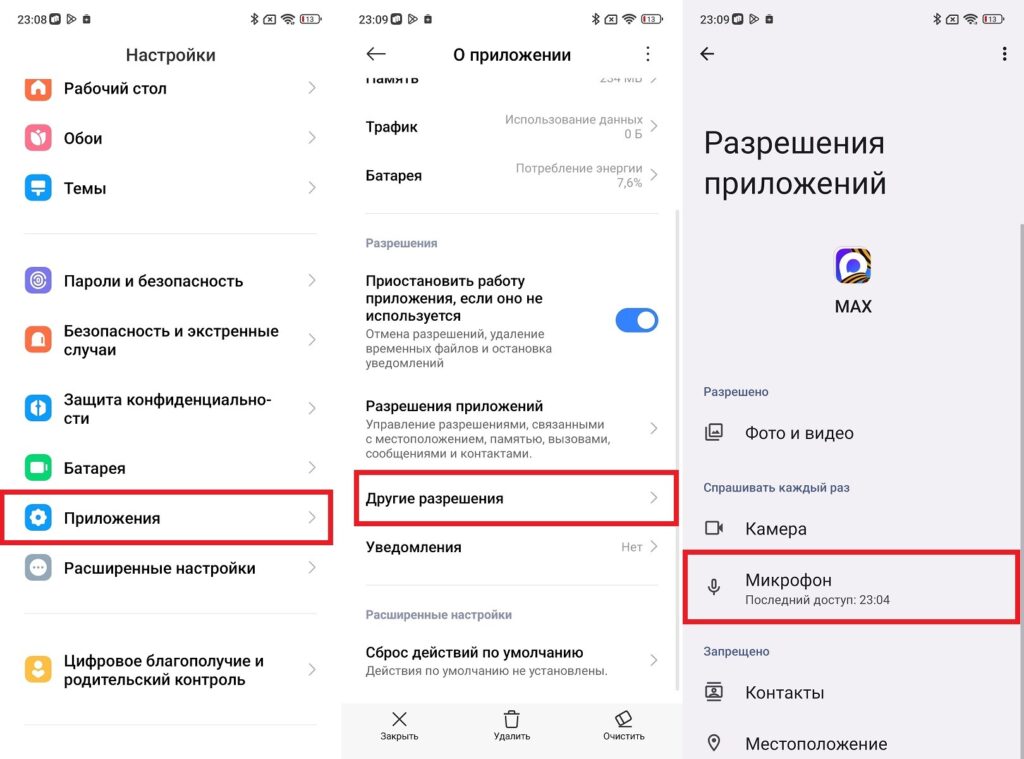
MAX needs microphone access to record voice messages
Voice messages won’t open in MAX or MAX won’t load voice messages (outdated version or cache):
- Update the app via Google Play or RuStore to the latest version.
- If the update didn’t help — clear the cache: “Settings — Apps — MAX — Storage — Clear cache.”
- Restart the app.
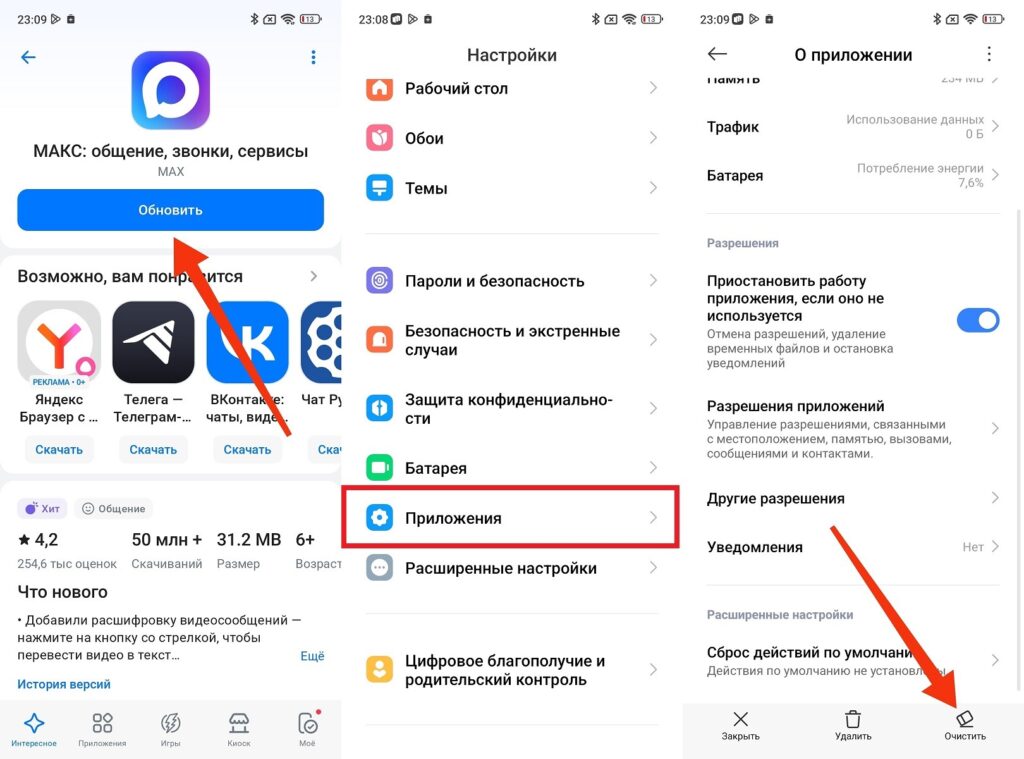
Updating MAX and clearing the cache solves most problems
MAX won’t send voice messages (unstable connection):
- Check your internet (open any website in a browser).
- Switch from Wi-Fi to mobile data or vice versa.
- If the problem persists, there may be a server outage on MAX’s side.
If none of these methods helped, restart your smartphone and try again. In most cases, this resolves any remaining issues with voice messages in MAX.


