If you use a VPN on your iPhone, you’ve probably already encountered a new headache. Since mid-April 2026, Russian apps have massively stopped working with VPN enabled. Banks, marketplaces, mobile carriers, “Gosuslugi” — all of these now require turning off your VPN. You have to open the app every time, disable it, do your thing, and then turn it back on. It’s infuriating. But there’s a way to toggle VPN with a single button — without extra apps or digging through settings. Let me show you how to set it up.
You can turn off VPN with one tap
Why Apps Don’t Work with VPN on iPhone
Let’s first understand what actually happened. In early April 2026, the Ministry of Digital Development held meetings with the largest Russian IT companies — Yandex, VK, Ozon, Wildberries, Avito, and others. Companies were strongly urged to restrict access to their platforms for users with VPN enabled. Refusal threatened exclusion from “whitelists” — which for businesses is essentially a catastrophe. Moreover, most services had already learned to detect an active VPN long before this.
By April 15, most major services had complied with the requirement. Now when you open the MTS app, you see a banner saying “VPN is enabled. Data may not be displayed.” Megafon asks you to disable VPN, Beeline recommends the same. The situation is similar with marketplaces, banks, and government services.
As a result, life with VPN on iPhone has turned into a constant back-and-forth: VPN on — opened YouTube, VPN off — opened Sber or Wildberries. And so on in circles. But this can be automated.
A Button for Quickly Enabling and Disabling VPN on iPhone
iPhone has a built-in app called “Shortcuts.” With it, you can create a shortcut that will turn VPN on and off with a single tap. Here’s how to do it:
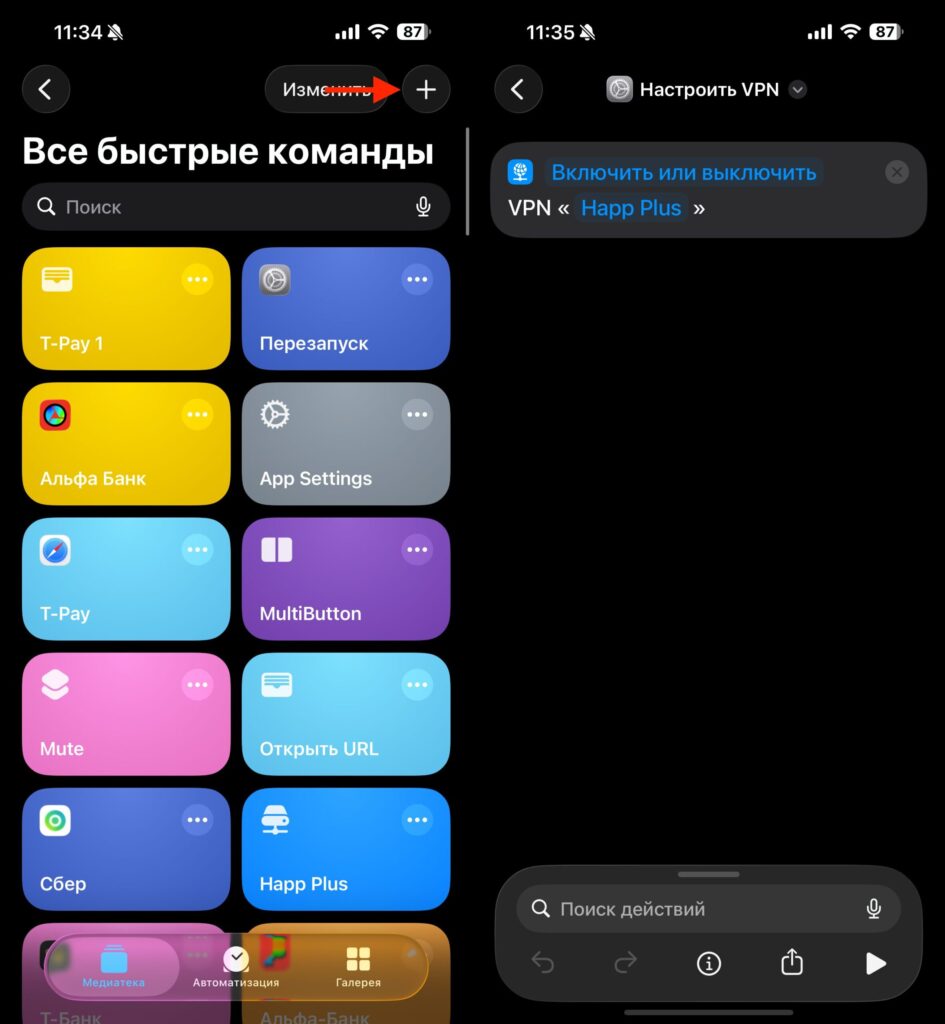
The shortcut will consist of just one action
- Open the “Shortcuts” app on your iPhone. If you deleted it at some point — download it again from the App Store, it’s free.
- Go to the “Shortcuts” tab and tap “+” in the upper right corner.
- Tap “Add Action” and search for “Set VPN”.
- In the action that appears, instead of “Connect,” select “Toggle”. This is an important step — this is what makes the shortcut work as a toggle: tap once — VPN turns on, tap again — it turns off.
- Tap the translucent “VPN” label and select your VPN app from the list. Only services that support integration with Shortcuts will appear here.
- Give the shortcut a clear name — for example, “Set VPN” — and tap “Done.”
The shortcut is ready. But on its own, it sits inside the Shortcuts app, and opening it every time isn’t much more convenient than opening the VPN client. So next, let’s set up quick access.
Toggling VPN via the Action Button
If you have an iPhone 15 Pro, iPhone 16, or newer — you have an Action Button. It’s the side button that replaced the silent mode switch. You can assign our shortcut to it:
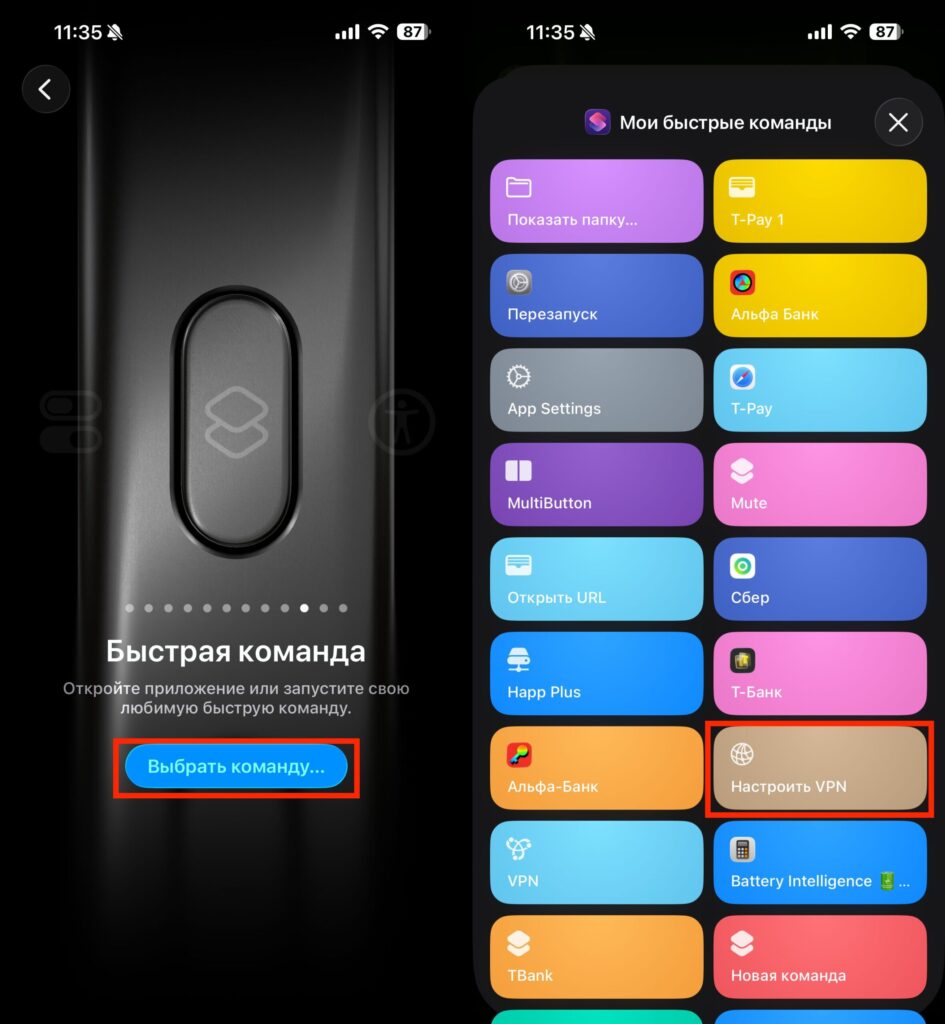
A simple way to toggle VPN on iPhone
- Open “Settings” — “Action Button”.
- Scroll to the “Shortcut” option.
- Tap “Choose a Shortcut” and find the previously created “Set VPN” shortcut.
That’s it. Now one long press on the Action Button — and VPN toggles. You can be in any app, on any screen. No need to open, minimize, or search for anything. Press and hold the button — VPN turns on. Press and hold again — it turns off.
Quickly Disable VPN on iPhone Without the Action Button
If you have an iPhone without an Action Button — for example, iPhone 14, iPhone 13, or older — don’t worry. There are several alternative ways to quickly launch the shortcut.
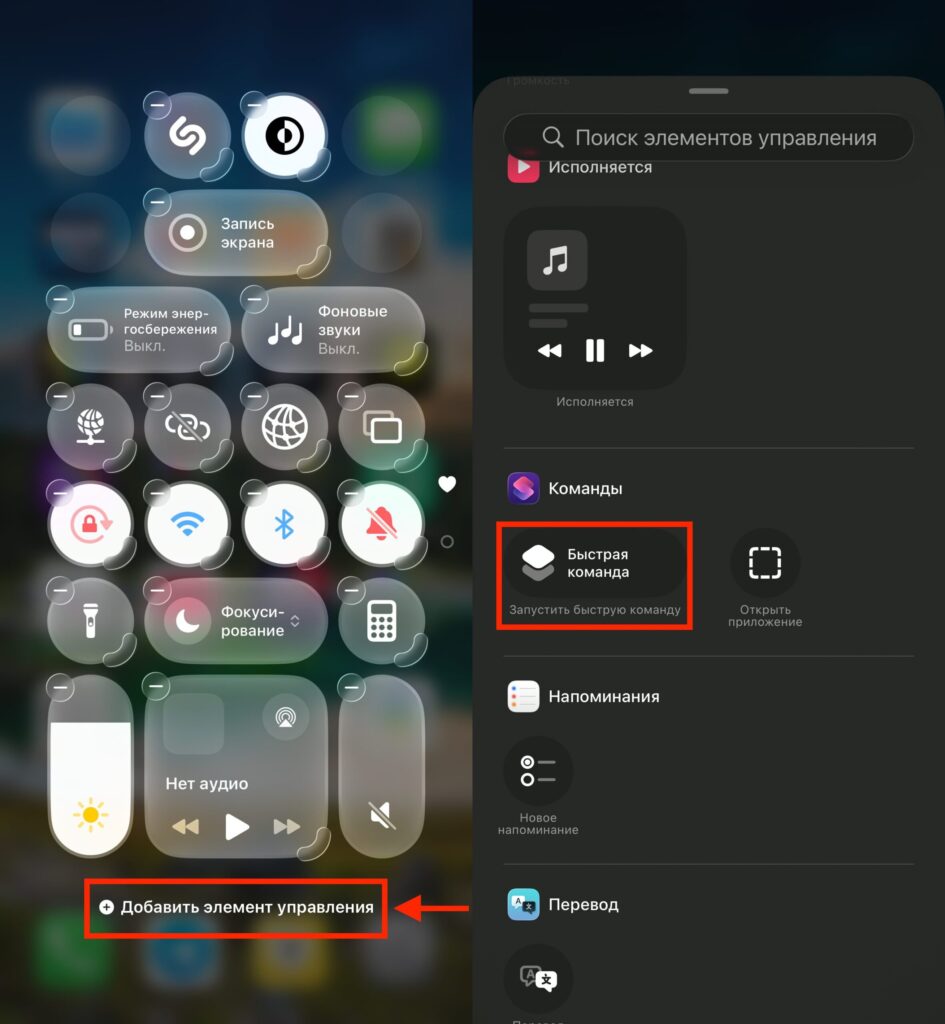
You can add a shortcut to Control Center
Control Center. In iOS 18, you can add a shortcut directly to Control Center. To do this, open Control Center, press and hold any element, select “Add a Control” and find your shortcut in the “Shortcuts” section. Now toggling VPN will be available with a swipe from the top — just as quick as turning on the flashlight.
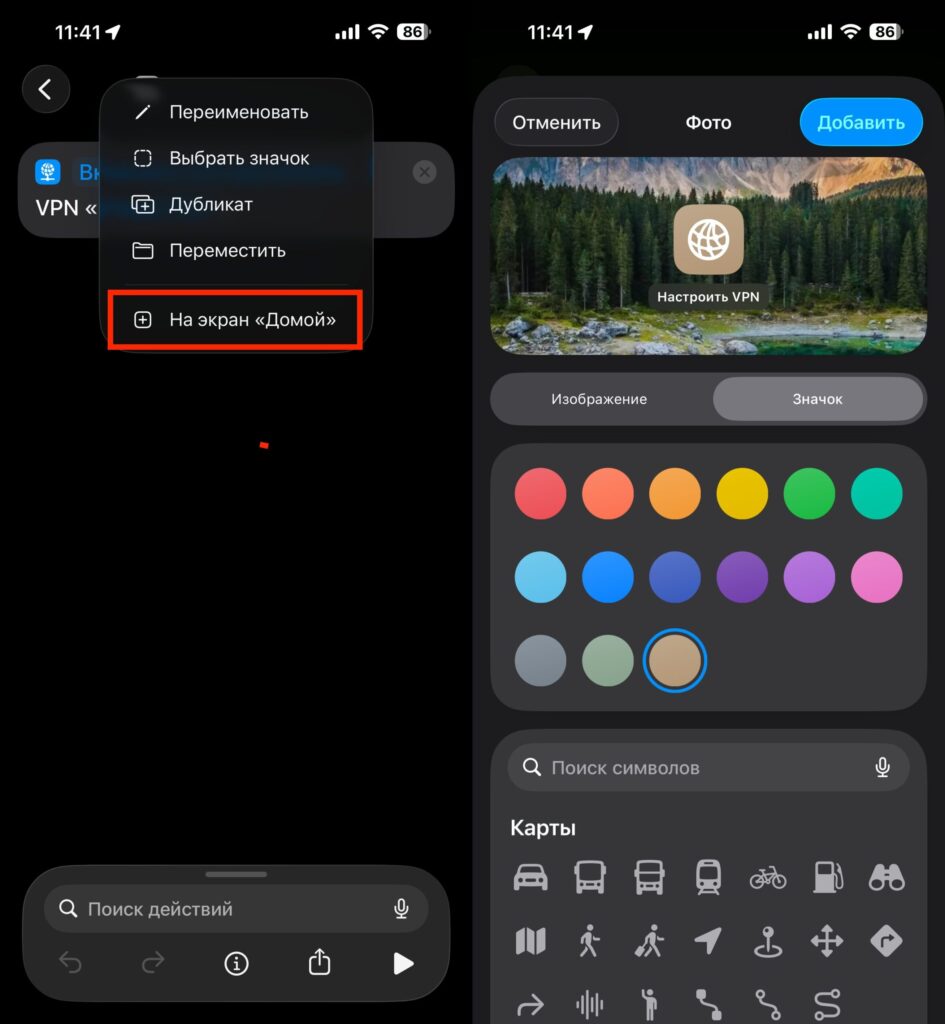
To Home Screen
Home Screen shortcut. Open the created shortcut in the Shortcuts app, tap the three dots, then tap the shortcut icon at the top, and select “Add to Home Screen.” An icon will appear on your Home Screen — one tap, and VPN toggles.
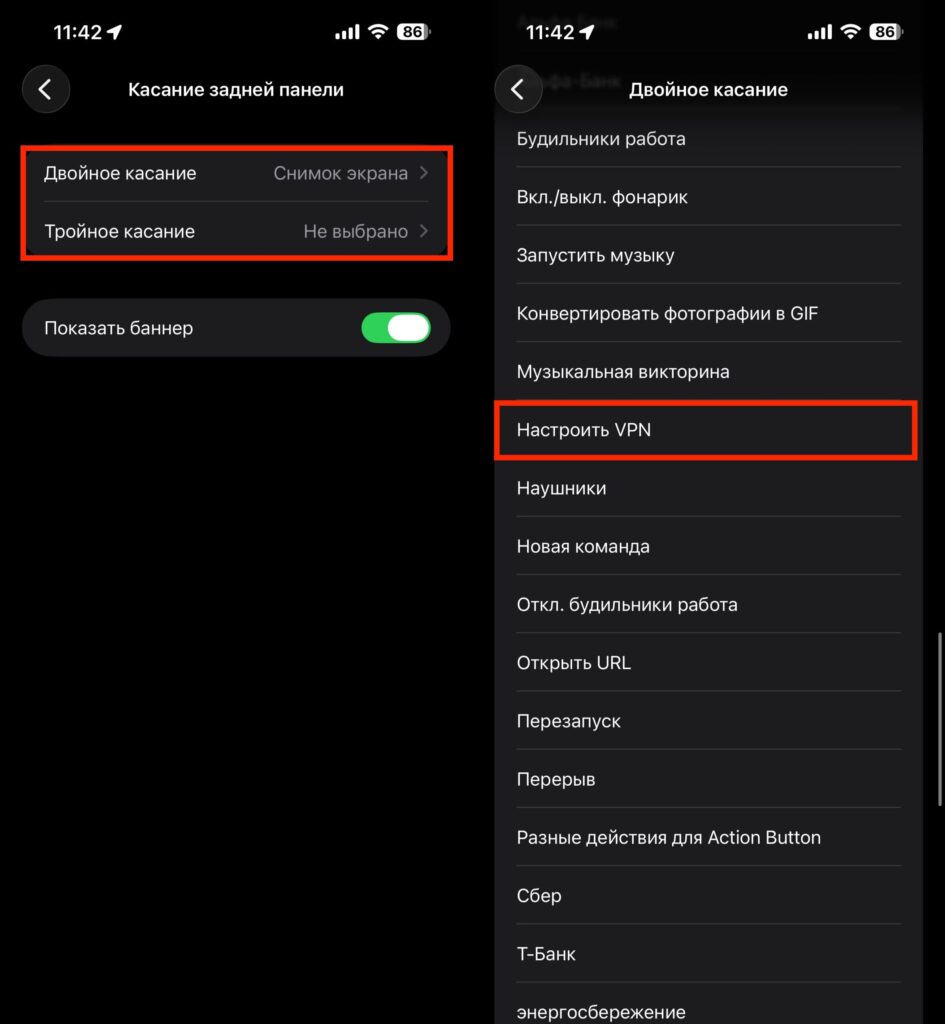
Or set up Back Tap
Back Tap. This method works starting from iPhone 8. Go to “Settings” — “Accessibility” — “Touch” — “Back Tap”. Assign double tap to turn VPN on, and triple tap to turn it off. However, for this you’ll need to create two separate shortcuts: one for connecting and another for disconnecting.
Automatically Disable VPN for Specific Apps
There’s one more option — automation. You can set it up so that VPN automatically turns off when launching certain apps. Here’s how it works:
- In the Shortcuts app, go to the “Automation” tab.
- Tap “+” and select “App.”


