I always try to update my devices as soon as new firmware comes out. That’s exactly what happened this time. Apple released macOS Tahoe 26.5 on Monday, May 12. We’ve already covered what’s new in macOS Tahoe 26.5, and on paper the new features along with the traditional set of security fixes — a whopping 65 vulnerabilities patched — looked pretty good. I waited one day, read forums, checked reviews — nobody was complaining. So I pressed the coveted “Update” button. But in practice, the first day after the update turned out to be a nightmare. The computer turned into something resembling an old netbook from the 2010s — with stutters, delays, and jerkiness.
Still in shock from what was happening with my computer after the update
What Happened to the MacBook After Installing macOS 26.5
I’m not exaggerating. The computer, which had been flying through any tasks before, started glitching as if it had a decade-old processor inside. Apps opened with stutters. Text in any editor was typed with a delay — I’d type, and letters would appear half a second later. Switching between desktops jerked around as if the Mac was trying to render each frame separately.
The new macOS shocked my computer
My first thought was — Spotlight is re-indexing data. This is a classic story after any macOS update. The system rebuilds the search index from scratch, updates caches, and performs a bunch of background tasks. Usually this takes anywhere from a few hours to a day and can noticeably load the processor. But I know what that looks like. Usually battery drain just increases for a couple of days and that’s it. But here — there were straight-up lags at every step.
Safari opened with a delay. Switching between tabs lagged. Even simply dragging a window across the screen felt like I was working through a remote desktop with a bad internet connection. For a MacBook Air on M2 with 8 GB of RAM, such behavior is nonsensical. By the way, the problem with slowdowns after a macOS update is nothing new — people encountered it even on the first builds of Tahoe.
What to Do If macOS Tahoe Is Slow After Installation
I restarted the computer. It didn’t help — the lags remained. I restarted again. It got slightly better, but the stuttering when switching desktops didn’t go away. Typing still had micro-delays.
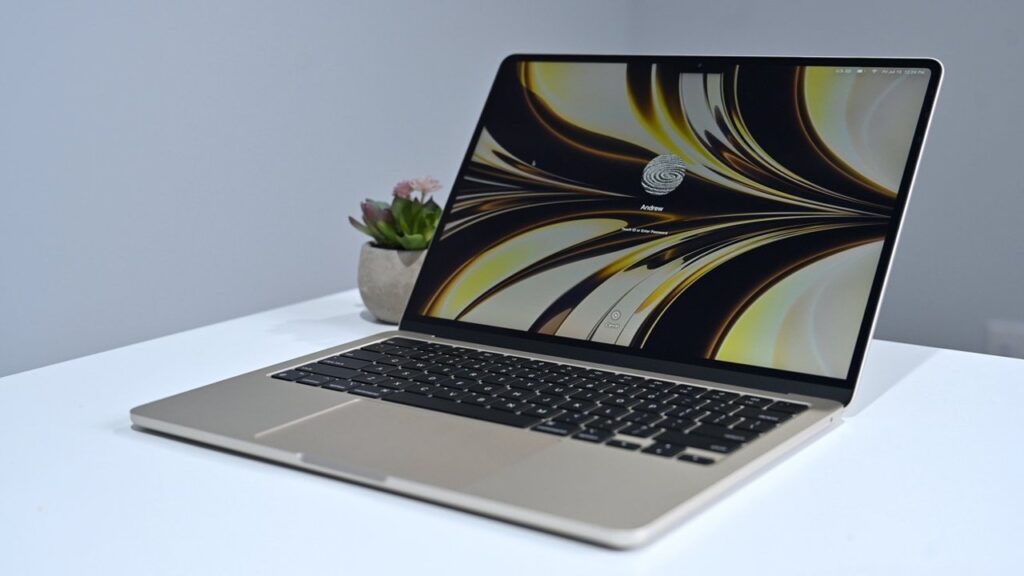
You’d think the Air M2 isn’t the weakest computer, but the new OS really shook it up
And only after the third restart did everything fall into place. Three restarts in a row. Three. In 2026. On an Apple computer that cost me a hundred thousand rubles. It sounds like a joke from the Windows XP era, but this is reality. At one point I even considered completely reinstalling macOS from scratch, but decided to give the system one more chance.
After the third restart, the MacBook Air finally started working normally. Apps opened instantly again, text was typed without delays, animations became smooth. As if nothing had happened.
MacBook Speed and Battery After the Update
More than a day has passed since the last restart. I’ve been watching carefully — and I can say that everything works as before. No lags, freezes, or stuttering. The system behaves exactly as macOS on Apple Silicon should behave.
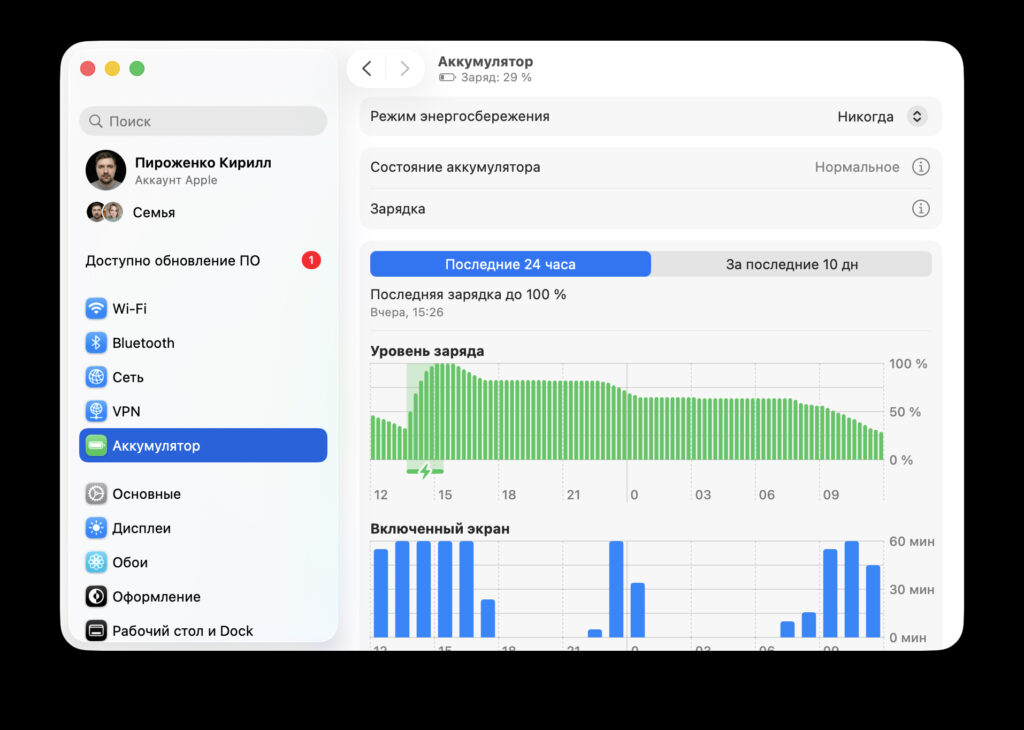
Battery life wasn’t affected though
Battery life wasn’t affected. My MacBook Air M2 confidently lasts a day and a half in my usual workflow: a browser with a dozen tabs, Telegram, email, a text editor, and occasionally something in the terminal. I noticed no battery degradation after the update. This, by the way, confirms the overall trend: Apple has been careful with power consumption in recent macOS Tahoe updates and doesn’t break battery life with interim updates.
All apps work correctly. Safari, Telegram, messengers, work tools — everything is in place with no complaints.
What the Intel App Warning on Mac Means
The only thing that visually changed was a notification from Yandex Disk. The system reports that support for Intel processor apps will soon end, and the current version of Yandex Disk has a component that won’t work in future versions of macOS.
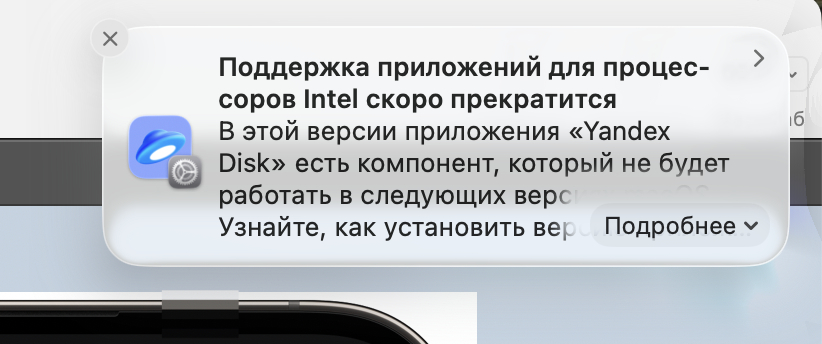
And this warning also popped up
This is a completely expected notification. Starting with macOS Tahoe 26.4, Apple began showing such warnings for all apps that use Rosetta 2 — the translation layer that allows running Intel programs on Apple Silicon computers.
Let me remind you of the context. macOS Tahoe is the last version of macOS for Intel. In macOS 27, which will come out in fall 2026, Rosetta 2 will still work. But in macOS 28, Rosetta support will be almost entirely discontinued — they’ll only keep it for old unmaintained games.
So if you get a similar notification for some app — don’t panic. Just check if there’s an updated version of the program with native Apple Silicon support. To do this, select the app in Finder, press Command + I, and look at the “Kind” line. If it says “Universal” or “Apple Silicon” — you’re fine. If it says “Intel” — look for an update from the developer.
Should You Update to macOS Tahoe 26.5

If you’re thinking about updating, there’s nothing really scary about it overall, but be prepared for restarts
Short answer — yes, but with a caveat. The update itself is fine. It patches 65 security vulnerabilities, adds minor improvements, and doesn’t hurt battery life. After the system “settles down” (which may require several restarts), everything works stably.


