If your Mac complains about low storage, won’t install a macOS update, or has started noticeably slowing down, the culprit is often the “System Data” section. For some users, it grows to 100 GB or more — especially on a 256 GB SSD, where that’s half the drive. Let’s figure out what’s stored there, what you can safely delete, and what you shouldn’t touch.

Let’s figure out how to clean system data and free your Mac from junk
System Data in macOS: What’s Included
“System Data” is a catch-all category for everything that doesn’t fall into standard groups like “Applications,” “Documents,” or “Photos.” The specific contents vary for everyone, but it usually includes caches and logs, temporary files, local Time Machine snapshots, iPhone and iPad backups, plugins and extensions, downloaded .dmg disk images, and remnants of deleted applications.

System data can literally contain anything
Before macOS Big Sur, almost all of this was hidden in the “Other” category. Starting with macOS Monterey, a separate “System Data” category appeared, and macOS itself was moved to its own section. In Sequoia and Tahoe, everything is set up the same way. Formally, macOS manages this category on its own, but sometimes it balloons to 100 GB or more. For some users, this happened when the system was temporarily storing update files while simultaneously reindexing iCloud and Spotlight before installing a new version of macOS.
Main reasons for growth:
- Streaming caches — music and video in high quality create large caches for smooth playback.
- Browser and app caches — Safari and other browsers accumulate several gigabytes of site data over time.
- Messenger attachments — photos and videos from Messages settle in the cache.
- System maintenance — Time Machine snapshots, iPhone backups, and macOS update installers.
A separate new source is local artificial intelligence models. Apple Intelligence, offline transcription, code assistants, and image generators store models directly on the Mac, and these files weigh several gigabytes each. They reside in hidden Library folders, in containers and caches, so they aren’t visible in obvious categories — but “System Data” grows.
System Data on Mac That You Must Not Delete
Apple intentionally doesn’t provide a “Delete All” button: some files are needed by macOS to function, and deleting them can break the system to the point of being unable to boot.
What you must not touch:
- operating system files themselves;
- system caches, if you don’t understand what they’re responsible for;
- hidden system files — Apple hides them specifically to protect against accidental deletion.
Before any cleanup, be sure to make a backup of your Mac. This is insurance in case you delete something important.
Files You Can Delete on Mac Without Harming the System
There are categories that fall under “System Data” but can be safely deleted:
- Old local Time Machine snapshots — temporary backups on the Mac itself; you can delete them if you have copies on an external drive.
- Old iPhone and iPad backups — if you backed up through your Mac, these copies can weigh tens of gigabytes.
- Individual app caches — the system will recreate them when needed.
- Downloaded .dmg images — application installers sitting in “Downloads” after installation.
- Old temporary files and logs — especially if they haven’t been updated in a long time and are unexpectedly large.
- Unused AI models — there’s no dedicated button to delete Apple Intelligence models; the only reliable way is to turn off Apple Intelligence entirely.
How to Prepare Your Mac for Memory Cleanup
Before diving into system folders, follow three simple steps:
- Empty the Trash — deleted files continue to take up space and count toward “System Data” as long as the trash isn’t empty.
- Restart your Mac — this alone clears some temporary caches.
- Make a backup via Time Machine or manually.
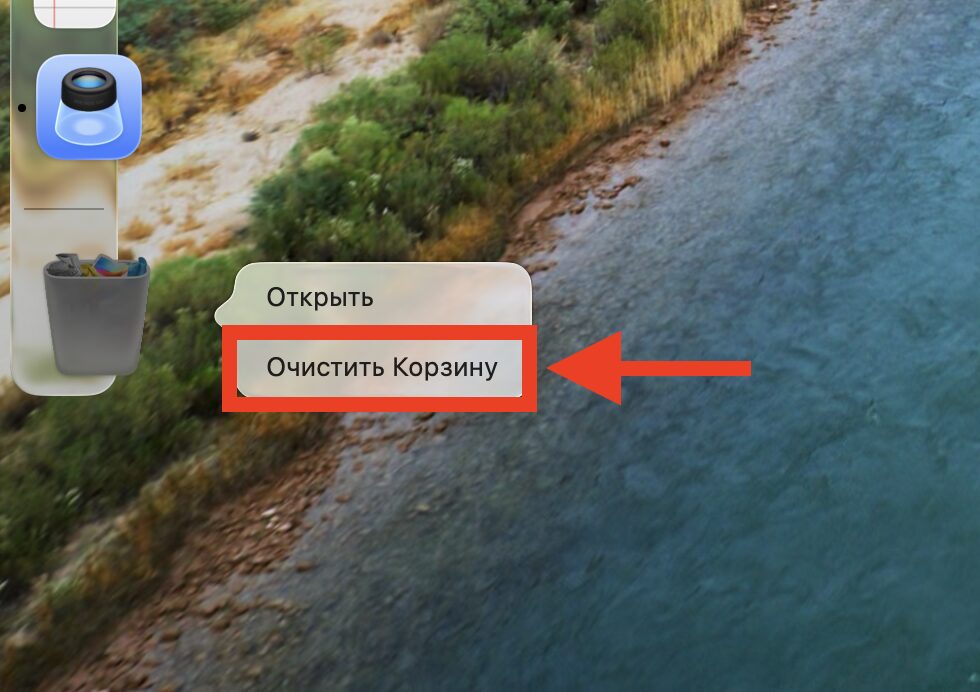
First, we empty the trash
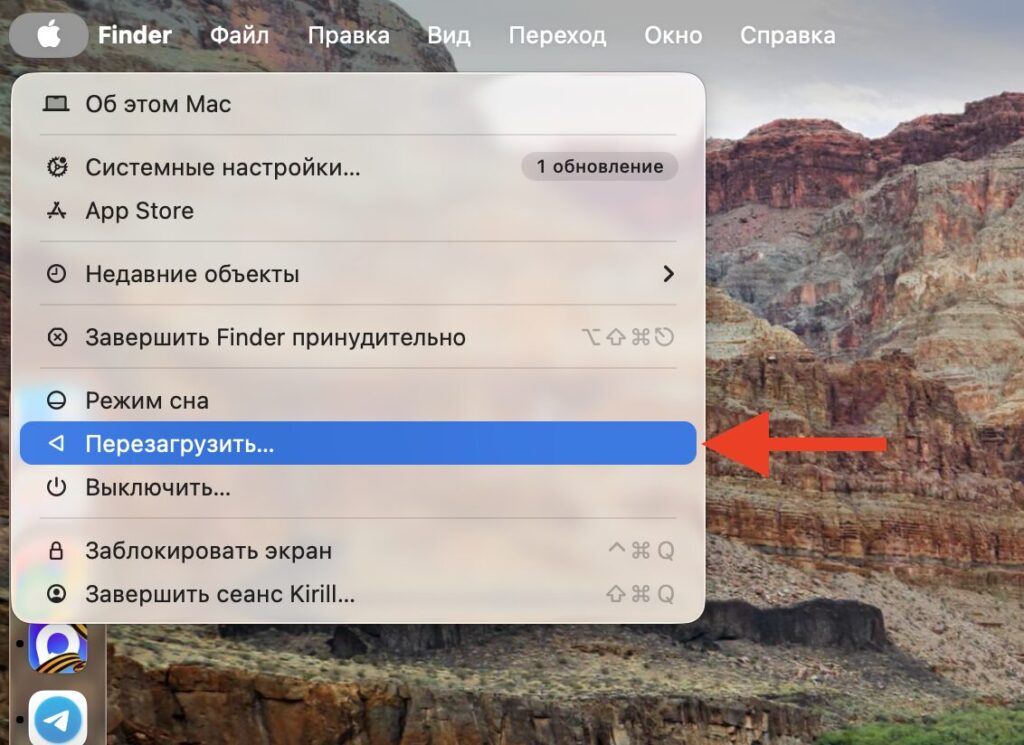
After that, restart and make a backup in case something goes wrong
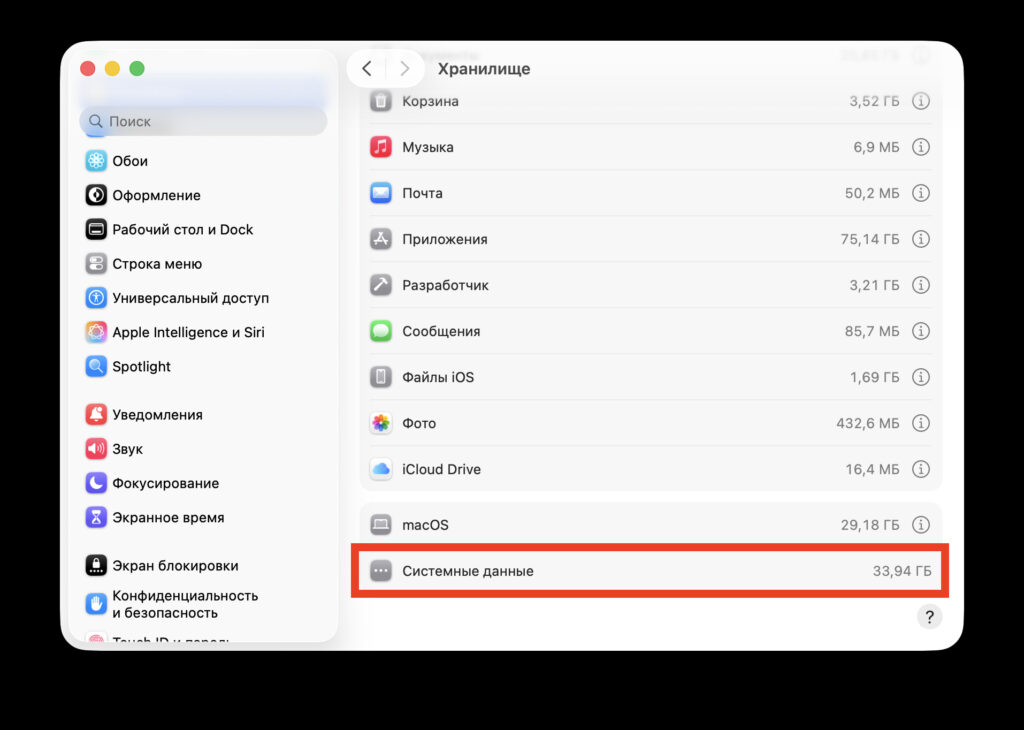
I’m starting the cleanup from this value
Next, open “System Settings” — “General” — “Storage” (in macOS Ventura and later). Apple shows how much space is taken up by “Documents,” “Mail,” “Messages,” “Photos,” and “Applications.” The “i” button next to each category opens a list of large files — you can often free up several tens of gigabytes without even touching system data.
How to Delete Local Time Machine Snapshots on Mac
Local Time Machine snapshots let you restore files even when an external drive isn’t connected. A useful feature, until they start taking up tens of gigabytes. macOS should delete them automatically when storage is low, but you can also do it manually through Terminal.
To view the list of snapshots, open Terminal and enter:
tmutil listlocalsnapshots /
To delete a specific snapshot, copy its date and run:
sudo tmutil deletelocalsnapshots 2026-05-10-120102
To free up about 10 GB at once from snapshots:
sudo tmutil thinlocalsnapshots / 10000000000 4
To prevent new snapshots from being created, disconnect the external drive and go to “System Settings” — “General” — “Time Machine”, then turn off automatic backup.
iPhone and iPad Backups: How to Delete from Mac
If you make iPhone backups not to iCloud but to your Mac, these files quickly accumulate.


