Reactions in MAX are one of the first things I mastered in the messenger. Why type “ok” or “thanks” when you can give a thumbs up with a single tap? After a couple of weeks of heavy use on iPhone, I figured out all the nuances: how to add reactions, how to see who left them, and why they sometimes disappear altogether. Now it’s time for reactions. I’ll explain everything step by step so you won’t have any questions left.
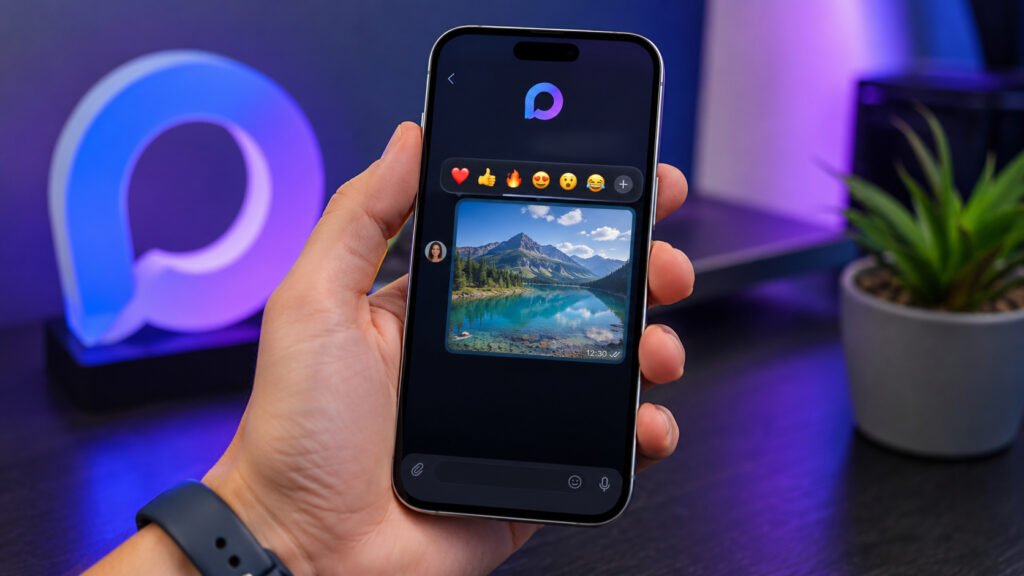
Have you tried reactions in MAX yet?
What Reactions Are Available in MAX and What They’re For
Reactions in MAX are emoji marks under messages. Any chat participant can quickly react to a message without typing a reply: leave a heart, a like, a laugh, or any other emoji from the available set. On iPhone, reactions appear right under the message — small icons with a numerical counter next to them.
The counter shows how many people left a particular mark. This works in private chats, group chats, and channels. Although the mechanics differ slightly depending on the type of conversation — more on that below.
Essentially, it’s the simplest way to give feedback without cluttering the chat with extra messages.
How to Add a Reaction to a Message in MAX
Adding a reaction is easier than you might think:
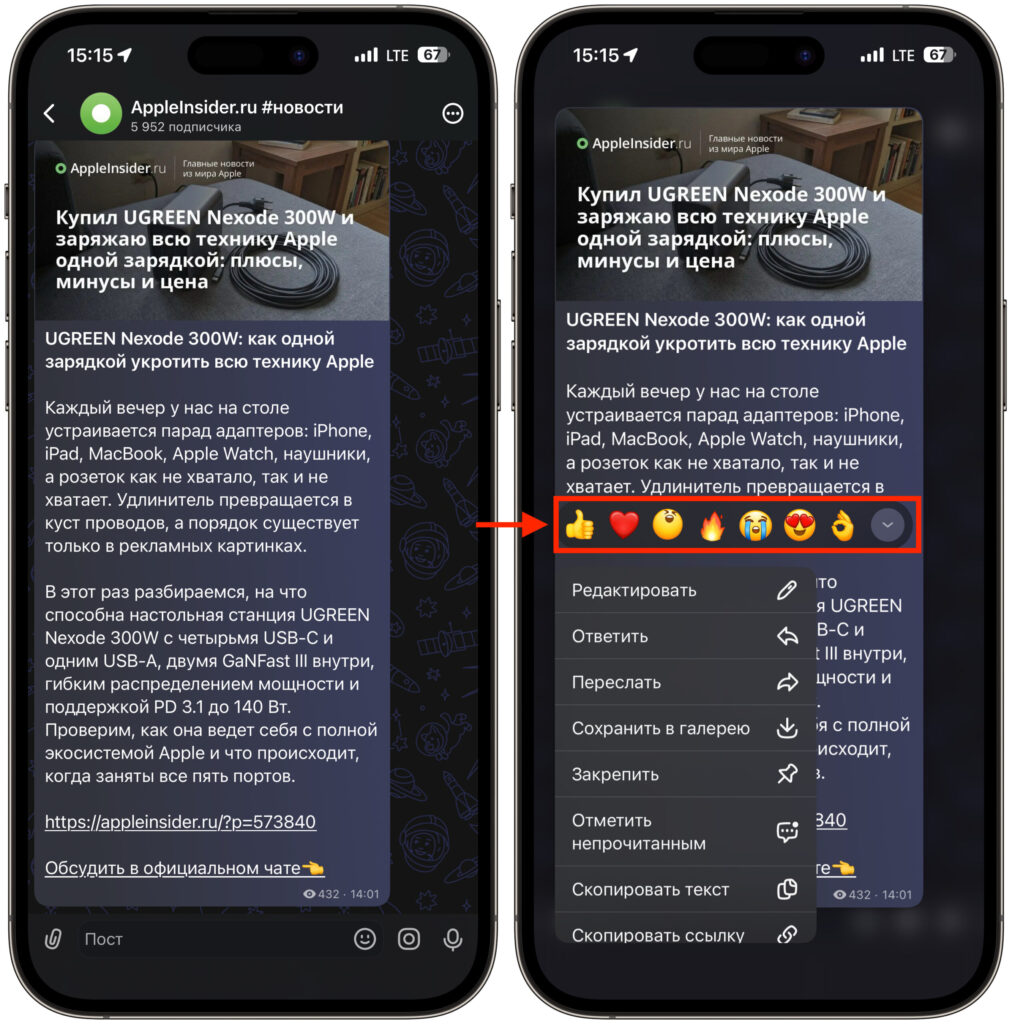
Reactions are available in both channels and chats. They work the same way
- Open the desired chat in MAX.
- Press and hold the message you want to react to.
- In the menu that appears, choose an emoji from the suggested row.
- The mark will appear under the message, and you’ll be included in the counter.
If the emoji you need isn’t in the quick row, tap the “plus” icon next to the suggested options. A full list of available emoji will open. A like in MAX is the same reaction, just in the form of a heart or a thumbs up. There’s no difference in how it works — it’s set the same way as any other emoji.
How to Remove a Reaction from a Message in MAX
Removing a reaction is just as easy as adding one:
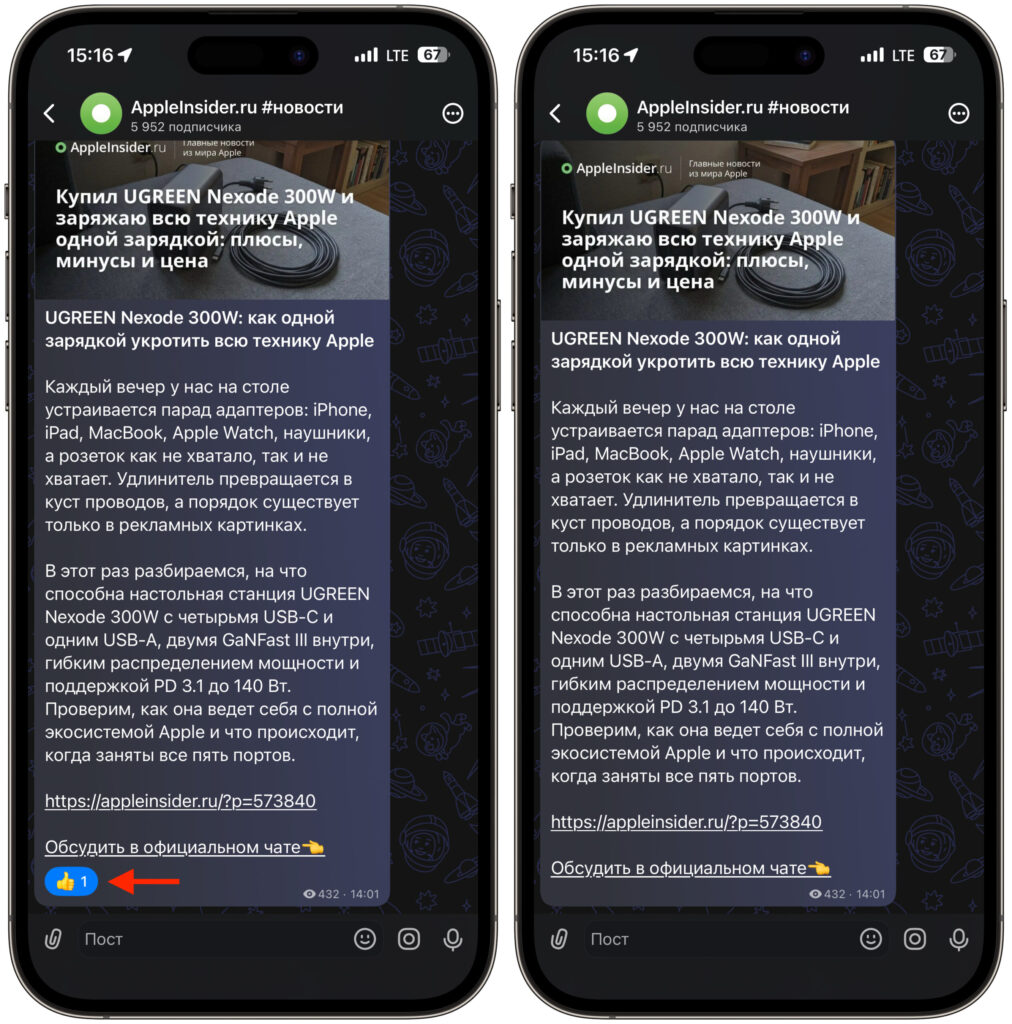
Tap the reaction you previously set, and it will be removed.
- Find the message with your mark underneath it.
- Tap the same emoji reaction you previously set.
- The reaction will be removed immediately, and you’ll disappear from the counter.
This only works with your own reactions. You can’t remove someone else’s mark — and that makes sense. Another nuance: if a message is deleted from the chat, all reactions under it will disappear along with it.
How to See Who Reacted in MAX
This is the main question that concerns most people. Good news: you can see who left a reaction, and this works in group chats:
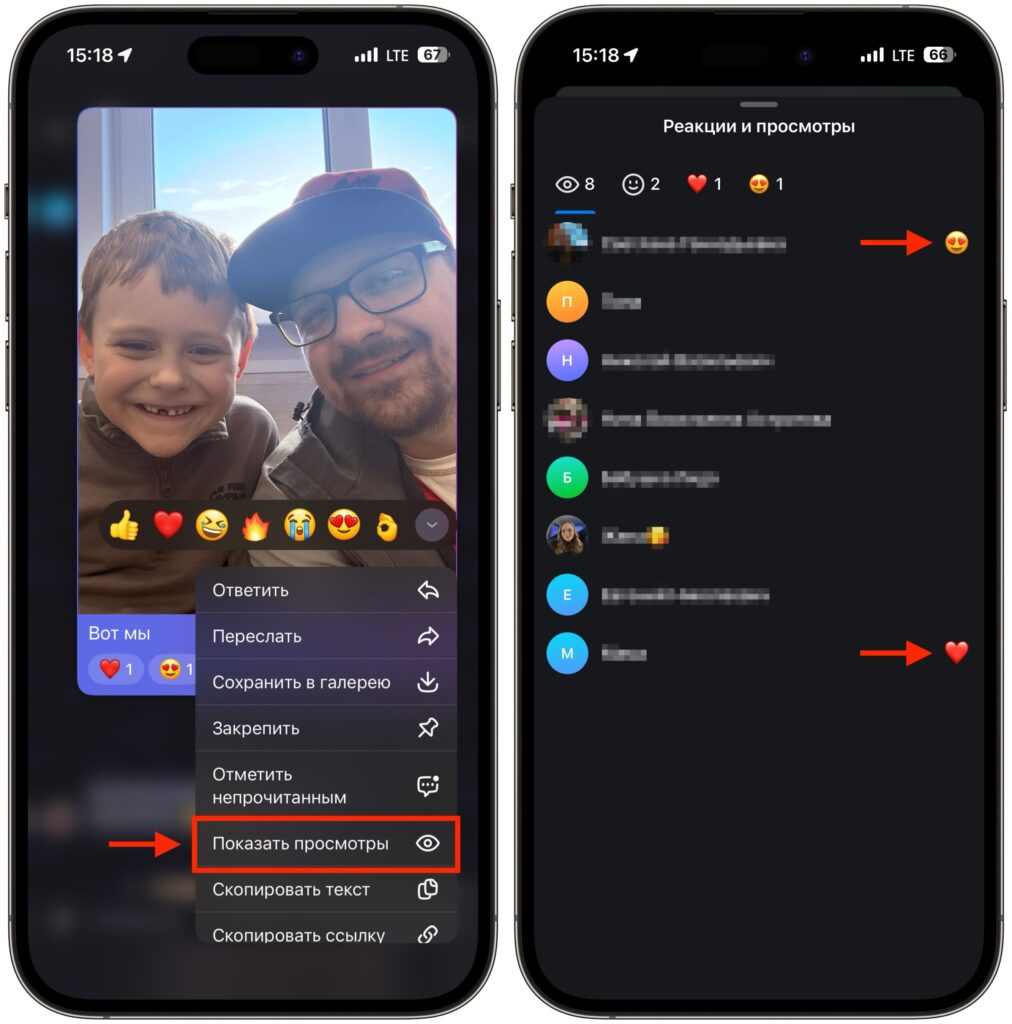
If you sent the message, you can check without any issues
- Long-press the message with reactions in a group.
- In the menu that opens, select “Show views.”
- A list of everyone who left that mark will open, with names and avatars.
There’s also a second method — real-time notifications. When someone adds a reaction, MAX sends a push notification with the user’s name. For this to work, go to “Settings — Notifications” within the app and make sure they’re enabled. But keep in mind that you can only see who reacted to your own messages. You won’t be able to check on other people’s messages.
An important point: viewing the reaction list doesn’t notify the person who left the reaction in any way. So feel free to check — no one will know about it.
Reactions Not Working in MAX: What to Do
If reactions are completely absent, there could be several reasons. Let’s go through each one so you can solve the problem for sure.
First — an outdated version of the app. The feature wasn’t available from the start, and if MAX hasn’t been updated in a while, reactions might simply not exist. Open the App Store and check for an update. At the time of writing, MAX was still in the App Store, so it could be updated without issues. Unfortunately, the app is no longer available in Apple’s store, so searching for an update is pointless.
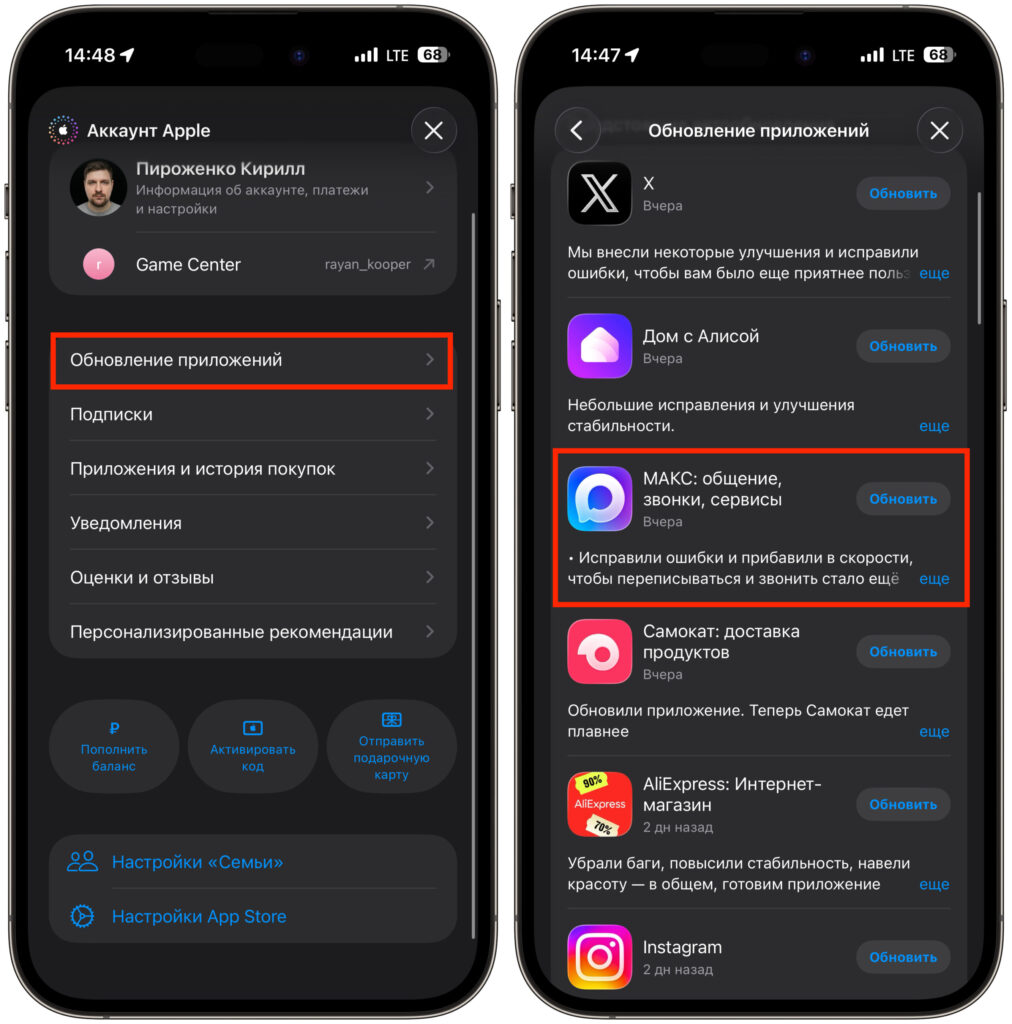
Don’t forget to update MAX
Second — reactions were disabled by an administrator. In some groups and channels, admins remove the ability to react. In that case, the option simply won’t appear when you long-press a message. In channels, the mechanics are different anyway: reactions there are often limited or only available to subscribers — it depends on the specific channel’s settings.
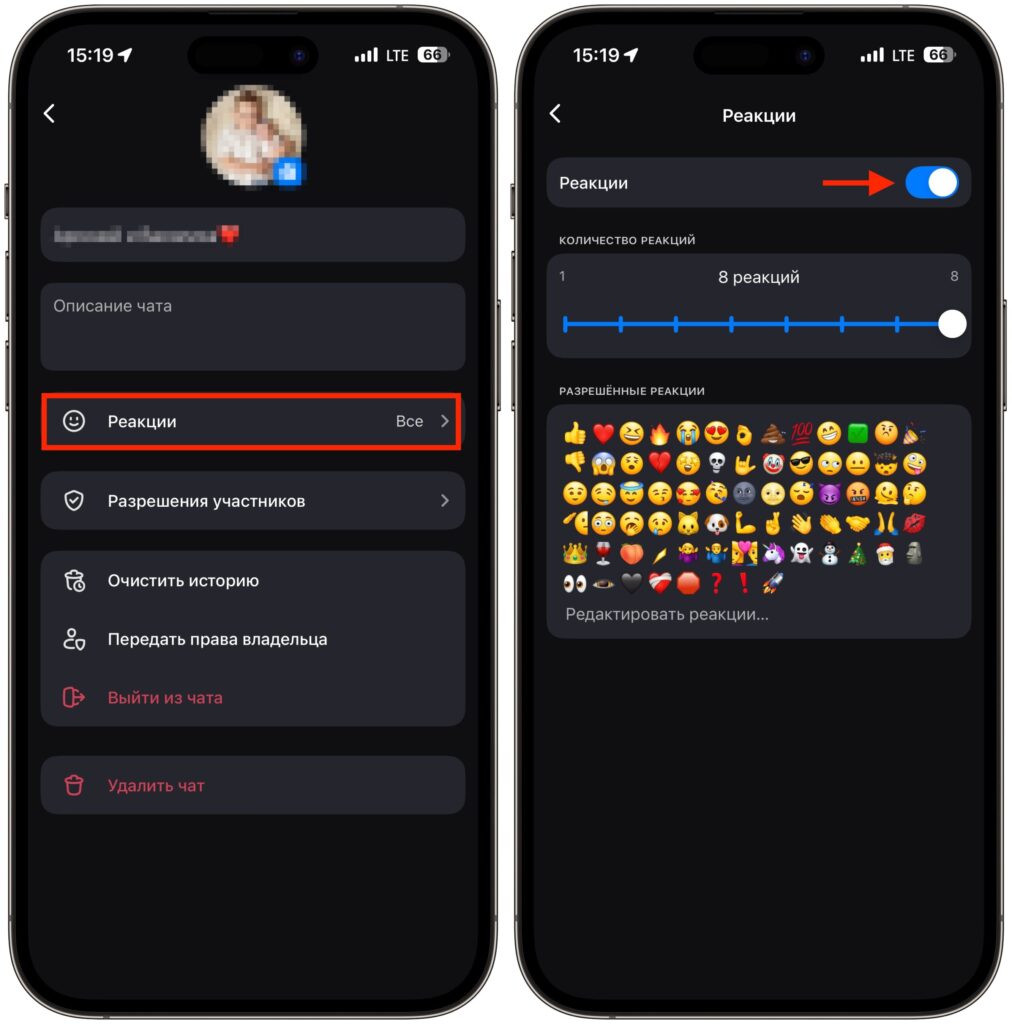
Sometimes reactions in groups and channels are simply turned off
Third — a technical glitch. If reactions disappeared suddenly and worked before, there might be server issues. Start by restarting the app and checking your connection.