If RuStore says an app “needs reinstalling” before it can be updated, the copy on your phone was not installed from RuStore. Usually it came from Google Play and is signed differently from the RuStore build. Android will not install one version over the other, so RuStore can only remove the app and install its own version. That usually means signing in again. A guide from the Russian site AndroidInsider says you usually do not need to reinstall. Instead, choose one store to update each app and turn off update prompts in the other. The author notes that dropping either store is often not an option, because some apps exist only in Google Play and others only in RuStore.
What you need to know
- RuStore asks for a reinstall because Android installs an update only when the developer’s digital signature matches. Many developers sign their Google Play and RuStore builds differently.
- Tapping “Start” deletes the app and its data on the phone. You may lose your login, settings, PIN or fingerprint sign-in, offline downloads and any game progress that is not tied to an account.
- To keep a Google Play app, tap “Not now” in the dialog. Then open the app’s page in RuStore, tap the three-dot menu and choose “Don’t notify about updates”, or add the app to RuStore’s exclusions list.
- If you move an app to RuStore, turn off auto-update for that app in Google Play so the two stores do not compete.
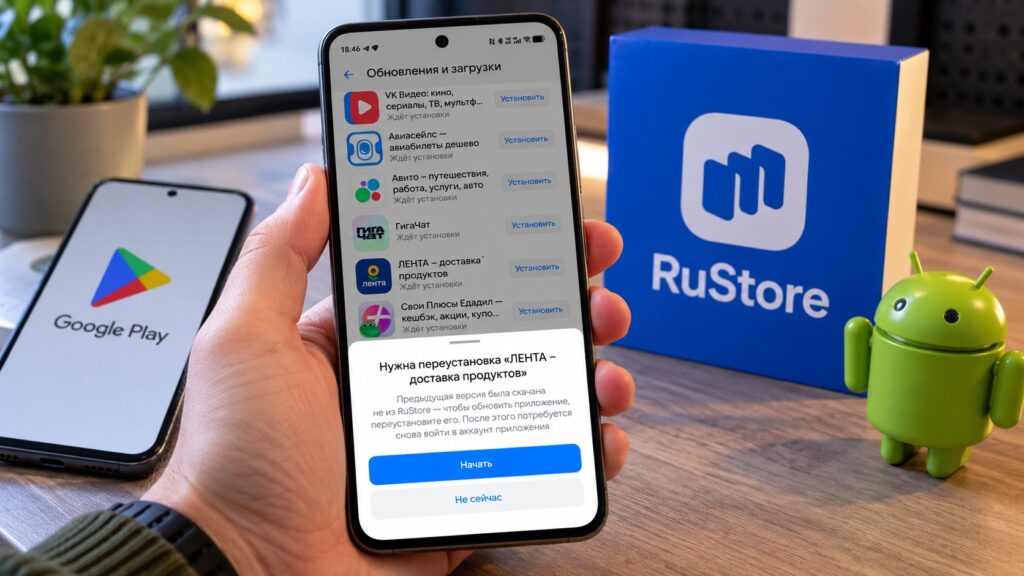
RuStore’s prompt to reinstall an app
What the “Reinstall required” message means
The prompt appears in RuStore’s Updates section, which lists apps waiting to be installed. When you tap “Install” on one of them, a panel titled “Reinstall required” slides up from the bottom of the screen with this text, translated from Russian:
The previous version was not downloaded from RuStore. To update the app, reinstall it. After that, you will need to sign in to the app’s account again.
Below the text are two buttons: “Start” and “Not now”. If you tap “Start”, the phone asks whether to uninstall the app. RuStore then installs it again from its own catalogue, with all the consequences that brings.
Why RuStore cannot simply install the update
Every app carries the developer’s digital signature. Android installs an update over an existing version only if the two signatures match. According to the source, many companies sign their Google Play and RuStore builds differently. To the phone, those are two different apps that happen to share a name.
As a result, RuStore cannot cleanly replace the Google Play version. Its only option is to remove that version and install its own. The source also notes that, by default, RuStore tries to update everything installed on the phone.

What you lose if you tap “Start”
Reinstalling means uninstalling the app along with its data on the phone. Some data is stored on servers and will come back on its own, but much of the app will need setting up again. The source lists what is typically lost:
- your login, so you will need to re-enter your phone number, password or SMS code;
- app settings, PIN codes and fingerprint sign-in;
- films, music and maps downloaded for offline use;
- game progress, if it is not tied to an account.
For a retail chain’s shopping app, the author says this costs about five extra minutes. The author would not reinstall a banking app or a game this way without preparing first. Before removing an important app, the source advises checking that you remember the account password and backing up your data.
Give each app a single source of updates
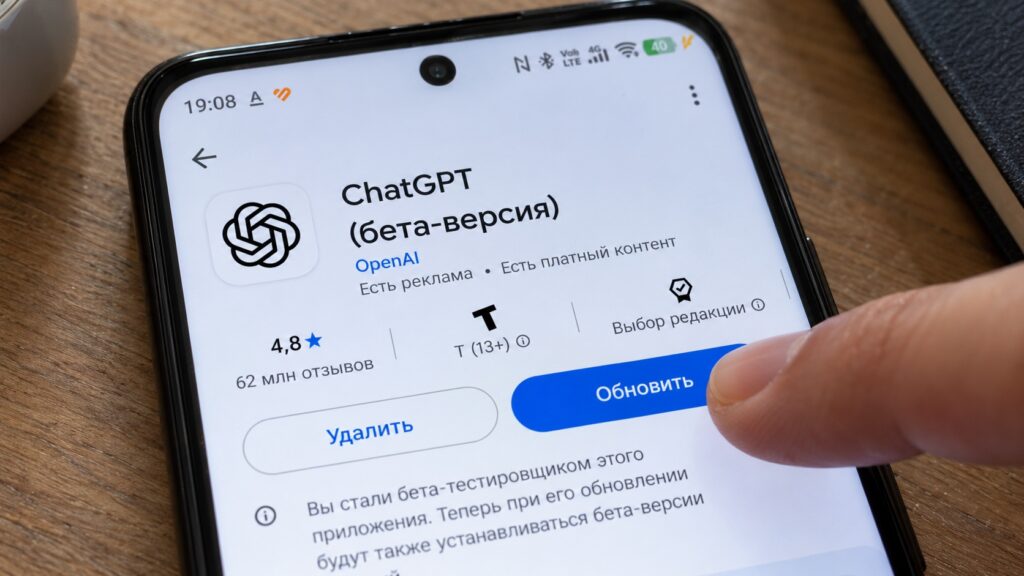
Updating an app through Google Play
The source says you do not need to give up either store. The fix is a simple rule: update each app only in the store it was installed from. That way, neither store tries to update the other’s apps.
This takes two settings, and the source says each one takes about a minute:
- For apps installed from Google Play, stop RuStore from auto-updating them.
- For apps you decide to move to RuStore, turn off auto-update in Google Play.
If the app works, one setting is enough
If the app came from Google Play and you are happy with it, tap “Not now” in the “Reinstall required” dialog. To stop RuStore from offering the update again:
- Open RuStore and find the app.
- On the app’s page, tap the three-dot menu in the top-right corner.
- Tap “Don’t notify about updates”.
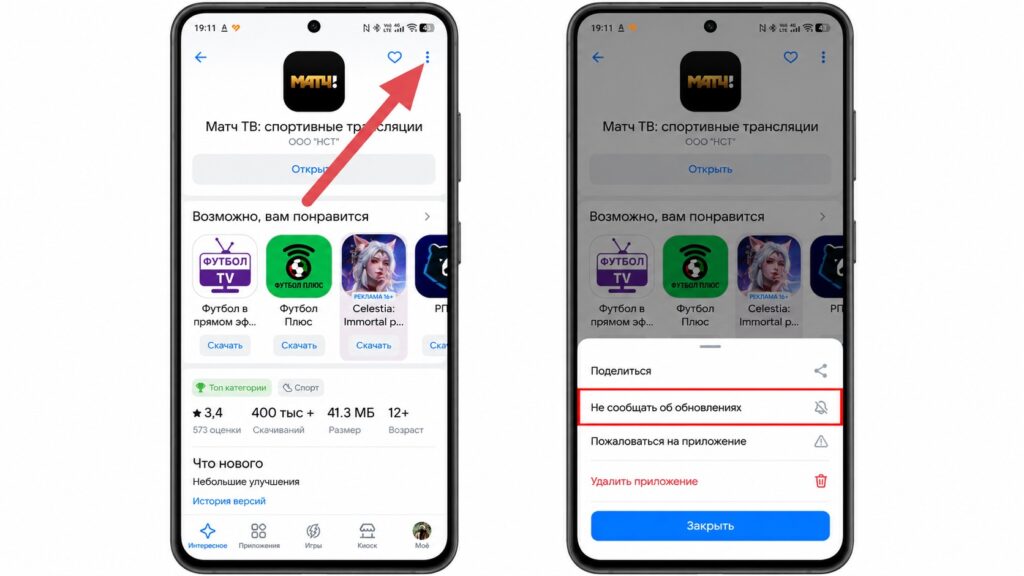
Turning off update notifications in RuStore

If that option is missing, open RuStore and go to “My” → “Update and download settings” → “Exclusions”, then add the app there. The app will no longer appear in RuStore’s update list, and Google Play will continue to deliver new versions. The menu names here are translated from the Russian interface.
When reinstalling does make sense
Sometimes a reinstall is worthwhile. One case is a Google Play version that has not been updated for a long time. Another is an app that has been removed from Google Play altogether. The source cites Ozon as an example: the app was once removed from Google Play and later returned. In cases like these, the source says to go ahead and tap “Start”. Once the reinstall finishes, turn off auto-update for that app in Google Play:
- Open Google Play and find the app.
- On its page, tap the three-dot menu in the top-right corner.
- Untick “Auto-update”.
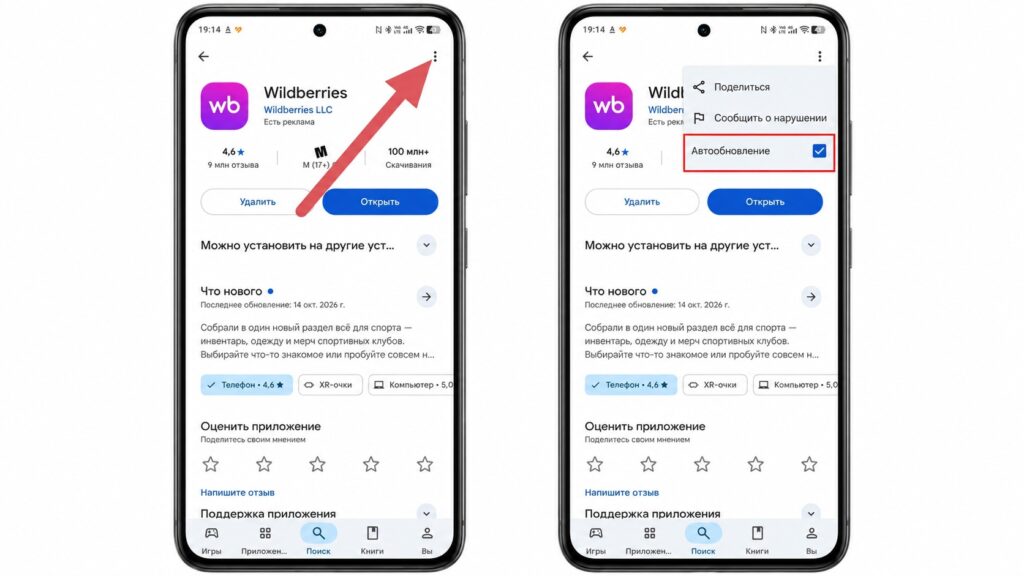
Turning off auto-updates in Google Play
From then on, only RuStore will deliver updates for that app, and Google Play will not offer its own version on top.
How the source author splits apps between the two stores
The source author follows a simple rule:
- Google Play handles foreign apps, games and anything available only in Google Play.
- RuStore handles banking apps, the Russian government services app Gosuslugi, online marketplaces, and anything that is missing from Google Play or no longer updated there.
If an app is already installed from Google Play and working, the author leaves it alone and simply excludes it from RuStore’s auto-updates. The author reinstalls only apps that have stopped receiving updates in Google Play. This way, you have to sign in again once, not after every update.
The author also recommends keeping RuStore itself up to date, because its auto-update settings sometimes move in newer versions of the store.


