If Apple’s newly announced HomeView smart display caught your eye, a spare iPad may already do much of the same job. According to the source author, an iPad attached to a fridge door can control smart home devices, show recipes and play video. It can also run any app from the App Store, which HomeView cannot. The iPad falls short on HomeView’s signature features: face recognition for household members, far-field microphones and a stronger speaker. The guide below covers which iPad to use, how to set it up, and where each device has the advantage.
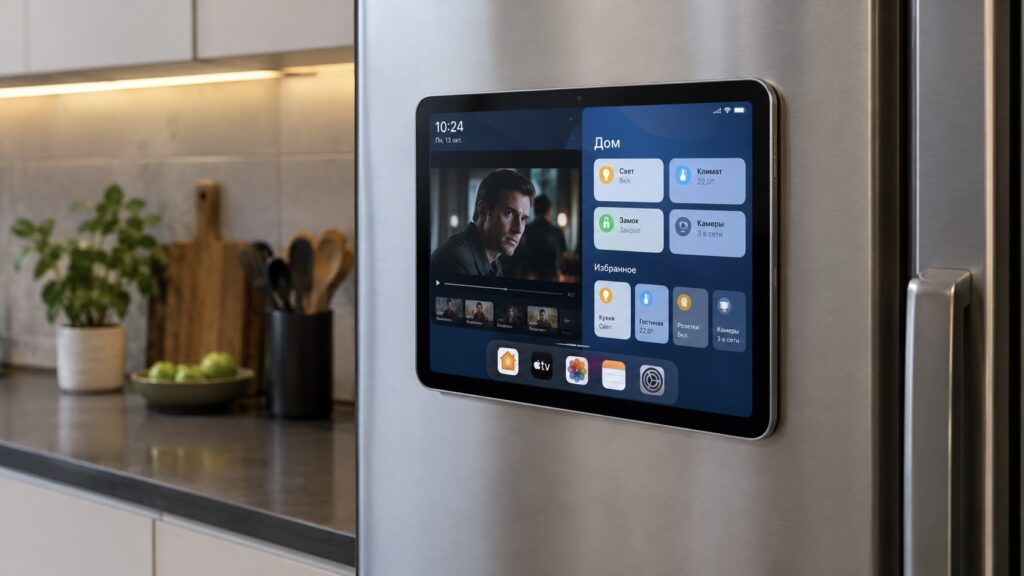
An iPad on a fridge door showing a TV series and Home app tiles
What you need to know
- According to the source, Apple HomeView has a 7-inch, 1088 × 1088 display, an A18 chip and a 12-megapixel camera. It costs $299 and goes on sale on November 13 in eight countries.
- HomeView has no App Store of its own. Third-party apps appear CarPlay-style only when an unlocked iPhone or iPad is nearby, and only if developers have adapted them.
- iPads with built-in magnets for the Smart Folio or keyboard cases can stick directly to a magnetic fridge door without a mount.
- Since iPadOS 16, an iPad can no longer act as a home hub. Automations, remote control and sensor notifications require an Apple TV or HomePod.
Why an iPad can stand in for HomeView
The source reports that after Apple’s October 13 announcement, social media filled with videos captioned along the lines of “every iPad is now a HomeView.” The setup in these clips is broadly the same. A large iPad is stuck magnetically to a fridge door, the Home app turns on the kitchen lights with a tap, and the same screen then plays a series while the owner cooks. This is essentially the scenario Apple showed in its announcement, without buying a new device.
HomeView itself is a 7-inch square screen on a speaker stand, priced at $299, with sales starting November 13 in eight countries. The source adds that Siri AI, one of the device’s headline features, currently works only in English, so anyone who needs it in another language would miss a large part of what the device offers in its first months.
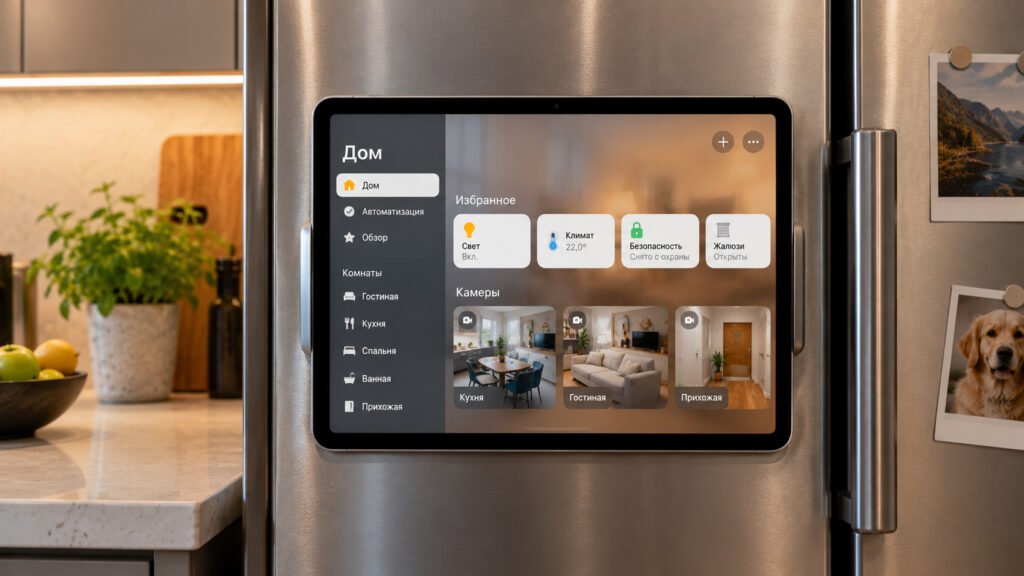
An iPad on a fridge door running the Home app
A second limitation, which the source says was mentioned only briefly at the announcement, is that HomeView has no App Store. Out of the box it offers Apple Music, Podcasts, Calendar, FaceTime and Messages. Third-party apps appear in a CarPlay-like way: only when your unlocked iPhone or iPad is nearby, and only apps that developers have adapted. The source notes that Apple has not said which video services will be available at launch. An iPad you have already replaced is paid for, has a screen roughly one and a half to two times larger, and can run any app you like.
Choosing and mounting the iPad
You do not need a powerful tablet. The source says any iPad that still receives current iPadOS versions is enough for Home, recipes and video. On an outdated system, some newer devices, such as Matter accessories, may not be addable, and new versions of streaming apps will stop arriving. In the source’s view, screen size matters more than the processor. An 11-inch screen is comfortable to watch from across the kitchen, while an iPad mini requires standing closer.
According to the source, you may not need a mount at all. iPads that support the magnetic Smart Folio cover or a magnetic keyboard have built-in magnets, and these are strong enough to hold the tablet on a fridge door. That means no brackets, adhesive or holes in the wall.
There are some conditions:
- The door must be magnetic. This trick will not work on glass-fronted fridges or fridges built into kitchen cabinetry. Test the door first with an ordinary fridge magnet.
- Keep it away from the stove. Steam and oil splashes are bad for the screen.
Power and battery considerations
The screen will be on all day, so you will need a USB-C cable running to a wall socket. The source notes that keeping an older battery on charge for months is not ideal, and many users add a smart plug to cut power overnight. The source also advises against mounting an iPad on the wall at all if its battery is visibly swollen.
Setting up the iPad as a kitchen screen
The source recommends the following steps:
- Go to Settings > Display & Brightness > Auto-Lock and select “Never.”
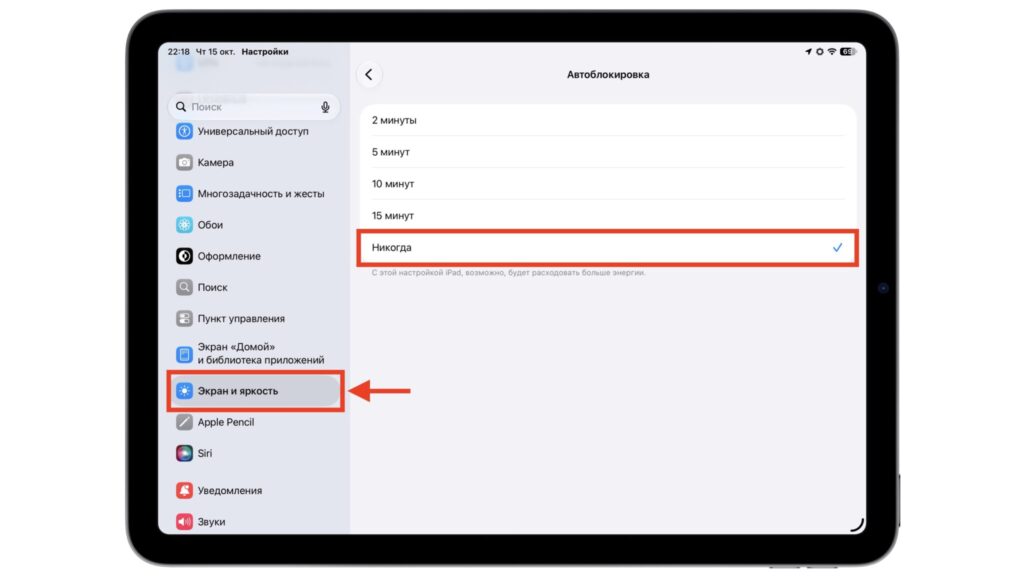
Turning off screen Auto-Lock on an iPad
- Turn on Do Not Disturb or a dedicated Focus so personal messages do not pop up on the screen.
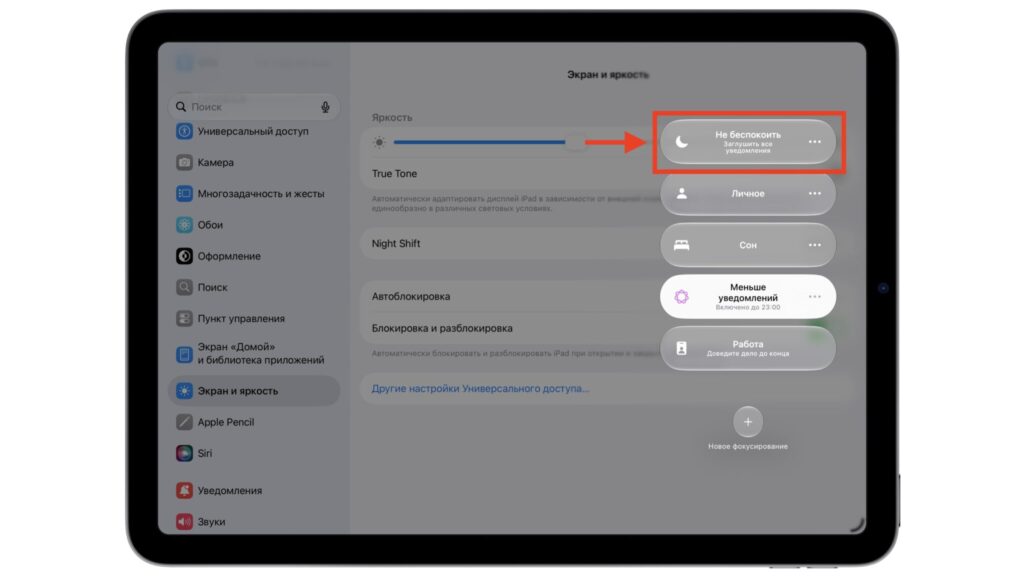
Enabling Do Not Disturb from Control Center
- Add a Home widget with your favorite accessories to the Home Screen, and put the apps you use in the kitchen in the Dock.
- If children use the kitchen, turn on Settings > Accessibility > Guided Access. Triple-clicking the top button then locks the screen to a single app.
When Guided Access is worth it
The source cautions that Guided Access is not for everyone. It locks the tablet into one app, while in the kitchen you will often want to switch between a series and a recipe. For households without small children, the source suggests a dedicated Focus is enough.
If the tablet is shared, the source suggests signing out of your personal Apple ID on it and inviting a separate account to your Home as a member. That account can control accessories without your photos and messages appearing on the kitchen wall.
Video, recipes and lights on one screen
According to the source, the payoff becomes obvious on the first evening of cooking. Any streaming service with an App Store app works on the iPad. With windows side by side, a series can play on one side while a recipe or the Home app’s controls sit on the other. While water boils, you can finish a scene, set a timer by voice and dim the overhead lights without wiping your hands.
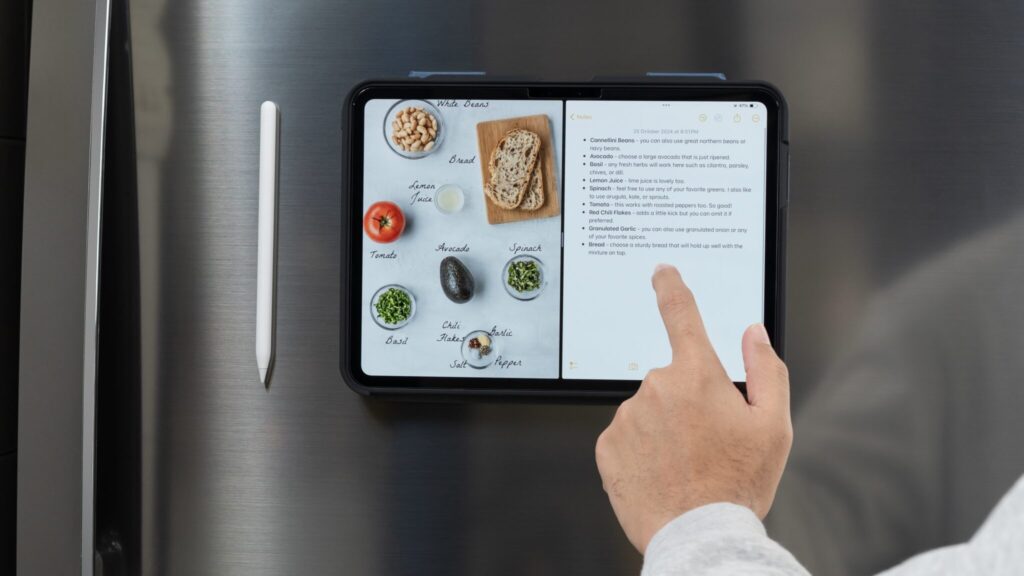
A recipe on the screen of an iPad attached magnetically to a fridge
The home hub caveat
There is an important limitation for smart home use. The source explains that starting with iPadOS 16, Apple removed the iPad’s ability to serve as a home hub. Under the new Home architecture, only Apple TV and HomePod can fill that role. Without one of them, the tablet can switch on lights while you are standing next to it, but time-based automations, remote control from outside the home and sensor notifications will not work. The source also notes that Apple has just updated the Apple TV 4K and calls it the most convenient hub if there is a TV in the room.
If you already have a HomePod mini or Apple TV, the iPad picks up everything configured on them, and the fridge screen becomes a full remote control. The source author argues that this is why the idea works at all: the home’s “brain” lives in another device, and the tablet serves as a window to it as well as a small TV.
Siri on the iPad
On the iPad, you can use Siri to set a timer, turn on lights or ask about the weather. The source warns, however, that the tablet’s microphones are designed mainly for close-range use. From across the kitchen, especially with a range hood running, a command may not be heard.
What the fridge-mounted iPad cannot do
The source acknowledges that HomeView has clear advantages. It can recognize up to six people by face and show each of them a personalized screen. It has four microphones designed to hear commands across the kitchen, and from a distance it switches automatically to large cards. It can also show up to nine cameras at once, turn a recipe from a website into step-by-step instructions with timers, and play music through a speaker with a woofer. The iPad has almost none of this. It offers one profile for everyone, and its built-in speakers will not drown out a range hood.
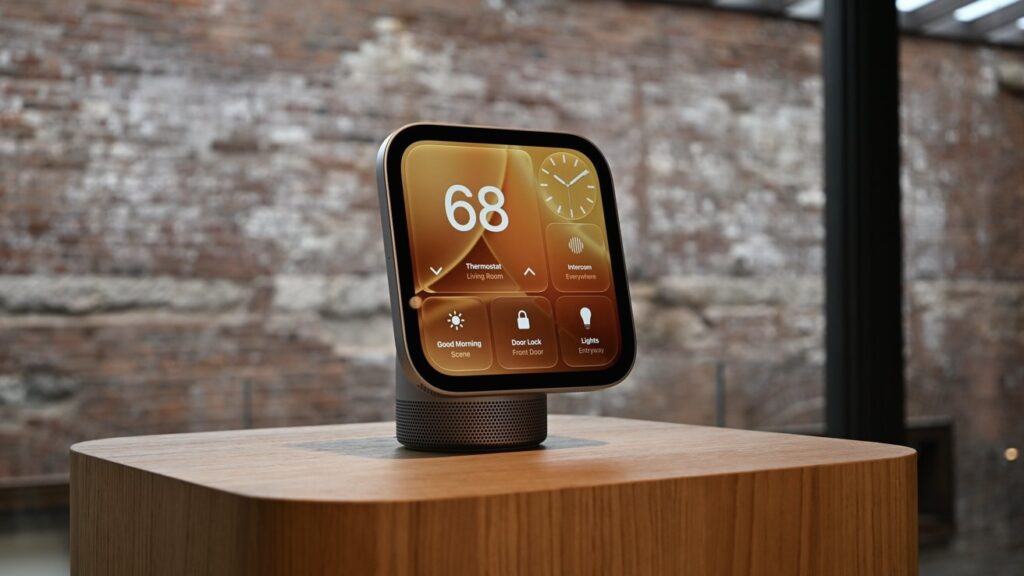
Apple HomeView screen with smart home tiles
Where the iPad wins
On apps, the iPad wins by a wide margin. It has the full App Store, not just Apple’s own services plus whatever a phone mirrors. That includes streaming services, cooking apps, music services, intercom camera apps from service providers, and games to keep a child busy while you cook. Nothing needs to stay unlocked nearby. If you tire of the setup, the tablet comes off the fridge and is a regular tablet again.
Which option suits you
The source offers a straightforward verdict.
- Choose the iPad if you mostly watch shows and follow recipes in the kitchen and already own an Apple TV or HomePod. In that case, you can assemble the screen in an evening at almost no cost.
- Wait for HomeView if what you want is an assistant that recognizes family members and understands speech from across the room.
The source adds that those voice features depend on Siri AI support for your language, which currently means English only.
The source author describes HomeView as a very attractive HomePod with a screen. By comparison, an old iPad on the fridge does less for the smart home but more for everything else, and you can try it right away.