New Samsung Galaxy phones come with several One UI settings switched on by default. In the source author’s view, some of them serve Samsung more than the phone’s owner. The author turns off three of them on every new device: the media page to the left of the home screen, promotional notifications from Galaxy Store, and a newer AI feature that analyzes personal data on the phone. None of these settings breaks the phone, and each can be switched back on later. The author says all three take about five minutes to change.
What you need to know
- The media page to the left of the home screen loads news, videos and curated picks from the internet. According to the source, this uses some data and battery.
- You can limit Galaxy Store notifications to downloads and ongoing activities through the app’s notification categories.
- Newer One UI versions include a feature called Personal data intelligence. It lets the system analyze personal data on the device to improve AI suggestions. Samsung says the data stays in secure on-device storage.
- Menu names can differ between One UI versions, and all three changes can be reversed.
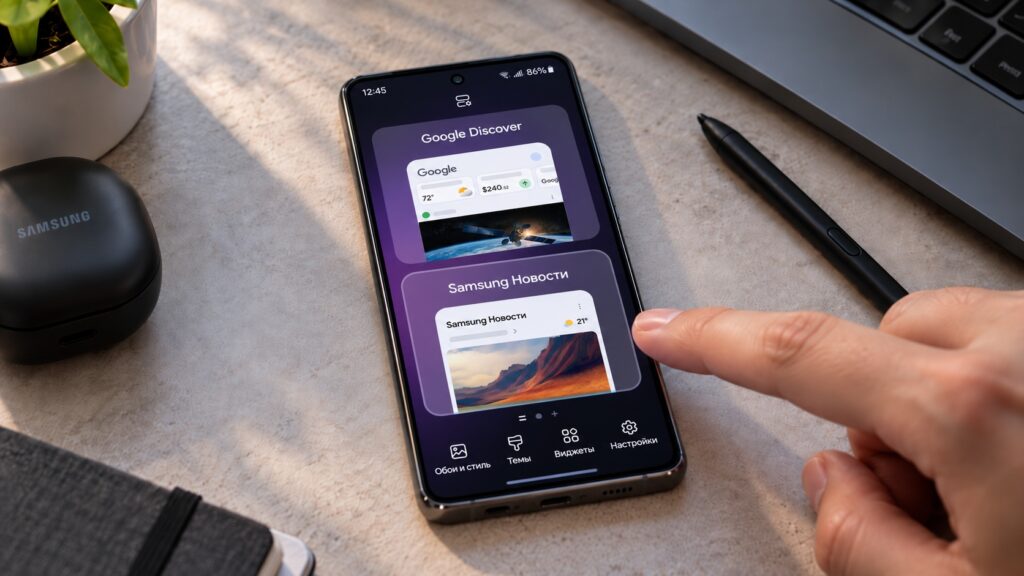
Turning off unnecessary features on a Samsung phone
1. The media page to the left of the home screen
If you swipe all the way left on the home screen, Samsung shows a separate page with news, videos and curated collections. The source author says they only land on it by accident while moving between home screens and have never found the collections useful. The page also loads content from the internet, so, according to the source, it uses a small amount of data and battery.
How to turn it off
- Touch and hold an empty area of the home screen, or pinch on it with two fingers.
- Swipe through the screens to the leftmost page.
- Turn off the toggle above that page.
- Tap Back or an empty area to leave edit mode.
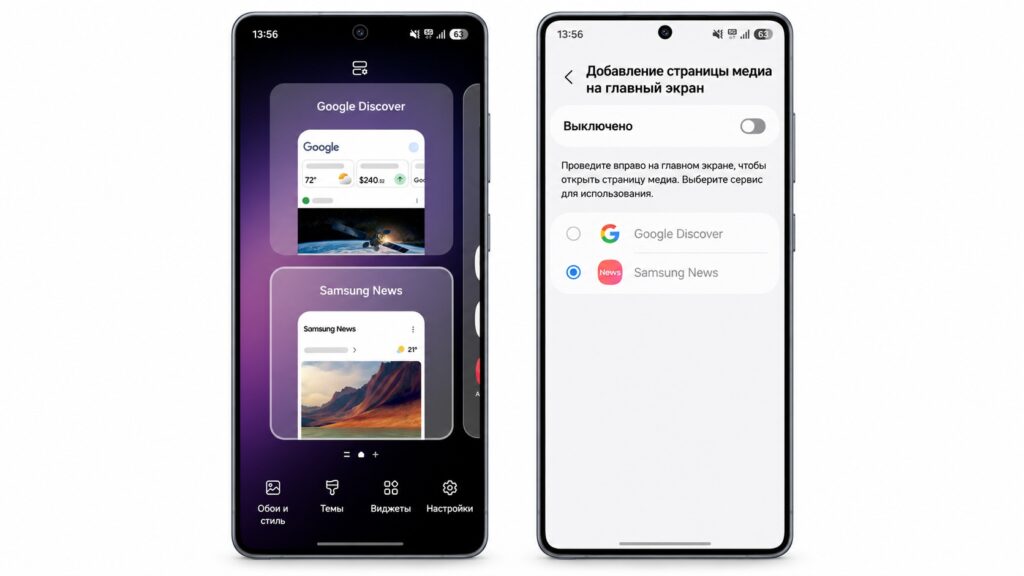
Turning off the Samsung News media page

The page is not deleted. You can bring it back at any time with the same toggle. Once it is off, swiping between home screens no longer pulls you into it by accident.
2. Promotional notifications from Galaxy Store
Samsung’s own app store sends update notices, but it also sends promotions, curated picks and other marketing messages. The source notes that most apps update through Google Play anyway, and that Galaxy Store is mainly needed for Samsung’s own apps. The author therefore keeps the useful notifications and turns off the promotional ones.
How to limit Galaxy Store notifications
- Open Settings and go to Apps.
- Find Galaxy Store in the list.
- Open Notifications, then Notification categories.
- Leave downloads and ongoing activities switched on, and turn off the other categories.
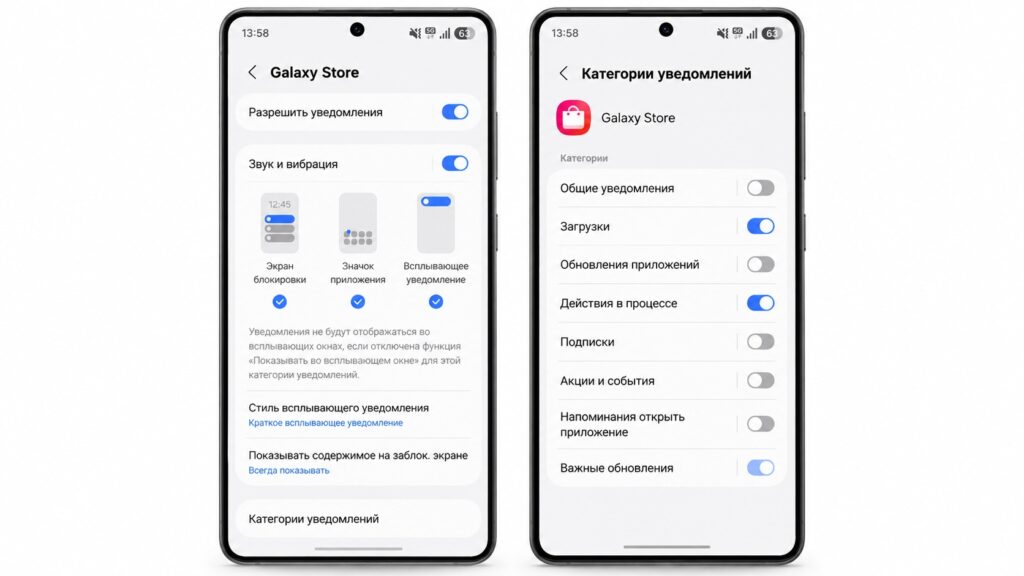
Turning off unnecessary Galaxy Store notifications
If you don’t see notification categories, turn them on first. Go to Settings, then Notifications, then the advanced settings section. There you will find a toggle for managing notification categories for each app. The source author reports that after this change, the store only sends notifications that actually concern their apps.
3. Personal data intelligence
The source author calls this the least obvious of the three settings. Newer versions of One UI include a feature that lets the system analyze your personal data on the phone so that AI features can give more accurate suggestions. In English firmware it is called Personal data intelligence. According to the source, Samsung says the data stays in secure storage on the device.

The author’s reasons for turning it off are personal. They rarely use Galaxy AI features, and they have never found its suggestions useful enough to keep it enabled. Because the feature exists to make AI suggestions more accurate, people who rely on those suggestions may prefer to leave it on.
How to turn off Personal data intelligence
- Open Settings and go to Security and privacy.
- Scroll to the bottom of the section and open the additional privacy settings.
- Find the Personal data intelligence toggle and turn it off.
- Confirm in the pop-up window.
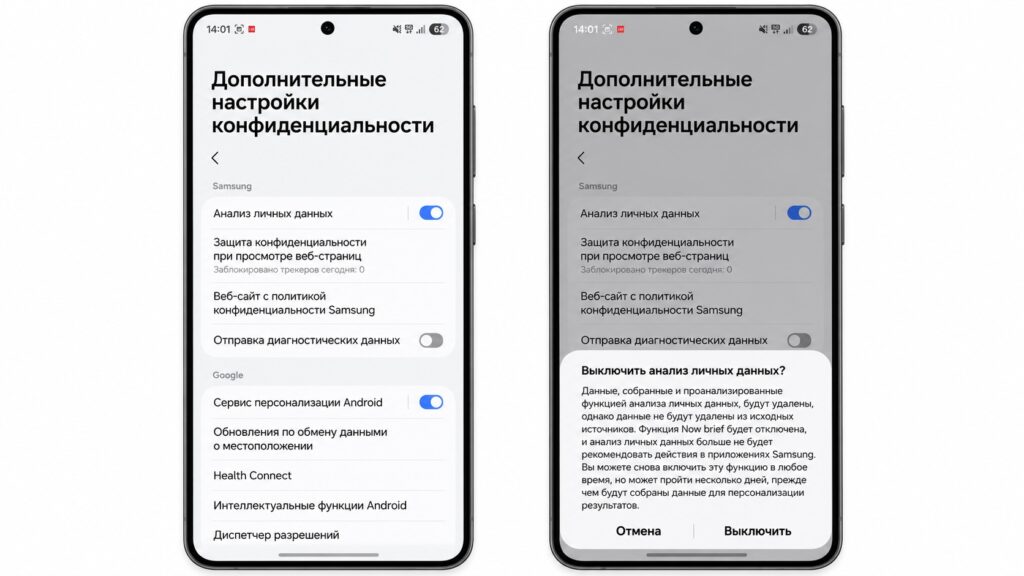
Turning off personal data analysis on a Samsung phone
Menu names can vary slightly between One UI versions. If you can’t find the toggle, use the search bar in Settings. If you later want to try the AI suggestions, you can turn the feature back on in the same place.
What changes, and what doesn’t
According to the source, all three changes take about five minutes. The author says the phone will not get noticeably faster. The difference is in how it feels to use: the phone stops pushing collections and promotions, and it no longer analyzes personal data for suggestions the author doesn’t use. The author considers the last setting the most important, because they believe most Galaxy owners don’t know it exists.