While we’re exploring all the features of the first public beta of iOS 27, scammers have found a new audience. Russia’s Ministry of Internal Affairs has warned about a scheme in which criminals convince teenagers to sign into someone else’s iCloud account right on their iPhone, then lock the device and demand money to unlock it. The scheme is old, but the victims are now children, not adults. And that changes everything.
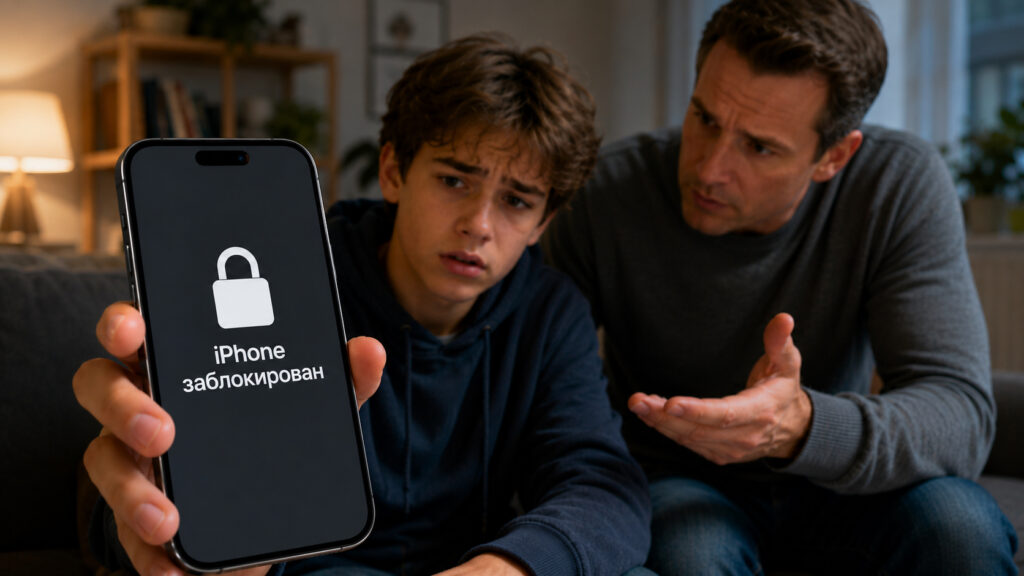
Scammers are targeting children’s iPhones
What Happens If You Sign Into Someone Else’s iCloud on iPhone
The scheme is frustratingly simple. Criminals find a teenager who uses Apple devices and spend some time just chatting. No demands, no links, no SMS codes. Just building trust and messaging for as long as it takes.
Then the performance begins. The scammer sends a photo of their supposedly broken phone and complains they can’t access their own iCloud. The request is always mundane and plausible: print plane tickets, download materials for a boss’s presentation, retrieve an important file. It’s all presented as an urgent and harmless favor, and a teenager usually can’t refuse to help an adult in trouble.
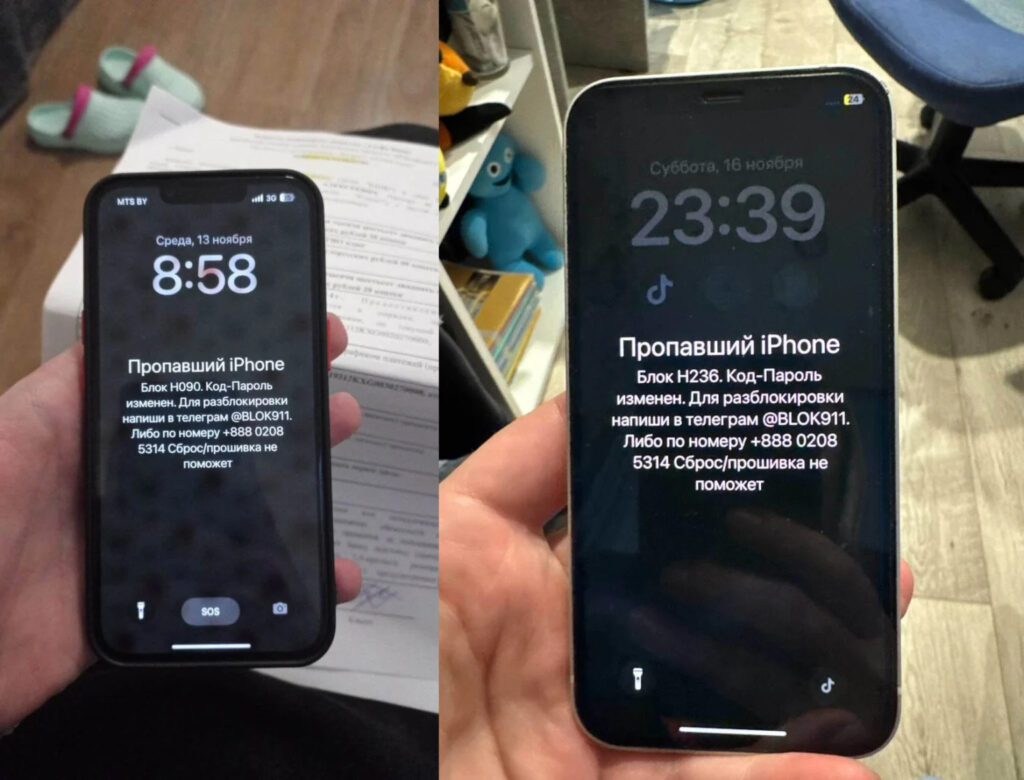
This is what messages users receive look like
As soon as someone else’s account is on the iPhone, the second phase begins. The device is locked through the Find My feature, a message appears on the screen, and a demand for money follows in the chat. If they don’t pay, the scammer threatens to erase all personal data or leave the phone bricked forever.
The most unpleasant part is that technically nothing was hacked. The teenager entered the login and password themselves, agreed to all the prompts, and confirmed the sign-in. Formally, the iPhone is working as intended, but the system considers a completely different person to be the owner of the device.
How to Prevent Signing Out of Apple ID on iPhone
The good news is that the entire scheme falls apart at the very first step. If a child physically cannot sign out of their own account, they won’t be able to sign into someone else’s. That means there will be nothing to lock the device with. This is done through Screen Time, a built-in iOS tool that people only seem to remember when it comes to game time limits.
Here’s what you need to do on your child’s iPhone:
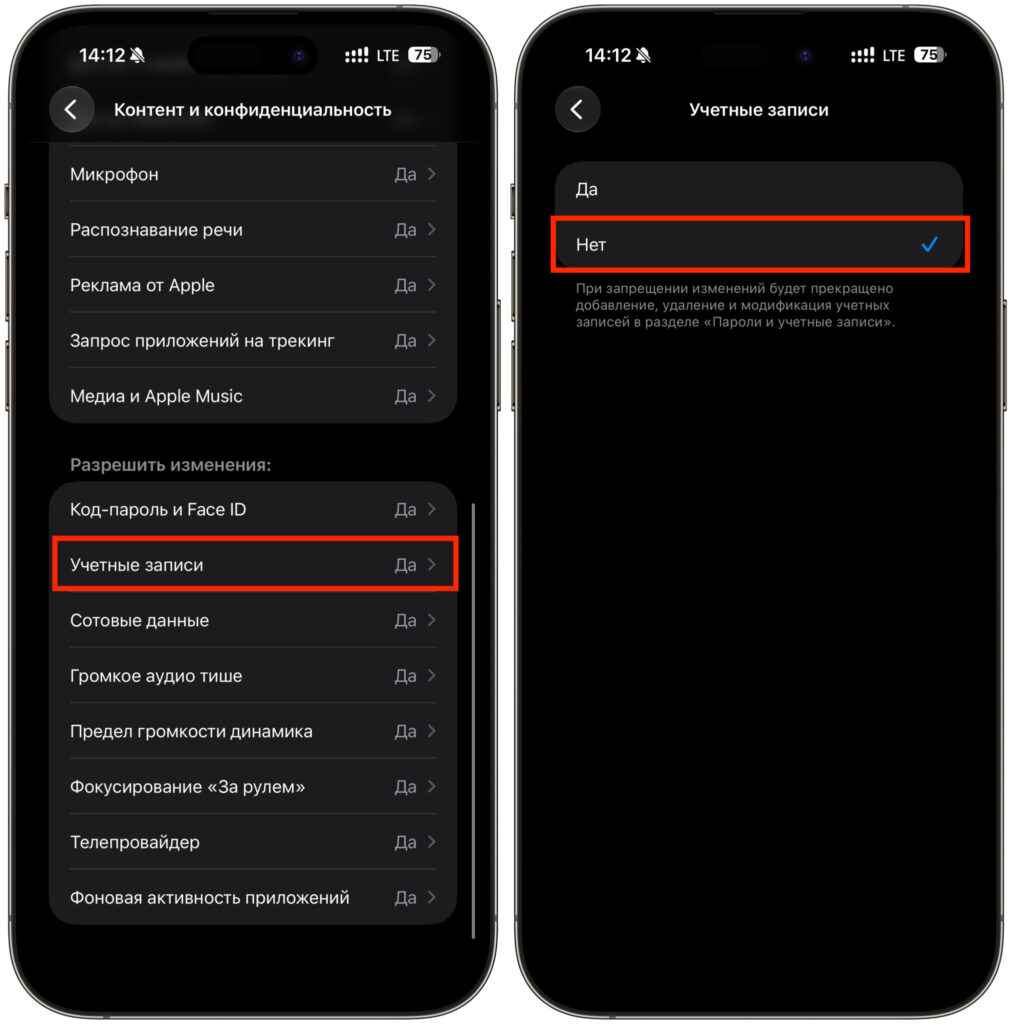
Disable the account
- Open Settings on the iPhone.
- Go to Screen Time.
- Select Content & Privacy Restrictions.
- Enable the Content & Privacy Restrictions toggle at the top of the screen.
- Find the Account Changes option and open it.
- Select Don’t Allow.
After this, the account on the main settings page will turn gray and simply won’t respond to taps. No warnings, no password prompts — the button stops responding entirely. You can’t sign out of Apple Account, add a new one, or replace the existing one on the iPhone anymore.
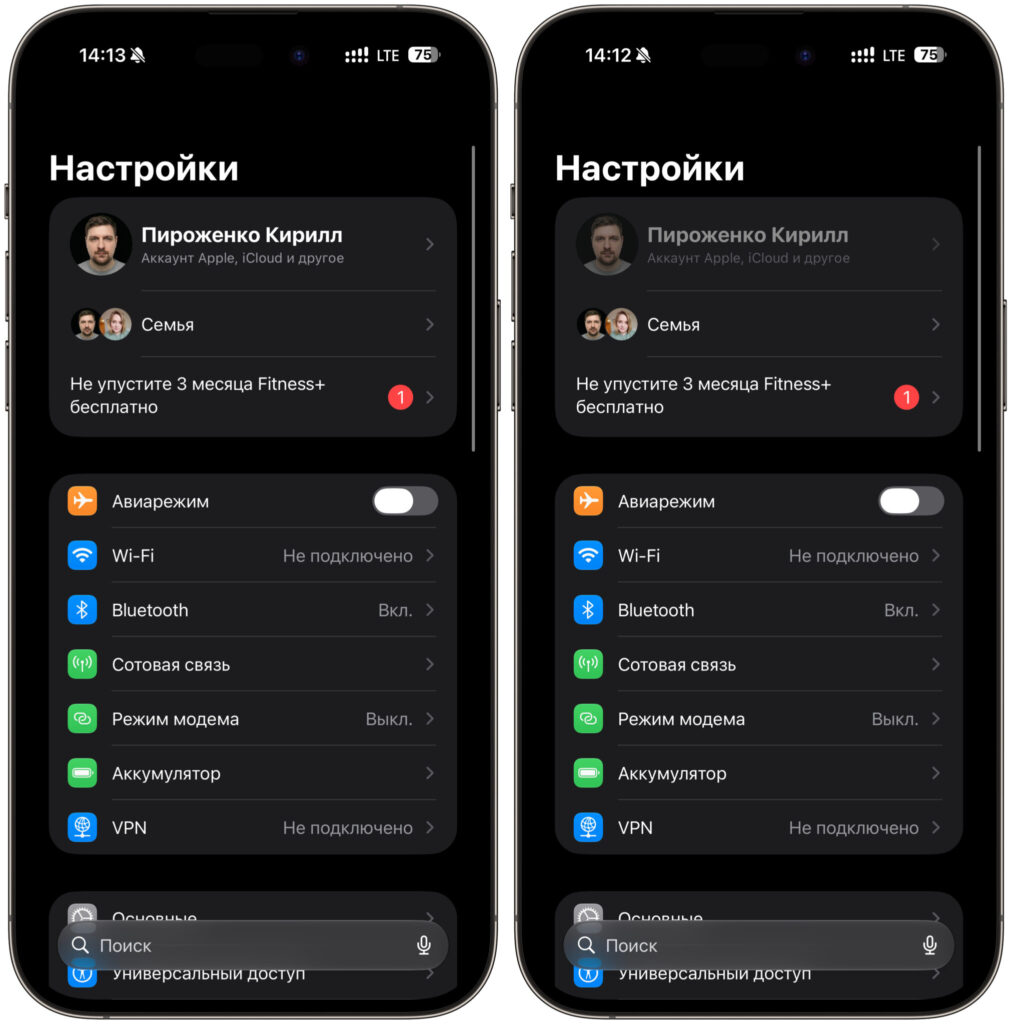
On the right — disabled Apple ID. You can’t sign out of it
It’s important to understand that this isn’t about distrusting your child. A teenager can be as smart and cautious as they come, but age doesn’t protect against social engineering. Experienced adults regularly give money to scammers, and here someone is simply asking for help printing tickets.
How to Set a Screen Time Passcode
A restriction without a passcode is useless because it can be removed in the same six taps. A child might do it out of curiosity, or under pressure from the same scammer who says something like “go to settings and turn off that switch.” So protect the section with a passcode right away.
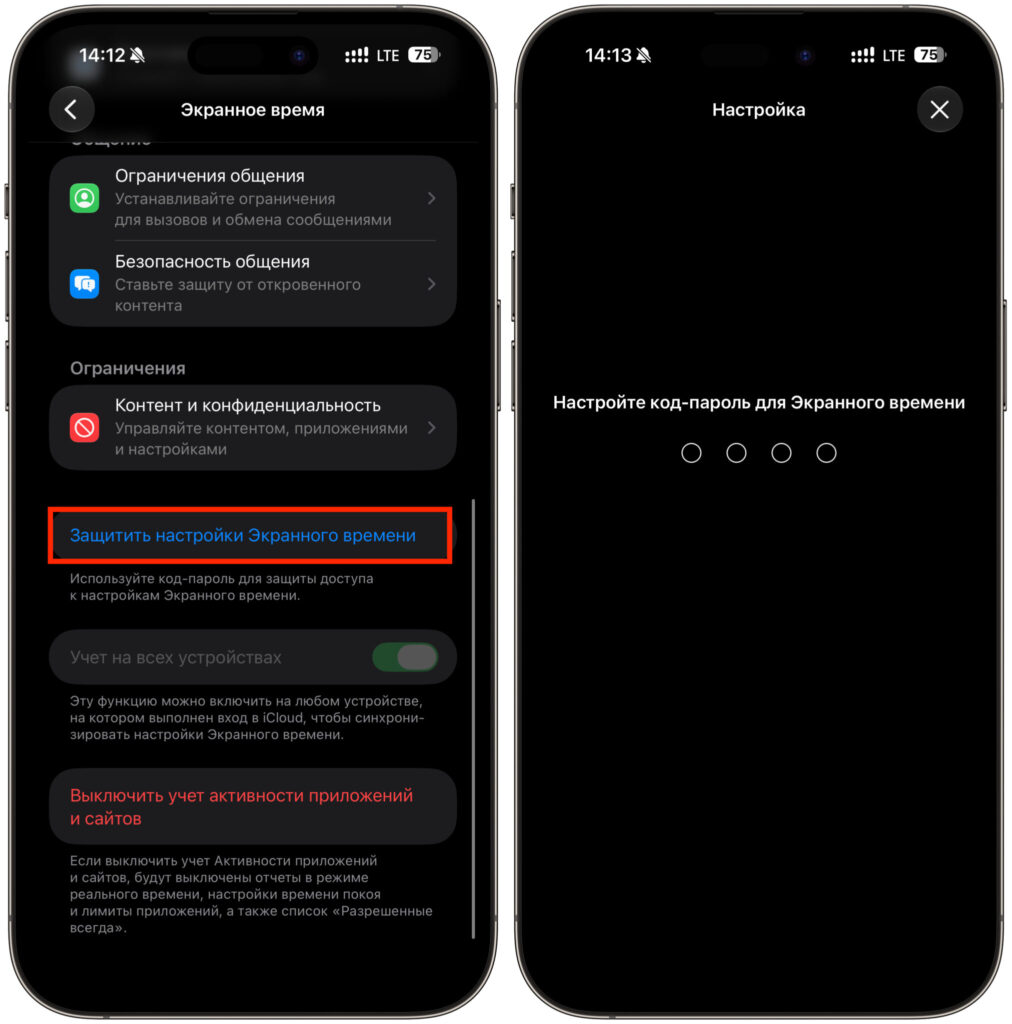
Be sure to set a passcode otherwise all your precautions will be in vain
- Open Settings and go to Screen Time.
- Scroll down to Lock Screen Time Settings.
- Set a four-digit passcode that your child definitely doesn’t know.
- Re-enter it for confirmation.
- Be sure to enter a recovery email address.
I wouldn’t recommend skipping the email. The Screen Time passcode tends to slip your mind after about a week, and without a linked email, the only way to recover it is by completely resetting the device to factory settings. Been there, done that, don’t want to repeat it. And yes, the passcode should be different from the one used to unlock the iPhone itself, otherwise the whole point is lost.
iPhone Locked by Owner: What to Do
If it’s already too late for prevention and the screen shows someone else’s message demanding money, the number one rule is: don’t pay a single cent. Payment guarantees nothing and only confirms that the victim can pay. After that, the amount will increase, and the story will repeat.
First, try going to the iCloud website from a computer using your child’s account to see if the iPhone is still linked to the account and if anything can be done. Sometimes the scammer hasn’t fully taken over yet.


