The clock on the iPhone lock screen has always taken up half the screen. Huge digits that you couldn’t shrink or move. The most Apple allowed was changing the font and color. In iOS 26, they added liquid shimmering clocks that automatically adapt to the wallpaper, but the size remained the same. And now the first public beta of iOS 27 has been released, and you can already try all its features yourself. One of them is quite inconspicuous but truly changes the look of the lock screen: the clock can now be moved to the date line and made tiny.
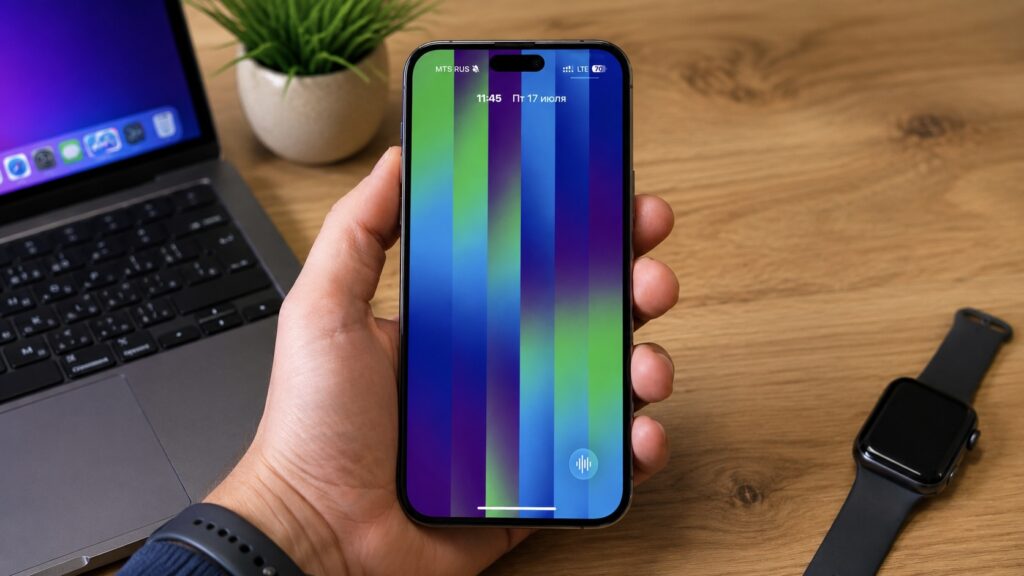
Can you see the clock? It’s there
Why Make Small Clock on iPhone
The idea is simple. Beautiful wallpapers on iPhone are almost always cut off by the clock. You set a vacation photo, and on top of it hang digits a third of the display in height. Faces, mountains, the sea, your favorite cat — everything gets covered. You either had to live with it or pick wallpapers so that the main subject ended up at the bottom. Compact clock solves the problem entirely: the center of the screen is completely freed up, and the image is finally visible the way you intended.
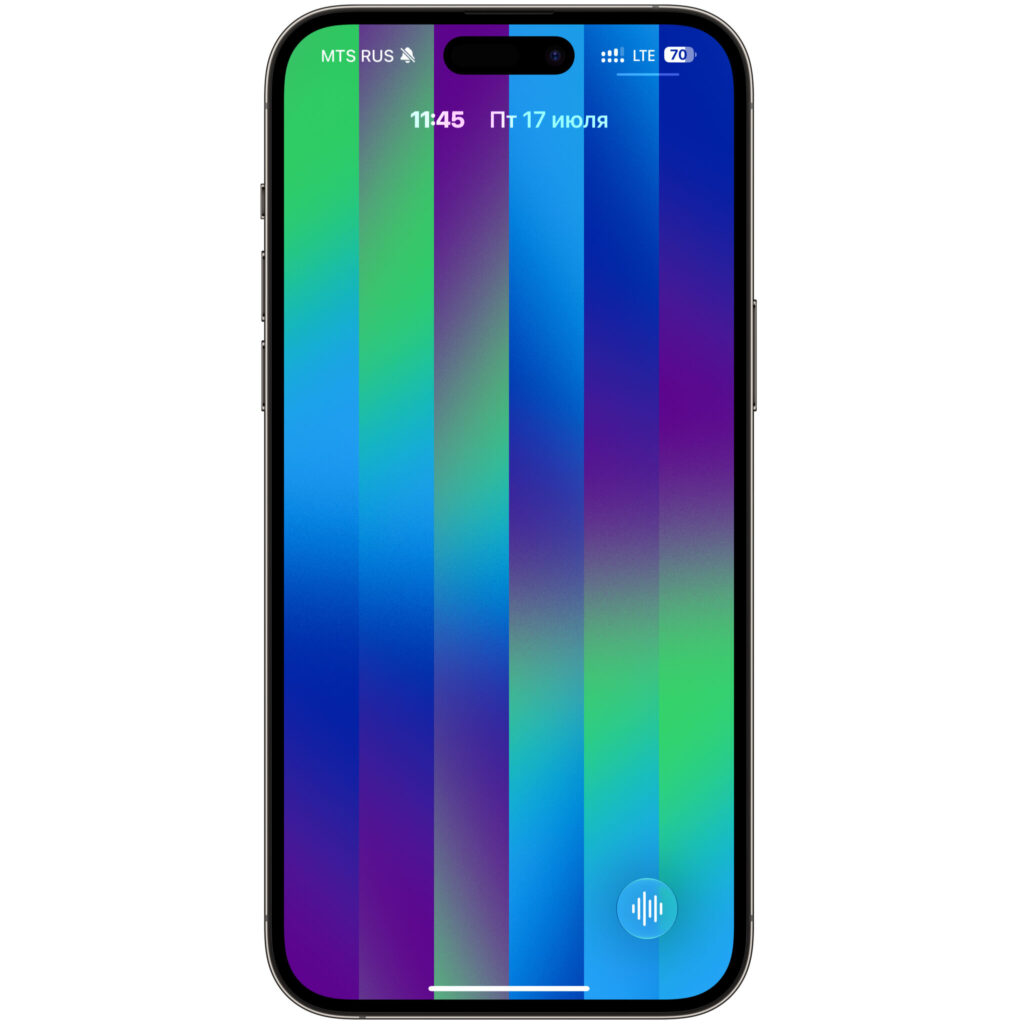
The clock can now be placed on the same line as the date
The second point is widgets. In iOS 26 and iOS 27, widgets on the lock screen live below the clock, and they don’t get much space. When the digits move up, vertical space is freed up for widgets and notifications. The list of incoming messages becomes longer rather than being squeezed into the bottom third of the screen. For those who keep weather, calendar, and reminders on the lock screen, the difference is noticeable.
There’s also a third reason, purely aesthetic. Giant clock is loud. Not everyone likes that, especially if you prefer minimalism and clean solid-color fills. Small clock in the date line looks almost like on Android or like on older versions of iOS, where the time modestly sat at the top. Apple seems to have brought back that same feeling, only made it an option rather than a forced decision.
How to Enable Small Clock on iPhone
The feature is hidden where few people look for it. It lives not in Settings but right in the lock screen editor, and is activated by one inconspicuous icon. Here’s the step-by-step procedure:
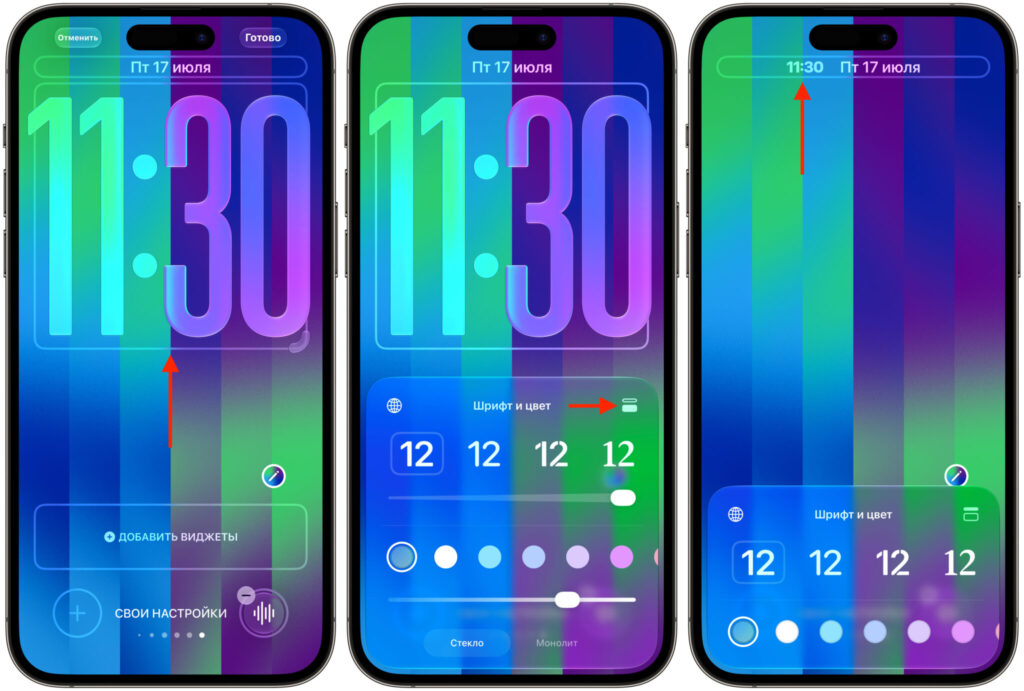
You can move the clock to the top with this button
- Unlock your iPhone but don’t go to the home screen. Stay on the lock screen.
- Press and hold your finger on any empty spot on the screen until the wallpaper carousel appears with the “Customize” button.
- Tap “Customize” and select “Lock Screen,” not “Home Screen.”
- Tap on the time digits. A “Font & Color” panel will slide up from the bottom.
- In the upper right corner of this panel, find the icon with two horizontal lines. This is the layout toggle.
- Tap it. The clock will instantly shrink and move to the top line next to the date.
- If desired, change the font and color: they still work, just in miniature.
- Tap “Done” in the upper right corner and save your changes.
The reverse path is the same. Tap the same icon again, and the time returns to its usual place in the center. No warnings, no settings resets — everything toggles back and forth as many times as you want. The setting is tied to a specific lock screen, so you can have one setup with large clock for home and another with small clock for work or Focus mode.
What You Need to Know Before Installing iOS 27
The feature currently works only on the beta version, and this imposes limitations. Beta is beta: battery life drops are possible, third-party app crashes, and minor graphical artifacts. For me, for example, the “Font & Color” panel opened with a one-second delay a couple of times, and the clock transition animation stuttered on an older iPhone. Nothing critical, but it leaves a mark. Before installing the system, make sure you understand what to expect so you don’t have to roll back in a panic via computer.
Compatibility is also worth checking in advance. Apple traditionally cuts off the oldest models, and some iPhones that could handle iOS 26 won’t make it to iOS 27. If your smartphone is on the supported list, be sure to make a backup to iCloud or your computer before updating. Rolling back from a beta to a stable version without a backup means data loss — and that’s not a scare tactic, it’s just how the restore process works.
A separate note about Siri. In iOS 27, the assistant finally got a proper AI engine, and it works with Russian language too, albeit with caveats. If you plan to explore it, there are detailed guides available on how to use Siri AI in Russian without fiddling with regions and language settings.
Pros and Cons of Compact Clock in iOS 27
I’ve been living with the small clock for two weeks and have no intention of going back. The lock screen stopped being a placeholder and once again became a place that’s pleasant to look at. Wallpapers are now fully visible, not just around the edges. Notifications moved higher, widgets have room to breathe, and your finger doesn’t have to reach to scroll through a list at the very bottom of the display.
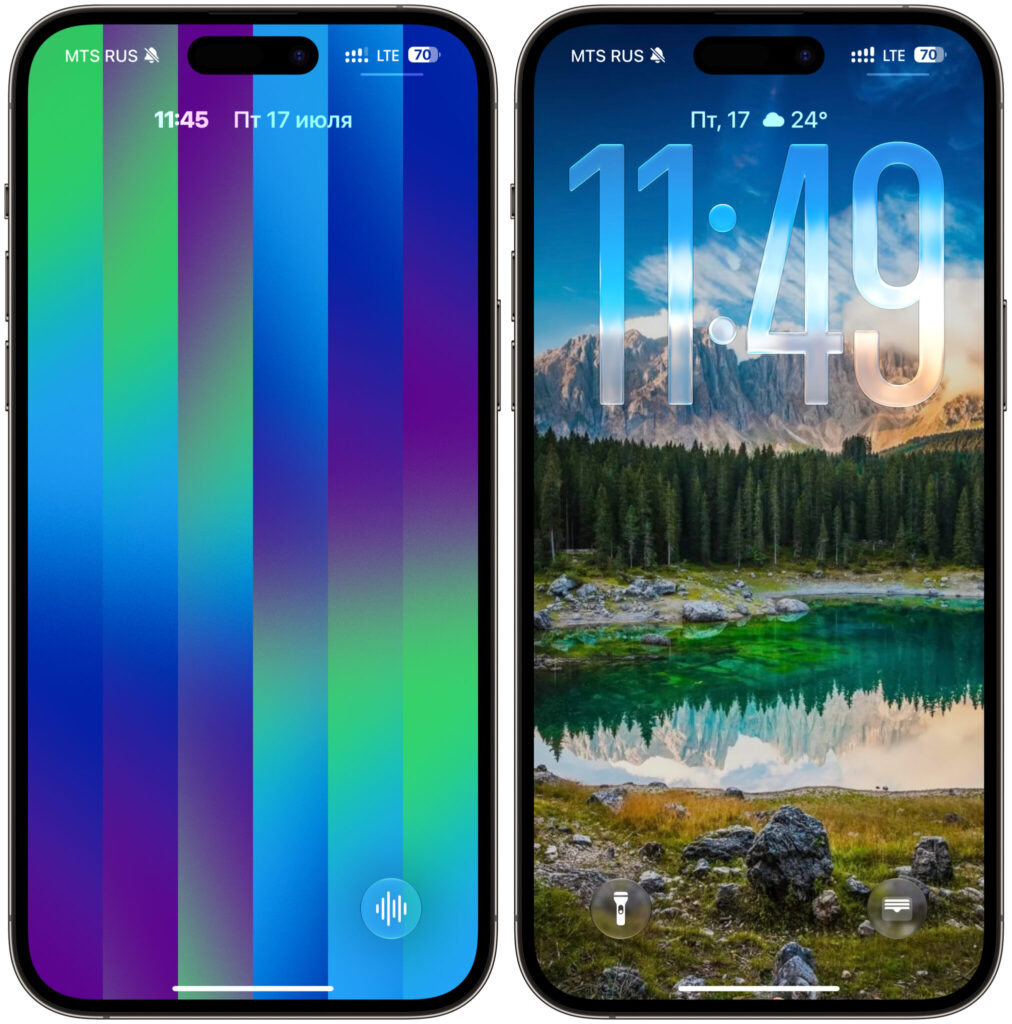
The only downside of this clock placement: time is much harder to read
The downside is exactly one, and it’s obvious. The time has become noticeably harder to read from a distance. When the iPhone is lying on a table and you’re standing two meters away, digits just a couple of millimeters tall are hard to make out. The huge clock was convenient in that regard: a glance from across the room and everything was clear. If you use your smartphone as a desk clock, compact mode will disappoint you.
The solution is simple and very much in the spirit of iOS. Create two different lock screens: one with large digits, another with small ones, and switch between them or tie them to Focus modes. At home, the large version works; outside and at the office, the minimalist one. Apple rarely gives such small but precise customization options, and it would be a shame not to take advantage. The feature is literally two taps away, and it completely changes the look of the screen.


