Two accounts in the App Store on one iPhone have long stopped being exotic. The main account holds purchases and subscriptions, while the second one is needed to download apps from another region: banking clients, streaming services, games that simply aren’t available in your store. The setup works, but it has an unpleasant side effect. As soon as an update comes out, the iPhone demands the password from the other account or offers to switch to it entirely. I recently covered the pros and cons of two Apple IDs and mentioned this drawback as the main irritant. Well, the problem has been solved. Without jailbreak, without third-party profiles, and without a single password prompt for every update.
Figuring out how to easily update apps across two accounts
Why iPhone Asks for Apple ID Password When Updating Apps
Every app in the App Store is permanently tied to the account under which it was downloaded. This isn’t a setting or a bug — it’s the basic logic of Apple’s licensing. The system stores a mark inside the downloaded package indicating the purchase owner, and during an update, it checks this mark against the currently active account in the App Store.
The rest is simple. If the mark doesn’t match, the iPhone has no right to install the update silently. It must verify that you have access to that account, so it throws up a password window. Hence the situation familiar to everyone: five updates are pending, three install automatically, and two stubbornly ask for confirmation from the second Apple ID.
Previously, there were two ways out, and both were mediocre. Either enter the password manually every time, or completely sign out of the main account in the App Store, sign into the second one, update, and switch back. Very few people agree to that. Especially since frequent account switching sometimes breaks access to purchases and subscriptions, and in rare cases, the App Store even temporarily locks the account due to suspicious activity.
How to Update Apps from a Second Apple ID Without Entering a Password
The whole trick is to make iOS constantly see your second account as authorized on the device. You don’t need to make it the primary one, and you don’t need to change the region either. All you need to do is add it as a Calendar account. Sounds strange, but it works.
- Open Settings on your iPhone.
- Go to the Apps section.
- Find Calendar in the list and open it.
- Select Calendar Accounts.
- Tap Add Account.
- In the list of account types, select iCloud.
- Enter the email and password for your second Apple ID account.
- Confirm the login with a two-factor authentication code if prompted.
- Optionally, disable calendar sync itself so that other people’s events don’t clutter your feed.
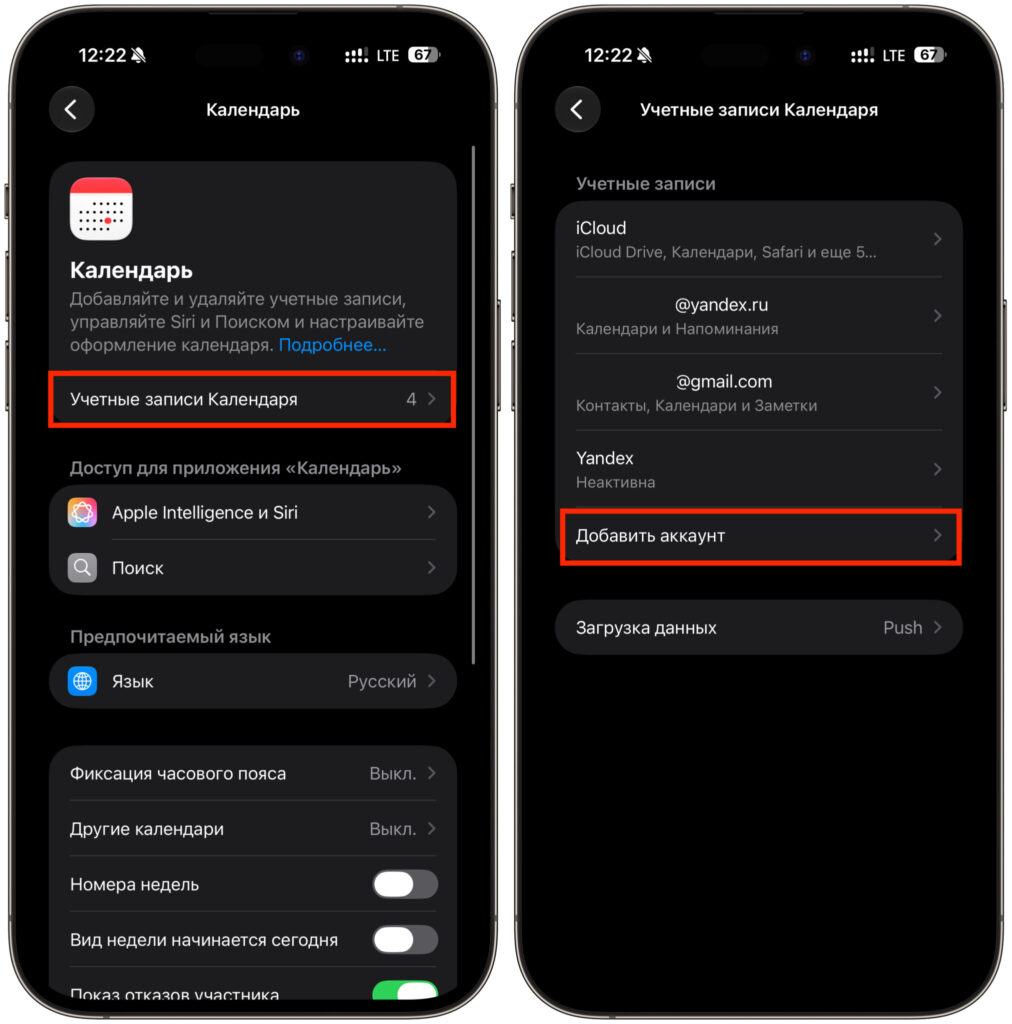
Start adding a new account
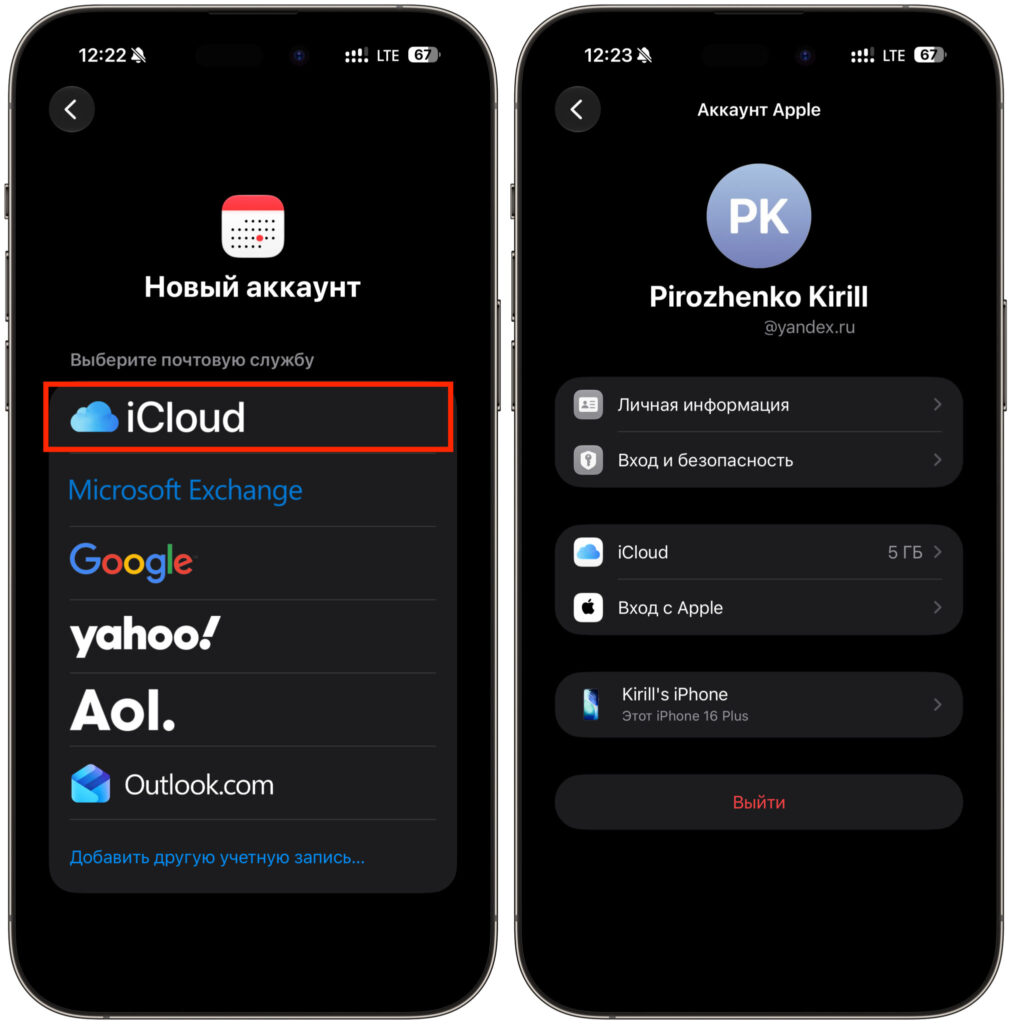
After adding, the account will look like this. You can even check how much free iCloud storage it has
That’s it — you don’t need to touch anything else. The iPhone now keeps the second account authorized at the system level, and that’s enough for the App Store to verify update rights. It won’t ask for the password anymore.
You can verify the result in a minute:
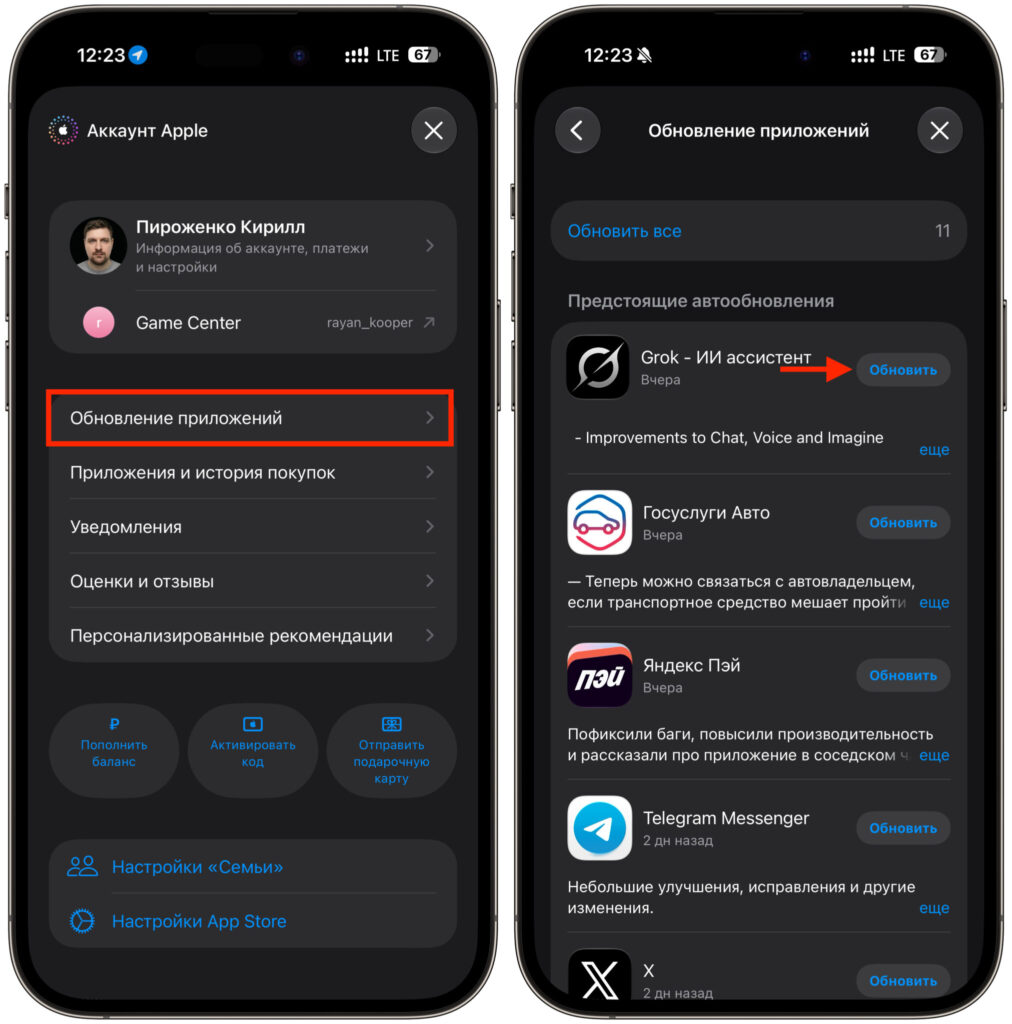
Update apps through the App Store
- Open the App Store.
- Tap the profile icon in the upper right corner.
- Scroll down to the list of available updates.
- Tap Update next to the app from the second account.
- Make sure the download started without a password prompt.
If automatic updates are enabled in settings, apps from the second account will also start pulling updates on their own, just like all the others.
Things to Know About Using Two Apple IDs on One iPhone
This method doesn’t make the second account equal to the primary one. It has clear limitations that are better to know about right away.
- The app page won’t open. Tapping on such an app in the App Store and going to its listing won’t work. The system will show an error or simply do nothing. Only the update button is available.
- You can’t download new apps this way. To install something new, you still need to manually switch to the second account in the App Store.
- Purchases and subscriptions don’t mix. Payments still go through whichever account is active in the App Store at the time of payment.
- You’ll still need the second account’s password once. When adding the Calendar account. After that, no.
- Signing out of the Calendar account disables the magic. Remove the account and the password prompts will return.
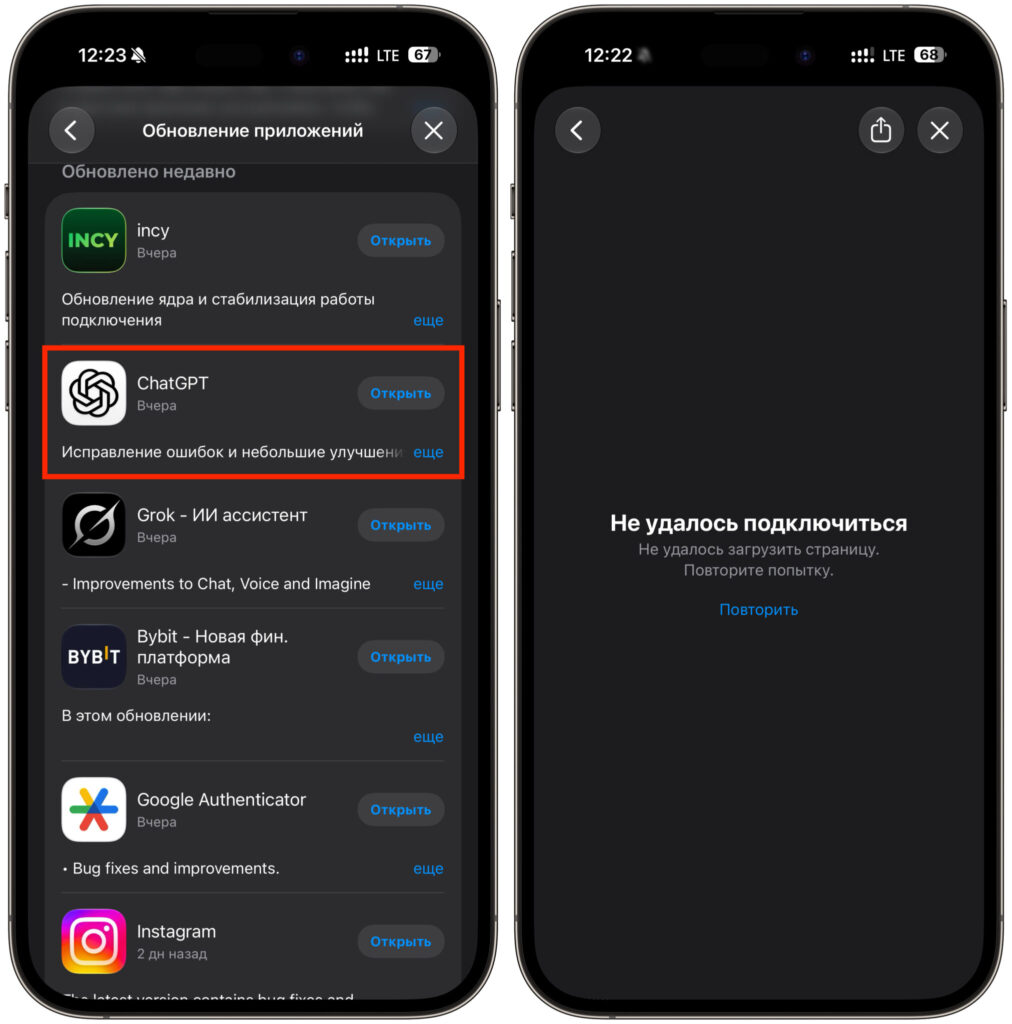
When trying to go to the app page, an error will appear


