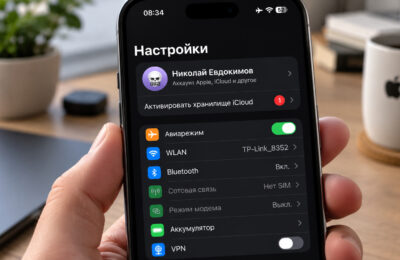
Just a couple of years ago, everything was relatively simple: you linked your MTS or Beeline number to your Apple ID, and the subscription renewed automatically. But starting April 1, 2026, the Ministry of Digital Development required mobile carriers to completely disable the ability to top up Apple balance via mobile phone billing. Now that method is a thing of the past. It turns out that out of the box, no standard payment method is available for Russian users after payments were disabled in Russia. But Apple Music in Russia still works without restrictions: the catalog is intact, Spatial Audio plays, playlists sync. The problem is exclusively with payment — and it can be solved.
How to pay for Apple Music in Russia in 2026. Photo: cnhsmedia
Why You Can’t Change Your Apple ID Region
Before changing your account’s country, you need to prepare. If you skip these steps, the system simply won’t let you switch regions. You no longer need to cancel all active subscriptions in your account — Apple made an exception for Russian users.
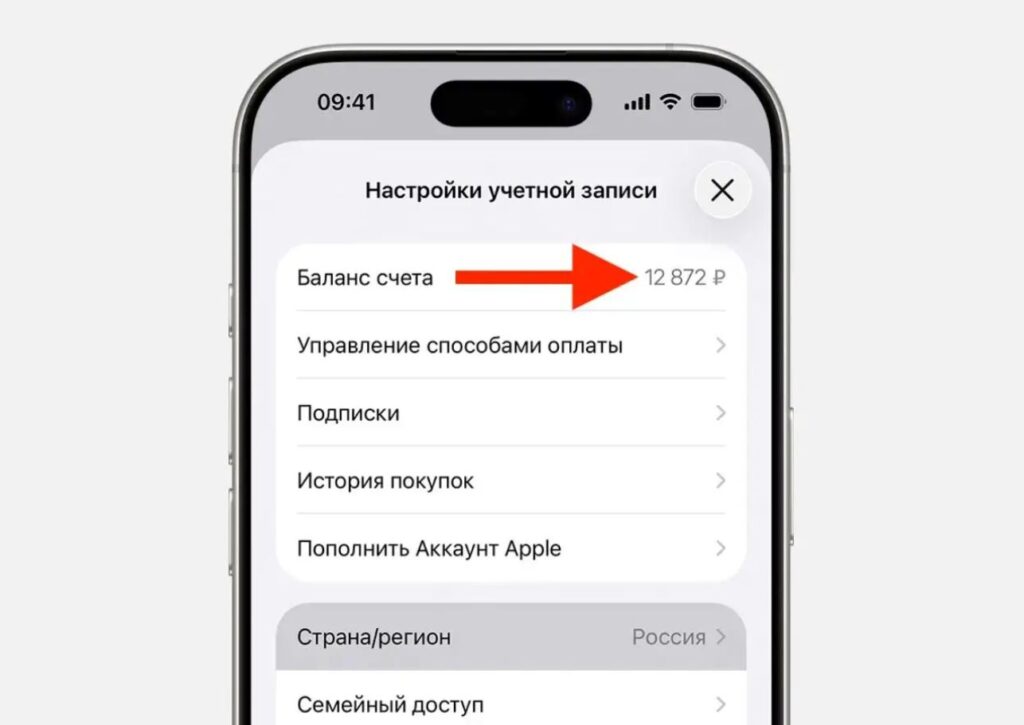
First, you need to zero out your balance before changing regions
- Spend the remaining balance on your Apple ID. Buy an inexpensive app or contact support via getsupport.apple.com — English-speaking support usually zeros out the balance without issues.
- Cancel pre-orders for games and apps if you had any.
- Disable Family Sharing. If you’re part of a family group, you won’t be able to change your Apple ID country.
- Save important data. Photos, contacts, and notes in iCloud will remain, but some apps from the Russian App Store may become unavailable in the new region.
An alternative to a full region change — create a foreign Apple ID for purchases. Sign in with it only in the “Media & Purchases” section, and keep your main iCloud with photos and contacts as Russian.
How to Change Your Apple ID Region to Pay for Apple Music
The procedure itself takes a couple of minutes. Here’s a step-by-step guide on how to change your Apple ID country:
- Open “Settings” on your iPhone and tap your name at the top of the screen.
- Go to “Media & Purchases” – “View Account.”
- Tap “Country/Region” and select the desired country.
- Accept the user agreement.
- In the “Payment Method” section, select “None” — you’ll add a card later.
- Fill in the billing address. Enter a real postal code for the selected country — it’s easy to find online.
- Tap “Done” and wait for confirmation.
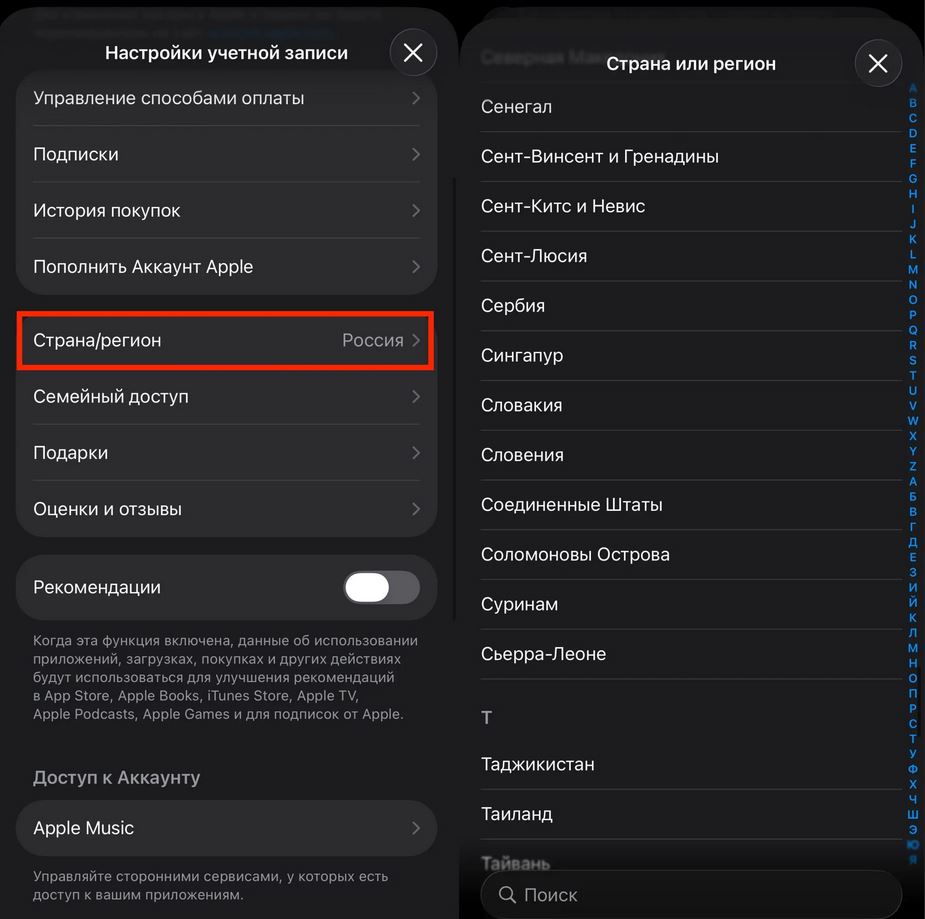
Changing the region doesn’t take much time if all requirements are met
After this, the App Store interface will switch to the new region, and you’ll be able to pay for your Apple Music subscription using one of the methods below.
Which Apple ID Region to Choose in 2026
The choice of Apple ID country directly affects the subscription price and available music catalog. Here are the most popular options among Russian users:
- Turkey — historically the most cost-effective region. An Apple Music subscription costs about 60 Turkish lira per month (approximately 120–150 rubles at the current exchange rate). A huge library, and gift cards in lira are easy to buy in Russia.
- Kazakhstan — low prices, a good catalog, easy top-up. A convenient option for those who don’t want to deal with unfamiliar currencies and end up with a media library full of obscure artists.
- USA — the full catalog with all the latest releases, access to Apple Intelligence and all features at launch. Individual subscription — $10.99 per month. More expensive, but maximum features.
It’s also worth considering UAE — if you need the maximum catalog and reliability. Prices are slightly higher than Turkey’s, but gift cards work reliably. Nevertheless, Turkey and USA are the two most popular options. But the choice is yours.
Where to Buy an Apple Gift Card to Pay for Apple Music
A gift card is the most convenient way to pay for an Apple Music subscription. It activates quickly and can be paid for with a Russian bank card.
- Open the WantToPay service and launch it, then select your language.
- In the app, go to the “Cards” tab and tap “Issue a card,” then select the Apple gift card.
- Review the terms and tap “Issue card.”
- Enter your phone number, email, passport details, and complete biometric verification.
- Tap “Pay,” select the denomination and a convenient payment method — after that, the card will appear in your account, and the code will be sent to your email.
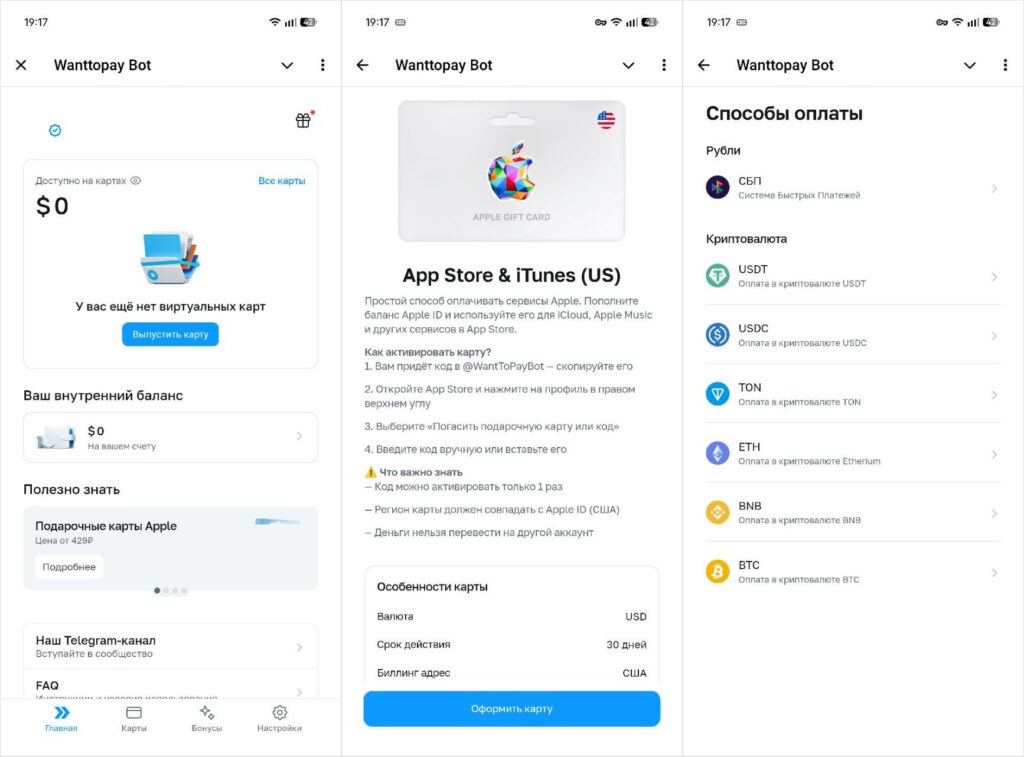
Payment is made via the Fast Payment System — no card details required
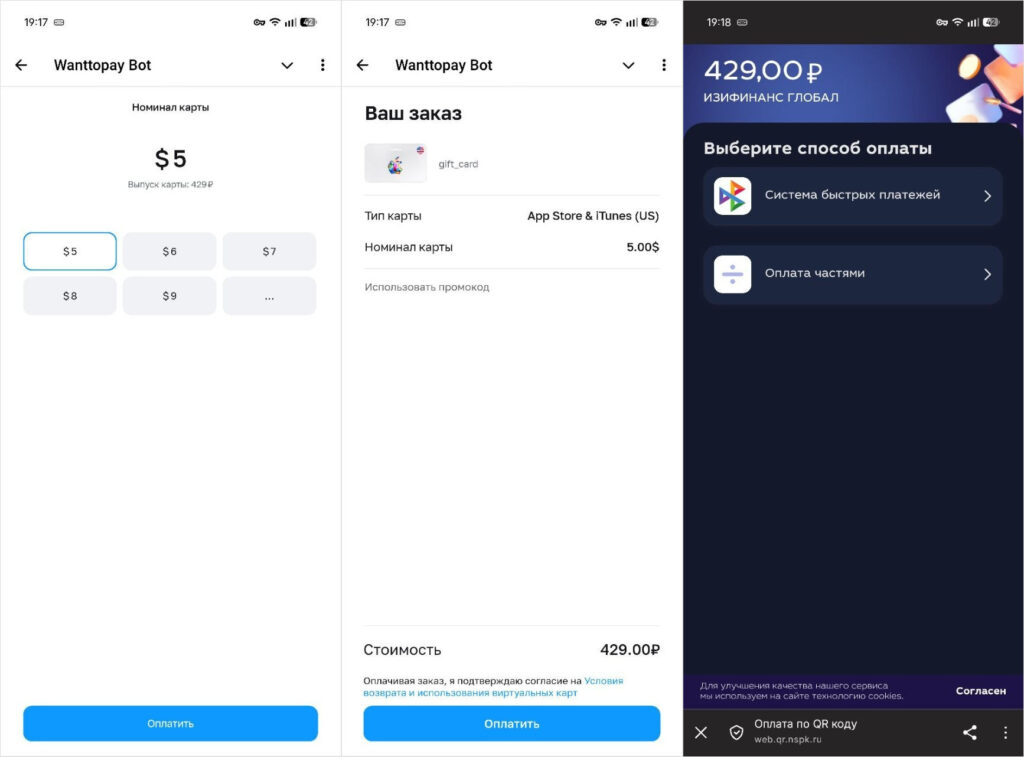
WantToPay has different card denominations
One card covers all Apple services: iCloud+, Apple TV+, App Store, Apple Arcade. It can also be used to pay for other international services. Plus, WantToPay sells it with a minimal markup compared to other services, so you don’t overpay.
How to Pay for Apple Music with a Gift Card
Compared to regular bank cards, an Apple gift card is more convenient because it doesn’t require linking to a bank account. You buy the desired denomination from WantToPay, enter the code in the App Store, and the money is credited to your Apple ID balance. Here’s how to do it.
- Open the App Store on your iPhone and tap on the icon