The wait is over: WWDC 2026 is behind us, and Apple has distributed the first builds of all its systems to developers. Among them is the new iPadOS 27, which some people stayed up all night for. After last year’s revolution with windows, no one expected major shakeups from the tablet OS, but they were wrong: there’s plenty of good stuff inside. You can install the beta today, and you don’t even need a developer account for it.
Figuring out iPadOS 27 installation
Which iPads Support iPadOS 27
Before rushing to update, let’s slow down. The first developer beta is not a final firmware — it’s a testing ground. Apps crash here, English pops up in menus, and the battery drains before your eyes. Installing this on your daily driver tablet is a gamble you usually lose. Still decided to go for it? Then the first thing to do is make a backup on your computer. Rolling back without one without losing data won’t work, and losing photos and notes because of a raw beta is the most frustrating thing.
Now to the lists. Apple was gentle with smartphones this year, and was generous with tablets too — the entry threshold remained low, so the update will reach even older models. Here’s the full list of iPads that will get iPadOS 27:
The old-timer with a button also got the update
- iPad Pro 11-inch (2nd generation and newer, A12Z+);
- iPad Pro 12.9-inch (4th generation and newer, A12Z+);
- iPad Air (4th generation and newer);
- iPad (9th generation and newer);
- iPad mini (6th generation and newer).
A chip older than M1 means that smart features will pass you by — Apple Intelligence on a tablet requires at least an M1 and 8 GB of RAM.
What’s New in iPadOS 27
The face of the update is Siri, rewritten from scratch. It’s now a standalone app and almost a full-fledged AI conversationalist, rather than a machine dispensing pre-made answers. There are rumors that the processing is no longer handled solely by Apple itself, but we’ll judge by the release, not by leaks. Along with it came Write with Siri for typing text directly from the keyboard, an Ask Siri button for any selected text fragment, and system-wide grammar checking. With a physical keyboard on the tablet, this feels native.
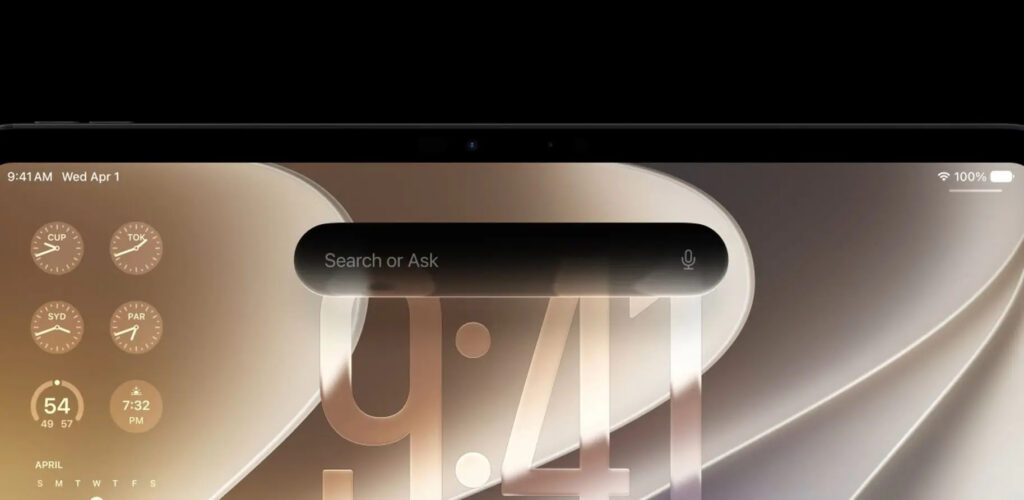
The main attention is drawn to the new Siri and its capabilities
Multitasking has also been improved — the very one that was turned upside down a year ago. The menu bar can now be pinned to the screen permanently, so you don’t have to invoke it with a gesture every time. Windows close and switch noticeably faster, the status bar now shows the name of the active app, and iPhone apps have finally learned to adjust their size instead of awkwardly stretching across the entire display.
Design? Liquid Glass has been refined and put in the user’s hands: there’s less glass, more readability, and plenty of appearance settings. But the main thing is hidden under the hood. Apple has seriously tackled optimization: apps open up to 30% faster, and a new software CPU scheduler speeds up even older models. For owners of older iPads, this is arguably the best news of the year.
There’s plenty of smaller stuff too. Screen Time and parental controls have been overhauled, Safari now automatically organizes tabs by topic, Photos got slideshow customization, and iCloud shared albums now open even on Android and Windows. A year without loud revolutions, but with a focus on speed and stability.
How to Update iPad to iPadOS 27
Your model is on the list, backup is done — let’s go. Installing iPadOS 27 looks like this:
- Open the Apple Developer portal;
- Sign in with your Apple account;
- Agree to the license and wait for the “Tools and resources” page;
- On the tablet, go to “Settings” — “General”;
- Tap “Software Update,” then “Beta Updates”;
- Select “iPadOS 27 Developer Beta” and go back;
- Wait for the system to find the firmware, and install it like a regular update.
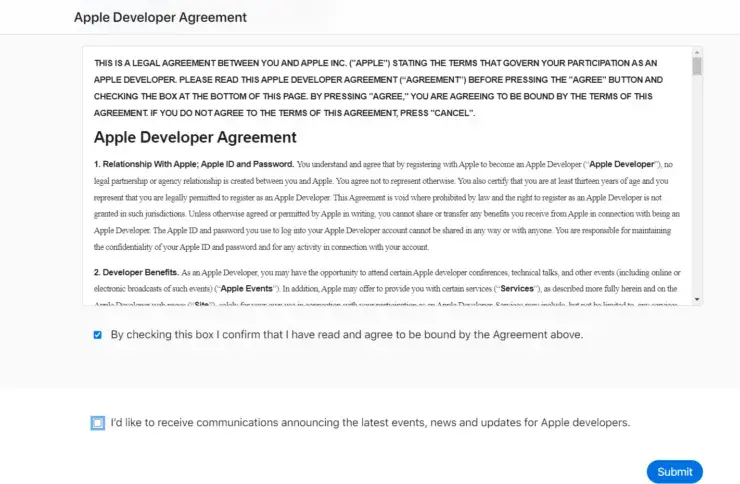
Accept the license agreement
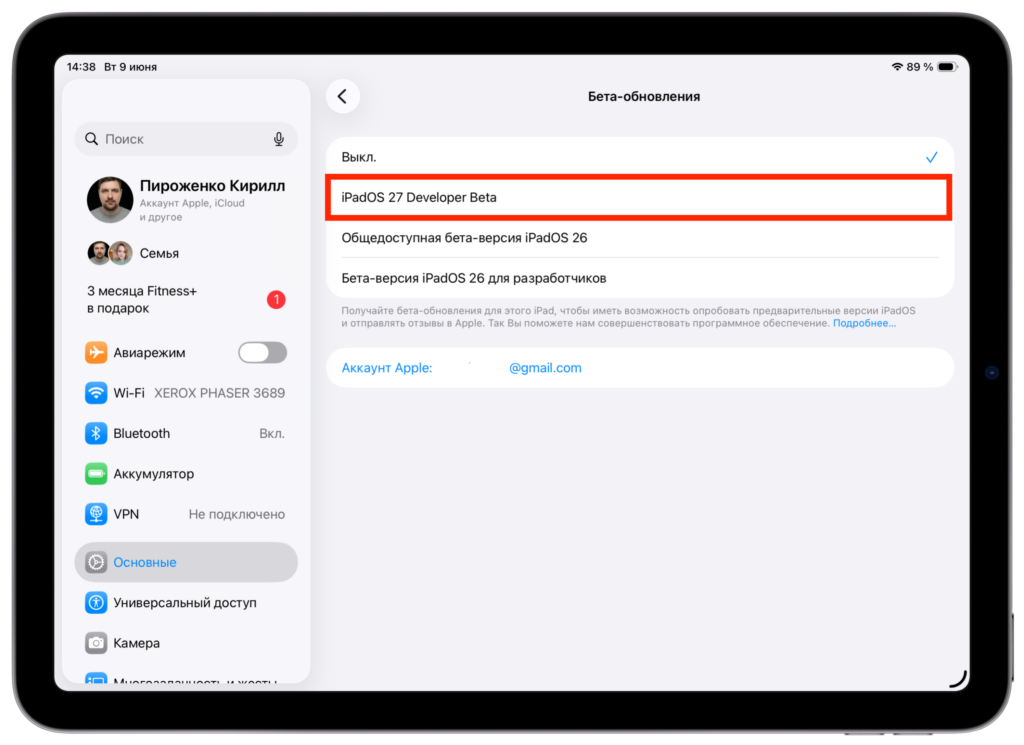
Switch to the iPadOS 27 beta
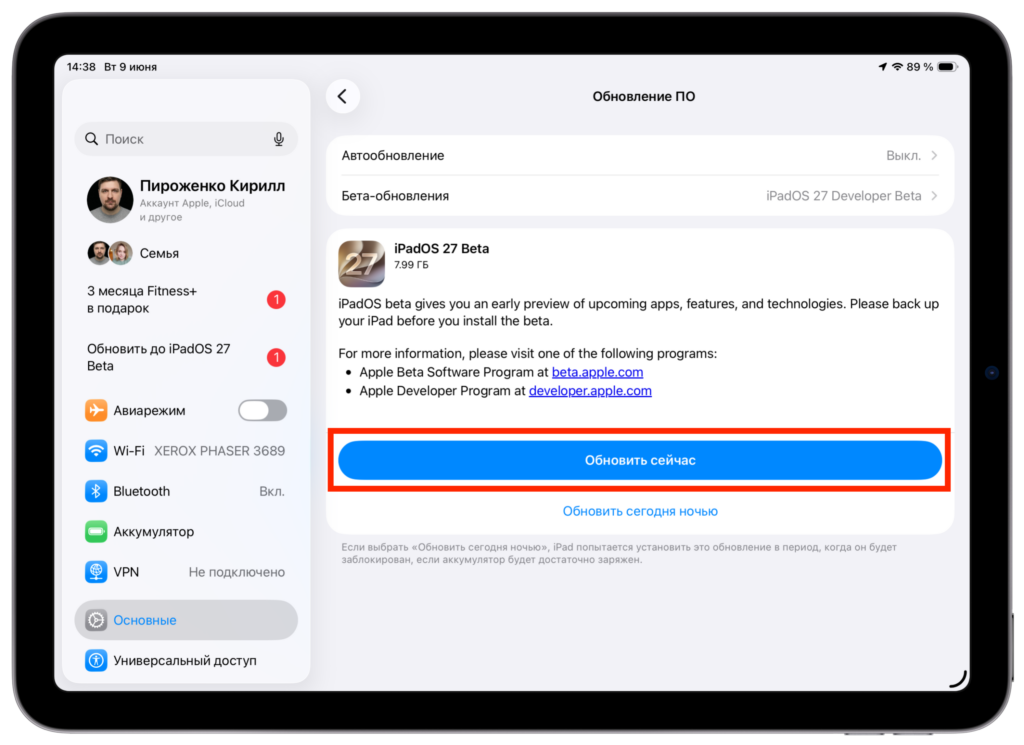
Download and install the update
The whole process takes a few minutes plus download time. The firmware downloads over the air — no cable or computer needed. There are two conditions: a stable Wi-Fi connection and at least 50% battery, otherwise the process simply won’t start.
Can’t see the beta option? Restart your iPad and make sure the Apple ID on the tablet is the same one you used to agree to the terms on the website — the list sometimes takes a while to appear.
Should You Install the iPadOS 27 Beta
Let me remind you once more, without beating around the bush: right now iPadOS 27 is a raw developer build designed for catching bugs. It’s better not to feed it to your only tablet in the house, or you risk being left with a device that drains to zero and a pile of bugs to deal with.
The best scenario is to test the new version on a spare iPad. Don’t have one? There are two patient paths. You can wait for the public beta in July: it’s much more stable and open to everyone. Or you can not rush at all and install the final version in the fall, when Apple rolls out iPadOS 27 for everyone alongside the new iPhones.
And if the new version doesn’t suit you, you can always go back to the previous version — the rollback process is similar to reverting on iPhone. In short, weigh the risks and only then reach for the update button. Curiosity drives progress, but a working tablet is worth more.