If you’ve ever accidentally sent a blank voice message in iMessage — a few seconds of breathing and background noise — because your finger slipped onto the audio recording icon instead of the send button, iOS 27 finally offers a fix. Apple’s latest update introduces a new setting that lets you customize the iMessage text input bar, removing the audio message button, the dictation microphone, or both. The change means accidental voice messages can be eliminated entirely, while intentional audio recording remains accessible through the app menu.
What you need to know
- iOS 27 and iPadOS 27 add a new “Show in Text Field” setting for iMessage, offering three options: no icon, audio recording, or dictation microphone.
- The problem stems from the send button and the audio/dictation icon sharing the same screen position, leading to frequent accidental taps — especially on larger iPhone models.
- Even after removing the button, audio messages can still be sent via the plus (+) menu in the message input bar.
- As of publication, iOS 27 and iPadOS 27 are available only in beta, so users should install them with an understanding of potential instability.
Why iPhones accidentally send voice messages
The root cause is an interface design issue. When the text input field in iMessage is empty, the spot normally occupied by the send button displays either an audio waveform icon (for voice messages) or a dictation microphone icon. Two different functions share the same screen location, and a finger accustomed to tapping the lower-right corner of the screen regularly hits the wrong target. This is especially common on larger models like the iPhone 16 Plus, where reaching the corner of the screen requires more of a stretch.
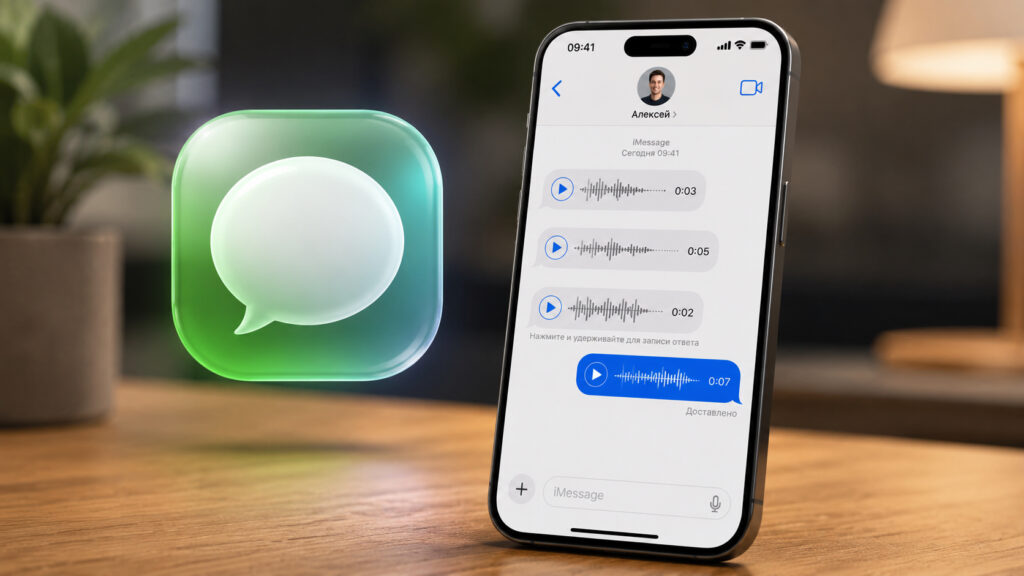
Accidental voice messages in iMessage are surprisingly common
The dictation microphone is arguably worse: a single accidental tap pauses any music playing through headphones, even if only for a split second. According to the source, in December 2025 Justin Bieber publicly complained about this issue, posting a screenshot of his messenger with the microphone icon circled and writing that the send button should not serve multiple functions in the same screen location. The post reportedly went viral, and it appears Apple took notice.
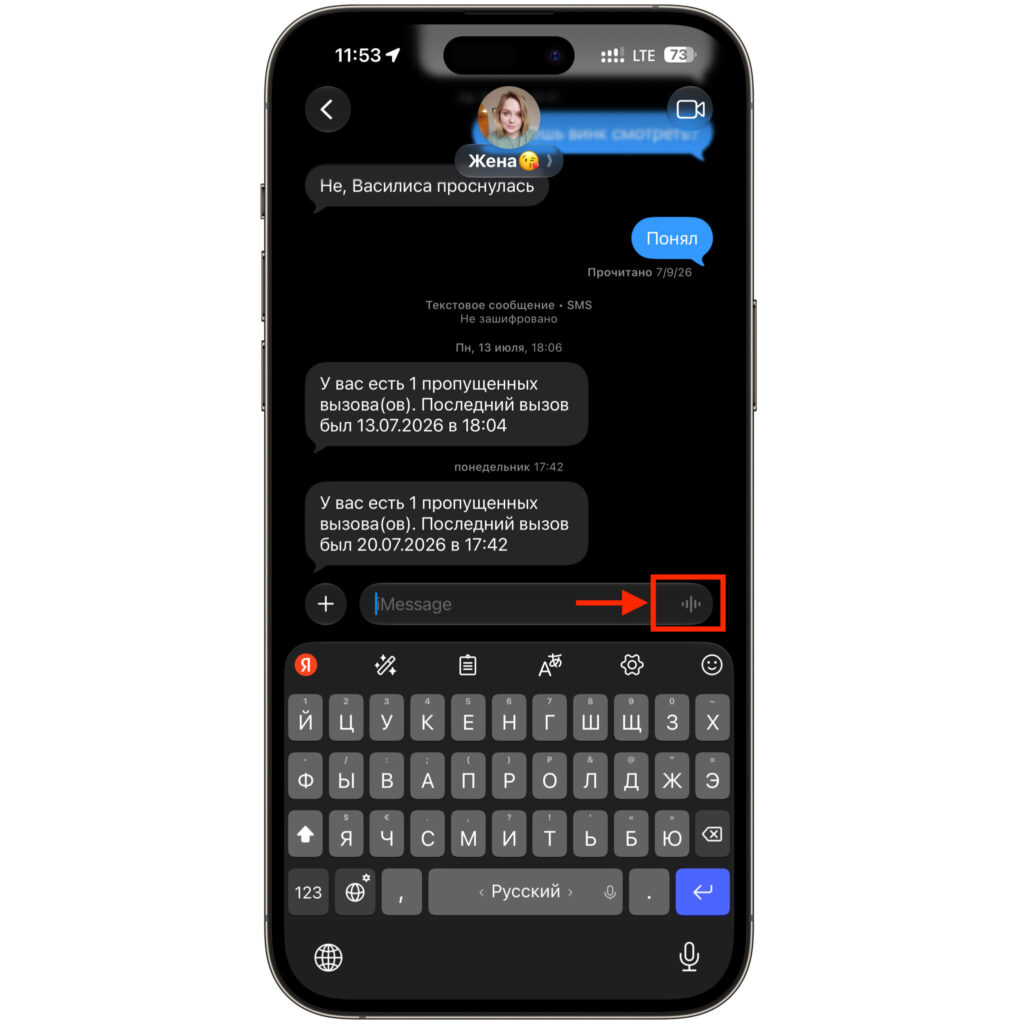
This button is the source of the problem
The result is visible in the iOS 27 and iPadOS 27 beta. Users can now choose what appears in the input field: the waveform for voice messages, the microphone for dictation, or nothing at all.
How to disable the voice message button in iMessage
The setting is located in a new app-specific menu rather than the main settings area, which is why many users may not find it on their own. The process takes about a minute:
- Update your iPhone or iPad to iOS 27 or iPadOS 27. Note: at the time of the source’s publication, both operating systems are available only as beta releases, so install them with an understanding of the associated risks.
- Open the Settings app and scroll to the bottom.
- Select “Apps,” then find and tap “Messages” in the list.
- Tap the new option labeled “Show in Text Field.”
- Choose from the three available options and exit Settings. Changes take effect immediately — no restart is required.
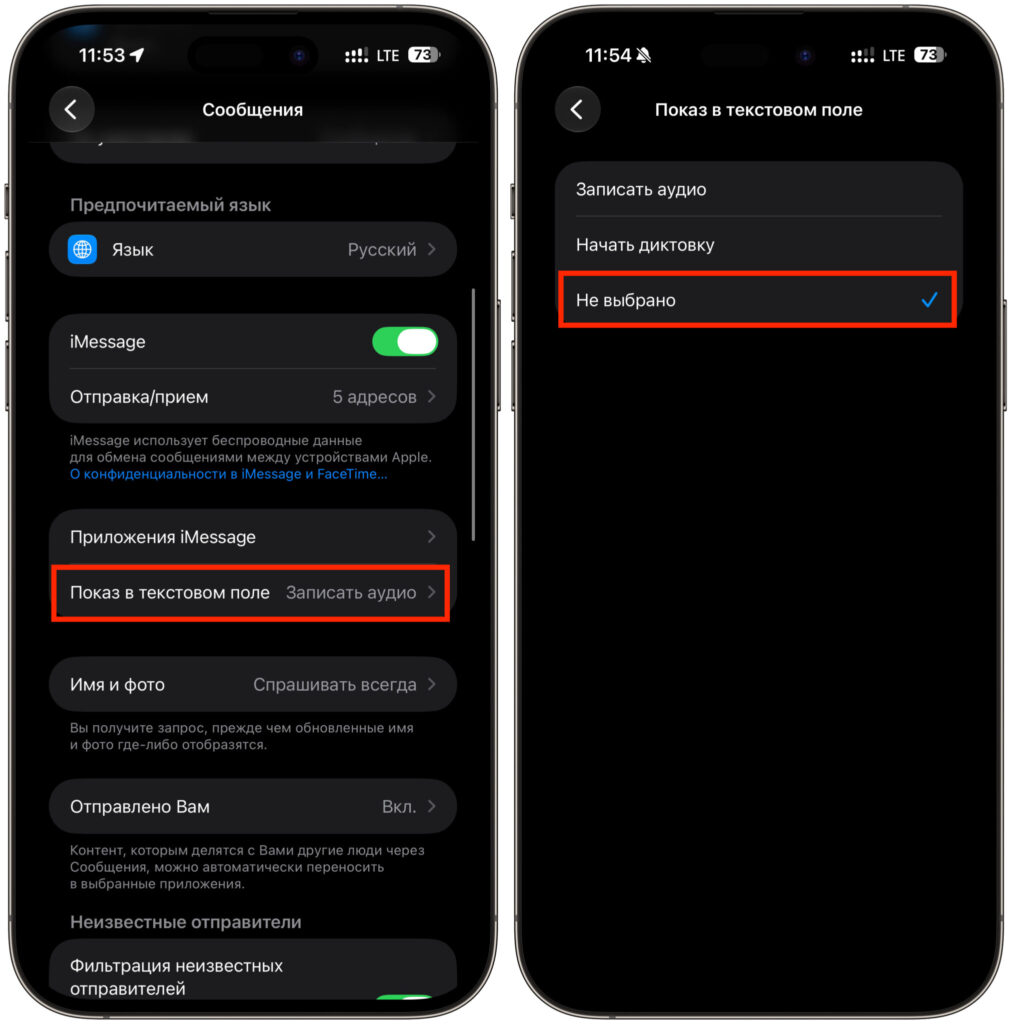
No more unnecessary buttons in the text input field
What each option does
- None selected: Completely clears the input bar of any icons on the right side. According to the source, this is the option most users will want.
- Record Audio: Keeps the audio waveform icon. A long press starts recording a voice message.
- Start Dictation: Keeps the microphone icon, which converts speech to text. This is the option that pauses music playback when accidentally triggered, so users who frequently listen to audio in the background should avoid it.
How to send a voice message after disabling the button
Removing the button from the input bar does not eliminate the ability to send audio messages. It simply requires a deliberate action rather than a single tap in the corner of the screen:
- Open the desired conversation in the Messages app.
- Tap the plus (+) icon to the left of the text input bar.
- Select “Audio” from the menu that appears.
- Record your message and send it using the upward arrow. You can also listen to the recording before sending and delete it if needed.
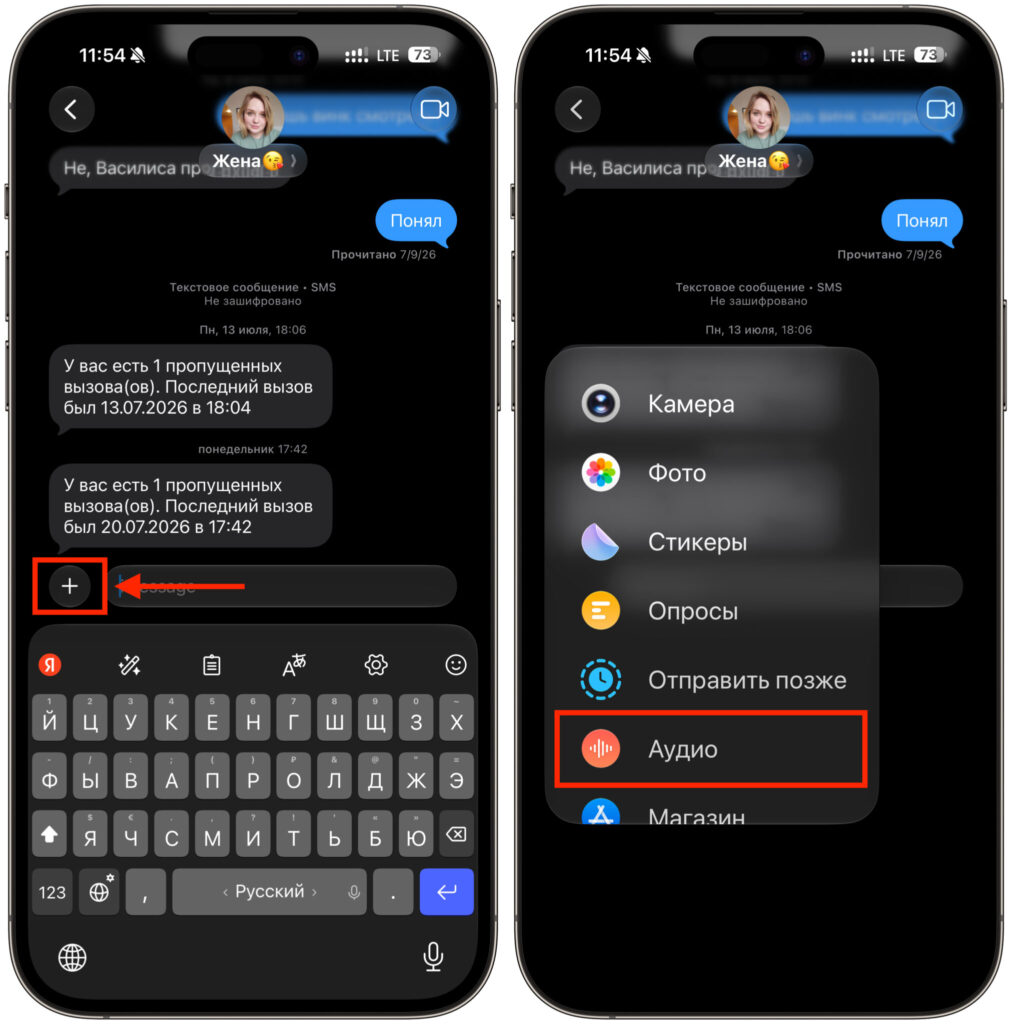
Sending voice messages this way is much more reliable
Dictation also remains available. The standard iOS keyboard includes a large microphone button at the bottom, which is much easier to tap accurately than the tiny icon in the corner of the input bar. Because the keyboard microphone and the send button are on opposite ends of the screen, accidental activation is essentially impossible.
What to do if dictation isn’t working on your iPhone
Some users may find after changing these settings that the microphone button is missing from the keyboard entirely. The most common reason is that dictation has been disabled in the keyboard settings. To re-enable it:
- Open Settings and go to “General.”
- Tap “Keyboard.”
- Scroll down to the “Enable Dictation” toggle and turn it on.
- Confirm the activation in the pop-up dialog and return to Messages — the microphone button should appear on the keyboard immediately.
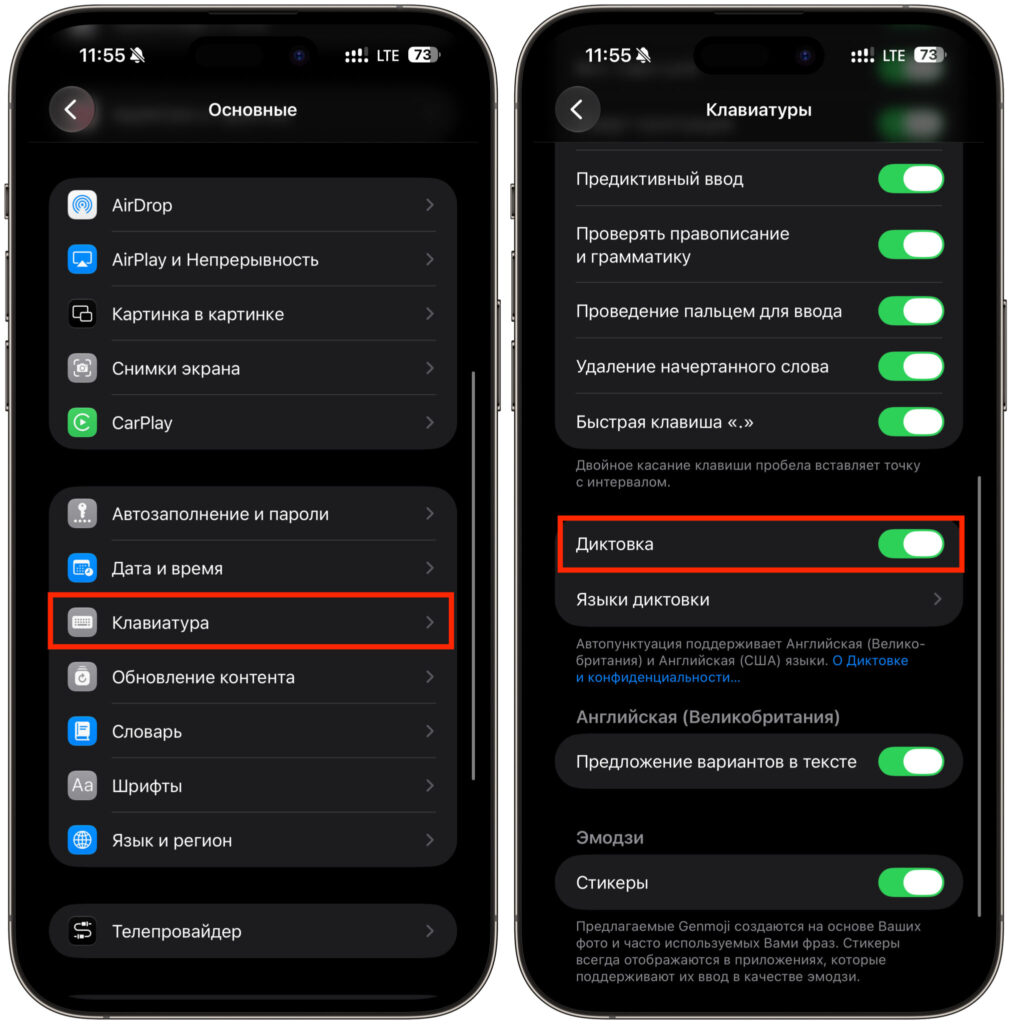
Dictation may be disabled here
If the microphone button is present but speech isn’t being recognized, check the keyboard language and internet connection. Some languages require downloading an offline model, and the first dictation attempt after an update may take slightly longer than usual. Another common cause is Low Power Mode, which can sometimes throttle background tasks.


