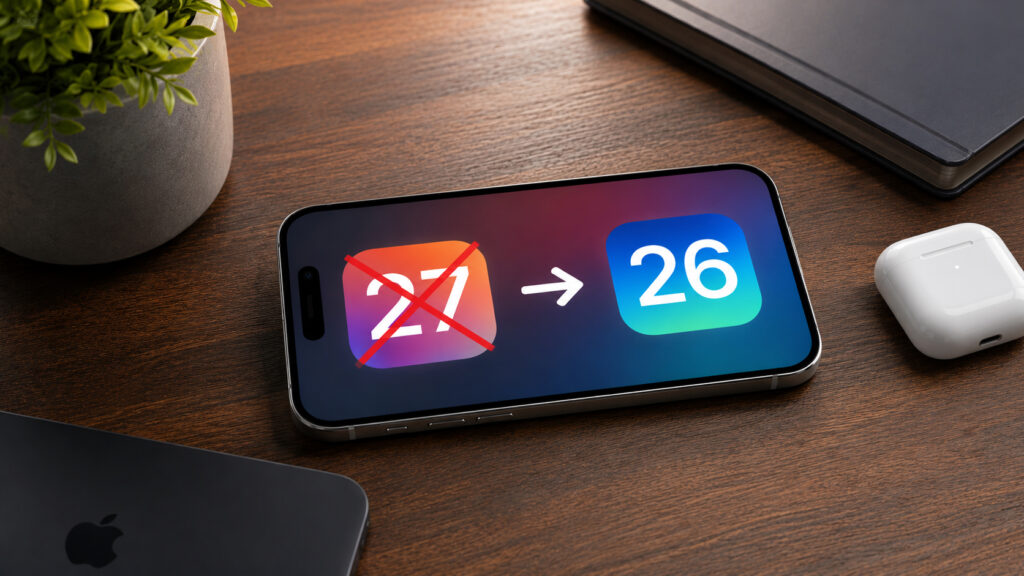
iOS 27 has just arrived, and many have already installed the first iOS 27 beta, only to realize they want to go back. The first beta is always a gamble. Battery drain, app crashes, bugs in the most unexpected places. Curiosity quickly turns to frustration when your smartphone refuses to work properly. If you can’t take it anymore, there’s a way out. Going back to the stable iOS 26 takes about half an hour. The key is to do it via a computer with the current firmware. Here’s a step-by-step guide.
First betas are never known for stability
Problems After Installing the iOS 27 Beta
The developer beta is released for developers, not for everyday use. Apple honestly warns about this. The first builds are raw: banking apps refuse to launch, the camera stutters, and the smartphone simply doesn’t last until the end of the day. The main pain point is battery life. On a fresh beta, an iPhone can heat up and lose charge right before your eyes. The system isn’t optimized yet, and background processes run out of control. Yes, this doesn’t happen on every smartphone, but it does occur.
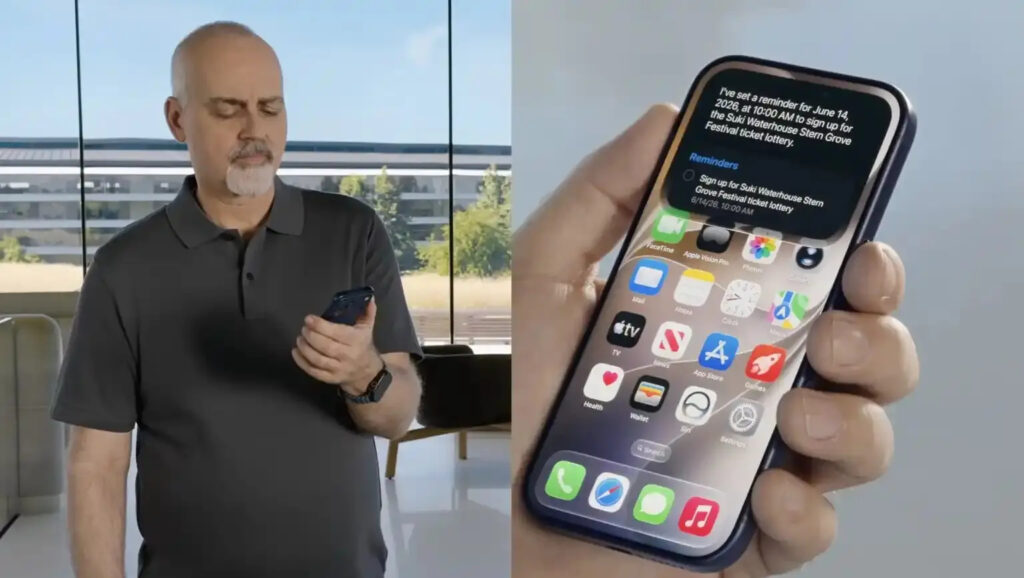
Besides, the new Siri doesn’t understand Russian, so what’s the point of staying on iOS 27
Add to that the small annoyances that pile up. Widgets stop updating. Some apps crash on launch and take their data with them. Individually tolerable, together — unbearable. There’s another nuance too. Rolling back without losing data isn’t always possible. If you’ve already made a backup on iOS 27, you won’t be able to restore it on iOS 26 — the system doesn’t accept backups from a newer version. That’s why preparation is everything.
What to Do Before Restoring iPhone to an Older iOS
Before downgrading, you need to get organized. The process completely erases the iPhone, so without a backup, you’ll lose all your content. Rushing will only hurt you.
Do the following:
- Check if you have a backup made on iOS 26. An iCloud archive or a computer backup made before installing the beta will work.
- If there’s no backup, manually export important items — photos, notes, documents. Copy them to the cloud or to your computer.
- Check your messengers separately. Telegram chats will sync from the cloud, but WhatsApp conversations require a manual backup.
- Disable “Find My iPhone”. Without this, the restore won’t start. Path: Settings — your name — Find My.
- Charge your iPhone to at least 50% and prepare an original cable. A disconnection during the firmware process will turn your smartphone into a brick.
- Update macOS or iTunes on your computer to the latest version.
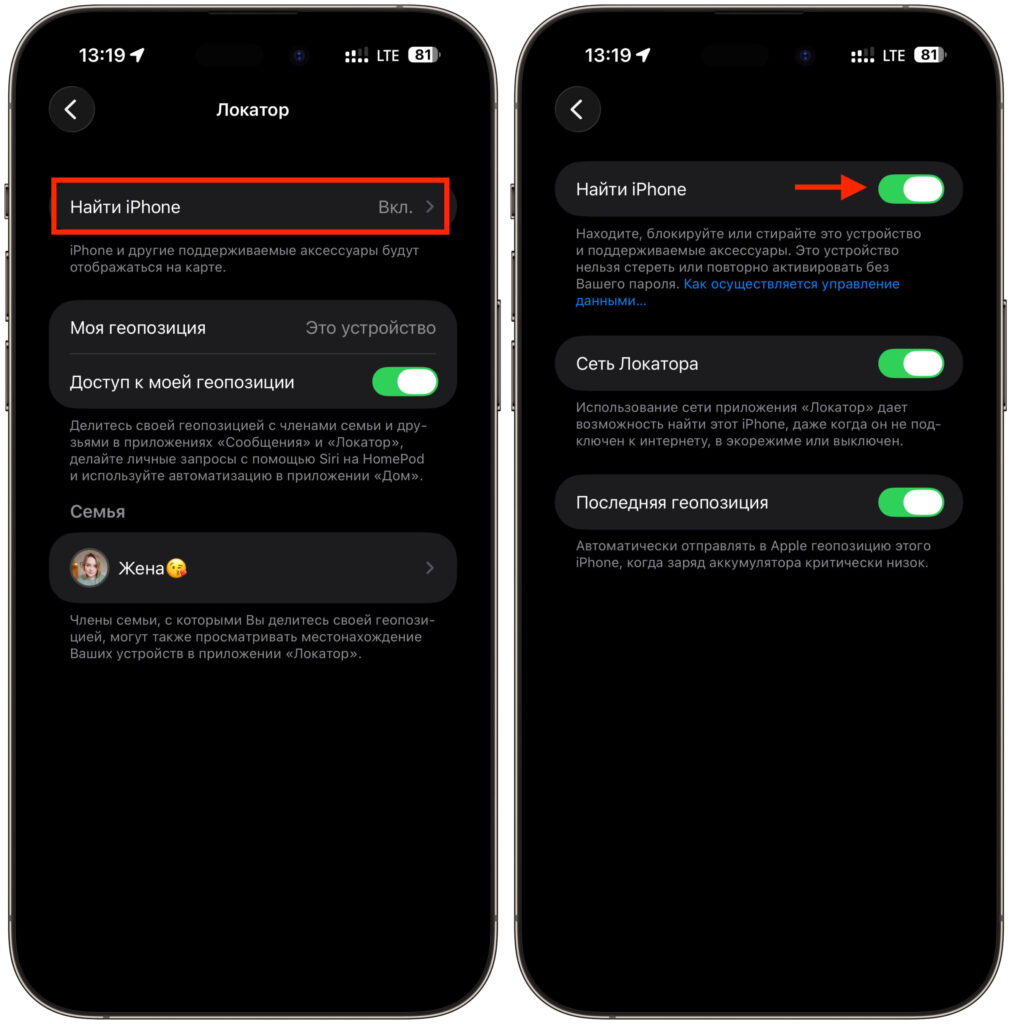
Turn off this toggle before downgrading
The downgrade itself is built on one principle: you download a firmware file and manually feed it to the iPhone.
How to Restore iPhone via Finder or iTunes
The principle is simple. You download the iOS 26 firmware file and install it instead of the beta through recovery mode. Apple is still signing the current version, so the installation will proceed normally. No jailbreaks or third-party utilities — just official software. Follow these steps:
- Download the iOS 26 firmware for your model from this link. Get the .ipsw file specifically for your iPhone model — there are no universal firmware files.
- Connect your iPhone to the computer with a cable and open Finder on macOS or iTunes on Windows.
- Hold the “Option” key on Mac or “Shift” on Windows and click “Restore.”
- A file browser will open. Select the downloaded .ipsw file with iOS 26.
- Confirm the restore and wait for it to finish. The iPhone will restart several times — don’t touch the cable.
- After installation, set up your smartphone from scratch and restore data from your iOS 26 backup.
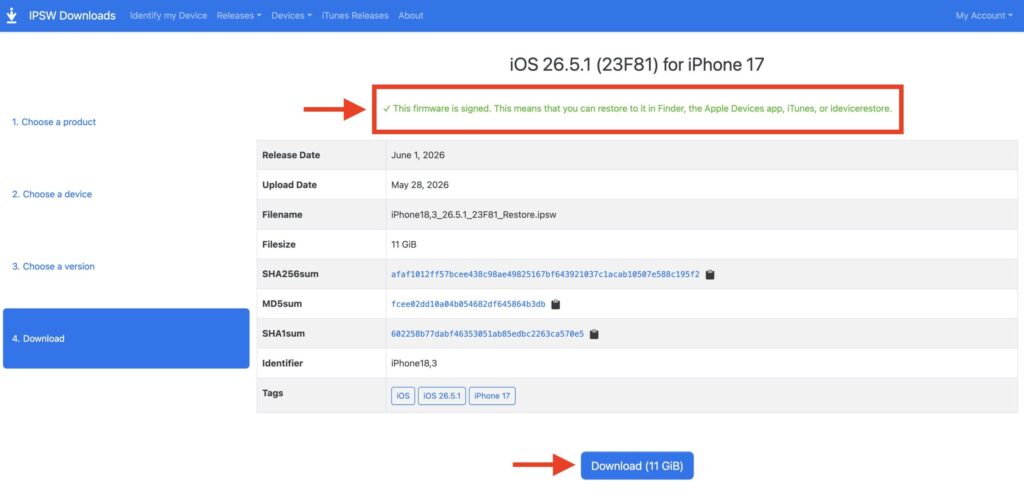
Download the firmware with a green status
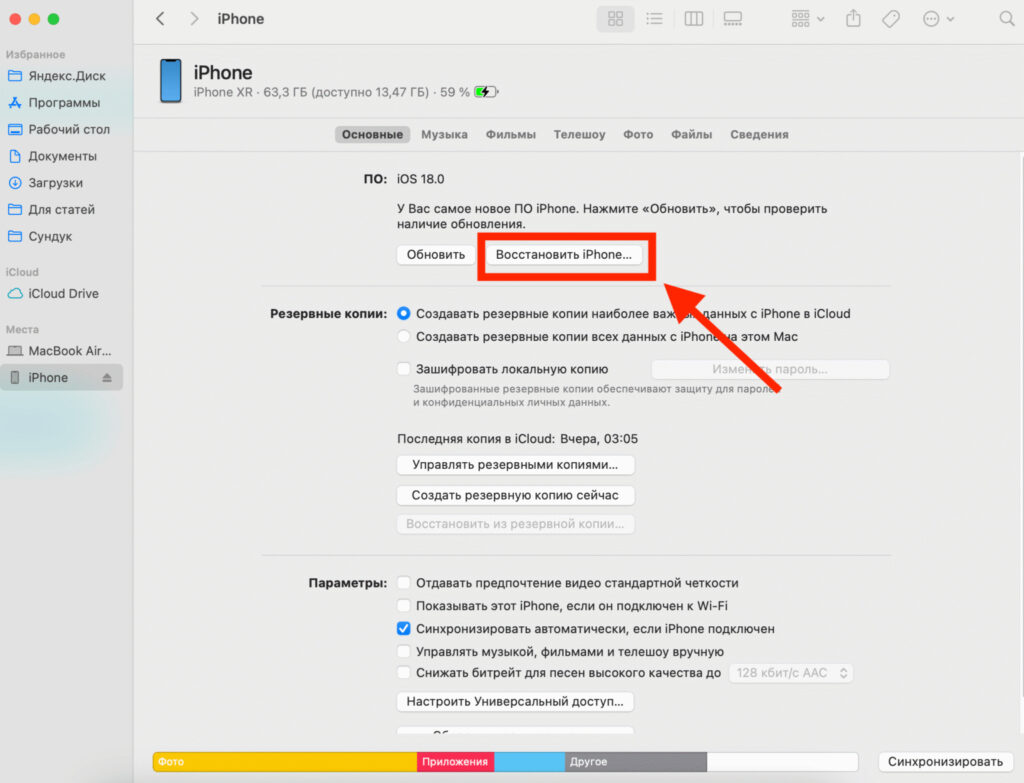
And add it to your smartphone through restore
The entire process takes 20-40 minutes depending on your internet speed and computer. The longest part is downloading the firmware itself — it’s close to 7-8 GB. If the Apple logo stays on the screen for a long time, don’t panic: the final unpacking is happening on the iPhone itself and can take a while.
Sometimes the restore fails with an error. Most often it’s caused by a bad cable, a weak USB port, or antivirus software on Windows. Switch the port, try a different cable, and try again — it almost always helps.
How Long Is the Downgrade Available After a New iOS Release
Here lies the key point. You can only downgrade to a version that Apple is signing right now. Signing is the permission from Apple’s servers to install a specific firmware. No signature — no installation.
As long as iOS 27 remains in beta status, the current iOS 26 is being signed without restrictions. But once Apple releases the final version and closes the signature for previous versions, the way back will disappear. This usually takes a couple of weeks after the public release.
The conclusion is simple. If the beta didn’t work out for you, don’t delay the downgrade. The sooner you return to iOS 26, the higher the chance that the needed version is still being signed. You can check the current status on the ipsw.me service — it clearly shows which Apple firmware versions are still allowed on devices. And remember the main beta rule: only install it on a spare iPhone. Then the downgrade question won’t come up at all.