Your smartphone is in your pocket, and just a minute after landing at an airport in a foreign country, money starts being deducted from your balance. Nobody pressed anything — the phone was just sitting there. That’s roaming. Here I’ll focus on the specifics: how to disable roaming on Android and avoid an unpleasant surprise in the form of a bill from your carrier.
Disabling roaming on your smartphone
What Is Roaming in Mobile Communications
Roaming in Russia and beyond its borders means your smartphone connecting to a third-party carrier’s network when your home network is unavailable. This happens automatically: the smartphone searches for available networks on its own and connects to the nearest one. No additional action is required from you.
Roaming activates automatically.
The problem is that roaming services cost entirely different money. Russian carriers on average charge around 500 rubles per day for a basic package upon first connection to a foreign network. But that’s just the beginning: if no package is activated, every minute of roaming for calls and every megabyte of internet in roaming is billed separately (the numbers are unpleasant). Moreover, money is deducted not only for your deliberate actions. Background apps, auto-updates, photo syncing, email checking — all of this happens on its own and consumes data even when the phone is sitting on the table.

Roaming means connecting to another network
A separate topic is roaming abroad in border zones. A smartphone can automatically switch to a neighboring country’s network even while physically in Russia, if the domestic signal is weaker there. This is called national roaming, and you can be charged for it too.
When You Should Disable Roaming and When You Shouldn’t
It all depends on the situation. Sometimes it’s better to disable roaming right away, and other times you don’t need to take any additional steps. Let’s look at both scenarios.
When it’s better to disable roaming:
- you’re going abroad and don’t plan to use mobile internet (it’s better to use Wi-Fi at the hotel);
- you don’t have an activated roaming package from your carrier, and you don’t want to spend money on per-minute billing;
- you’re taking a child with a separate SIM card (it’s better to disable roaming preemptively);
- you live or work in a border zone and your phone constantly picks up networks from neighboring countries.
When you shouldn’t disable roaming:
- you’ve activated an affordable roaming package from your carrier and plan to use it;
- it’s important for you to stay reachable by phone calls (disabling data roaming doesn’t disable voice calls, but it’s better to verify this in advance);
- you’re using a Russian SIM card abroad to receive confirmation codes from banks.
Roaming costs vary significantly between carriers. Before your trip, it’s worth checking your carrier’s app to see if there’s an affordable package available.
How to Disable Roaming on Your Phone Through Your Carrier
This is the most reliable method, especially if you want to disable not just internet but all roaming connectivity entirely. Carrier apps allow you to manage services in just a few taps.
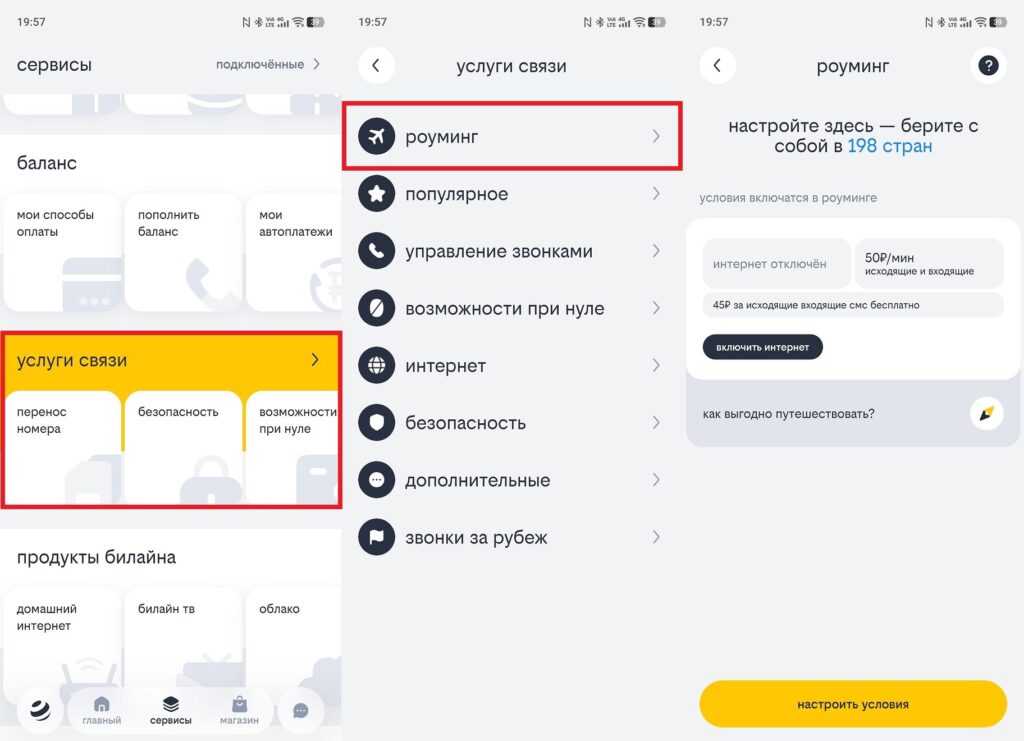
The process is more or less the same across all carrier apps
MTS — “My MTS” app:
- Open the “My MTS” app on Android.
- Go to the “Services” or “Service Management” section.
- Find the “Roaming” section and select the desired SIM card.
- Disable all active roaming services or specifically data transfer.
- Confirm the change.
Beeline — “Beeline” app:
- Open “My Beeline” and log in.
- Go to “Services — Roaming.”
- Disable data transfer or roaming entirely.
t2 (formerly Tele2) — “t2. Next Level” app:
- Open the app and log into your account.
- Go to “Services — Roaming.”
- Select “Disable” for the desired service.
MegaFon — “MegaFon” app:
- Open the MegaFon app.
- Go to “Services.”
- Find roaming services and disable the ones you need.
If the app isn’t available at the moment, call your carrier’s hotline or manage services through your personal account on the website. Most carriers also support USSD commands for quick roaming management directly from the dialer.
Disabling Roaming Through Android Settings
This method disables mobile data transfer in roaming at the smartphone level. It’s faster than going into the carrier’s app, but it only blocks internet, not voice calls. Instructions differ depending on the UI skin.
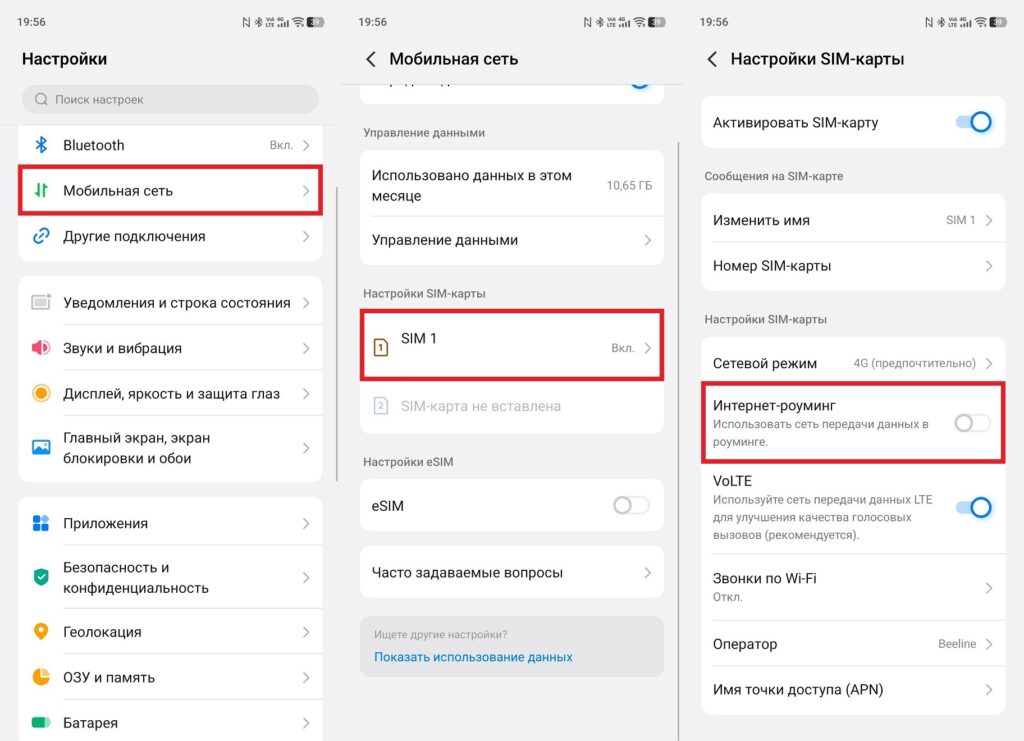
Through smartphone settings, only roaming internet is disabled
Stock Android (Google Pixel):
- Open “Settings.”
- Go to “Network & internet — Mobile network.”
- Find the “Data roaming” option and toggle it off.
- If you have two SIM cards — repeat for the second one.
Xiaomi and REDMI (HyperOS, MIUI):
- Open “Settings.”
- Go to “SIM cards and mobile networks.”
- Tap on the desired SIM card.
- Find the “Data roaming” option and disable it.
Samsung (One UI):
- Open “Settings.”
- Go to “Connections — Mobile networks.”
- Find “Data roaming” and toggle the switch to “Off.”
HONOR (MagicOS):
- Open “Settings.”
- Go to “Mobile network — Mobile data.”
- Find the “Internet roaming” option and disable it.
After changing the settings, restart your smartphone (this ensures the changes take effect). Check the result: there should be no roaming icon in the status bar when in a foreign carrier’s coverage area. Configuring roaming through both methods simultaneously (at the carrier level and at the phone level) provides maximum protection against accidental charges.


