KHL playoffs, Champions League, FIFA World Cup — you want to watch all of this on a big screen, not squint at your phone. But if you don’t configure your Smart TV after purchase and just turn it on out of the box, a match can easily turn into a slideshow: the picture smears during fast movements, the sound falls out of sync with the video, and at a crucial moment — hello, buffering. The good news is that you can set up a TV for sports in about 15 minutes of adjustments. The tips below apply to Android TV, Google TV, and most Smart TVs on other operating systems — even budget ones.
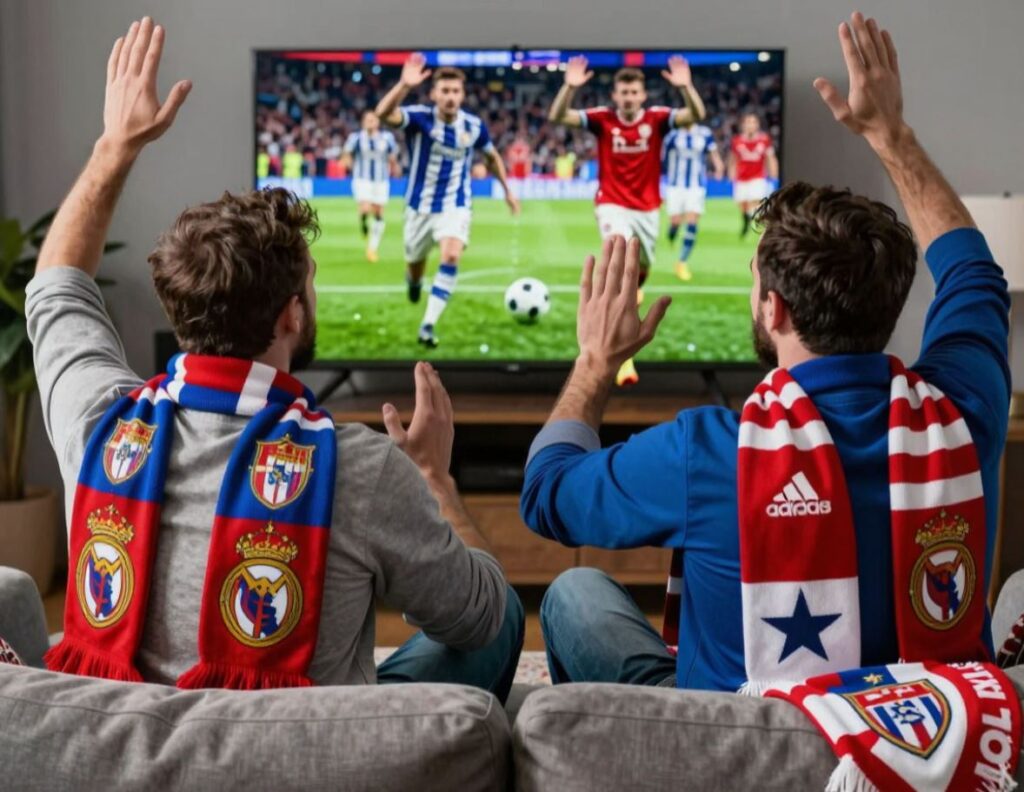
Here’s how to properly set up a Smart TV for sports
What Internet Speed Do You Need for Sports Broadcasts on Smart TV
The main enemy of sports content is an unstable connection. The minimum you should aim for: 25 Mbps for Full HD and 50 Mbps for 4K HDR. But speed isn’t the only thing that matters. What’s far more critical is stability, and here a wired Ethernet connection always beats Wi-Fi: fewer delays, no freezes in those moments when all your neighbors tune into the same match.
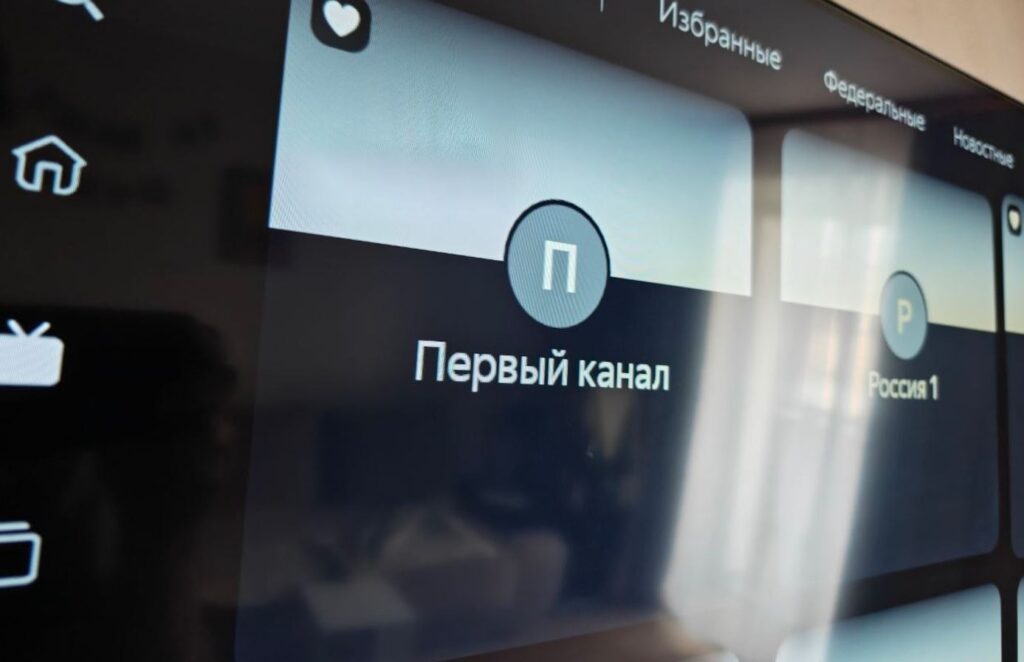
If possible, watch broadcasts via cable TV rather than through an app
If there’s nowhere to run a cable — use 5 GHz Wi-Fi and place the router in direct line of sight of the TV. Before the broadcast, run a speed test right on Android TV and disable heavy downloads on other devices in the network. When the KHL playoffs or Champions League final are on, extra megabits on the network definitely won’t go to waste.
Apps for Watching Sports on Android TV in 2026
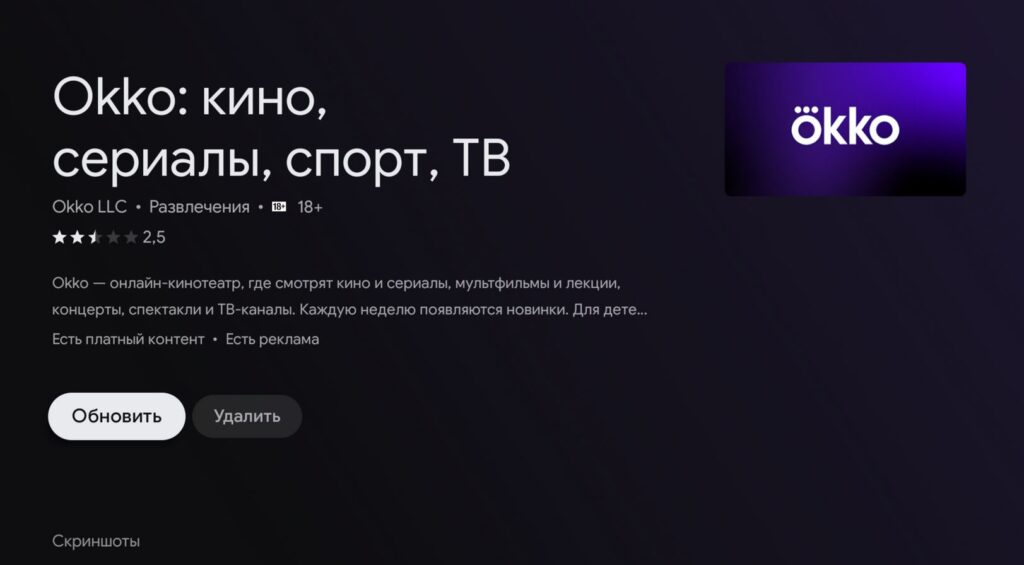
Make sure to update the app before watching
In Russia, all major sources of sports broadcasts are now available online. You can watch from any device.
- Match TV — RPL, KHL playoffs, La Liga, Serie A
- Kinopoisk Sport — La Liga, Serie A, Copa del Rey, UFC Russia Cup
- Okko Sport — Champions League, Europa League, Conference League, VTB League
Where to download apps with sports broadcasts? Kinopoisk comes pre-installed on all TVs, and so does Okko. It’s better not to delete them, as some may not be available in app stores.
- Google Play — Kinopoisk.
- RuStore — Okko, Match TV
- Install APK manually — via a file manager, if the app isn’t available in any store.
- Aptoide TV and APKMirror — alternative catalogs with verified APKs.
Add the apps you need to favorites on the Android TV home screen by long-pressing the icon so you don’t have to search before a match. And make sure to disable automatic app updates: there’s nothing worse than Kinopoisk going into a restart one minute before a penalty kick.
Cable TV or Online Streaming — What to Choose for Sports
A non-obvious point that people usually forget: if you have the option to watch sports via cable TV — go with it. The delay over cable is lower than with internet broadcasts, sometimes by 30–60 seconds. No buffering, no freezing, the picture is stable even during peak hours. When you’re about to watch KHL playoffs or the Champions League final, this is critical — otherwise spoilers from friends on Telegram will arrive about 30 seconds before the puck crosses the goal line. Or you’ll hear your neighbors’ cheering first.
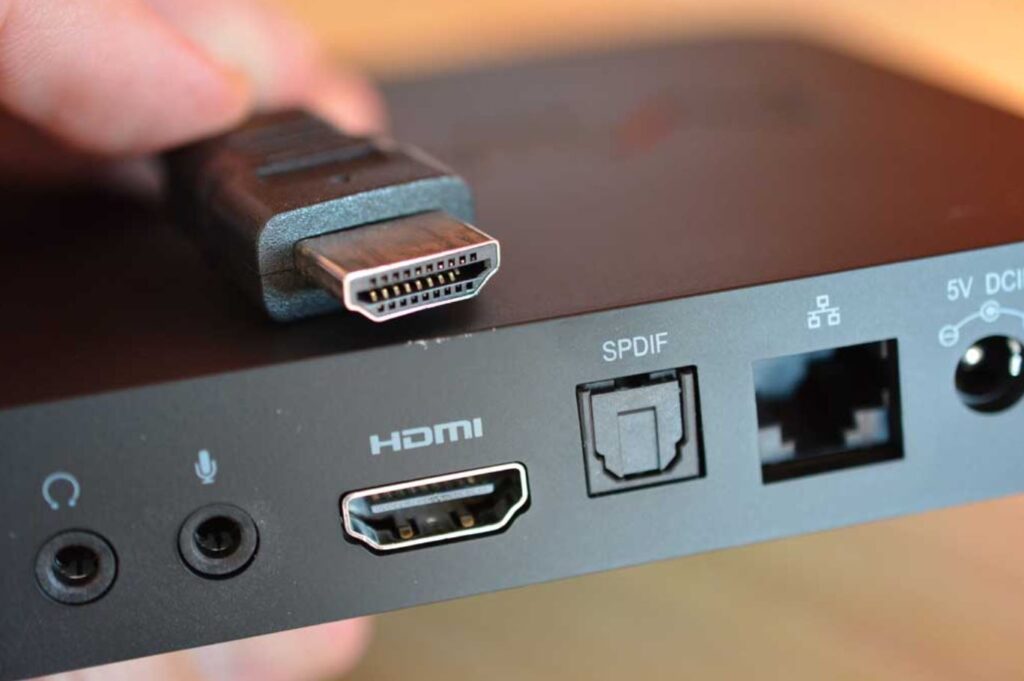
The best option is to connect the set-top box or TV directly to an Ethernet cable
If you don’t have cable TV, there are two working solutions.
- First — lower the broadcast quality in the app settings: Full HD instead of 4K drastically reduces bandwidth requirements and eliminates freezes.
- Second — connect the TV via Ethernet cable directly to the router.
- If running a cable is physically impossible, place a Wi-Fi extender or Mesh system near the TV. This genuinely stabilizes the signal and eliminates those micro-freezes that are most annoying in hockey and football.
In the worst case, if the broadcast still stutters, you’ll know for sure it’s not because of the Wi-Fi signal.
Picture Settings for Smooth Broadcasts
First — picture mode. Almost all Smart TVs have a “Sports” preset that automatically enhances the clarity of moving objects and boosts contrast. Next, enable motion smoothing (MEMC): on LG it’s called TruMotion, on Samsung — Auto Motion Plus, on Sony — MotionFlow. Don’t crank it to maximum — you’ll get the “soap opera effect,” where football starts looking like a cheap TV drama. Set it to a medium value.
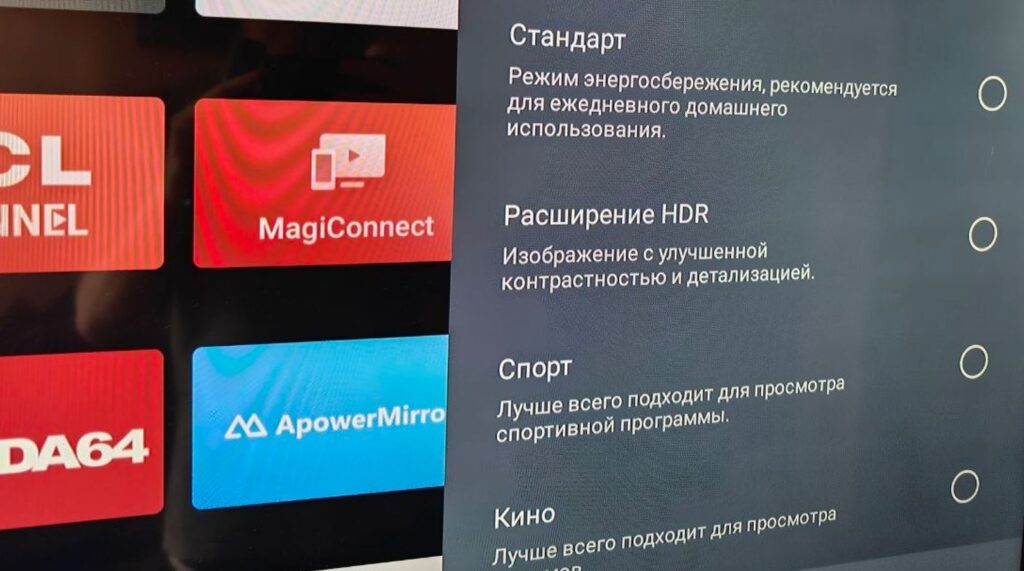
For the best effect, it’s better to adjust the picture through a dedicated mode
Refresh rate — at least 60 Hz, ideally 120 Hz. For FIFA World Cup matches and KHL playoffs, this directly affects smoothness. Make sure to disable energy saving — it cuts brightness and turns the green pitch into a swamp. If the broadcast is in HDR, enable the corresponding mode manually: the automatic setting doesn’t always kick in.
Sometimes Android TV itself can lag — apps stutter, the interface takes too long to load. In that case, you should optimize the system before the match, not during it.
How to Set Up Sound on a Smart TV
Sound during a sports broadcast is half the atmosphere. So in the settings, set an appropriate equalizer and choose the TV placement (wall-mounted or on a stand) — this way the sound will be directed properly. Additionally, we recommend paying close attention to the match commentary itself. If the commentator is frankly annoying or talking nonsense — you can turn them off entirely: Match TV and Okko have an option to switch to “clean stadium sound.”


