If you’ve upgraded to macOS Tahoe, you’ve probably already noticed: the familiar Launchpad is gone. Apple removed it after 14 years, replacing it with a new “Applications” window. It might seem like a small thing, but many people used Launchpad to delete apps downloaded from the App Store — you’d hold Option, tap the X, and done. Now this method is no longer available on Mac computers, and you need to find alternatives. Here’s how to delete any app in macOS Tahoe using two methods — through Finder and using the free AppCleaner utility.
Figuring out how to properly delete apps on a Mac
How to Delete Apps Without Launchpad
It used to be simple: open Launchpad, hold the Option key, the icons start “wiggling,” and an X appears on apps from the App Store. Click it — and the app is deleted. In macOS Tahoe, this workflow is broken because Launchpad itself no longer exists.
Instead, Apple offers an “Applications” window that opens by clicking the icon in the Dock. But this window has no delete function. It only shows a list of installed apps — and that’s it. No X buttons, no edit mode. So if you previously relied exclusively on Launchpad to clean your Mac of unwanted software, you’ll need to adapt. The good news is there are two reliable methods that work with any app. Let’s go through both.
Deleting Apps on Mac via Applications Folder
This is the simplest and most basic method that has always worked and continues to work in macOS Tahoe. It works for any apps — both from the App Store and downloaded from developer websites.
Here’s what you need to do:
- Open Finder and navigate to the Applications folder. The quickest way is to use the keyboard shortcut Command + Shift + A. Or select “Applications” in the Finder sidebar.
- Find the app you want to delete.
- Drag it to the Trash. Or right-click and select “Move to Trash.” Even faster — select the app and press Command + Delete.
- Confirm the action using Touch ID or the administrator password.
- Empty the Trash to permanently free up disk space.
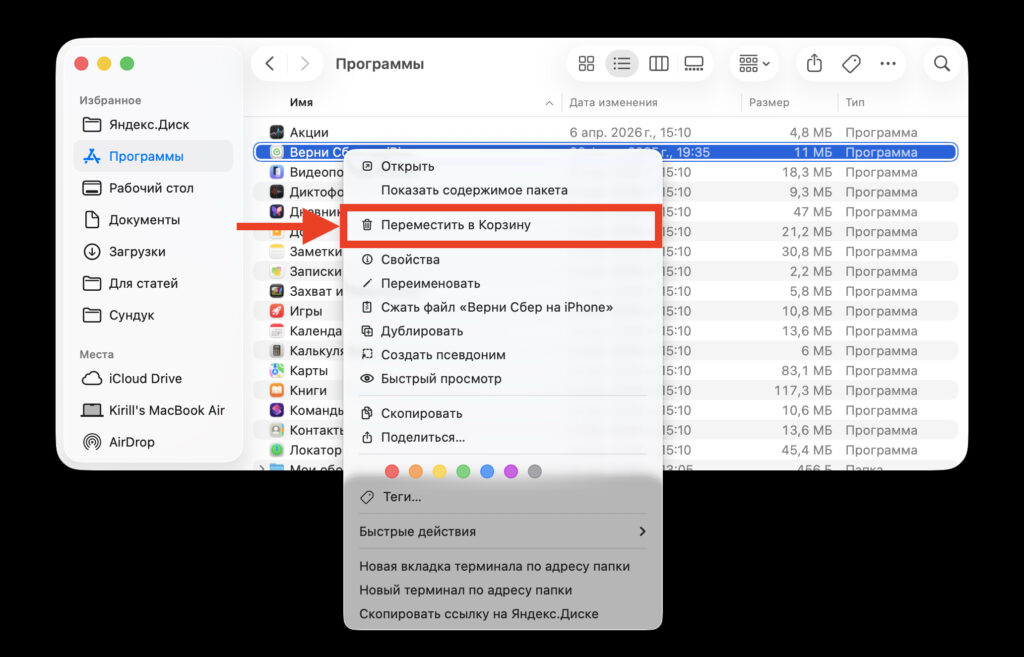
Send the unwanted app to the Trash
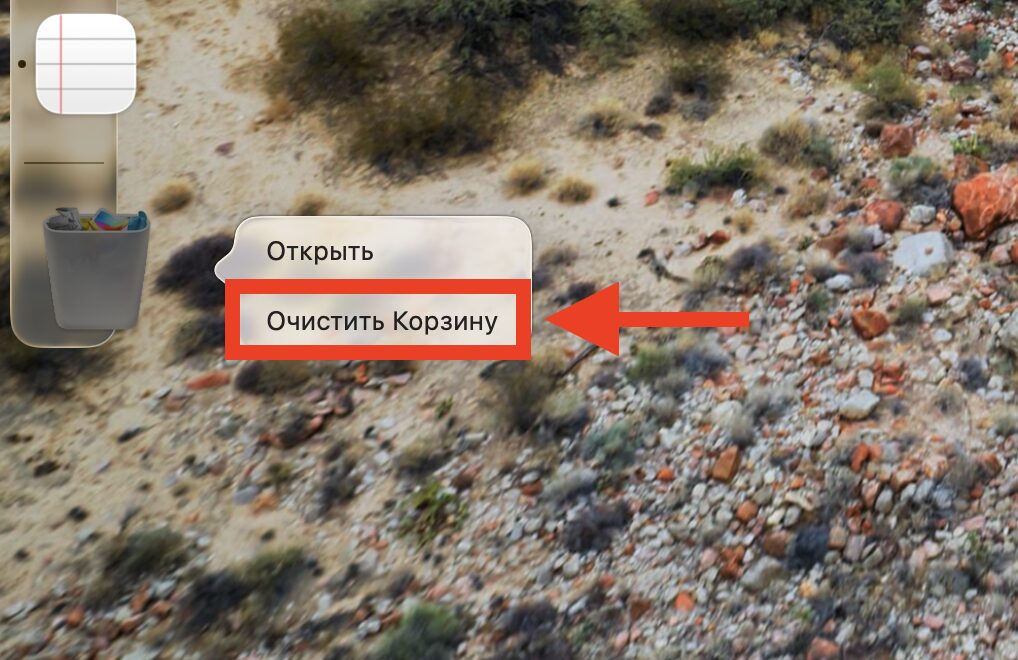
Then empty the Trash itself
That completes the deletion. But this method has one serious drawback: only the app file itself (.app) goes to the Trash. All residual files — caches, preferences, support data — remain buried in the system. Over time, they can take up gigabytes and slow down your Mac.
Where exactly do these leftovers hide? Here are the main folders:
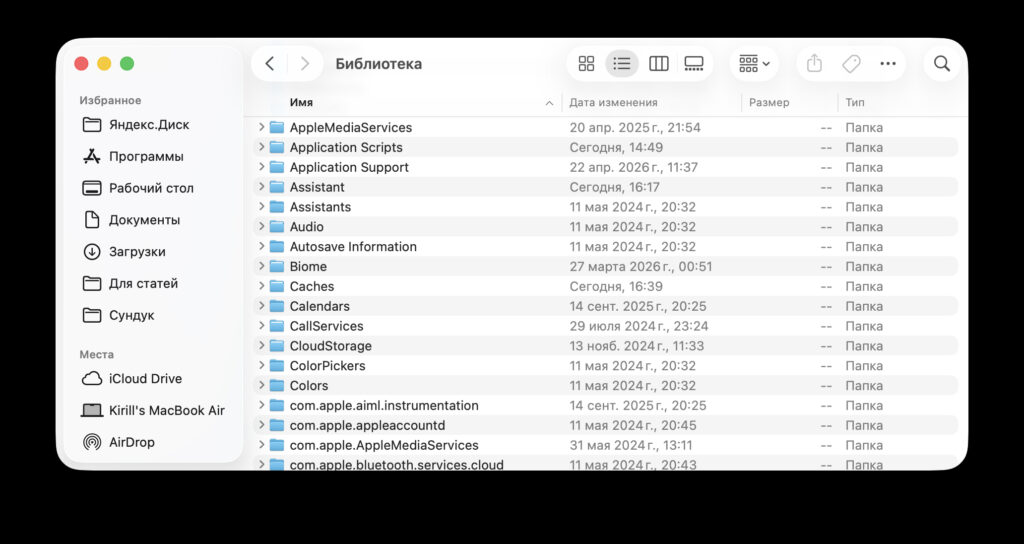
Don’t forget to manually delete app remnants from these folders
- ~/Library/Application Support/
- ~/Library/Caches/
- ~/Library/Preferences/
- ~/Library/Containers/
- ~/Library/Logs/
To open the Library folder, click “Go” in the Finder menu bar, then hold Option — a hidden “Library” option will appear. Inside, look for folders with the name of the deleted app and remove them manually. But honestly, digging through system folders is tedious and not for everyone. That’s why there’s a better way.
Deleting Apps from Mac Using AppCleaner
AppCleaner is a free utility from FreeMacSoft that solves the main problem of standard deletion. It finds all files associated with an app and removes them in one go. No residual files or forgotten caches.
You can download AppCleaner from the official website freemacsoft.net/appcleaner. The program is just a few megabytes, requires no installation in the traditional sense — just drag it to the Applications folder.
How to use it:
- Launch AppCleaner.
- Drag the unwanted app directly into the AppCleaner window. Or switch to the list view — it displays all installed apps.
- AppCleaner will automatically find all associated files: caches, preferences, plugins, logs, support data. You’ll see a complete list with file sizes.
- Click “Remove” — and all files will be sent to the Trash.
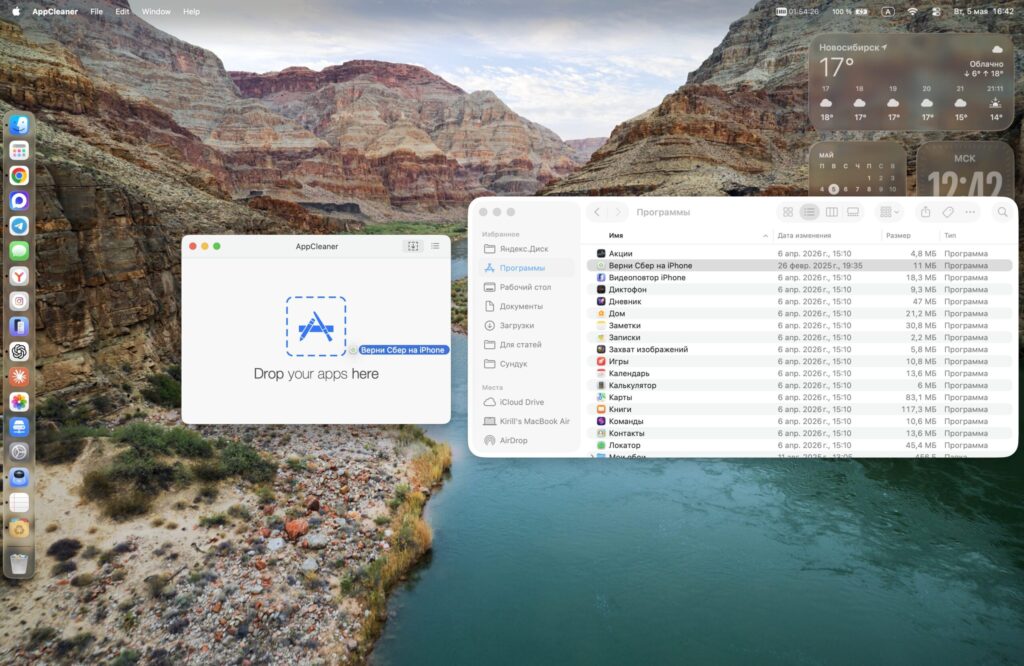
Drag the app you want to delete into App Cleaner
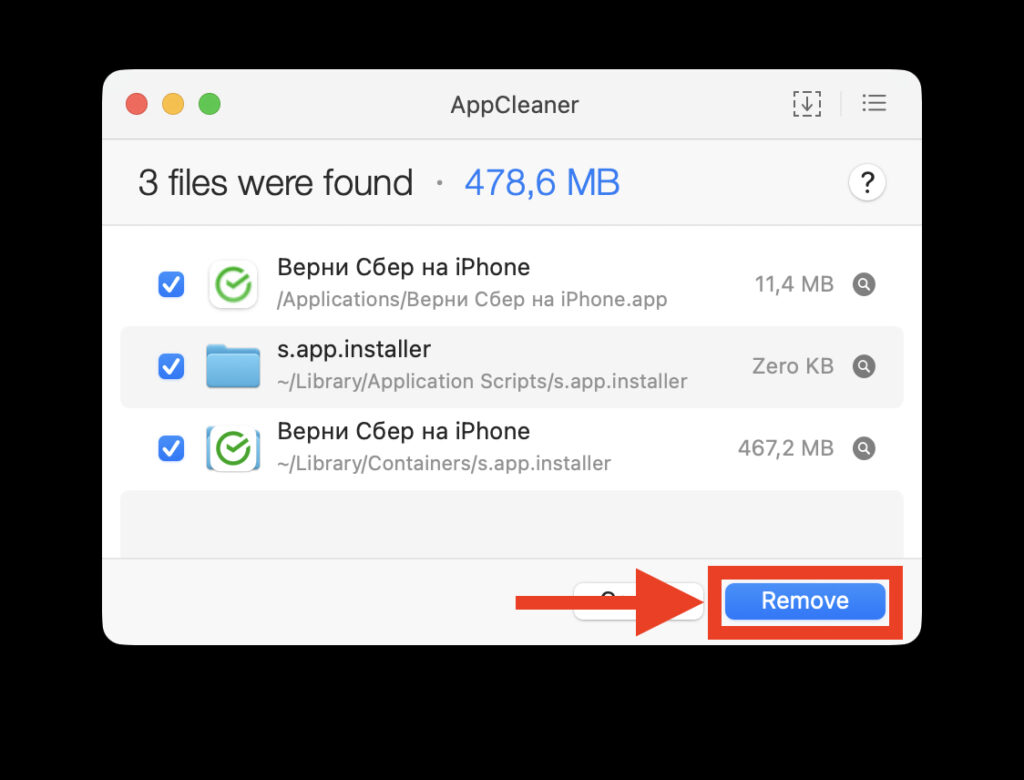
With one button, delete the app and all its remnants from your computer
What’s especially convenient — AppCleaner has a SmartDelete feature. If you enable it, every time you drag an app to the Trash the usual way, AppCleaner will automatically offer to delete the residual files as well. Essentially, this turns standard Finder deletion into a full uninstallation.
Important note: AppCleaner does not delete Apple system applications such as Safari, Mail, Maps, or Notes. This is a macOS limitation that cannot be bypassed.
System macOS Apps That Cannot Be Deleted
macOS protects a number of pre-installed applications from deletion. No matter how hard you try, system apps won’t be deleted through Finder or AppCleaner.
Here’s an approximate list of such apps:
- Safari
- Maps
- Notes
- Music
- Podcasts
- Books
- Stocks
- News
If an app won’t delete and says it’s “in use,” try force-quitting it first using Command + Option + Esc. If that doesn’t help — restart your Mac.


