Despite the very cool features of Yandex Browser that we covered in a separate article, the Google Chrome app still holds over 66% of the mobile market and remains the primary browser of the Android ecosystem. The current stable version is 147.0.7727.101. It runs on Android 12 and newer, takes up about 14 MB, and comes pre-installed on virtually any phone with Google services. Below — what Chrome can do in 2026, how it compares to competitors, and where its limits are.
Download and set up the Chrome browser on Android
What Is Google Chrome for Android
The Chrome app is Google’s browser that comes pre-installed on most Android devices: smartphones, tablets, Android TV televisions, and Chromebooks. Of course, there are plenty of alternatives on Android in 2026. However, the Chrome browser is tightly linked to your Google account: bookmarks, passwords, and settings automatically sync across all devices where you’re signed in. That’s what makes it unique.
Key features of Chrome on Android in 2026:
- Built-in Google Search and Google Translate: you can translate an entire web page with a single tap
- Data saver mode: the browser compresses text, images, and video, saving up to 60% of mobile data
- Safe Browsing: Chrome warns you when you try to open a dangerous site or download a suspicious file
- Personalized news feed on the home screen
- Incognito mode for private browsing
Compared to Yandex Browser and Samsung Internet, it stands out primarily through its deep integration with Google services. If you use Gmail, Google Photos, Google Docs, and Google Drive — Chrome ties everything together into a single system. Competitors have their own strengths: Yandex Browser is friendlier toward Russian services and supports extensions, Samsung Internet is polished for Galaxy devices. But when your entire work environment revolves around Google services, choosing Chrome is a no-brainer.
How to Download and Install Google Chrome on Android
On most Android devices, the Chrome browser is already pre-installed and updates through Google Play. If for some reason it’s missing or you need to reinstall it, here’s what to do:
- Open Google Play on your smartphone or tablet
- Type “Google Chrome” in the search bar
- Tap “Install” or “Update” if the app is already there but outdated
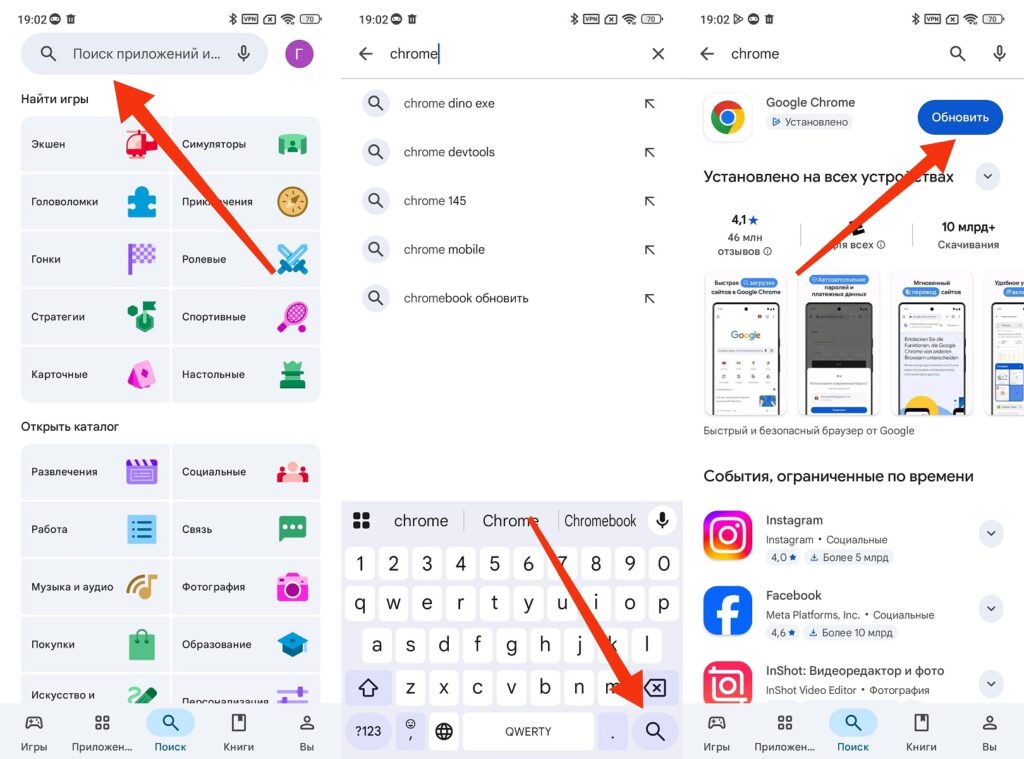
If the app is already installed, make sure to update it
If Google Play is unavailable (for example, on Huawei devices without Google services or on some phones in Russia), Chrome can be downloaded as an APK file from third-party sources. The latest Chrome 147 requires Android 12 or higher, while the older Chrome 145 works on Android 10 and above. Keep this in mind if you don’t have the newest phone. To install from an APK, you need to allow installation from unknown sources.
For Android TV, the situation is a bit different: Chrome is not officially adapted for TVs, although the APK file can be installed manually. Unfortunately, using a browser with a remote control is inconvenient, and built-in apps like YouTube or casting from a smartphone are better suited for TVs.
Extensions in Chrome for Android: Yes or No
One of the most common questions — why doesn’t mobile Chrome have extensions like the desktop version? Chrome on Android does not support extensions. The reason is a combination of technical limitations and business decisions: extensions can slow down performance, drain the battery, and create security vulnerabilities. Another factor is Google’s business model: extensions like ad blockers directly impact the company’s advertising revenue.
Chrome for Android has never once in its entire history (from 2012 to the present day) received extension support. Users hope that Google will eventually add this feature, but so far there are no official plans. If you need extensions on Android, there are alternative browsers based on the same Chromium engine:
- Yandex Browser supports installing extensions from the Chrome Web Store
- Quetta — another alternative that works with both the Chrome Web Store and the Microsoft Edge extension store
- Firefox for Android supports its own set of extensions, including popular ad blockers
Kiwi Browser, which was long a favorite among extension enthusiasts, was shut down in January 2025 and is no longer updated. Using an outdated browser without security updates is risky.
Built-in Ad Blocking in Chrome on Android
Chrome doesn’t have a full-fledged ad blocker, but it does have a built-in intrusive ad filter. Chrome removes ads from sites that violate Better Ads Standards. If a site has flashing banners, ads with auto-playing sound, or full-screen ads that are hard to close, you’ll see a message saying “Intrusive ads blocked.”
To check or enable this feature:
- Open Chrome on Android
- Tap the three dots in the upper right corner, then “Settings”
- Go to “Site settings”
- Under “Content,” select “Intrusive ads” and make sure the option is enabled
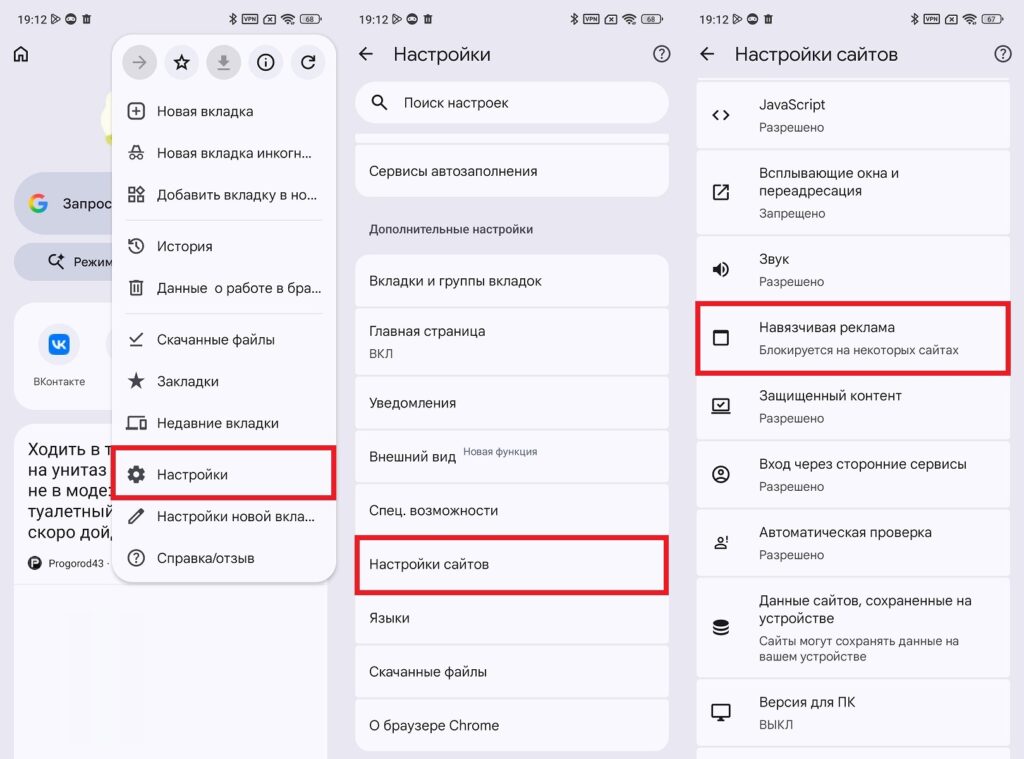
Intrusive ads can be disabled in two clicks
But honestly: the built-in ad blocker in Chrome doesn’t always save the day. Only the most aggressive formats get cut — regular banners and video ads pass through just fine. If ads are seriously bothering you, there are two working solutions:
- The AdGuard app intercepts traffic and filters ads in all browsers, including Chrome, without needing to install extensions
- Switching to a browser with extension support: Yandex Browser, Firefox, or Quetta, where you can install uBlock Origin or Adblock Plus
How to Cast Your Phone Screen to a TV via Chrome
Chrome on Android supports casting content to a TV via Chromecast and other devices with Google Cast support. When casting the screen, the Android device connects directly to the Chromecast or TV with Google Cast support.
What you need for this:
- A compatible phone with Android 6.0 or newer
- Chromecast, Chromecast with Google TV, Google TV Streamer (4K), or a TV with built-in Google Cast support
- Both devices must be connected to the same Wi-Fi network


