GigaChat is Sber’s neural network, tailored for the Russian language and officially available in Russia. It works in Russia without workarounds — no foreign account or VPN required. Recently I talked about subscriptions to foreign neural networks and whether they can be replaced with domestic alternatives, and now let’s take a detailed look at GigaChat. We’ll figure out how to use it from an iPhone and a computer, how much API access costs, and where it beats YandexGPT — and where it doesn’t.

Breaking down all the nuances of GigaChat
What Is GigaChat and How It Differs from Other Neural Networks
GigaChat is a multimodal neural network by Sber, meaning an AI that understands not only text but also images and audio. It launched in April 2023 and can carry on a dialogue, write texts and code, generate images, transcribe audio, and analyze documents.
The main difference from Western models is its tuning for the Russian language and cultural context. Conversations feel natural, without the effect of machine translation and without losing meaning on local realities.
A quick look at competitors:
- ChatGPT (OpenAI) — powerful and multilingual, but not officially available in Russia and less attuned to local nuances.
- Gemini (Google) — supports Russian, but requires a Google account, and some features are restricted in the region.
- DeepSeek — a fresh Chinese model that speaks Russian and shows strong results, but isn’t integrated into the familiar Russian ecosystem.
By the way, Western services will soon work in Russia without jumping through hoops — I covered which neural networks will work without VPN in Russia. But for now, full official access is available specifically with GigaChat.
In March 2025, GigaChat 2.0 was released. According to Sber, in independent tests it’s comparable to GPT-4o and DeepSeek-V3, especially on Russian-language tasks. This should be taken as the developer’s claim, not as a final verdict — real quality is always best verified on your own tasks.
Official GigaChat Website and iPhone App
The primary and most complete option is the browser version at giga.chat. All features are available there: text and image generation, file analysis, history saving, and personalization. It’s a convenient option for working on a computer.
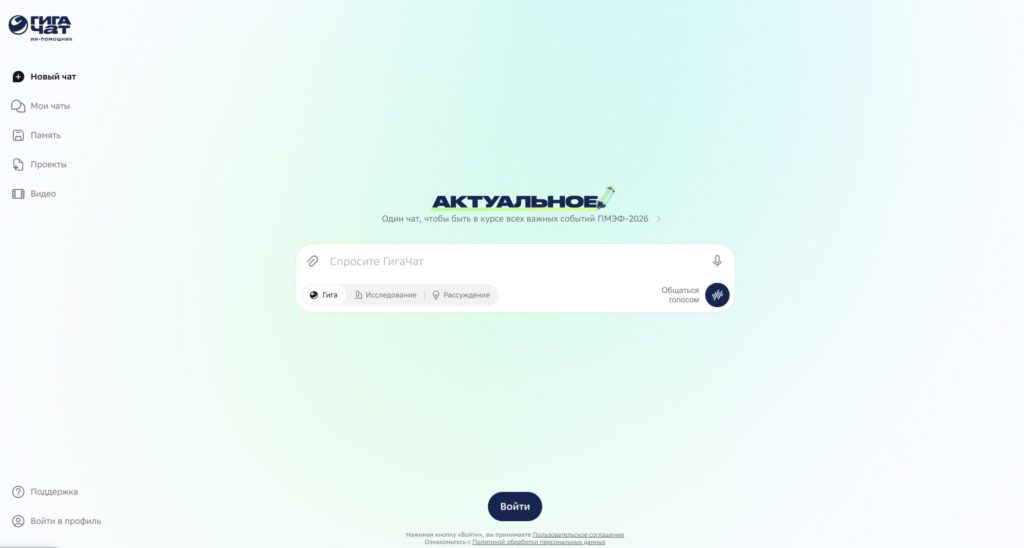
GigaChat looks like any other chatbot
Here’s the main limitation for Apple device owners: there is no dedicated GigaChat app for iPhone. Apps have been released only for Android and are available on RuStore and AppGallery. On iPhone, there are three working options.
- Open the giga.chat website in Safari and optionally add it to your home screen as an icon.
- Use the bot in Telegram.
- Access it through the VKontakte app.
How to Use GigaChat: Registration and Your First Query
The browser version opens without registration, but in guest mode the features are limited, so it’s easier to create an account right away. On the website, click “Full version” and choose a sign-in method.
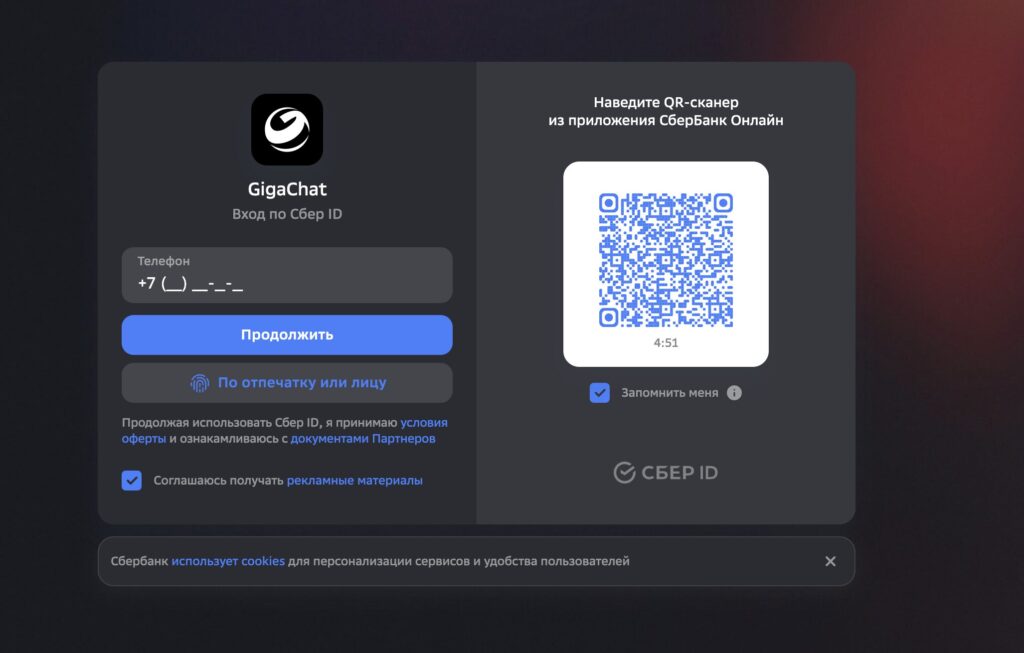
You can log in by phone number or via QR code
- By phone number: enter your number, confirm with an SMS code, set a password and name.
- Via Sber ID: scan the QR code with your smartphone camera using the Sberbank Online app — the account activates automatically.
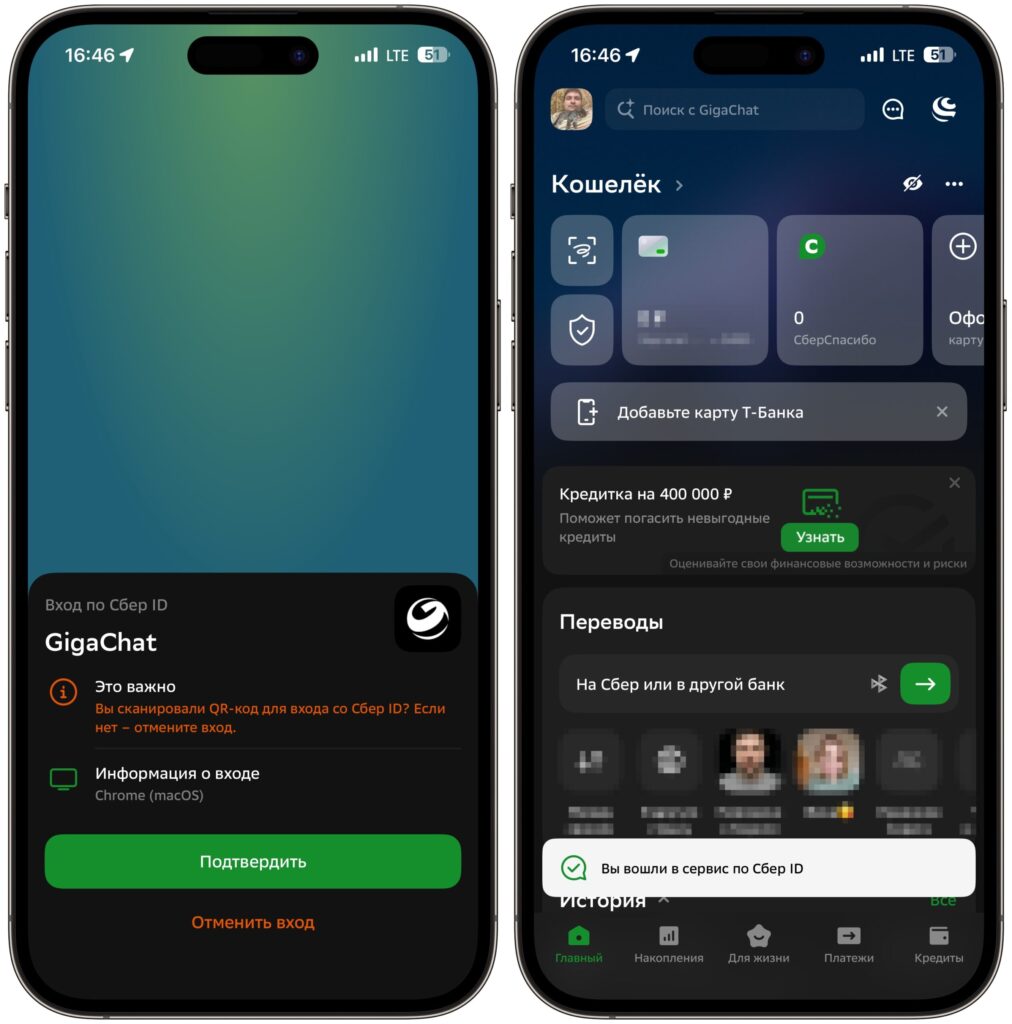
If you log in via QR, the process will look like this
After logging into GigaChat, it addresses you by name and saves your conversation history in your personal account. The “Remember me” checkbox saves you from repeated logins.
From there, everything works like a messenger: type your question and press Enter, and the answer arrives in a few seconds. Example starter queries — “compile the pros and cons of remote work,” “explain probability theory with a simple example,” “check this text for errors and rewrite it more academically.”
Main GigaChat Features: Text, Images, and File Analysis
GigaChat covers several typical tasks at once. The most useful in everyday life:
- Answers and dialogue — from everyday questions to scientific topics, with the ability for in-depth discussion.
- Text generation — emails, articles, poems, programming code, adapted to the desired tone.
- Image generation — via the Kandinsky neural network: logos, illustrations, and art from descriptions.
- Working with files — upload a document and ask for a brief summary.
- Audio transcription — a meeting or lecture recording in MP3 or WAV format is converted into text and notes.
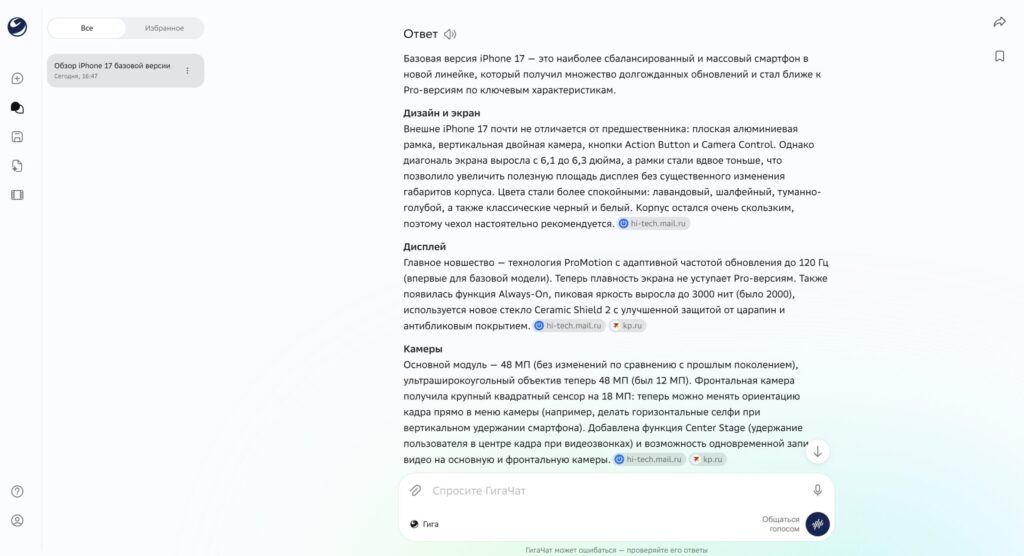
You can ask it to tell you about iPhone 17
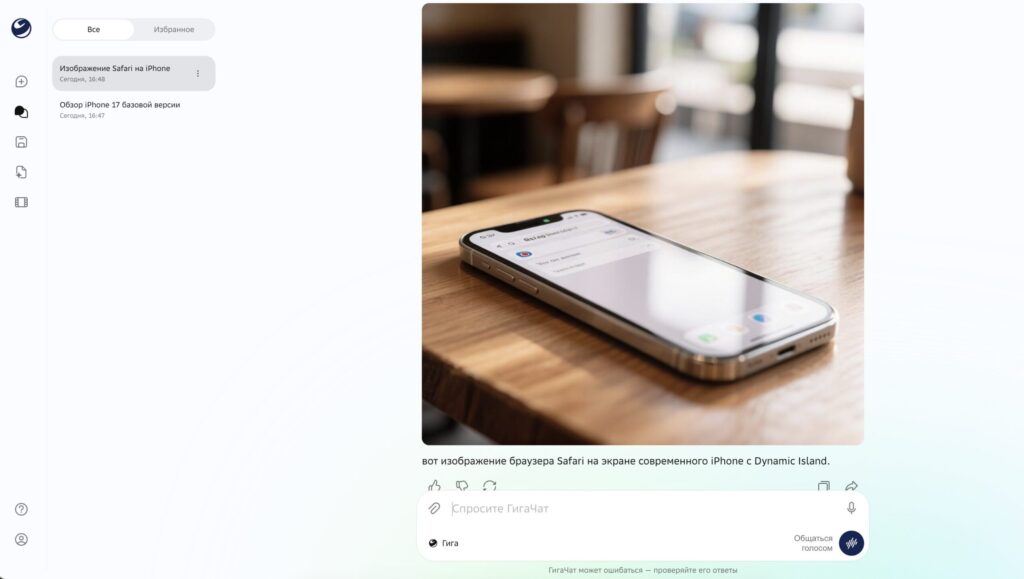
Or draw something. That’s also possible
Images are drawn by the built-in Kandinsky, and it has a nice feature — I showed how to draw pictures with captions using Sber’s neural network.
There are also ready-made template tools: a smart editor, video summary, greeting card creation, songs, fairy tales with built-in voiceover in the app, and a tourist assistant. Using them is optional — these are just pre-configured scenarios; the base model handles the same tasks through a regular query.
It’s also worth knowing about the operating modes. “Search