After the blocking of foreign messengers in Russia and rumors about the dangers of the MAX app, Google Meet became one of the few available video calling services. It seems simple, but behind its minimalist interface lie features that genuinely improve the quality of work and study meetings. Managing participant permissions, automatic notes via Gemini, attendance tracking — all of this is already built into the service, but many people don’t even know about it. Let’s explore what’s worth trying and what limitations to keep in mind when using Google Meet features.
Mastered Google Meet features after the Telegram block
Managing Participant Permissions in Google Meet
When many people participate in a call (an entire class, department, or partners), it’s important that no one accidentally takes over the screen share and turns a serious meeting into chaos. The Google Meet app allows you to restrict presentation rights, leaving them only with the organizer. Additionally, you can mute a specific participant without drawing unnecessary attention, and restrict the chat so important messages don’t get lost in the flow.
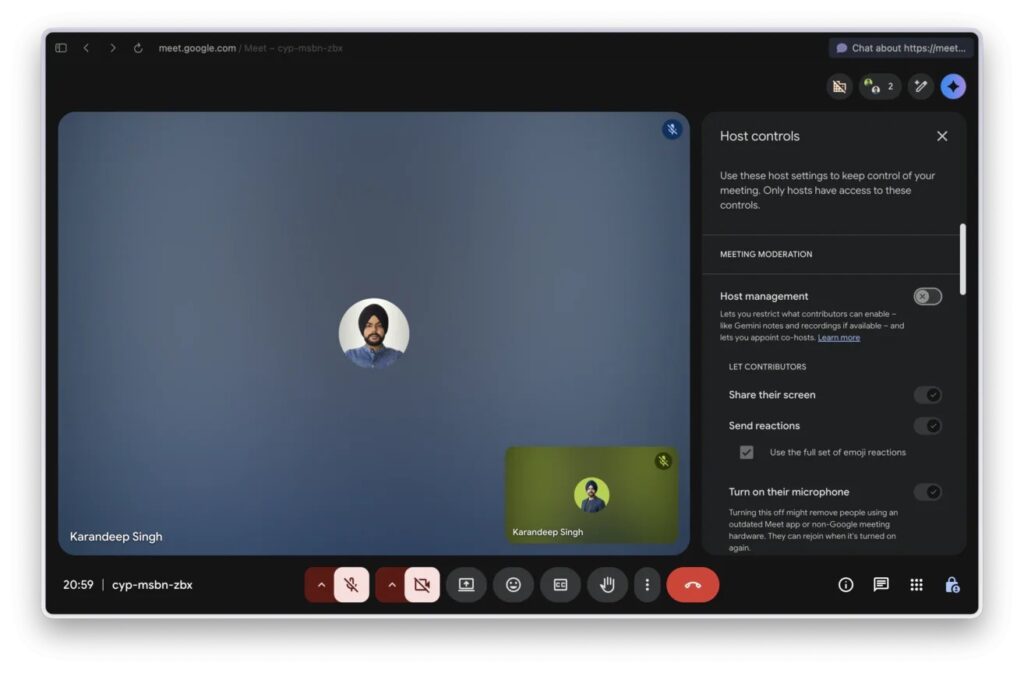
Google Meet allows you to restrict and expand participant permissions during a call
This feature is especially useful for teachers and those who conduct webinars. In casual group calls, it’s unlikely to be needed, but for work meetings with dozens of participants — it’s indispensable.
Assigning a Co-Host in Google Meet
If you’re hosting a webinar, interview, or large meeting, it’s almost impossible to simultaneously manage the content and maintain order in the chat. The Google Meet service solves this problem: you can assign a co-host who will take over moderation.
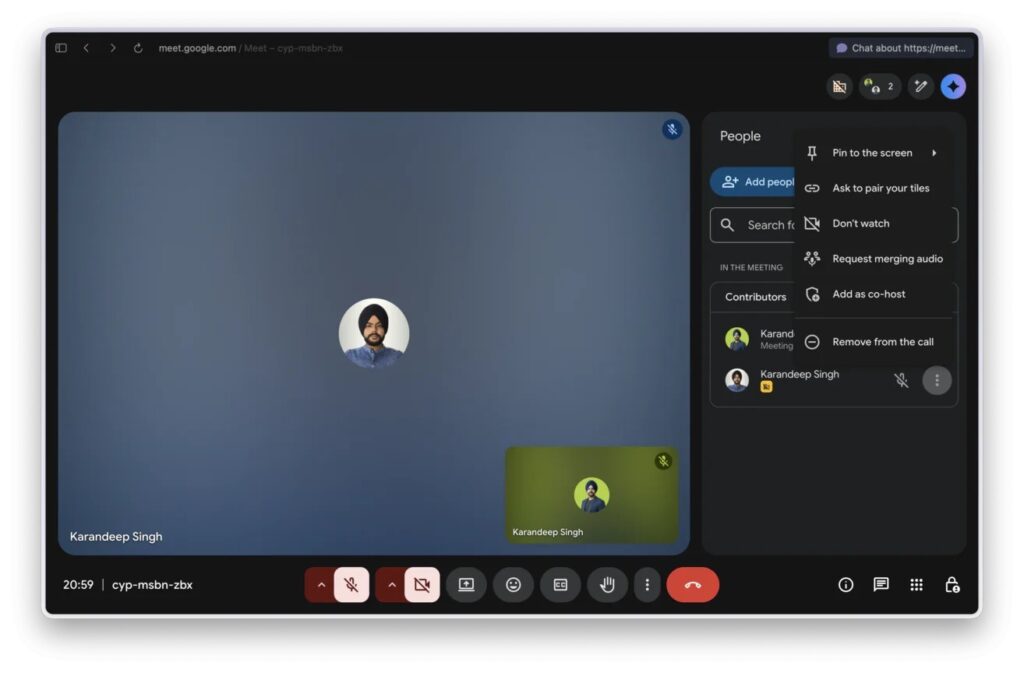
During a Google Meet conference, you can assign co-hosts
They will answer questions in the chat, manage participants, and track reactions while you focus on your presentation. Unfortunately, this feature may require a Google Workspace subscription. On a free account, it is most likely unavailable.
Updated Chats in Google Meet
Previously, the chat in Google Meet was frankly weak: it didn’t support long messages and disappeared immediately after the call ended. Now everything is different. Chat messages are saved after the meeting, photos, videos, and links with previews are supported, and long texts are no longer truncated.
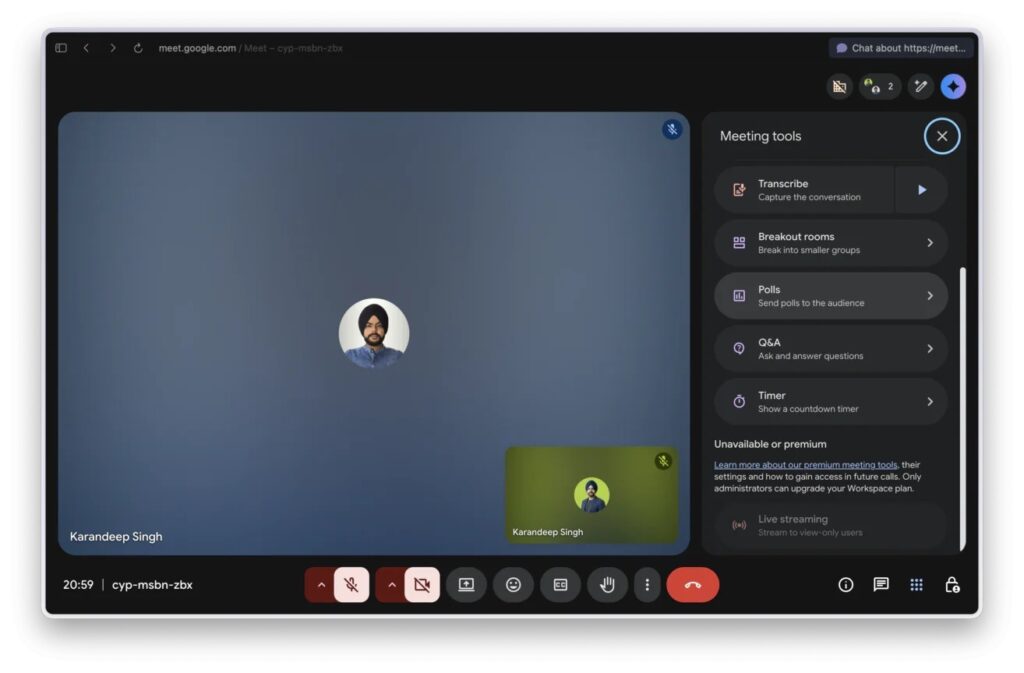
Recently, Google Meet chats gained the ability to create polls
On paid Workspace plans, polls and Q&A blocks are also available. For example, you can conduct a vote right during a meeting or collect feedback from the team.
Second Device for Google Meet
This mode is designed for situations where some participants are sitting in the same room while the rest are connected remotely. Companion Mode allows you to join a call from a personal device but without turning on the camera and microphone — to avoid creating echo in the room.
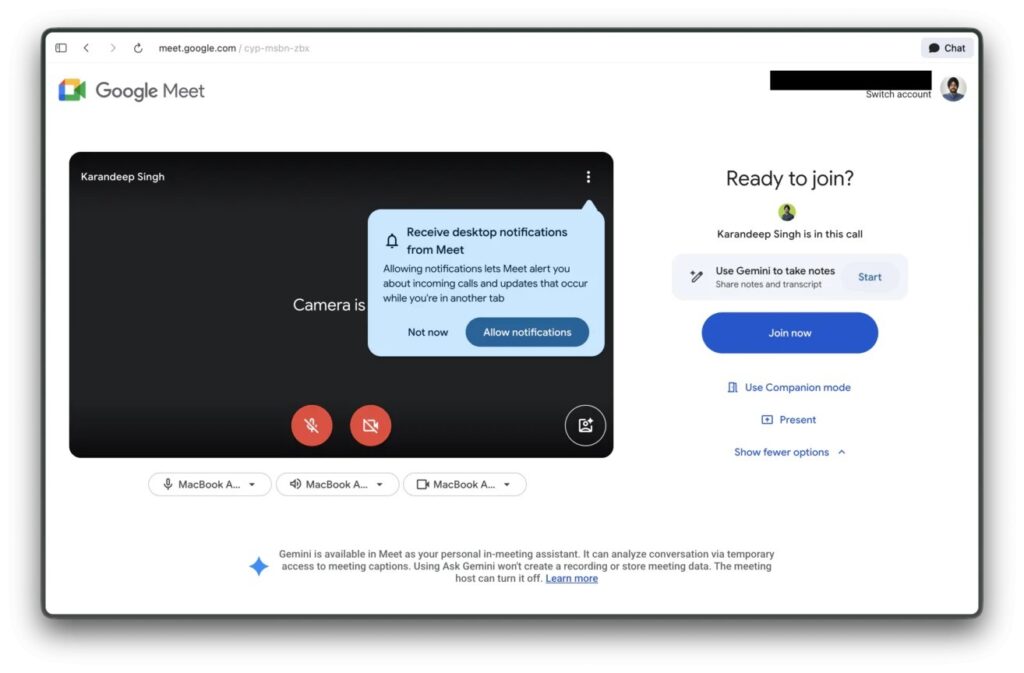
Google Meet also introduced Companion Mode
Practical example: you’re showing a presentation from your laptop on the conference room screen. At the same time, you connect to the same call from your phone in Companion Mode and calmly monitor the chat, reactions, and questions without interrupting the main presentation. The feature is niche, but for hybrid teams — it’s a real find.
Gemini in the Google Meet App
Instead of asking a colleague to take notes on everything said or opening a separate app for notes, you can delegate this to Gemini right inside Google Meet. The AI automatically records key moments of the conversation, tags speakers, and within a few minutes after the call, saves a ready-made summary file to Google Drive.
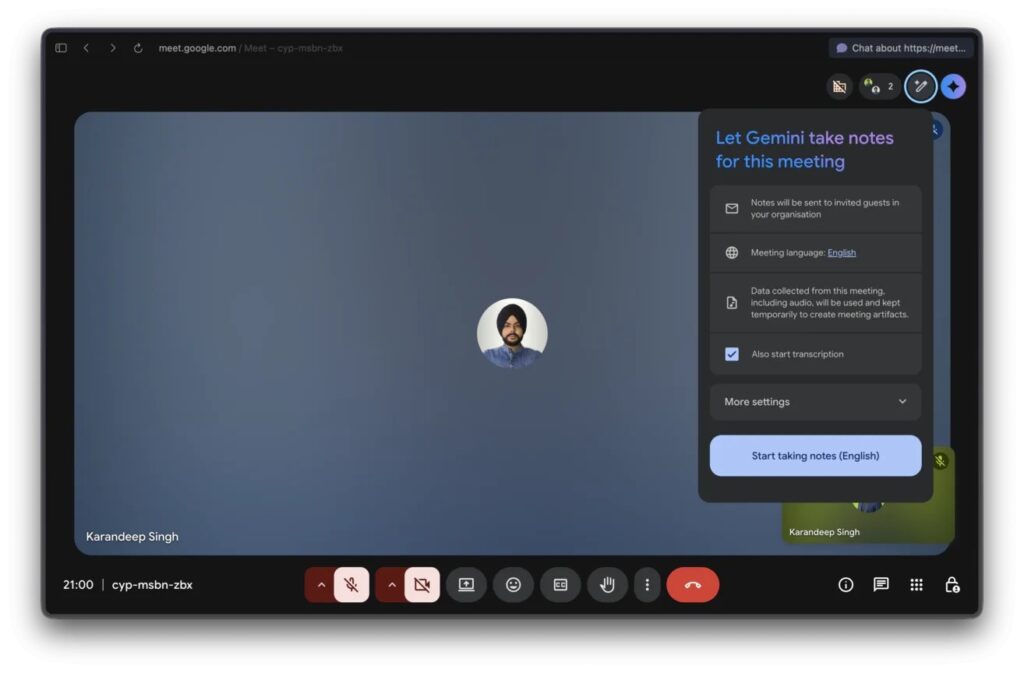
The Gemini AI is built right into Google Meet
But there’s a significant limitation here. This Google Meet feature only works for Google Workspace subscribers. Even if you have a paid Gemini subscription (AI Pro or Ultra) on a personal Google account, access to notes via Gemini is still restricted. This is worth considering before counting on automatic meeting summaries.
Participant Statistics in Google Meet
Google Meet can automatically track who attended the meeting, when they connected, when they left, and how much time they spent on the call. After the meeting ends, the organizer receives a full attendance report via Google email and on Google Drive.
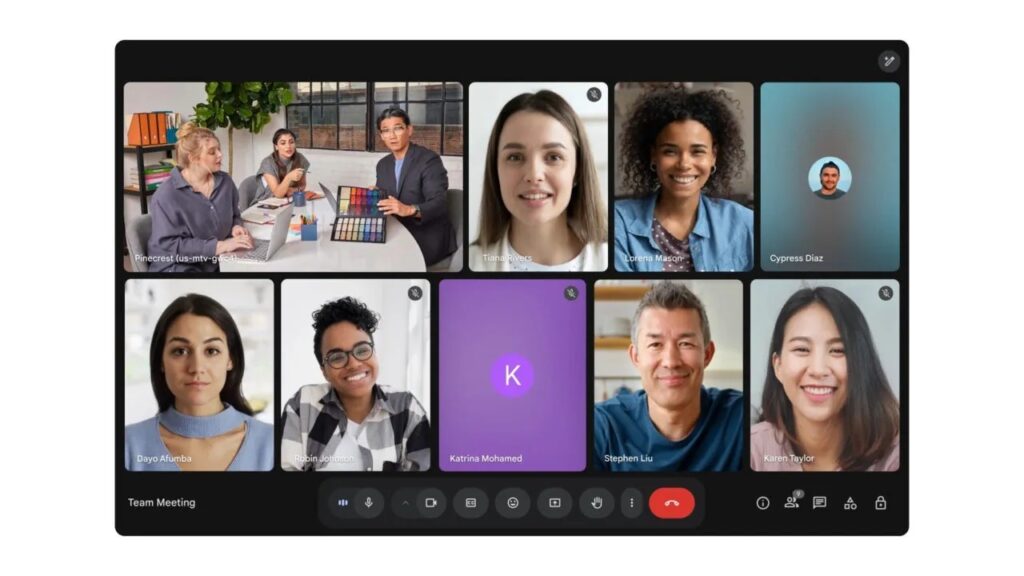
In Google Meet, you can even track conference attendance
For teachers, trainers, and managers who conduct online training sessions, this is an indispensable tool.