The manual for an Android TV usually covers only the basics — how to connect to Wi-Fi, log into Google, and install the apps you need. But the system has dozens of useful features hidden inside that the manufacturer quietly keeps to itself. I discovered these capabilities over the years — sometimes by accident, sometimes after a system update on the TV. I’ve compiled 5 features that I use constantly and that genuinely make life easier. All of them work on most modern TVs with Android TV and Google TV — from Xiaomi to TCL. No custom firmware needed, everything is already built into the system — you just need to know where to tap.
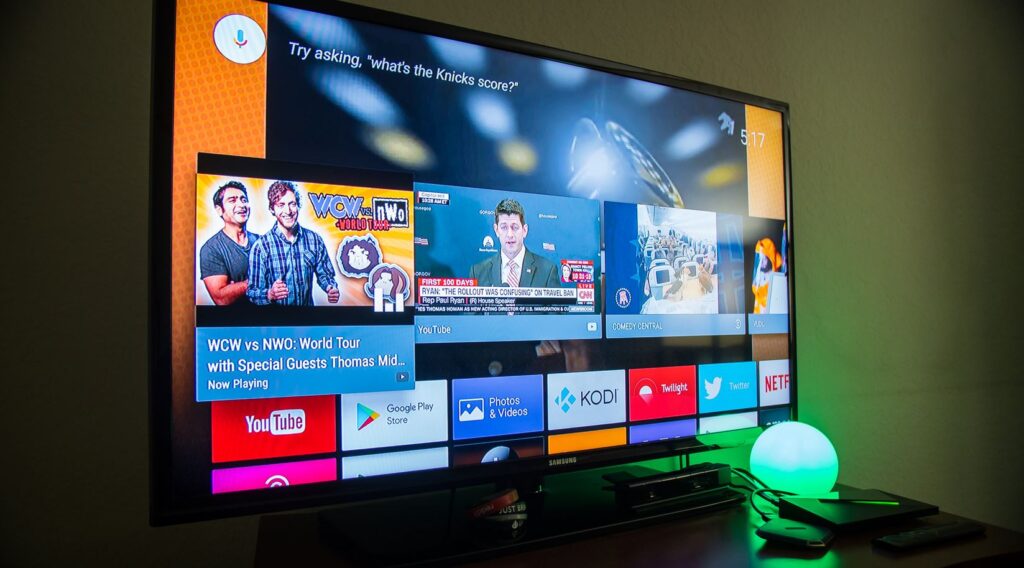
Here are the hidden Android TV settings worth trying. Photo: androidauthority
Engineering Menu on Android TV
The most interesting feature is the hidden engineering menu, which contains developer settings. To open it, go to “Settings — About Device” and tap the “Build Number” entry seven times in a row. After that, a new section called “Developer Options” will appear in the main menu. What’s useful in there?
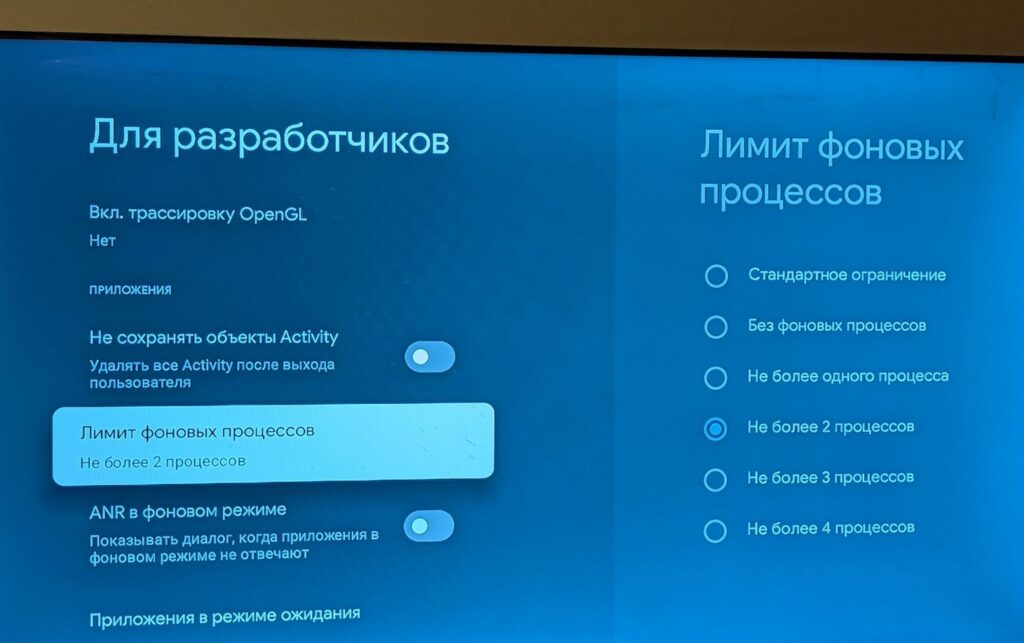
The Developer Options menu on Android TV has many interesting features. Photo: comss.one
- You can disable interface animations — and an older TV will start running noticeably faster.
- You can enable USB debugging to install APK files from a flash drive.
- This is also where you can reflash the TV if it starts glitching.
There’s also CPU and RAM usage statistics — handy for figuring out which app is slowing down the system. The main thing is not to touch settings you’re unsure about, otherwise the TV might start behaving strangely.
Auto-Update for Firmware and Apps in Google Play
By default, Android TV suggests updating apps on the TV manually, and firmware only through notifications. But the system has a full-fledged auto-update feature that I recommend enabling right after purchasing a TV.
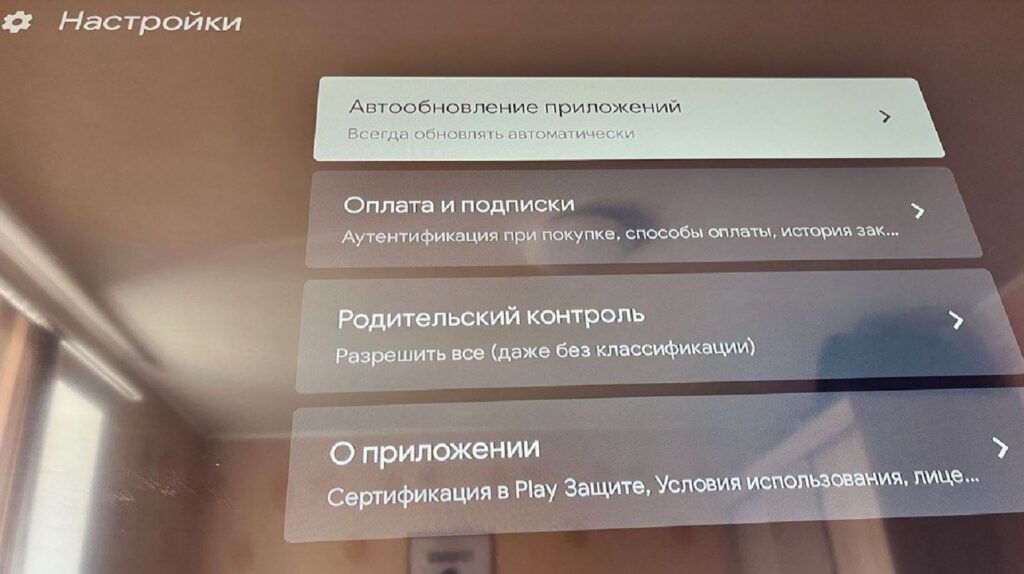
Disable auto-update to prevent the TV from downloading new app versions in the background
- Open Google Play on your TV.
- Go to settings and select the update section.
- Enable “Automatic app updates.”
- After this, Kinopoisk, YouTube, and other apps will update automatically in the background.
The process for updating TV firmware is similar — in “Settings — About Device — System Update” you can activate automatic downloading. The TV will download the latest version of Android TV overnight when you’re not using the device and install it on the next power-on. No pop-up windows in the middle of watching a movie. If you don’t want your Android TV to start lagging, it’s better to turn it off. That way you’ll always have the familiar OS on your TV.
Enabling and Disabling the LED Indicator
The tiny LED on the front panel of the TV glows day and night — some people find it annoying in the bedroom, while others want to see the device status. Most users don’t even realize that the LED indicator behavior on the TV can be configured.
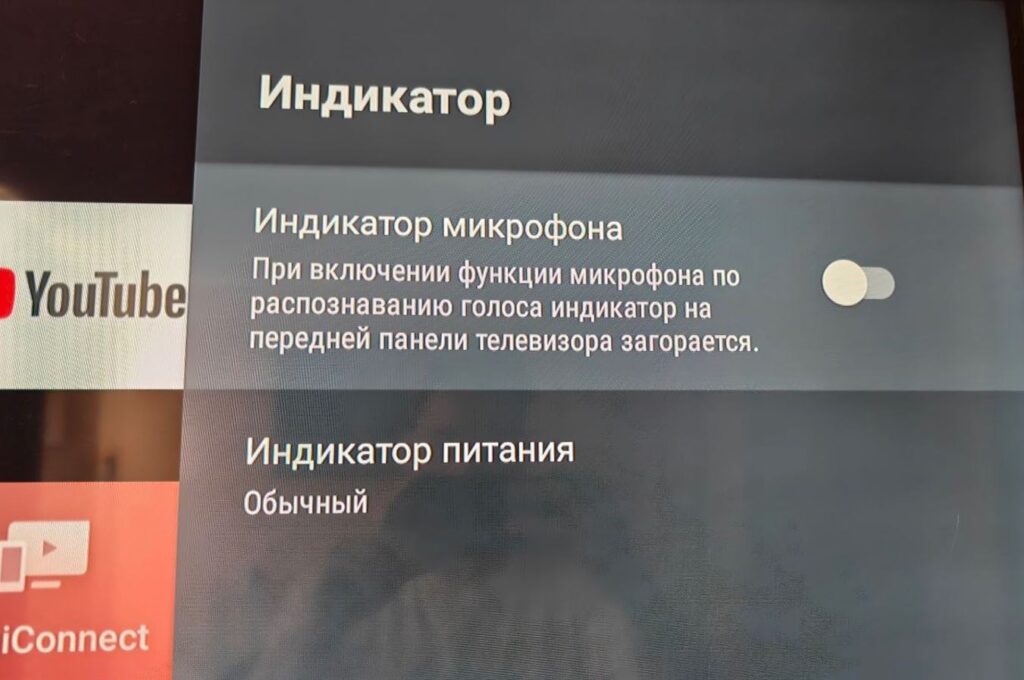
Some TV models have indicator settings
- Go to Settings and select Device Preferences.
- Choose the LED Indicator option (the section name may vary slightly across different models).
- There you can turn off the LED completely, leave it on only in standby mode, or enable blinking when Google Assistant is activated.
Sony TVs even have a separate LED brightness setting — handy if the TV is in a dark bedroom and any light interferes with sleep.
Context Menu via Long Press on an Icon
The Android TV home screen is packed with app icons, and organizing them seems impossible. In reality, it’s simple — just hover over any icon and hold the OK button on the remote for a couple of seconds. A context menu with additional options will appear.
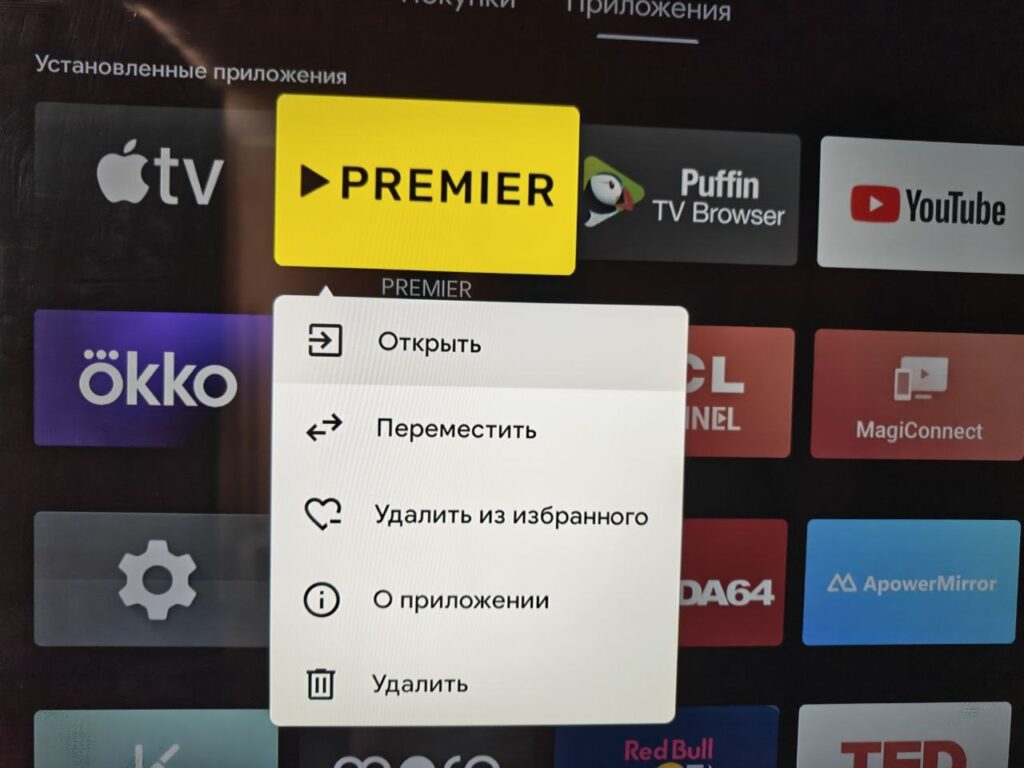
Managing apps on the TV is easier if you hold the OK button on an icon
Through this menu you can move an icon to the top of the list or to Favorites, remove an app from the home screen (not from the TV!), go directly to the app’s settings, or see how much space it takes up. It’s especially helpful when reinstalling the system — you can arrange shortcuts by usage frequency in a minute instead of digging into each app’s settings individually.
Energy Saving on Android TV
Android TV, just like a regular Android smartphone, optimizes energy consumption. That’s why by default all apps have background termination enabled. Sounds good, but in reality apps get unloaded from memory, and relaunching them takes time. Disable this setting for some apps — and you’ll notice the difference.
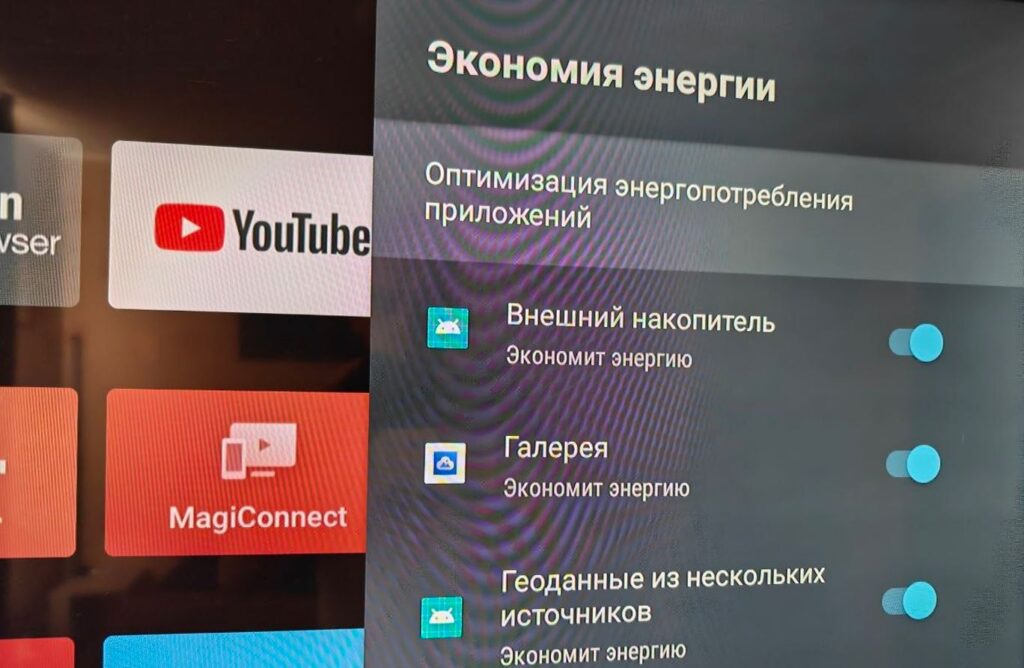
Some TVs have an energy saving setting enabled by default for all apps. But for some apps, you can turn it off
- Go to Settings.
- Navigate to Apps — select Special Access.
- Choose the app and toggle the switch off. For some apps (at your discretion), leave it active.
I disabled it for the apps that kept getting unloaded from memory. Some — I left as is. The result — the TV started working faster. If you need the setting later, you can always re-enable it in the same menu. The trick here isn’t to enable everything, but to balance energy consumption across different apps.