If your iPhone has almost no cellular signal but you are connected to Wi-Fi, you may still be able to make ordinary phone calls from your own number. The feature is Wi-Fi Calling, also known as VoWiFi. Your iPhone sends the call to your carrier over the internet instead of through a cell tower, and the person you call sees a normal call from your number. The author of the original Russian-language article relied on it during a hospital stay. His carrier’s signal there was too weak to depend on, but the hospital had Wi-Fi.
What you need to know
- Wi-Fi Calling routes calls from your regular number through your carrier over an internet-connected Wi-Fi network. The other person needs only an ordinary phone, not a messaging app.
- It needs two things: a Wi-Fi connection with internet access, and Wi-Fi Calling support on your number. It can work even where the iPhone cannot see any cellular network.
- According to the source, in Russia the option is usually available with standard carrier profiles only on iPhone 13 and earlier, if the carrier supports it. From iPhone 14 onward, it is generally missing by default for Russian SIM cards.
- The source recommends testing it in Airplane Mode with Wi-Fi turned on, and checking both outgoing and incoming calls.
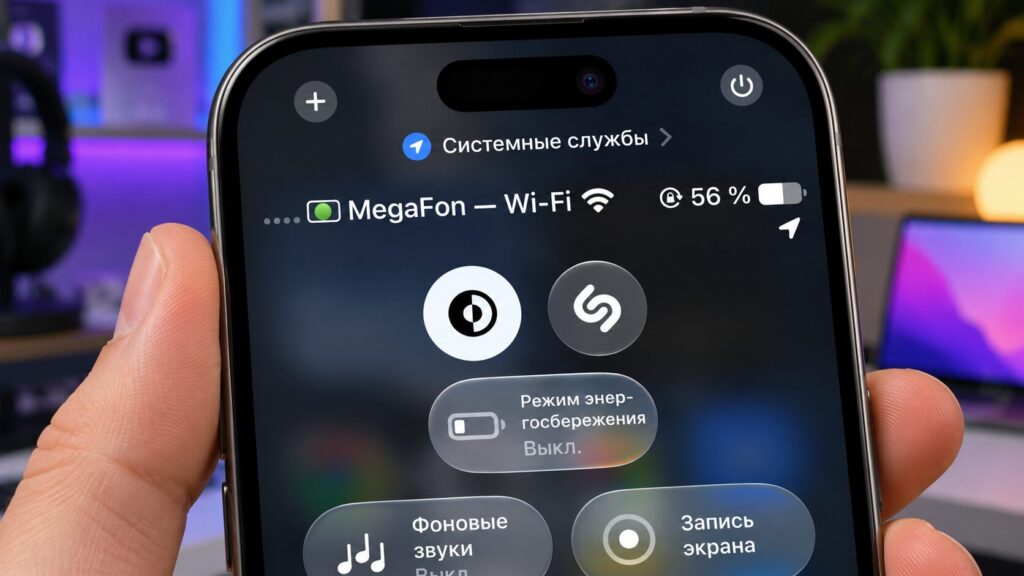
This is how Control Center looks with VoWiFi active
A hospital with weak signal but working Wi-Fi
The source author says he prefers ordinary phone calls to messenger calls when he talks to his parents or his wife. On the hospital grounds, his carrier’s signal was so weak that he could not count on regular coverage. Because the hospital had Wi-Fi, his iPhone kept working as a phone. He reports that he dialed people from his own number and talked with them without trouble.
The setting that made this possible, he writes, appeared on his iPhone together with 5G. It is called VoWiFi, and in the iPhone menus it is easiest to find under the name “Wi-Fi Calling.”
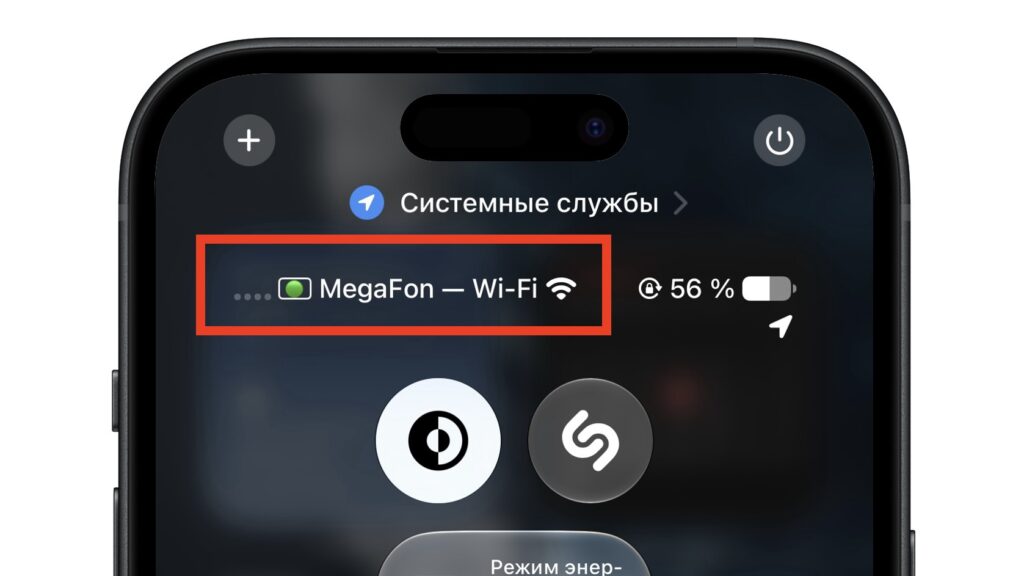
A Wi-Fi label next to the carrier name (here, MegaFon) shows that Wi-Fi Calling is available
How Wi-Fi Calling works
The idea is easiest to understand if you picture calling someone who has an ordinary phone and nothing else. You open the Phone app and call as usual. Your iPhone passes the call to your carrier over the internet through Wi-Fi. On the other end, it looks like a normal call from your number. Incoming calls can also arrive this way. The other person only needs to be reachable by phone.
The author says the most useful part in the hospital was that he could call anyone whose number he had. With a messenger, he would first have had to remember which app he used with that person and whether they had it at all. The regular call button avoided that problem. He notes that, on good Wi-Fi, the same feature can help in a basement office or a country house where the router’s signal reaches but the cell tower’s does not.
5G was the goal, but Wi-Fi Calling proved more useful
The author says he originally changed his settings to get 5G and more speed. Where he used it, mobile internet felt almost the same as good 4G. He acknowledges that results may be very different elsewhere. In his experience, though, everyday tasks such as messaging and loading web pages did not get faster. By contrast, the difference between being able to make a call and having to search for a spot with signal was obvious to him right away.
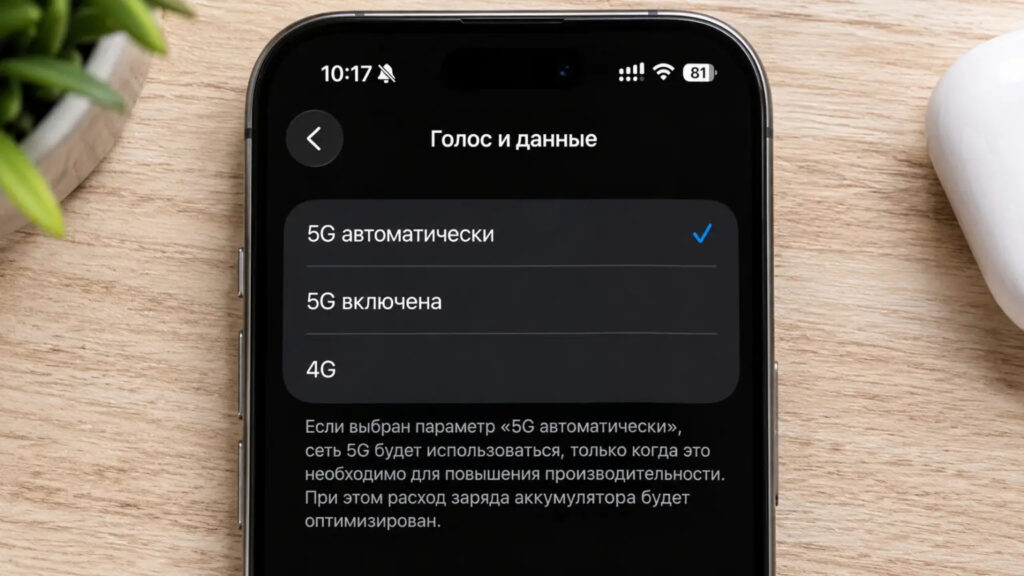
“5G Auto” is selected in the Voice & Data menu
Wi-Fi Calling and 5G work independently of each other. In the author’s case, both features appeared once a new carrier profile was installed on his iPhone. For a call to go through over VoWiFi, you need two things:
- a Wi-Fi connection with internet access;
- Wi-Fi Calling support on your number.
When both conditions are met, the phone does not need to see a cellular network at all. Both conditions were met at the hospital. That is why the author now values Wi-Fi Calling more than anything else he got from changing his iPhone’s settings.
The situation in Russia: why some iPhones lack the option
The source describes a specific situation in Russia. With standard carrier profiles there, VoWiFi is usually available on iPhone 13 and earlier models, provided the carrier supports it. Starting with iPhone 14, the menu item is generally missing by default for Russian SIM cards.
This explains why one person may see the setting right away, while someone with a newer iPhone on the same carrier has to activate it separately. The source publication describes separate, iOS-version-dependent activation methods for Russian users in other guides. Those Russia-specific procedures are not covered here. As described, these limitations apply to Russian SIM cards and carriers. Availability elsewhere depends on the device and on carrier support for the number.
The source also notes that a 5G icon on its own does not mean Wi-Fi Calling is available. If Wi-Fi Calling is already offered for your number, you can go straight to the setting below.
How to turn on Wi-Fi Calling
Once Wi-Fi Calling is available, you still need to switch it on in the iPhone’s settings. If you use two lines, choose the one you want to call from over Wi-Fi. Check each number you use separately.
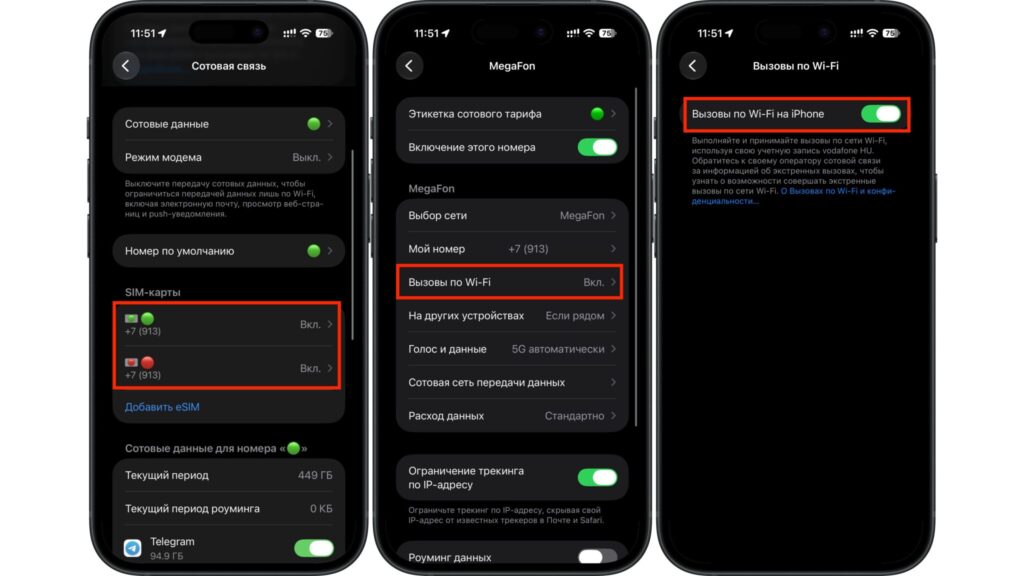
First select the number, then turn on Wi-Fi Calling
- Open Settings and go to Cellular.
- If you have several SIM cards or eSIMs, tap the number you want.
- Open Wi-Fi Calling.
- Turn on Wi-Fi Calling on This iPhone, and confirm if a prompt appears.
How to test it in Airplane Mode
The source author recommends a test call in Airplane Mode. This shows right away whether the iPhone can get through when the carrier’s network is completely unavailable.
- Turn on Airplane Mode.
- Keep Airplane Mode on and connect to Wi-Fi. If Wi-Fi switched off, turn it back on.
- Open Control Center and wait for a Wi-Fi label to appear next to the carrier or profile name.
- Call a regular phone number using the Phone app.
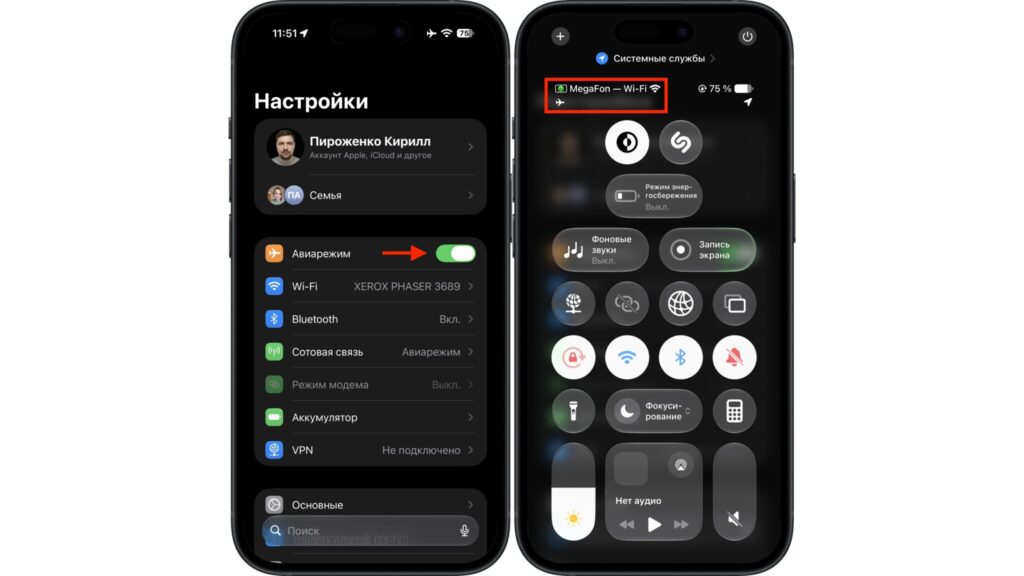
The Wi-Fi label is visible in Control Center even in Airplane Mode
While the iPhone is still in Airplane Mode, you can also ask the other person to call you back. This tests incoming calls too. It is especially useful if you have two numbers and people usually reach you on one of them. Turn off Airplane Mode when you are done.
If the Wi-Fi label does not appear
- Give the iPhone a couple of minutes, then try a different Wi-Fi network. The source notes that calls may work through one router but not another.
- If that does not help, ask your carrier whether the service is available on your number.
- If the menu item is missing entirely, the source says three details make it easiest to find the cause: the iPhone model, the iOS version and the carrier.
Why the author recommends setting it up in advance
The source author advises anyone who has access to Wi-Fi Calling to turn it on and test it at home, even if they usually have full signal bars. He did not expect to struggle for signal in a hospital either. He says he was glad that Wi-Fi Calling was already working on his iPhone when he needed it.