Android has a hidden tool that shows the RAM usage of every app on your phone — including those running invisibly. Many apps don’t actually stop when you close them; they simply disappear from the screen. The tool is tucked away in developer settings, which is why most users don’t know about it. Yet it’s exactly what helps you figure out why your phone started lagging and which apps you should get rid of.
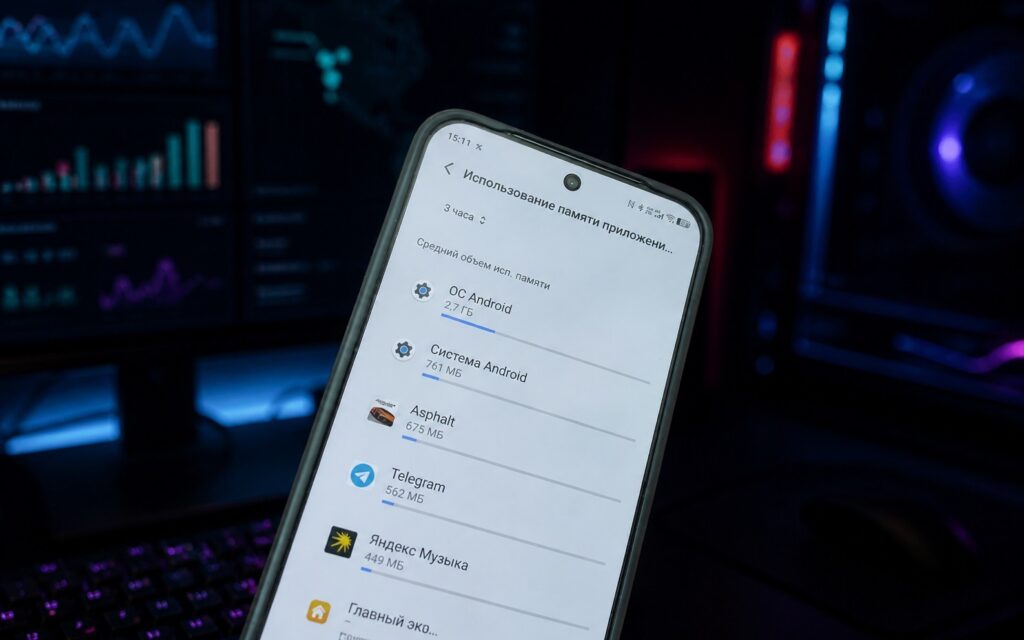
Find out which games and apps are eating up your phone’s memory
What Android RAM Affects
Android RAM is your smartphone’s workspace. Everything that’s open and active right now resides in it. If there isn’t enough, the system starts unloading apps to free up space, and the next launch of the same app takes longer.
Swiping away cards from "Recents" doesn't actually free up RAM.
The problem is that the recent apps list doesn’t show everything. It only displays apps you launched yourself. Android background processes that quietly occupy memory aren’t shown there. That’s exactly why simply swiping away cards from the “Recents” menu barely does anything, while the real memory consumers stay in place.
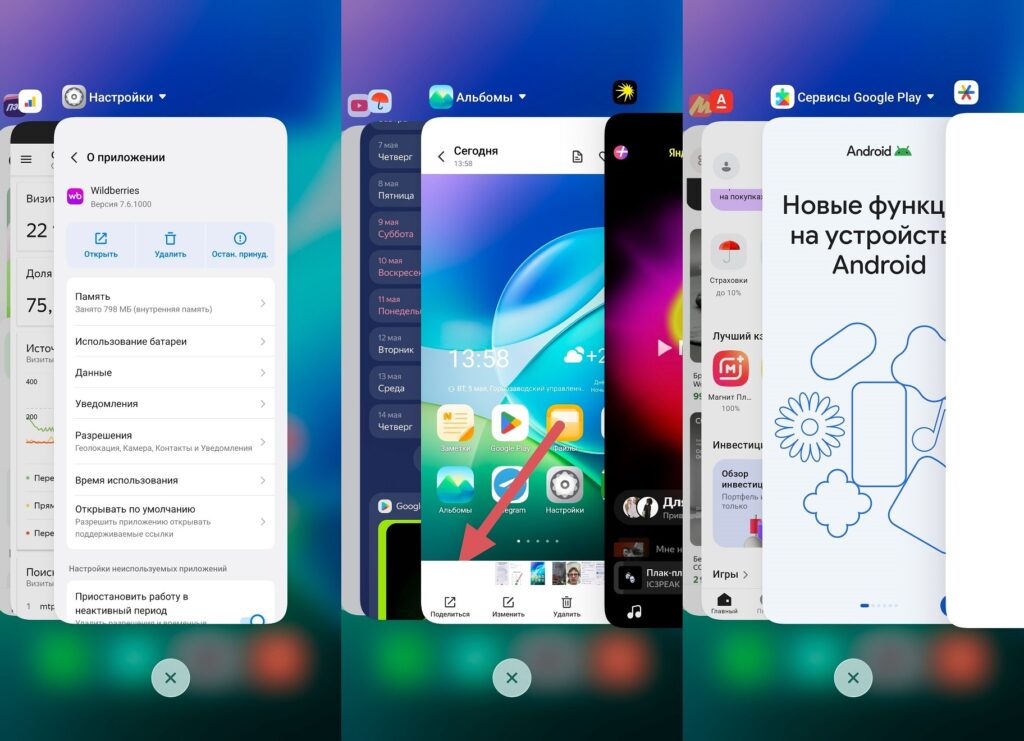
Simple clearing won’t cut it here
If you’ve accumulated many apps, some of which haven’t been opened in a long time, Android RAM gradually gets eaten up by background processes, and the phone starts running slower. This is especially noticeable on devices with 4–6 GB of RAM.
How to Check RAM on Android
The built-in RAM monitor on your phone is hidden in the “Developer options” section, which is concealed by default. To activate it:
- Open “Settings” on your phone.
- Go to the “About phone” section.
- Find “Software version” or “Build number” and tap it seven times in a row. After several taps, a message will appear confirming developer mode activation.
- Go back to “Settings,” open “System,” and select “Developer options.”
- Find the “Memory” item near the top of the list.
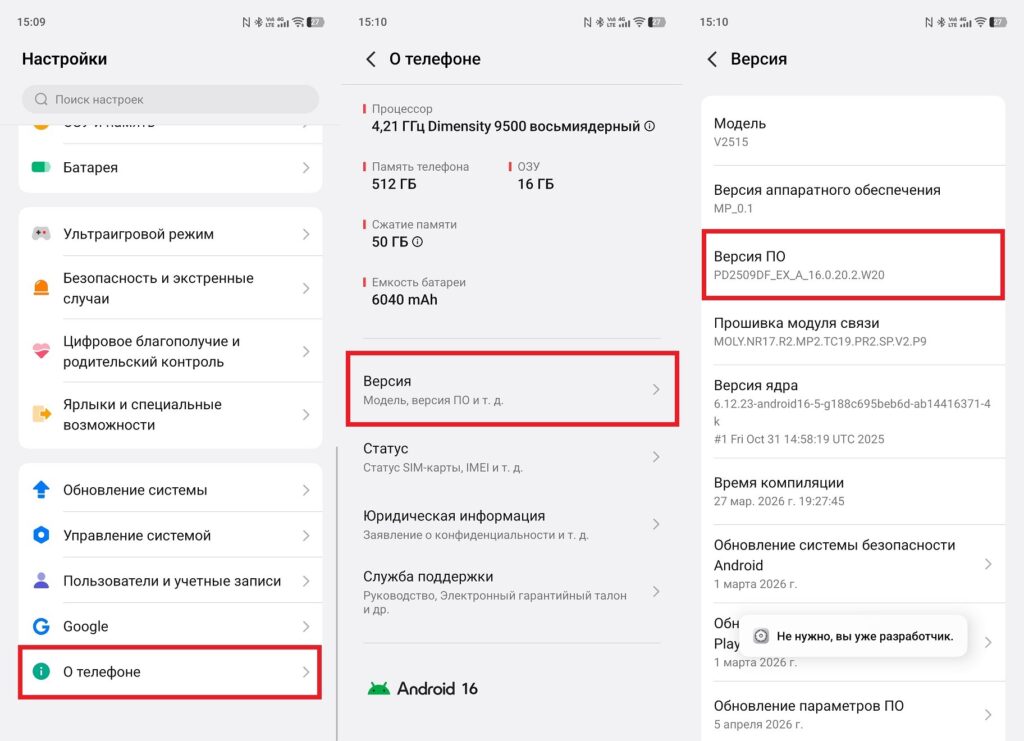
First, you need to enable developer mode
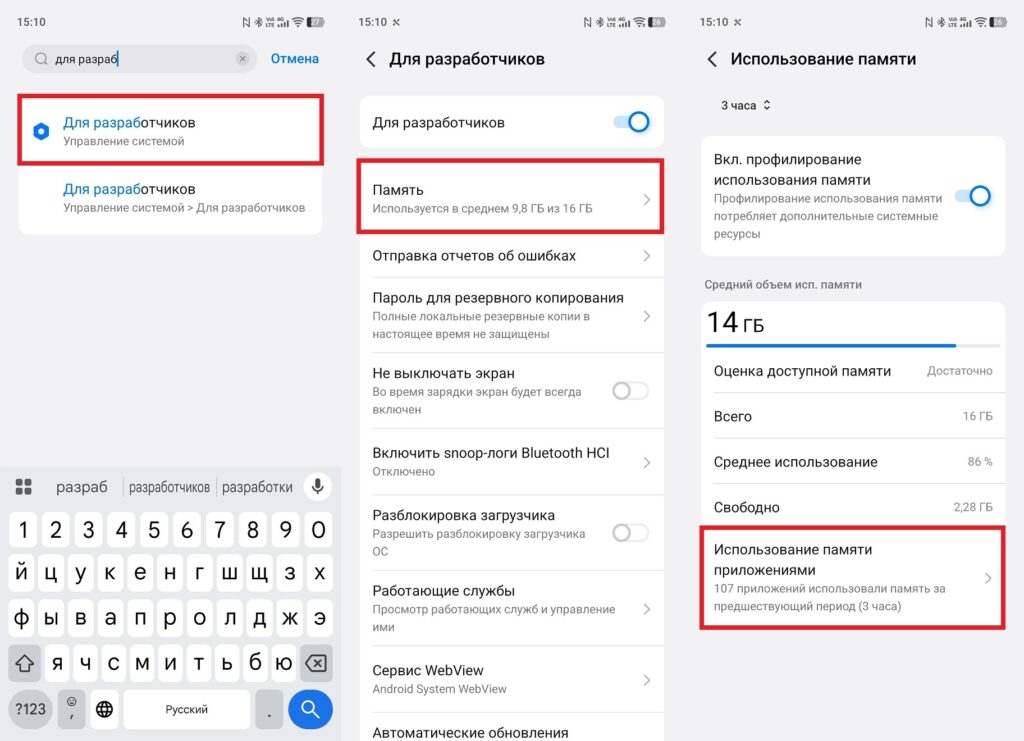
This is where you look for apps that devour memory
On Samsung Galaxy, the path is slightly different: to find “Build number,” you first need to go to “Software information” inside the “About phone” section. On Google Pixel smartphones, memory profiling may be disabled by default — you’ll need to enable it manually and restart the device.
Seven taps on "Build number" — and developer mode is activated on any Android.
What RAM Monitoring on Your Phone Reveals
Inside the “Memory” section, you’ll see the total Android RAM capacity, average usage level, and a performance rating. But the most useful part is under “Memory used by apps.”
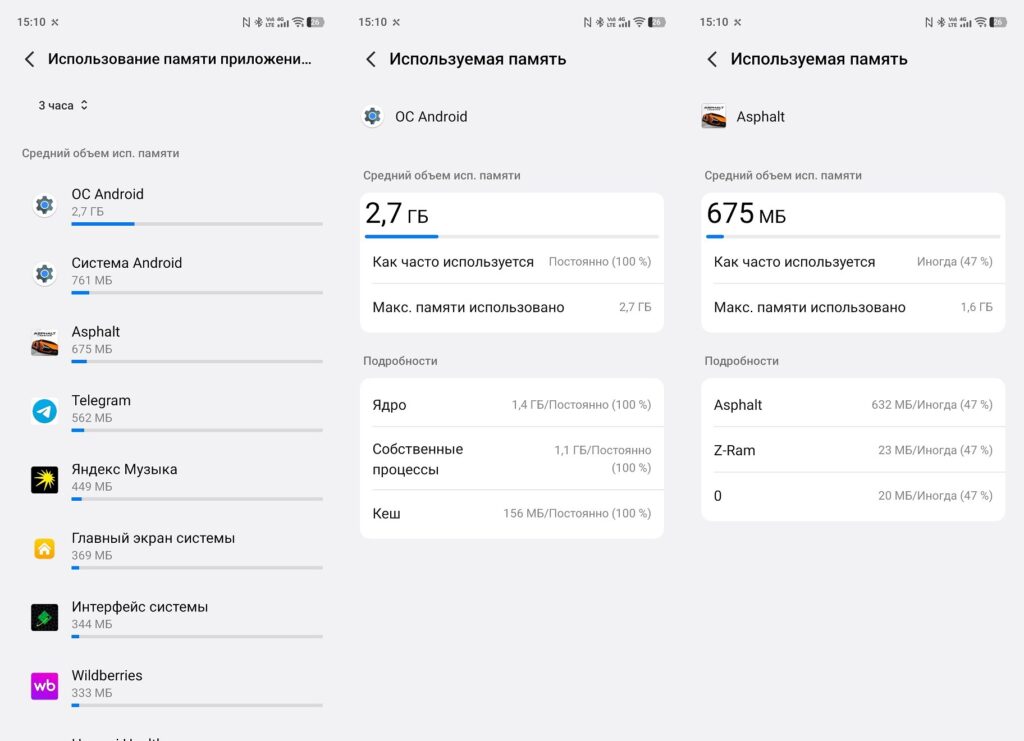
Everyone’s app list will be different
Here you’ll see a list of apps sorted by the amount of memory they’ve consumed over the selected period. At the top of the screen, there’s a time interval selector:
- 3 hours: the current picture right now;
- 6 and 12 hours: a more objective sample;
- 24 hours: the most honest snapshot, showing consistent memory consumers throughout the entire day.
Tapping on any app reveals its average and peak memory usage. The “24 hours” interval gives the most complete picture — that’s where you can see who consistently occupies RAM versus who only spikes during active use.
Which Apps Occupy RAM
Here’s the real picture from my smartphone after 24 hours of use. Apps occupy RAM very differently, and some numbers are surprising:
- Android OS: 2.7 GB (normal, this is a system process);
- Android System: 761 MB (also system);
- Asphalt: 675 MB (a game I launched in the morning);
- Telegram: 562 MB (messenger in active use);
- Yandex Music: 449 MB (background playback);
- Home screen: 369 MB (normal);
- System UI: 344 MB (normal);
- Wildberries: 333 MB (opened once in the morning).
Wildberries is a telling example. I opened it once, closed it, and it’s still occupying 333 MB. Android background apps of this type don’t unload on their own: marketplaces, news aggregators, and similar apps intentionally stay in memory to launch faster the next time you open them.
Wildberries occupies 333 MB after a single morning launch — marketplaces intentionally stay in memory.
The biggest RAM consumers are precisely those apps that run in the background constantly: messengers, music players, smart device apps. A particularly telling example is apps for gadgets you haven’t used in a long time. An app for old fitness watches or smart scales can occupy 100–250 MB even if the device itself has been sitting in a drawer for a year.
How to Clear Android RAM
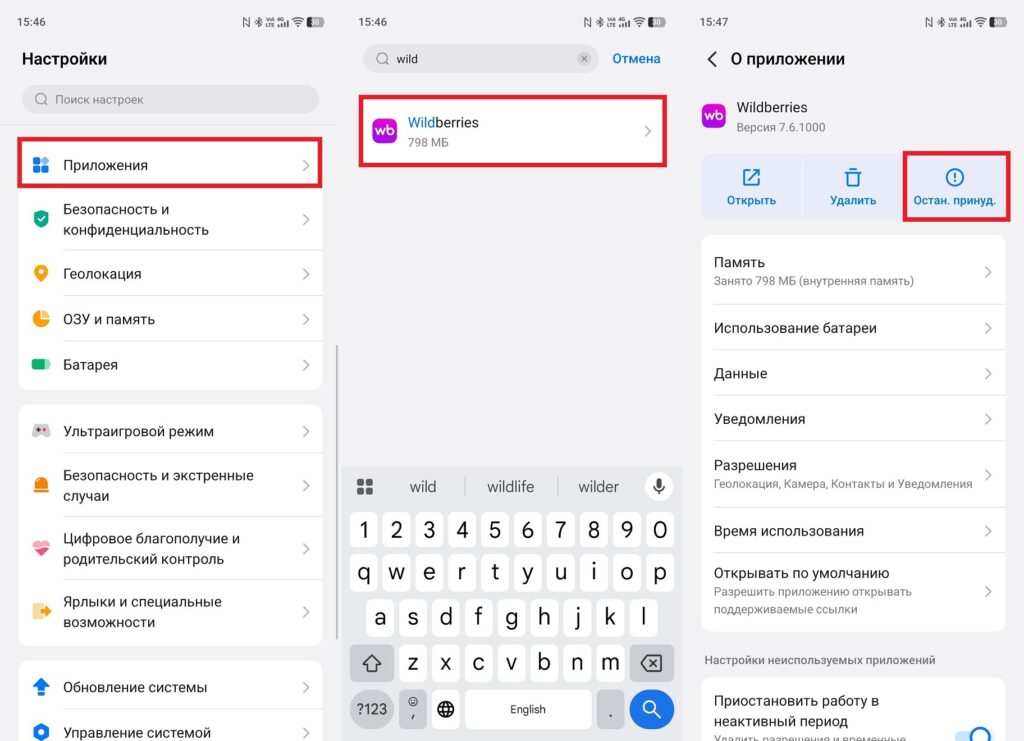
If you’ve found an app you don’t use but that consistently occupies a noticeable amount of Android RAM, there are several options. The first is to force stop the app. Tap on it in the list, open the menu via the three dots in the upper right corner, and select “Force stop.” But this is a temporary measure: after the next phone restart or system event, the app will start consuming memory again.